

In this blog post, I’ll show you how to uninstall Operations Manager (SCOM) from your setup. If you are tasked with decommissioning the SCOM from your environment, this guide is useful.
System Center Operations Manager (SCOM) is a powerful tool for monitoring and managing IT environments. There may be instances where you need to uninstall SCOM, such as when specific roles fail to function as expected, during troubleshooting, or when decommissioning the tool entirely.
In my SCOM 2025 installation guide, I did mention that you can install operations manager in a simple or distributed configuration in your environment. Uninstallation becomes much easier and more straightforward in a simple environment compared to a distributed configuration.
Note: If certain components of aren’t functioning properly, I recommend you first try repairing SCOM instead of reinstalling it. However, if you intend to fully uninstall SCOM, you may proceed.
Prerequisites for Uninstalling SCOM
Before you start the uninstallation process, ensure that you have completed the following prerequisites:
- Backup Your Data: Back up your SCOM database and management group configuration before its removal. This ensures that you can restore your monitoring environment if needed.
- Disable Monitoring and Alerts: Disable all active monitoring and alerts to avoid unnecessary notifications during the uninstallation process.
- Check Permissions: Ensure you have administrative privileges on the server hosting the Operations Manager components.
Steps for Uninstalling SCOM
I will now share the steps for uninstalling operations manager from your setup.
Step 1: Uninstall Operations Manager Agents
The first step is to remove SCOM agents from the computers being monitored. You can do this in two ways:
- From the Operations Console
- Manually on Individual Computers using MOMAgent.msi
Refer to my guide covering different methods for uninstalling SCOM agents from devices.
Step 2: Remove Management Packs
Management Packs contain monitoring configurations for specific applications and services. Before uninstalling SCOM, remove any custom or third-party Management Packs. To do this:
- Open the Operations Console.
- Navigate to the “Administration” workspace and select “Management Packs.”
- Right-click and delete the Management Packs that are no longer needed.

Step 3: Uninstall Operations Manager Components
Once you’ve removed the agents and management packs, the next step is to uninstall all the Operations Manager components. This includes the management server, operations console, web console, and reporting server. Follow these steps:
Login to Operations Manager server. Close the Operations Manager console if it’s already open. Go to Control Panel > Programs and Features. Right click Microsoft System Center Operations Manager and select Uninstall/Change.

On the Operations Manager setup page, select Remove a feature.
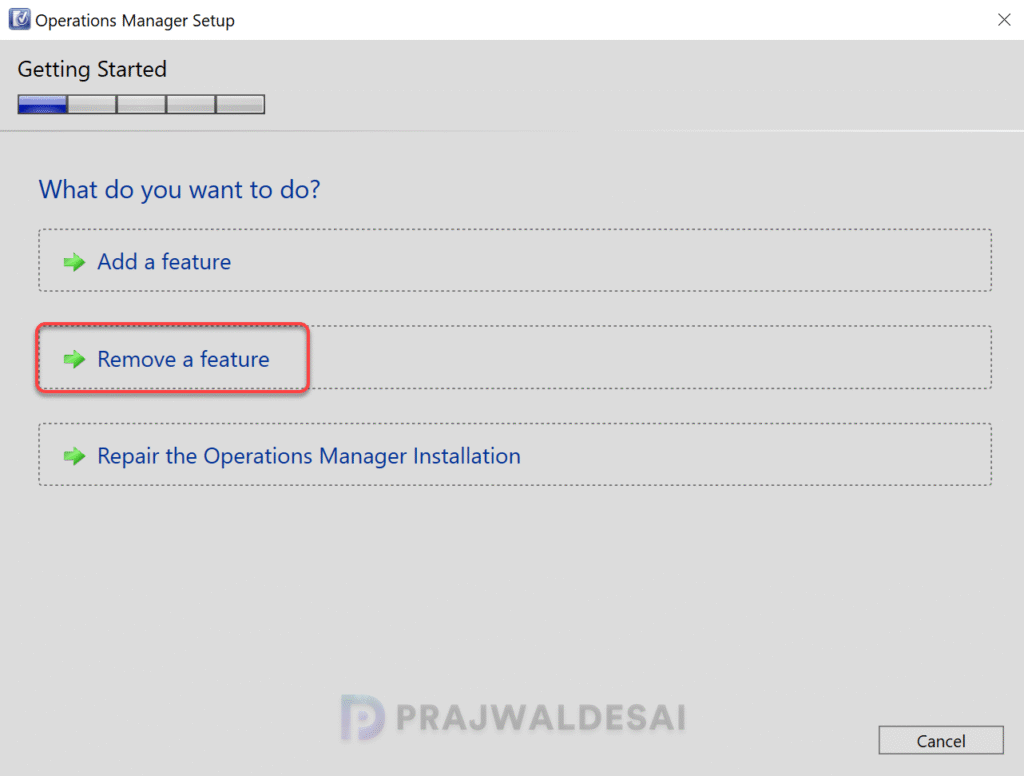
On select features to remove page, choose the operation manager components to remove. The features include management server, operations console, web console, and reporting server. Once you’ve made the selections, select Uninstall.

The components are uninstalled in an order. To monitor the uninstall progress of all the SCOM components, review the OpsMgrSetupWizard.log.
At the end, there is a management server warning displayed. The warning states that after the management server is uninstalled, you must assign agents, gateway servers and other devices to point to different management server. If you are completely removing SCOM from your setup, you can ignore the warning. Click Close.
Finally, restart the server to complete the SCOM uninstallation.

Step 4: Remove Operations Manager Databases
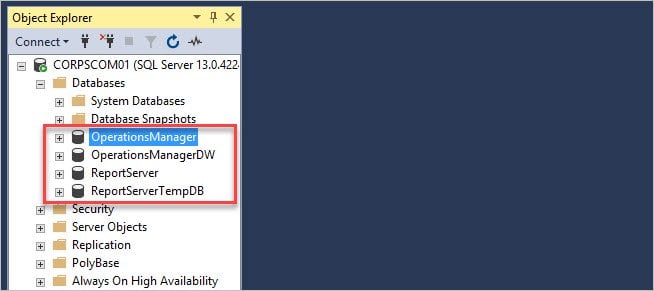
Once you have uninstalled operations manager, you can remove the databases that were created while installing SCOM. These include OperationsManager, OperationsManagerDW, ReportServer, and ReportServerTempDB.
To remove the databases, right click each of them and click Delete.
Step 5: Delete SCOM Service Accounts
After you delete the databases, you can delete the SCOM service accounts from Active Directory, any SCOM database SPN’s. If you have done that, you should be okay to remove the servers from your infrastructure.
Step 6: Clean Up SCOM File Directories
After uninstalling SCOM, some residual files may remain. Clean them up to ensure a complete uninstallation. Navigate to the SCOM installation directory C:\Program Files\Microsoft System Center and delete any remaining files.

Conclusion
Uninstalling Operations Manager SCOM is a straightforward process, but it requires careful planning and execution to avoid disruptions in your IT environment. By following the steps outlined above, you can ensure a clean and complete uninstallation. Whether you’re upgrading, troubleshooting, or decommissioning SCOM, this guide will help you navigate the process with ease.
If you have any questions about uninstalling SCOM or need assistance with monitoring solutions, feel free to leave a comment below!

If you’ve set up SCOM so it creates its DB and DW on a SQL server that’s already set up to host the databases for an instance of Report Server, clearly, a user should not be deleting those databases as they never “belonged” to SCOM. If SCOM created those DBs itself, then yeah, it’s perfectly safe to delete them.
Just a warning for your readers who might not know any better. Report Server is a separate product that SCOM leverages.