

Both WSUS and SCCM have the capability to sync and deploy Windows 11 26H1 updates. It’s just that Microsoft normally publishes it under the broader Windows 11 product, and hence it has to be enabled manually.
Windows 11 version 26H1 is a specialized, hardware-optimized release developed exclusively to support next-generation silicon, such as select ARM processors. It is not a standard feature update for existing PCs. Windows 11, version 26H1 is not offered as an in-place update from Windows 11, version 24H2 or 25H2 on existing devices.
If you’re planning to deploy updates for Windows 11 26H1 updates via Configuration Manager (SUP) or WSUS standalone, you need to first sync those updates into WSUS/Software Update Point. Only then can you patch the updates for computers running 26H1 via SCCM/WSUS. That’s what this guide is all about.
Managing Windows 11 26H1 updates
Windows 11, version 26H1 security updates will be manageable through typical different options that include Windows Autopatch, Microsoft Intune, Microsoft Configuration Manager, etc. That also means W11 26H1 is a supported client OS for installing the SCCM client, and I assume the latest current branch should be used.
WSUS is Deprecated
It has been quite a long time now that Microsoft has announced that WSUS is deprecated. Organizations that still rely on WSUS to distribute the Windows 11 updates should consider Intune or Autopatch for client update management and Azure Update Manager for server update management.
Enable Windows 11 26H1 Product in WSUS
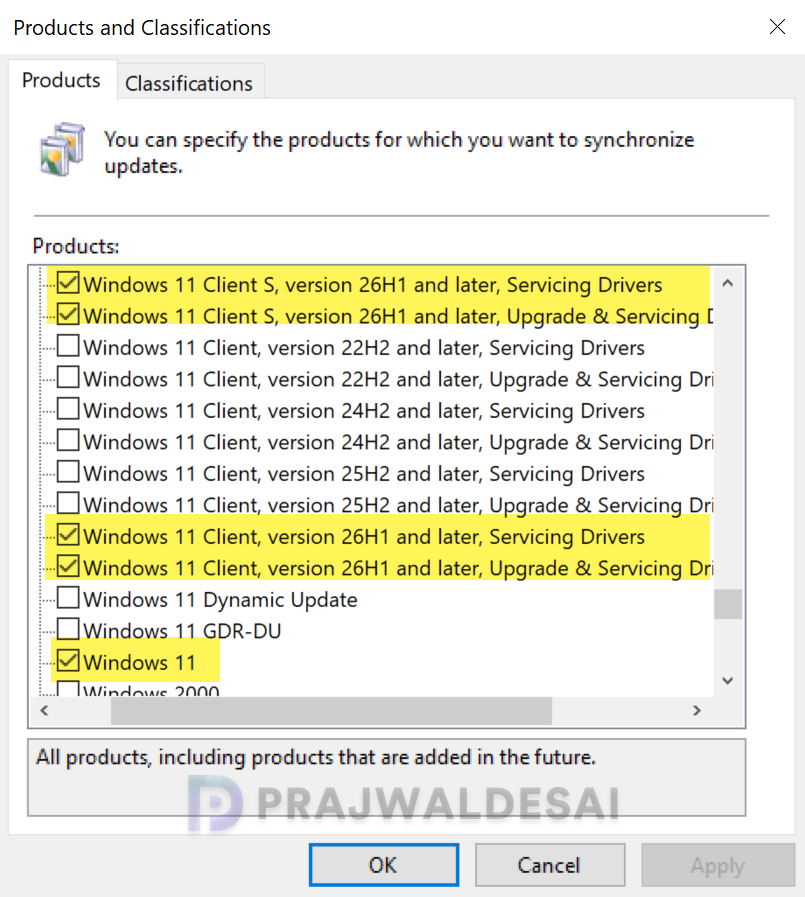
Launch the WSUS admin console on the Windows Server. Select your WSUS server and click on Options. On the right-hand side, select Products and Classifications. In the Products tab, locate Windows 11 and enable it.
Along with Windows 11, the four other products related to Windows 11 26H1 include:
- Windows 11 Client, version 26H1 and later, Servicing Drivers
- Windows 11 Client, version 26H1 and later, Upgrade & Servicing Drivers
- Windows 11 Client S, version 26H1 and later, Servicing Drivers
- Windows 11 Client S, version 26H1 and later, Upgrade & Servicing Drivers
Enabling the above options is not mandatory. Click on Apply and OK.
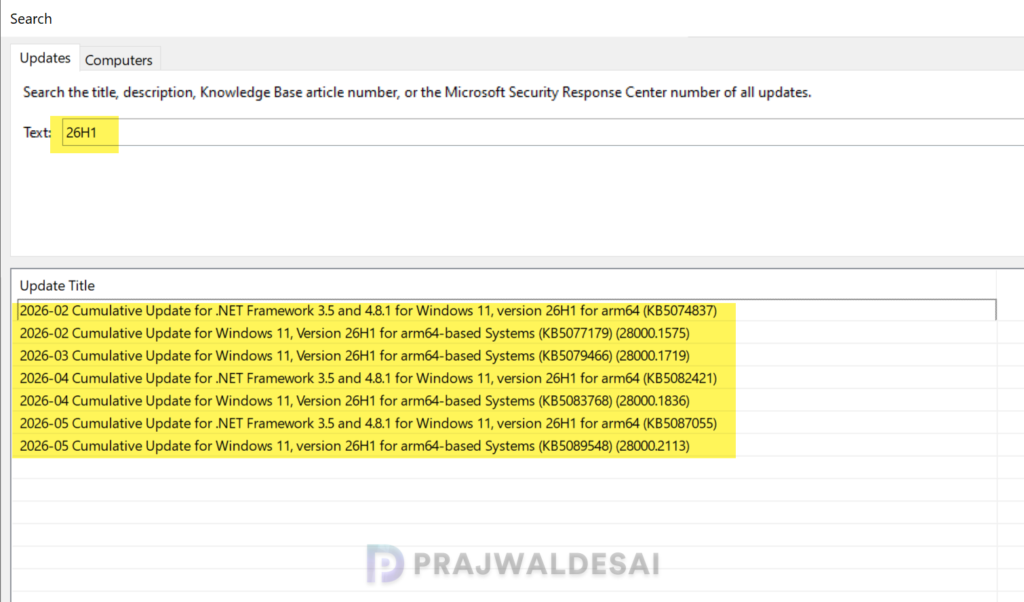
The next step is to synchronize the updates. In the WSUS console, navigate to Synchronizations, and under the Actions menu, select Synchronize Now. This will force WSUS to check the latest updates for the products that you have enabled.
Wait for the sync to complete. Once that is done, you should find the updates for W11 26H1 on the WSUS console, which then can be deployed to your enterprise devices.
Enable Windows 11 26H1 product in SCCM
If you deploy Windows updates with SCCM, you can enable the Windows 11 product under the Software Update Point role properties and get the latest updates for Windows 11 26H1.
Launch the Configuration Manager console. Go to Administration\Overview\Site Configuration\Sites. Select the site and go to Software Update Point properties. Select the Products tab and enable Windows 11 products. Click Apply and OK.
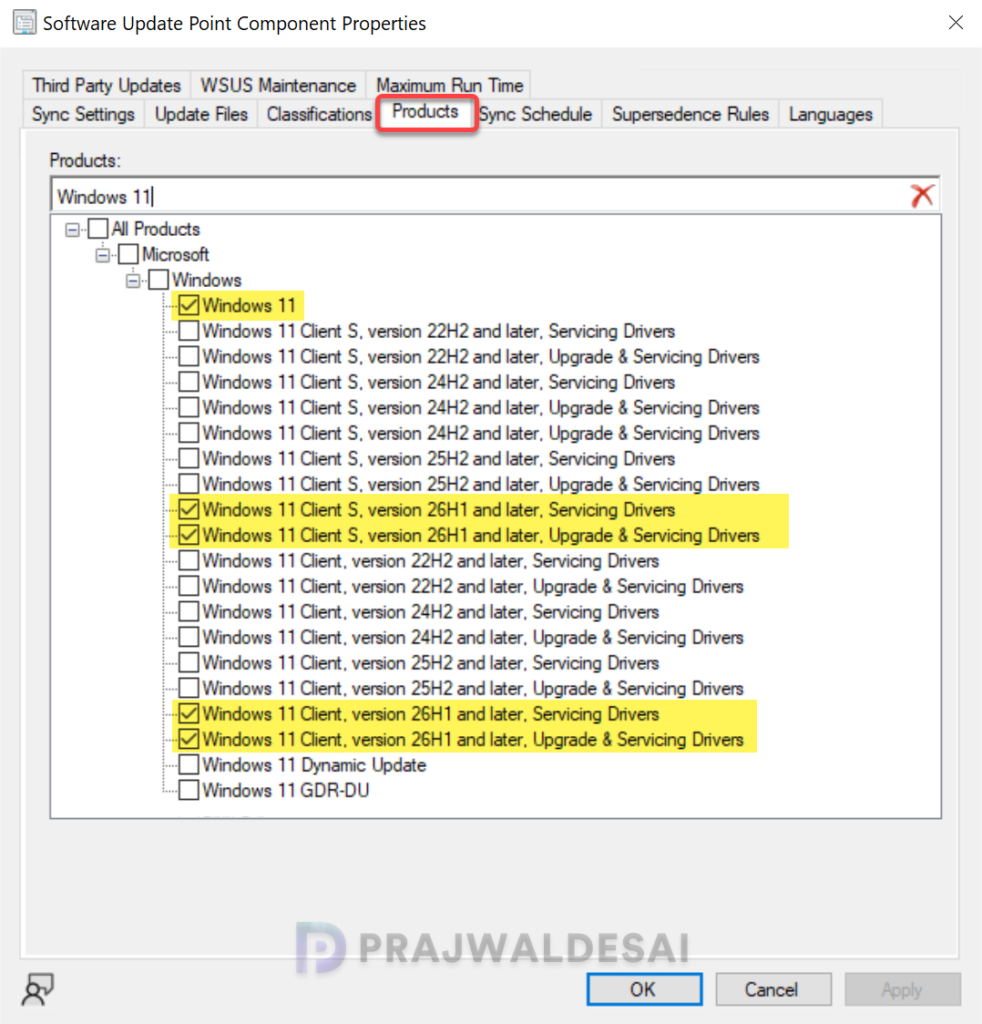
After performing the above steps, the Configuration Manager console may not immediately show the 26H1 updates. That’s because you haven’t performed the SUP sync yet. Do so by manually running the software update point synchronization. Once the sync is complete, the SCCM console shows the Windows 11 26H1 updates for deployment.
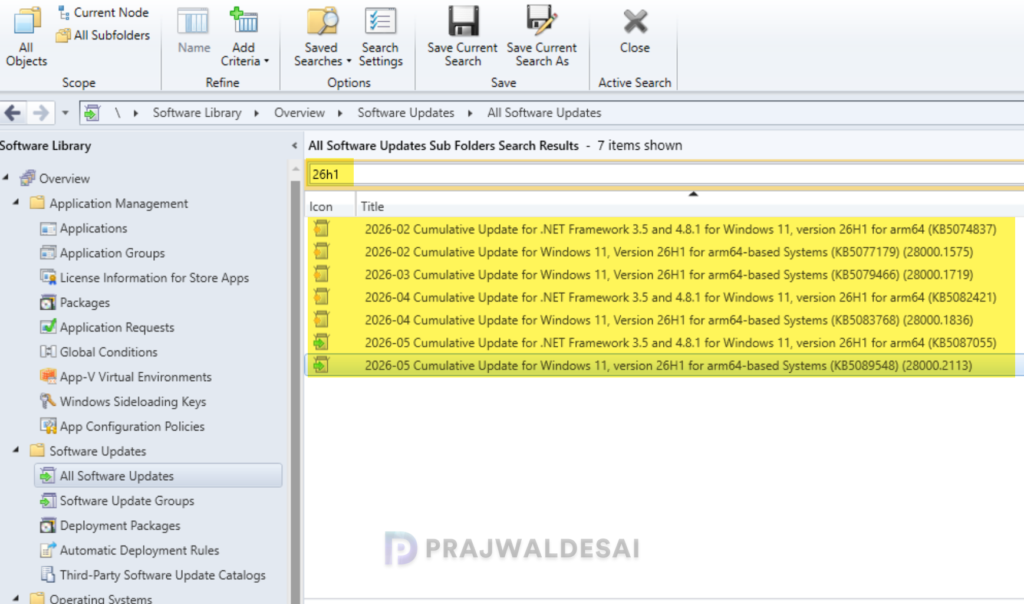
Useful SCCM logs to check
If you are using Configuration Manager, check these logs on the site server to troubleshoot issues related to the 26H1 updates deployment.
- WCM.log: For SUP configuration.
- WSyncMgr.log: Check the update synchronization.
- WSUSCtrl.log: Shows your WSUS health/status.
- Ruleengine.log: If you are using ADRs to patch updates, this log file is all you need.
- PatchDownloader.log: Check this log for content download issues.
If sync finishes successfully but you still cannot see the update, WSyncMgr.log is usually the first place to check. Furthermore, refer to the list of all other Configuration Manager logs.
Why don’t I see any 26H1 Updates in SCCM?
Here are a few reasons why you might not see updates for 26H1 product in ConfigMgr/WSUS.
- Windows 11 26H1 has been released for quite some time now, and you should find the updates released on a monthly basis, and patching them can be much easier with solutions offered by Microsoft. Take a look at the monthly updates released for all supported Windows 11 versions.
- Make sure you have selected the Windows 11 product under SUP/WSUS and performed the synchronization to get the updates.
- Make sure your current branch version is updated and is in an active support period. Check the lifecycle dates for SCCM to get that information. Older versions can have issues with newer Windows release metadata.
- Lastly, review the wsyncmgr.log file to see if the updates are synced correctly without any errors.
