


In this comprehensive guide, I will show you how to configure Windows backup for organizations using Intune. I will outline the advantages of the Windows Backup for Organizations feature, detail the backup and restore process, and explain how organizations can deploy it effectively using Microsoft Intune.
Windows Backup for Organizations in Microsoft Intune enables users to securely sync their settings to the cloud and restore them during OOBE on new or re-imaged devices. In simple words, using this feature, you can back up your organization’s Windows 10 or Windows 11 settings and restore them on a Microsoft Entra joined device.
Note that starting in Intune 2508 service release, the backup setting is available in public preview, while the restore setting will be available for public preview beginning August 26. The Windows Backup setting is also available in Group policy but I am going to cover about it in another guide.
Benefits of enabling Windows Backup for Organizations
Implementing Windows Backup for Organizations with Intune offers the following benefits.
- Reduced troubleshooting: When the user’s settings are backed up, you can confidently reset devices whenever required and be assured that all those settings will be restored from cloud without any loss.
- Seamless migration experience: Windows 10 support ended on October 14, 2025, many organizations can smoothly transition from devices running Windows 10 to devices running Windows 11 using saved backups.
- Enhanced productivity: Minimize downtime and maximize user productivity, whether resetting the device or re-imaging, by restoring user settings to their preferred and familiar PC preferences.
Settings Catalog
An article published by Microsoft offers a detailed overview of the settings that are backed up and those that are not when using the settings catalog to back up to the cloud via Windows Backup for Organizations. I recommend going through the article before you implement a backup policy with Intune for your organization.
Prerequisites
The prerequisites for using Windows backup and Windows restore are different. Verify each of the requirement is in-place before going further. I have detailed each of them below, referencing Microsoft’s official documentation.
Requirements for Windows Backup Feature
The backup feature is available on devices that meet the following requirements:
- Devices must be Microsoft Entra hybrid joined or Microsoft Entra joined.
- The supported Windows operating system versions include:
- Windows 10, version 22H2, build 19044.6216 or later.
- Windows 11, version 22H2, build 22621.5768 or later.
- Windows 11, version 23H2, build 22631.5768 or later.
- Windows 11, version 24H2, build 26100.4946 or later.
Requirements for Windows Restore Feature
The restore feature is available on devices that meet the following requirements:
- The devices must be Microsoft Entra joined.
- The restore feature is available on devices that are either on August 2025 cumulative update or meet the following requirements:
- Windows 11, version 22H2, build 22621.3958 or later.
- Windows 11, version 23H2, build 22631.3958 or later.
- Windows 11, version 24H2, build 26100.1301 or later.
- Ensure the device user must have at least one backup profile before you restore.
- Enable the Install Windows quality updates policy. If you’re on a build older than July 2025, verify that the setting Install Windows quality updates is enabled for your devices to leverage the feature.
- If Autopilot is used, the Windows Autopilot profile must be configured to use user-driven mode so that restore happens during OOBE, not self-deploying mode.
- Lastly, you must configure the Windows quality updates setting, an enrollment status page feature.
Enable Windows Backup for Organizations in Intune
To enable Windows Backup for Organizations during enrollment, there are two key steps: first, enable the Windows backup feature in Intune using the settings catalog. Next, turn on the restore feature in the Microsoft Intune admin center under enrollment. Both steps are outlined below.
Step 1: Enable Windows Backup using Intune Policy
Sign in to the Microsoft Intune admin center as an Intune service administrator. Go to Devices > Windows > Configuration > Create > New Policy. Choose Windows 10 and later as Platform and Settings Catalog as Profile Type.
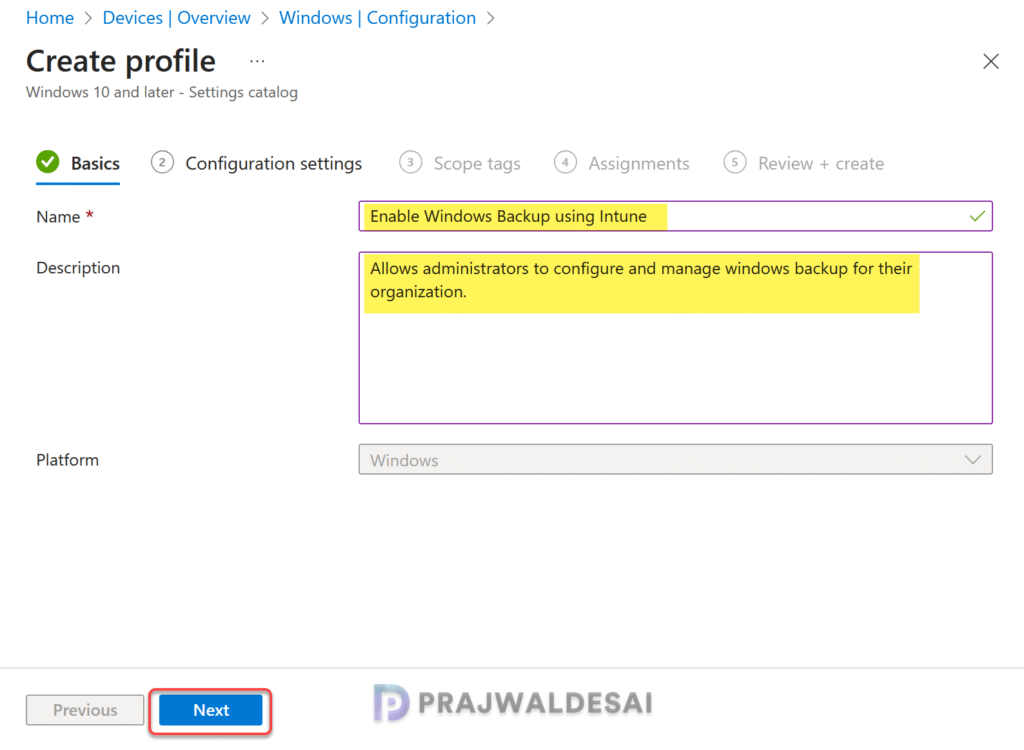
On the Basics tab, specify the name of the profile as “Turn on Windows Backup using Intune“. You may add a brief description about the profile. Click Next to continue.
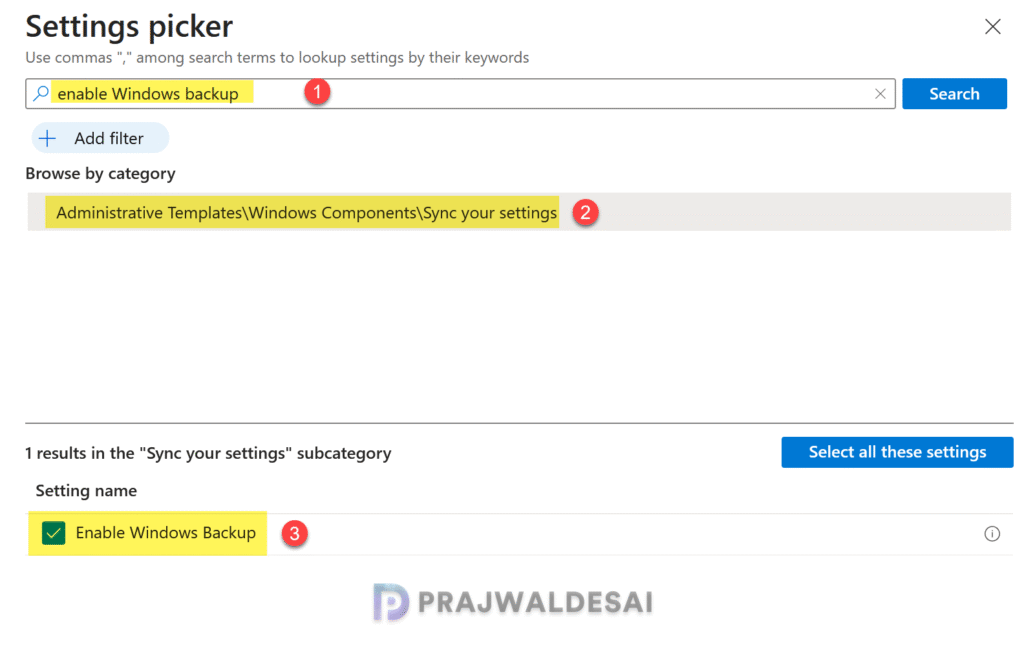
In the Settings Picker, search for “enable windows backup“. From the results, under the Sync your settings category, select the Enable Windows backup setting. Close the settings picker.
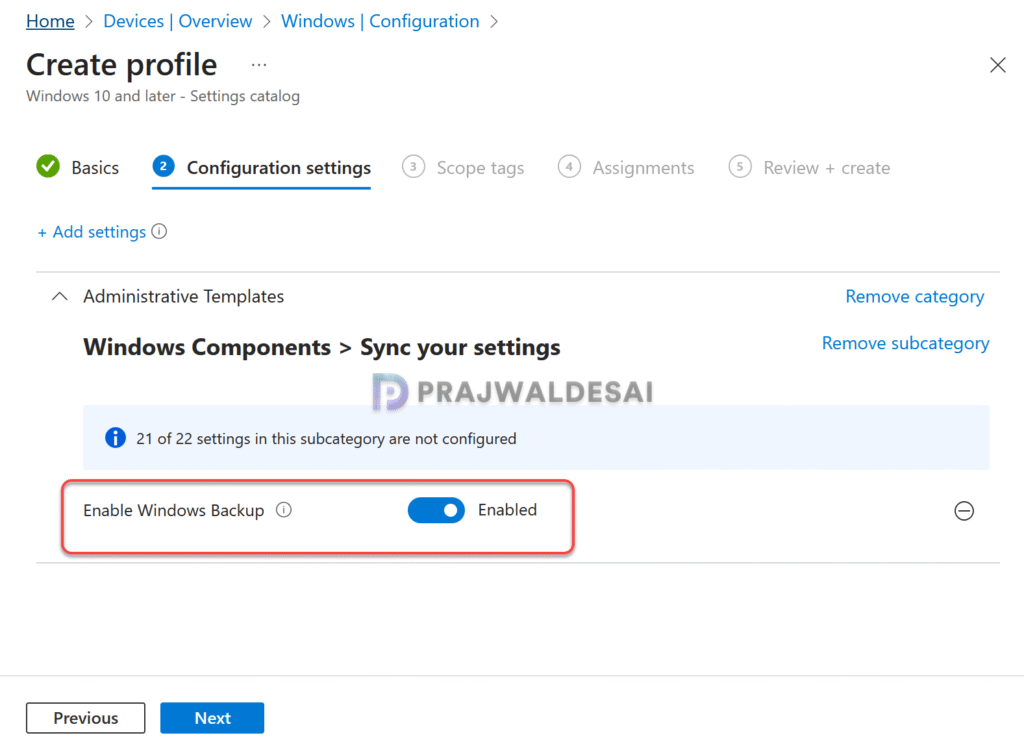
Set the Enable Windows backup setting to Enabled as shown in the below image. Click Next.
In the scope tags section, add your scope tags. If you haven’t created them, refer the guide on creating and using Intune scope tags. Note that specifying scope tags is optional, and you may skip this step. Click Next.
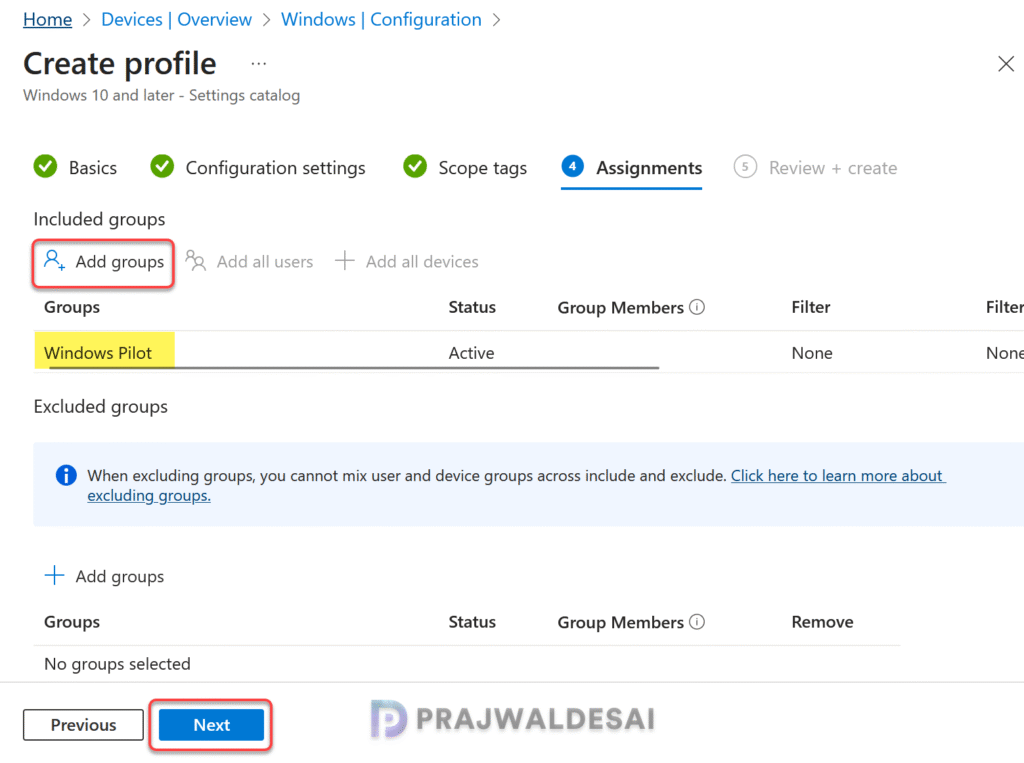
In the Assignments window, select the Entra security user groups to which you want to assign the policy. I recommend deploying the profile to a few test user groups first and then expanding it to more users if the testing is successful. Select Next.
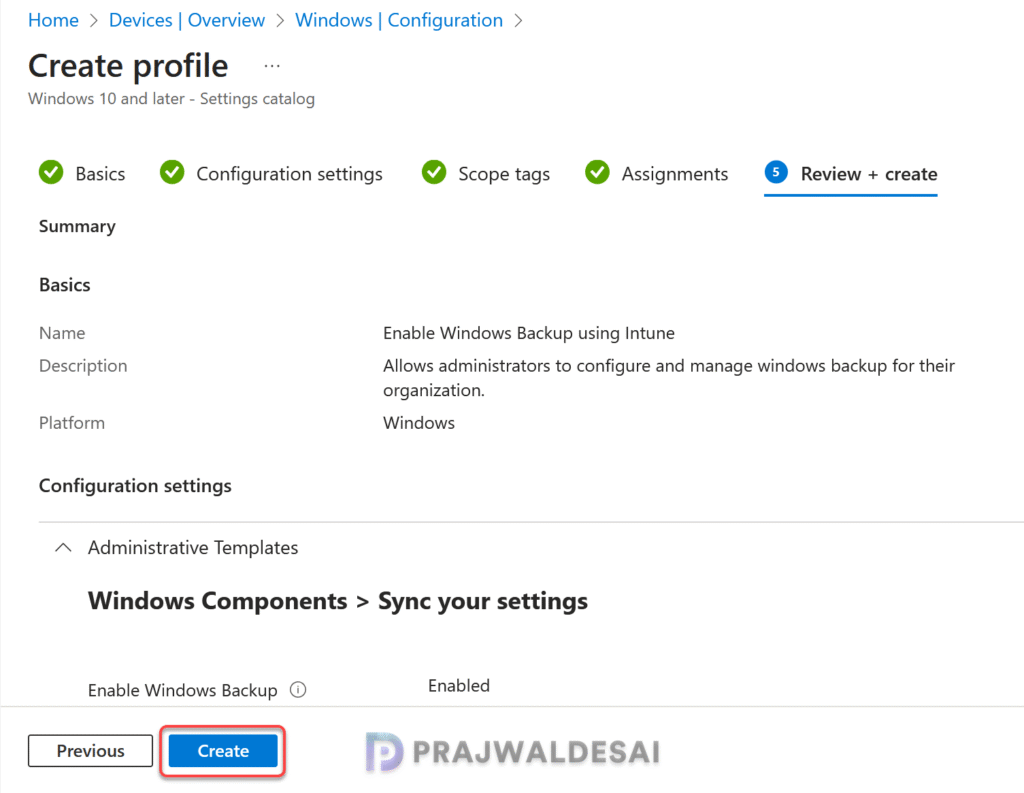
On the Review + Create page, review all the policy settings that you have configured so far and select Create. That’s completes the steps to enable the Windows backup feature using Intune policy.
Step 2: Enable Windows Restore in Intune (Tenant wide)
The restore setting for Windows Backup for Organizations is a tenant-wide setting which can be either turned on or off for all Windows devices in a tenant. By default, the restore settings are set to Not configured for all tenants. This setting must be enabled explicitly to allow restore functionality for users.
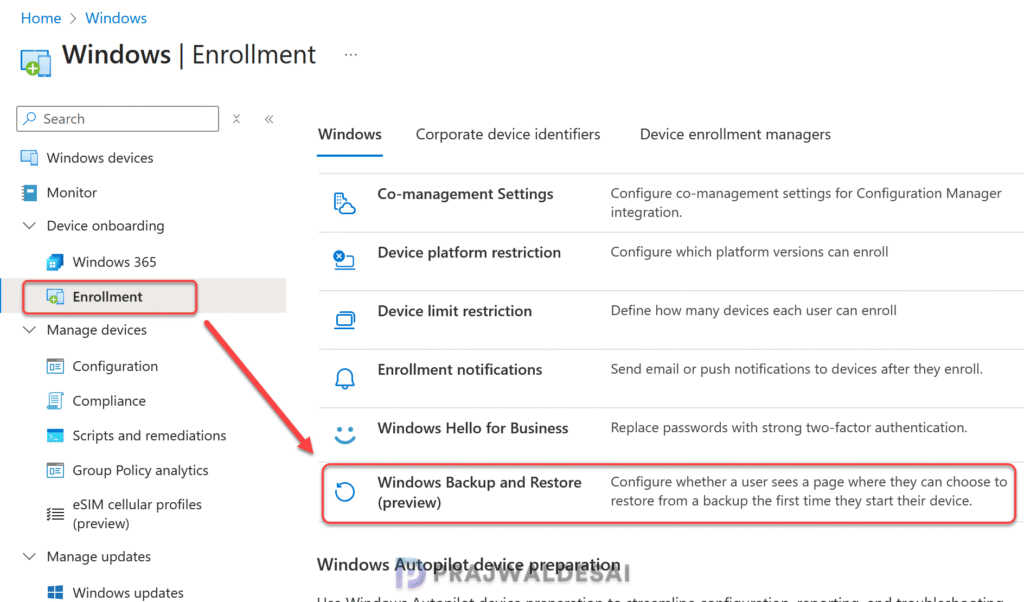
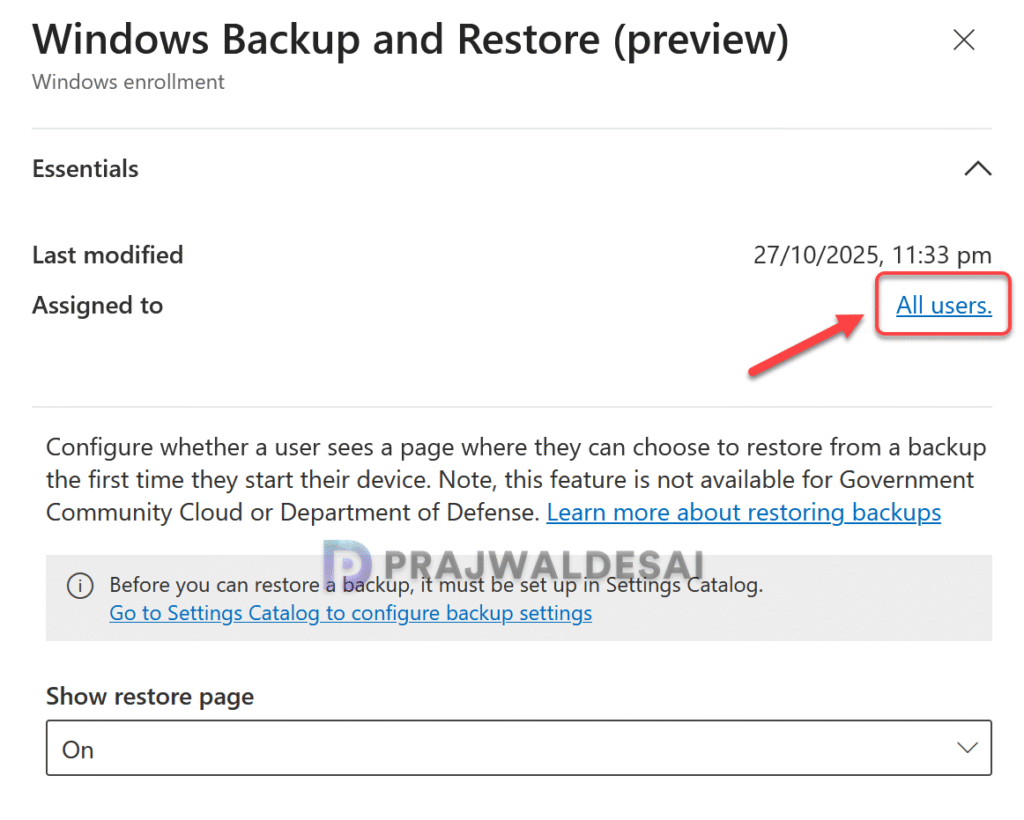
Let me now show you the steps to enable the Windows Restore setting for enrollment. First, sign in to the Microsoft Intune admin center. Go to Devices > Enrollment and select the Windows tab. Under Enrollment options, select Windows Backup and Restore.
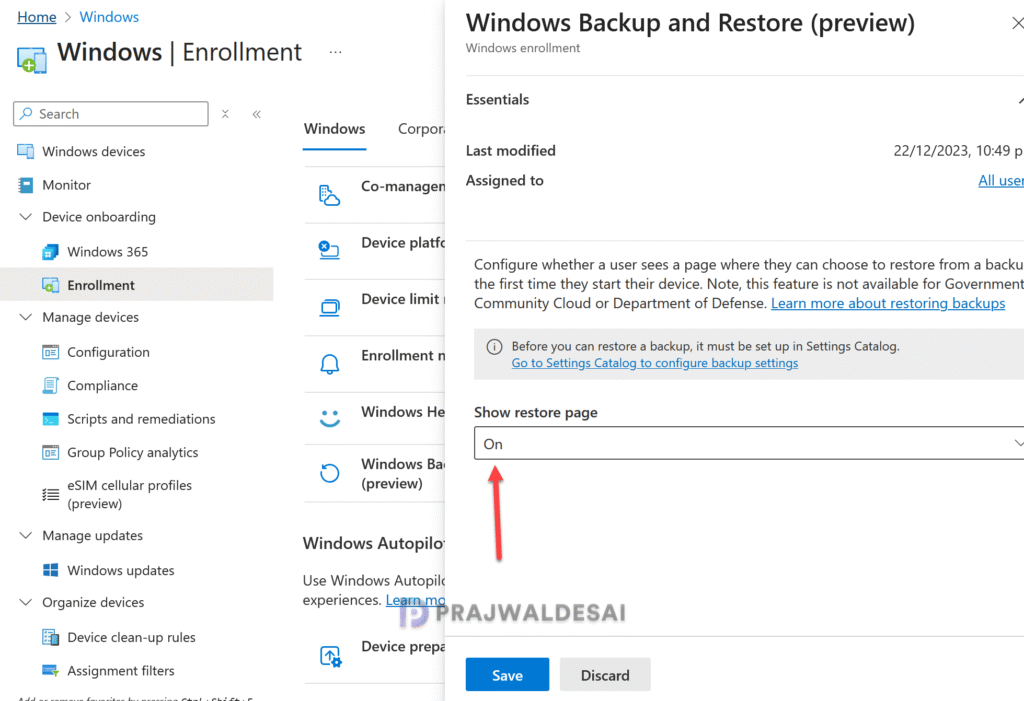
Click the drop-down below the Show restore page setting, select On and click Save. Upon starting their device for the first time, users are presented with a page allowing them to select the option to restore from a backup.
Step 3: Monitor the Backup and Restore Policy in Intune
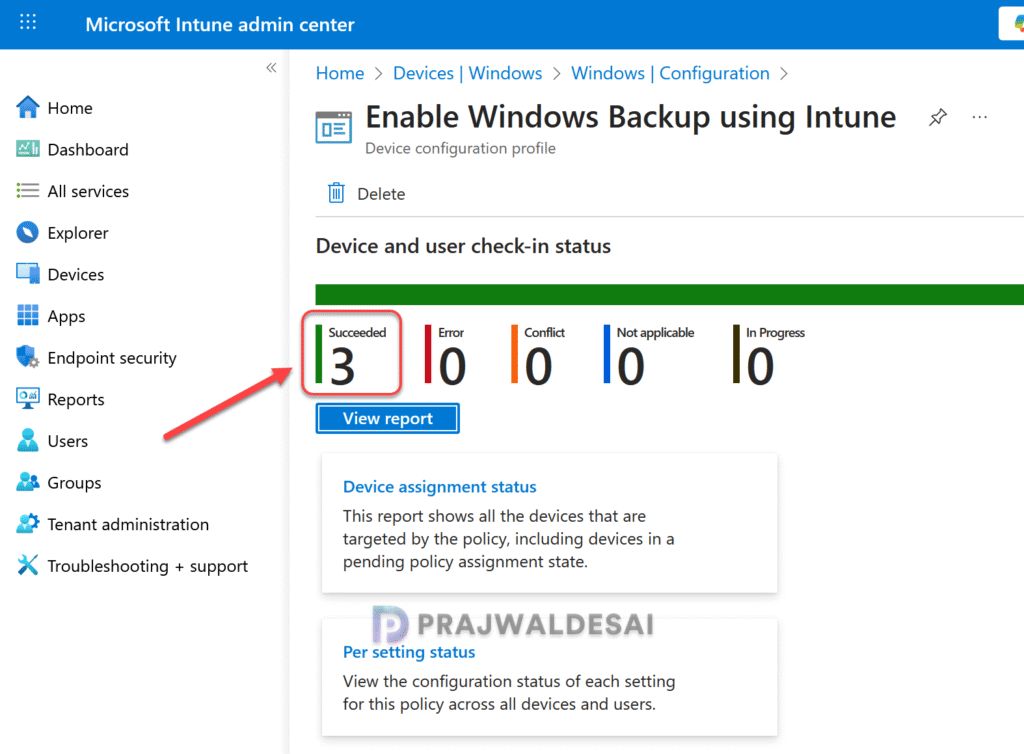
In the Intune admin center, go to Devices > Windows > Configuration and here select the Enable Windows Backup profile. On the Policy overview page, check the device and user check-in status.
Here you will find the number of devices or users on which the policy has been applied successfully. The view report button lets you see the names of devices or users for which the policy deployments have been successful.
To speed up the policy assignments in your tenant, you can manually sync Intune policies using different methods on your enrolled Windows computers, including PowerShell. The sync action will force devices to immediately check-in with Intune and retrieve the latest policies.
You don’t have to worry about the applicability of the restore feature. The Windows restore feature is assigned to ‘All Users‘. It cannot be enabled for specific groups in Intune, as it is a tenant-wide setting that applies universally to everyone. The Last modified data shows the date and time when the restore setting was modified.
End User Experience for Windows Backup
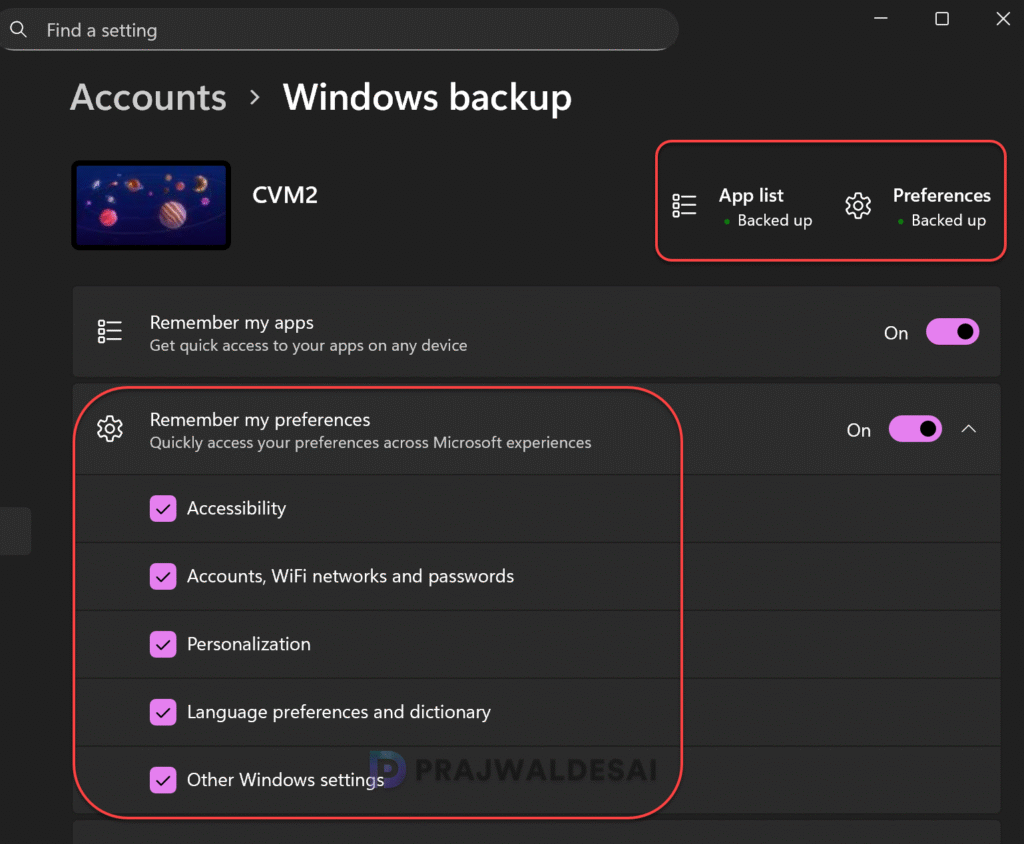
Log in to a Windows 11 device that is targeted with Windows backup policy via Intune. Open the Settings apps and select Accounts > Windows backup. Here you can see that both App list and Preferences are automatically selected by backup policy. The backup task can be found in the task scheduler and is configured to run once every 8 days.
End User Experience for Windows Restore
In this section, I will explain how the Windows restore feature works. This feature is well explained in Windows IT Pro article as well. The restore option is displayed during OOBE when a user signs in with their Microsoft Entra ID, and here is the actual process that occurs.
- The administrator enables the restore policy in Microsoft Intune.
- The user powers on a new or re-imaged device.
- On the OOBE screen, the user signs in with the same Microsoft Entra ID used during backup.
- The user then sees the options to restore a previous backup or set up the device as new.
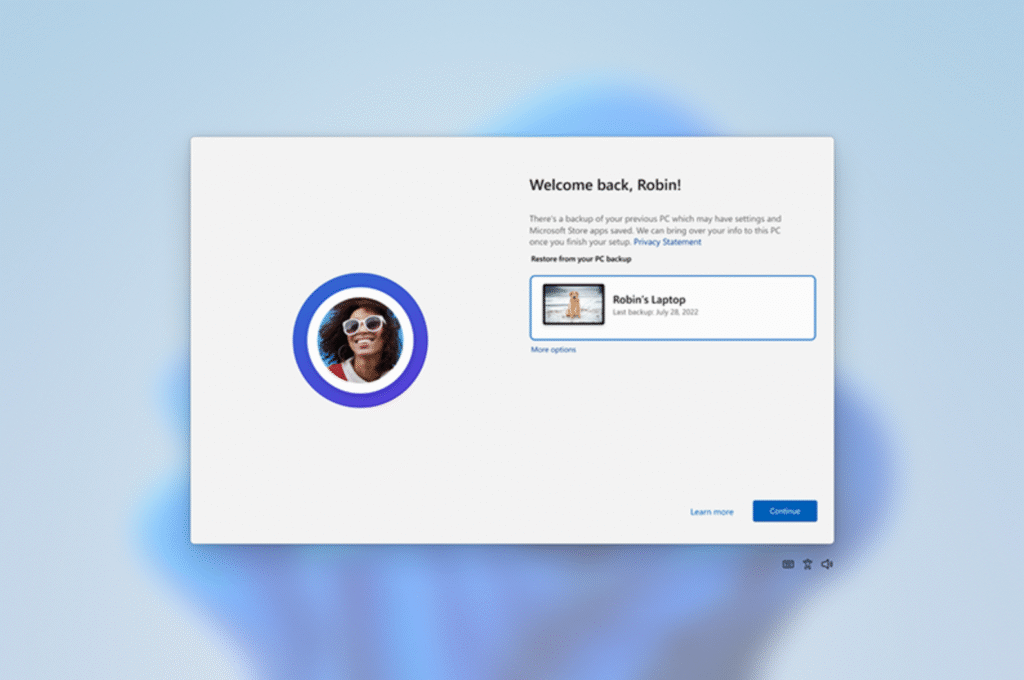
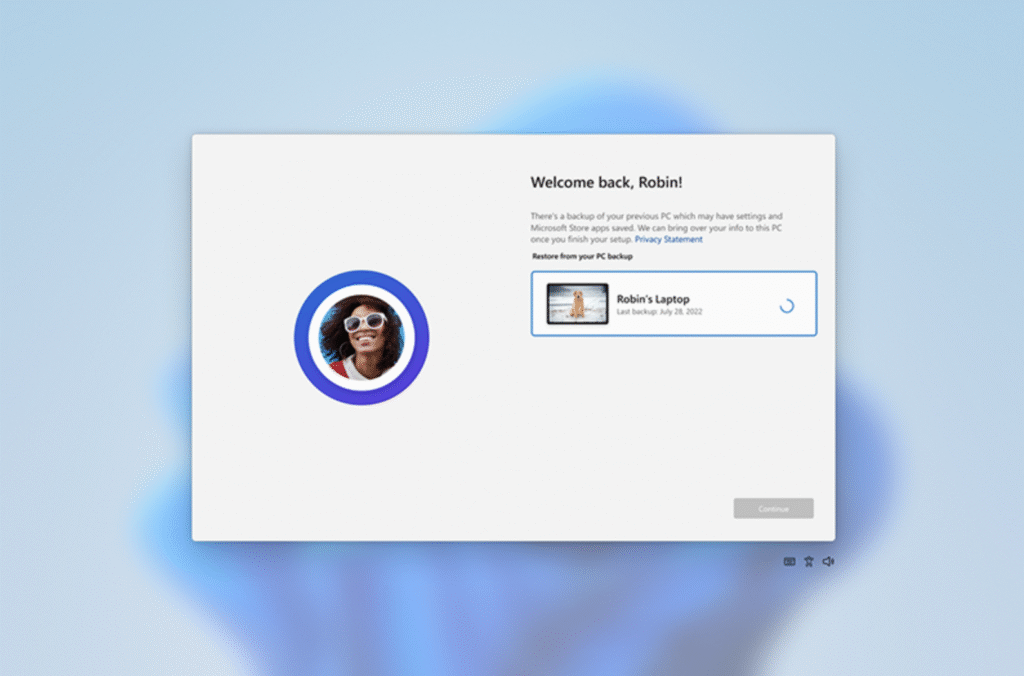
If the user selects More options, they’ll see any additional backups from other devices available to them (if applicable). The user selects from the list of available devices and selects Continue.
After OOBE is completed, the user profile is loaded, and user preferences are restored automatically. All the backed up data is restored and that’s how the restore feature works on Windows 11.
Troubleshooting
In some cases, the Windows Backup for Organizations policy may fail to apply to certain users or devices. To troubleshoot these issues, it is important to review the essential Intune IME logs.
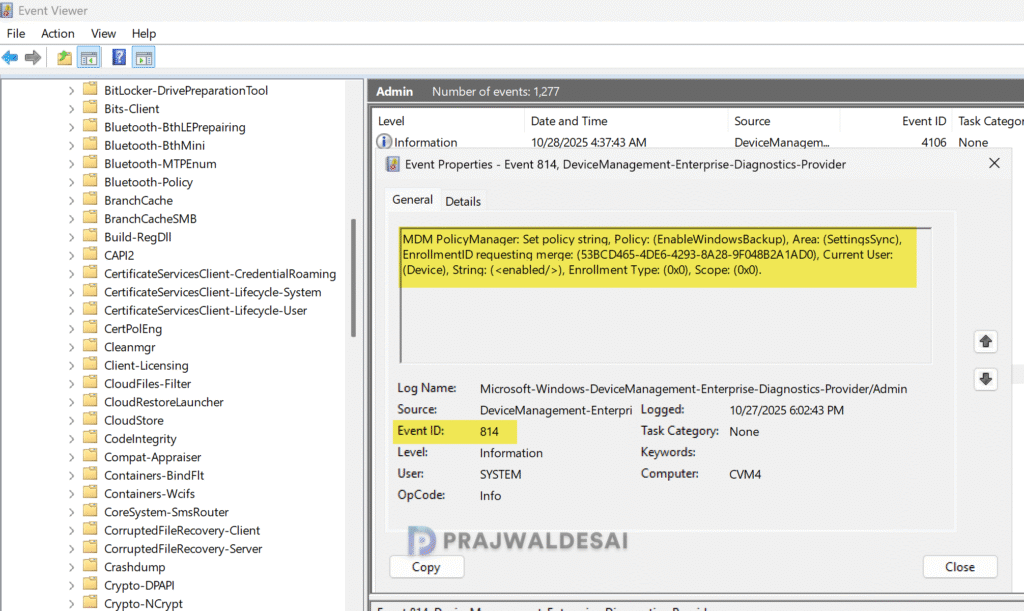
Open the Event Viewer and go the following path: Applications and Services Logs > Microsoft > Windows > Devicemanagement-Enterprise-Diagnostics-Provider > Admin. Look for the Event ID 814 to confirm if the Backup is enabled on the device.
Log Name:      Microsoft-Windows-DeviceManagement-Enterprise-Diagnostics-Provider/Admin
Source:        Microsoft-Windows-DeviceManagement-Enterprise-Diagnostics-Provider
Event ID:      814
Description:
MDM PolicyManager: Set policy string, Policy: (EnableWindowsBackup), Area: (SettingsSync), EnrollmentID requesting merge: (53BCD465-4DE6-4293-8A28-9F048B2A1AD0), Current User: (Device), String: (<enabled/>), Enrollment Type: (0x0), Scope: (0x0).In the below image, we see the MDM policy manager shows that EnableWindowsBackup is successfully applied on the device.
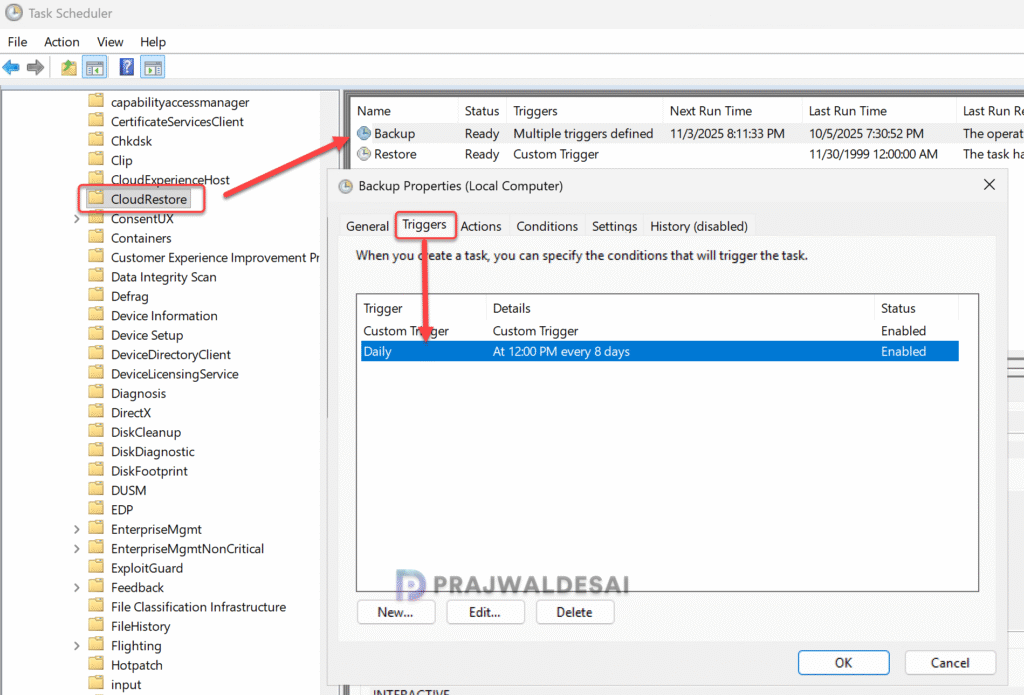
When you enable Windows Backup and Restore through Intune, a new CloudRestore backup task is created in the Task Scheduler. To locate this task, open the Task Scheduler and go to Microsoft > Windows > CloudRestore > Backup. This task runs at 12:00 PM every 8 days.
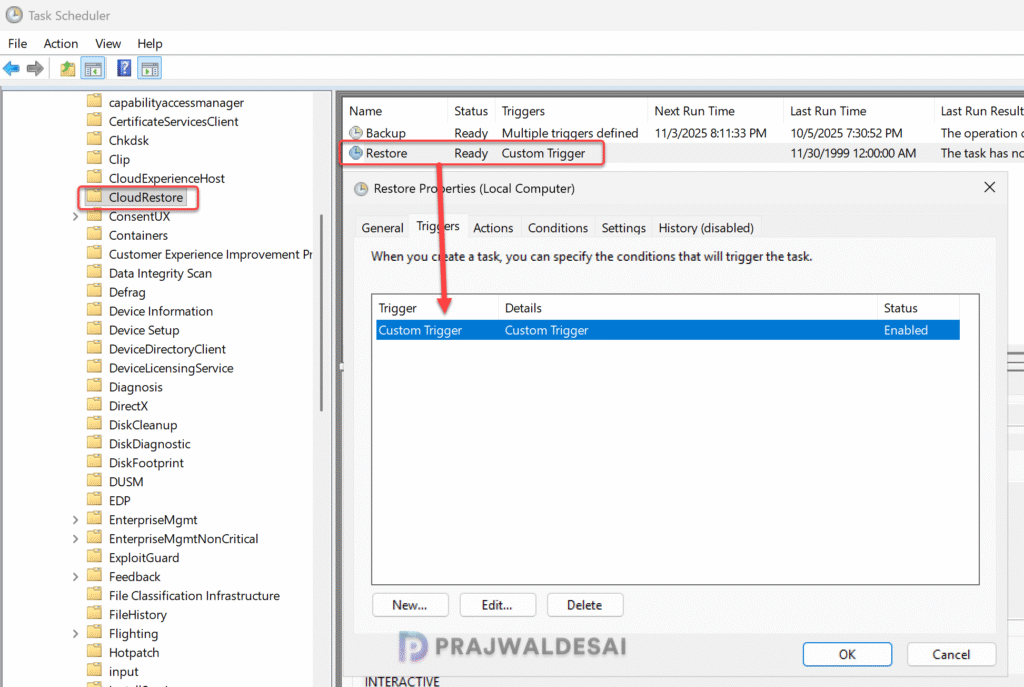
In the same pane, you’ll also notice a Restore task in the Task Scheduler configured with a custom trigger.
Turn off Windows Backup and Restore for Organization
If you don’t wish to use the Windows Backup and Restore for Organization in Intune anymore, you can turn off both Backup and Restore features individually.
- Turn off Windows Backup: In the Intune admin center, go to Devices > Configuration and search for backup policy. Select the Windows Backup policy and edit the COnfiguration Settings. Set Enable Windows Backup to Disabled and save the profile.
- Turn off Windows Restore for Tenant: In the Intune admin center, go to Devices > Enrollment and select the Windows tab. Under Enrollment options, select Windows Backup and Restore and set it to Off.
Conclusion
Enabling Windows Backup and Restore using Intune ensures that users’ data and system configurations are protected, providing a reliable way to recover from unexpected issues. By leveraging Configuration Profiles, IT administrators can centrally manage and enforce backup policies across all managed devices. This not only enhances data security but also improves business continuity by minimizing downtime in case of data loss or system failures.
I hope this guide helps, feel free to ask any questions in the comments!
