This is an important guide where I’ll show you how to disable unlock premium in Microsoft Teams. The solution is to disallow self-service sign-up for Microsoft Teams Premium via M365 admin center or Powershell and ensure your organizational users don’t subscribe or start the premium trial of teams.
Microsoft introduced self-service trials and purchases in their products to allow users the flexibility to try it out without an administrator’s consent. The reason being it can help admins understand and manage the demand. By default, all new products are set to allow users to make a self-service purchase, which is a bit concerning.
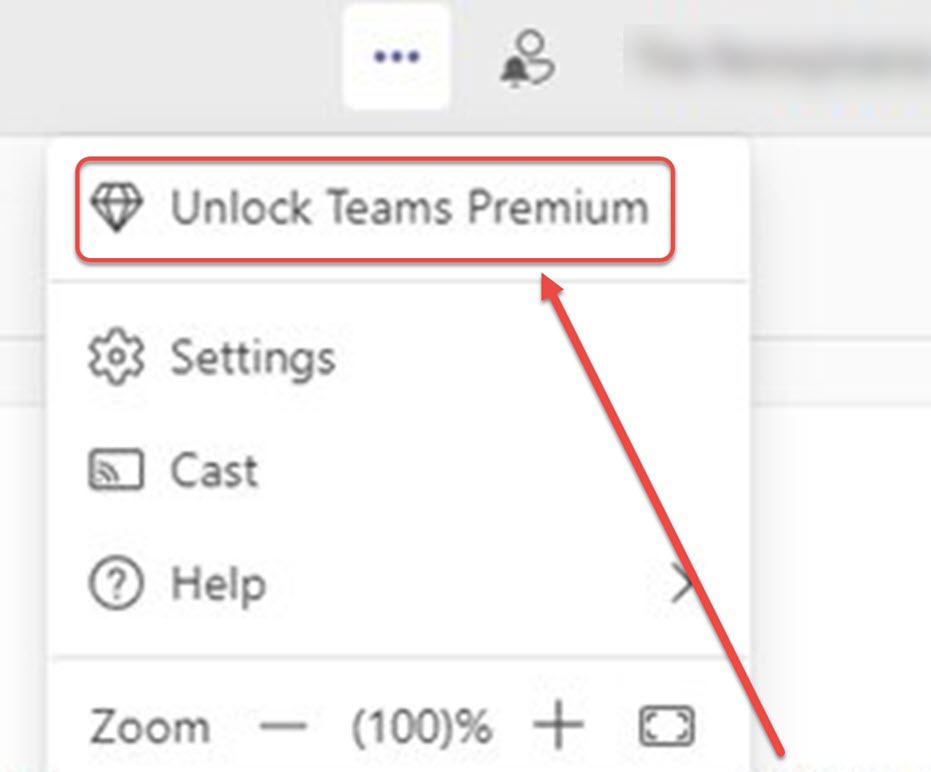
Example of Unlock Teams Premium option
Many organizations weren’t happy to see the new Unlock Premium option in the Microsoft Teams app for their users. That’s because users can sign up for Teams Premium self-service trials on their organization’s existing Microsoft 365 tenants with their business sign-ins. Furthermore, there’s no requirement to input payment information when signing up for a trial. 🤔
In the below image, we see the Unlock Teams Premium option appearing after clicking the three horizontal dots located just before the user profile image. If the user clicks this option, it initiates a self-service trial license that lasts for 60 days, and after the trial period ends, it prompts them to make a purchase.
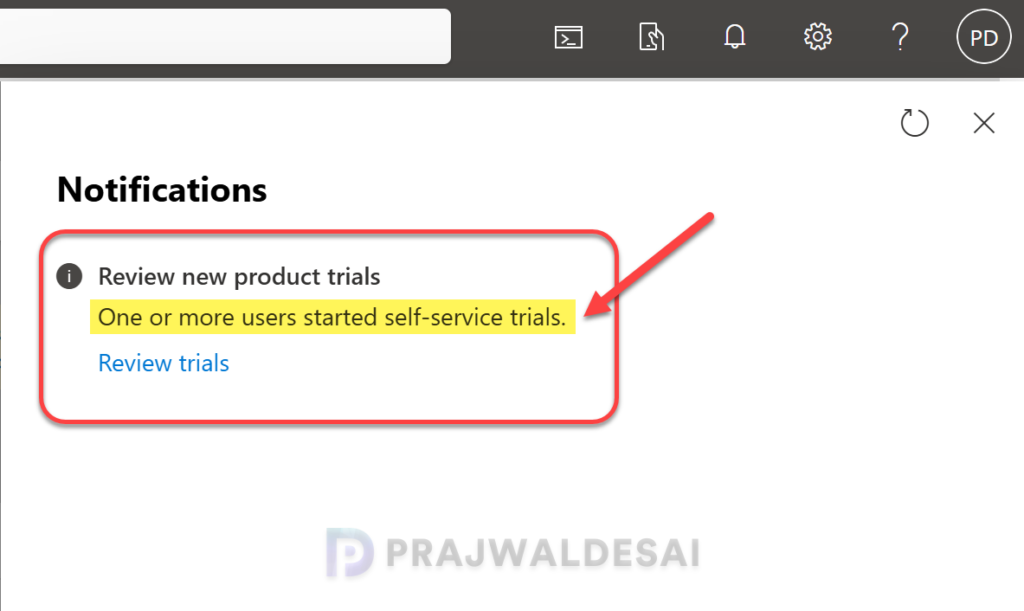
M365 Notification for Teams Premium self-service trials
When users in your organization initiate a product trial, the Microsoft 365 admin center notifies the administrator about it. For instance, in the below image, you can see a notification that in the M365 admin center stating that “One or more users started self-service trials“. The administrator can access the “Review Trials” link and navigate to the “Self-Service Trials” tab to view the products selected by users for trial.
Note that the feature to disable self-service purchases and trials cannot be completely turned off at the tenant level with a single command. You have to select each product individually and manually disable the purchases. With that said, let’s go through the methods now.
Disable Unlock Premium in Microsoft Teams via M365 admin center
Follow the below steps to disable Microsoft Teams premium self-service trials and purchases for your tenant via Microsoft 365 admin center.
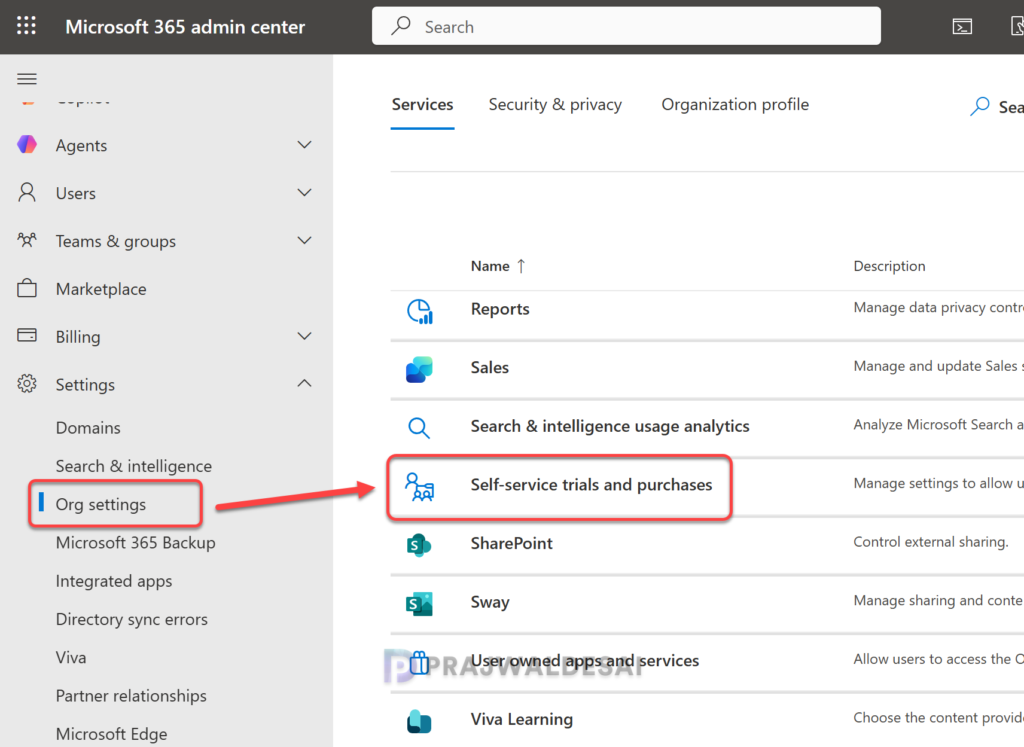
Step 1: Sign in to Microsoft 365 admin center with a global administrator account. Once you’re logged in, navigate to Settings > Org settings. On the right pane, under Services, select Self-service trials and purchases.
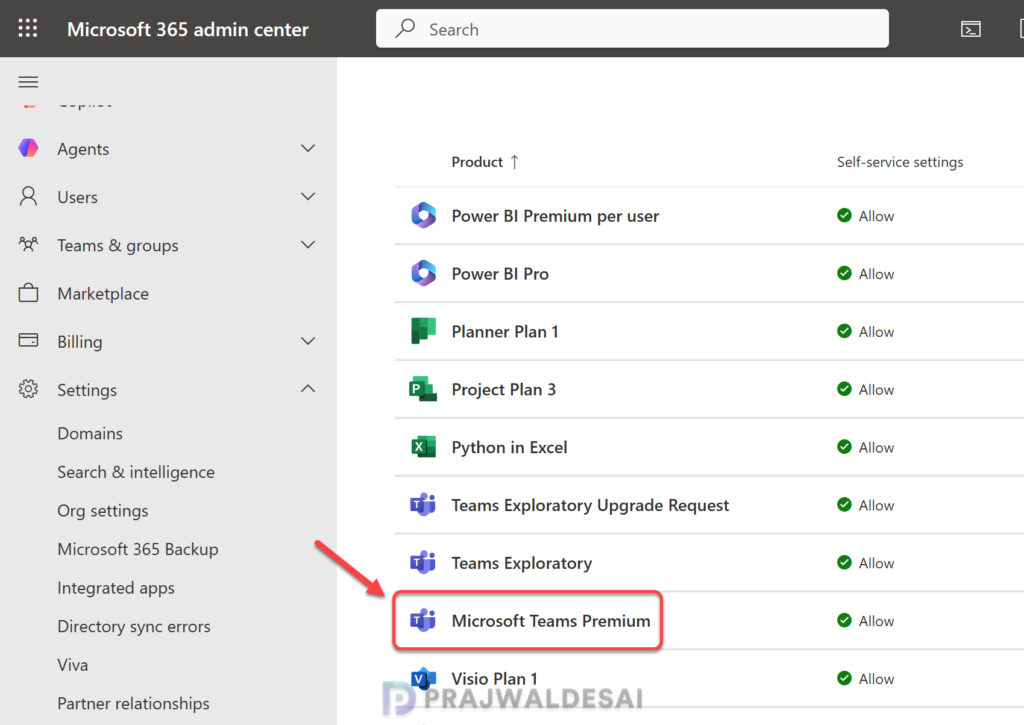
Step 2: From the list of products, select Microsoft Teams Premium.
Step 3: A panel opens and shows the current setting for the Microsoft Teams Premium. Select Do not allow and click Save. The “Unlock Teams Premium” option will be removed or disabled for end users once the policy has been successfully applied.
Note: If the tenant still has an active trial, prompts can continue for users. Furthermore, if the user has already opted for Teams premium trial, you’ll need to remove that separately.

Disable Unlock Teams Premium using PowerShell
Using the MSCommerce PowerShell module, you can manage self-service purchases and trials for Microsoft Teams premium and other products. The module includes a PolicyID parameter value for AllowSelfServicePurchase that lets you control whether users in your organization can make self-service purchases of Microsoft or select third-party offers.
The below table shows the available values for AllowSelfServicePurchase and the description of each.
| AllowSelfServicePurchase | Description |
|---|---|
| Enabled | Users can make self-service purchases and acquire trials for the product. |
| Disabled | Users can’t make self-service purchases or acquire trials for the product. |
To disable unlock Teams premium prompt, you can use the below PowerShell script. Just copy the below code into a text file and save it as disableunlockteamspremium.ps1. Open the PowerShell as administrator and execute the below script.
Note that you’ll have to sign in with a global or billing administrator account for the script execution to be successful. Once the script is executed, it should stop premium trial prompts in Microsoft Teams.
Import-Module -Name MSCommerce
Connect-MSCommerce #sign-in with your global or billing administrator account when prompted
$product = Get-MSCommerceProductPolicies -PolicyId AllowSelfServicePurchase | where {$_.ProductName -match 'Microsoft Teams Premium'}
Update-MSCommerceProductPolicy -PolicyId AllowSelfServicePurchase -ProductId $product.ProductID -Value "Disabled"The above script can also be used to disable the self-service trails and purchases for other Microsoft Products as well. You need just to input the correct product name and execute the script.
End User Experience
After preventing users from trying out the self-service trials or purchases for Microsoft Teams Premium through the mentioned methods, let’s review the impact on end users.
Suppose that a user clicks on “Unlock Teams Premium” in the Microsoft Teams apps, a new pop-up appears asking to start your free Teams Premium Trial.
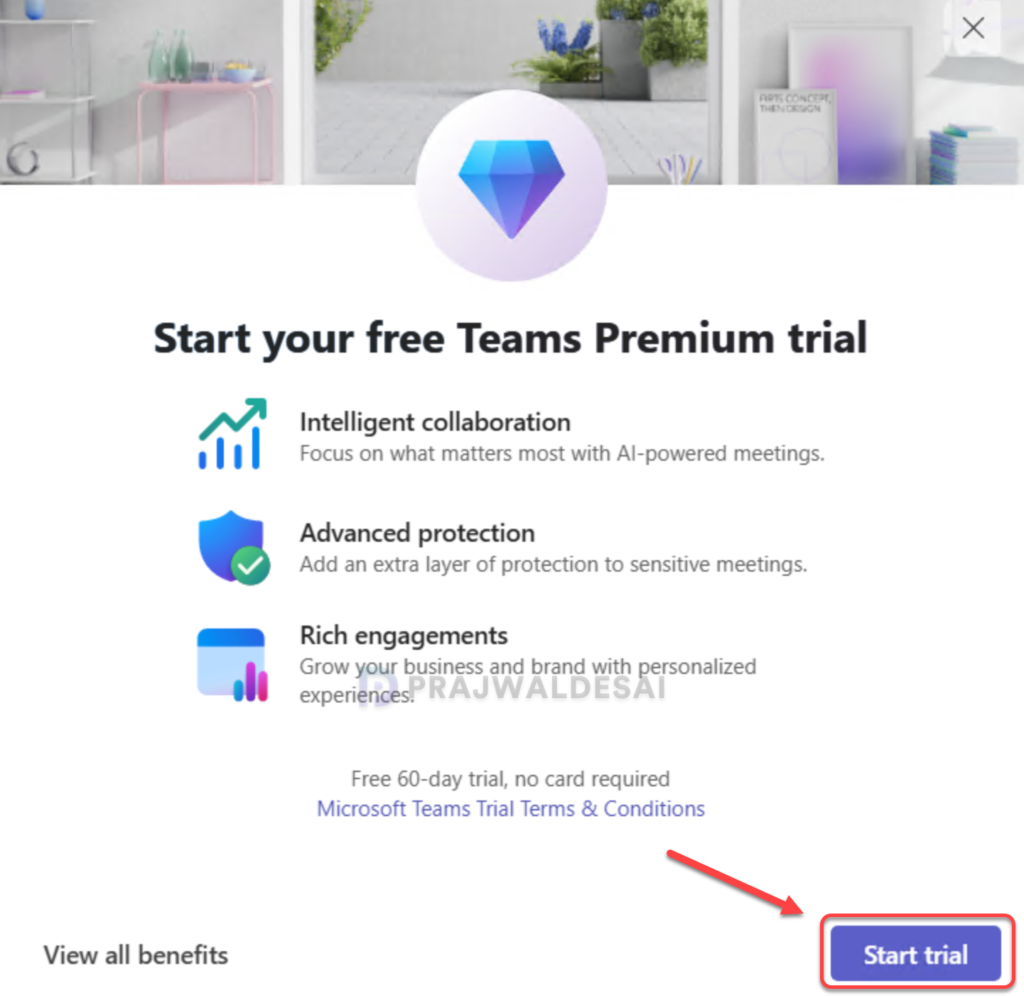
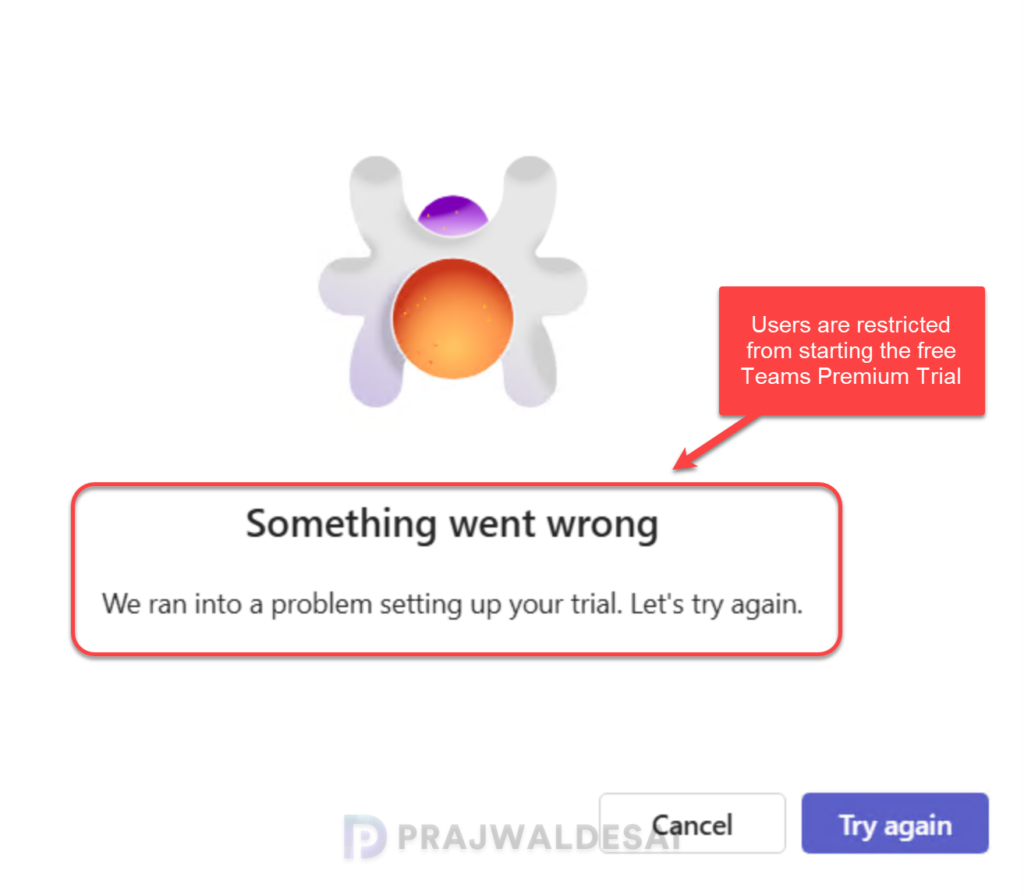
If the user clicks on the Start Trial button, the next screen shows the error: Something went wrong. We ran into a problem setting up your trial. Let’s try again. This confirms that with the methods discussed above, you can safely stop premium trial prompts in Microsoft Teams.