

In this guide, I will show you how to set maximum runtime for updates in ConfigMgr. The default maximum runtime for Windows updates and third-party updates is set to 60 minutes. However, you can adjust this setting to ensure updates are installed within your preferred timeframe.
The ‘maximum runtime‘ of an update is the amount of time a software update is allotted to complete on client computers. If the update exceeds the maximum run-time limit, Configuration Manager generates a status message and ceases monitoring the software update installation deployment.
It is also important to remember that Configuration Manager also uses this setting to determine whether to initiate the software update installation within a configured maintenance window.
Just like software updates, SCCM administrators can also configure the max runtime for applications. If you’re dealing with error 0x87d00664 during app installs, increasing the maximum runtime for the failing app should resolve your problem.
Important
- Be sure to set the maximum run time value smaller than the configured maintenance window time. Otherwise, the software update installation will never initiate.
- You can configure this setting only on the central administration site or a stand-alone primary site.
- Change the max run time only if the software update requires more than 60 minutes of the execution time.
- If the software update has already been deployed, and you modify its maximum run time value, the client will only recognize the updated value if you remove the deployment and redeploy it.
Set Maximum Runtime for Updates in ConfigMgr
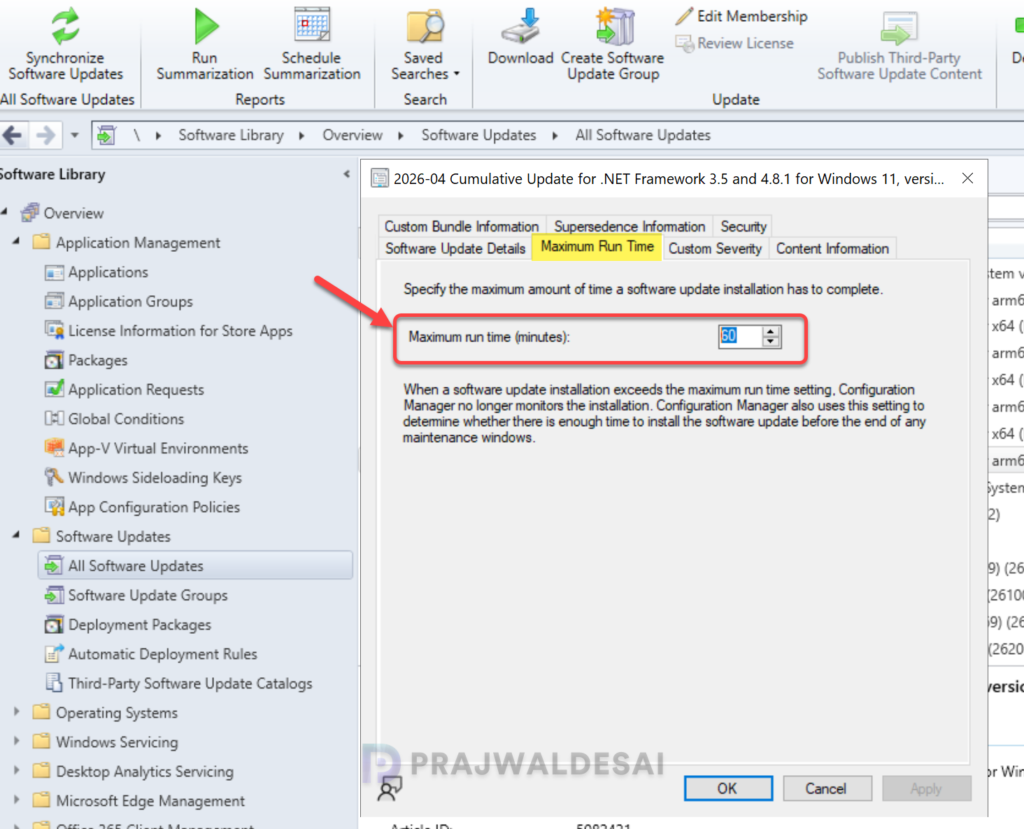
Launch the SCCM console. Go to Software Library\Software Updates\All Software Updates. Search for and select the update you want to modify and choose Properties. Switch to the Maximum Run Time tab and set the desired value in minutes. Click OK.
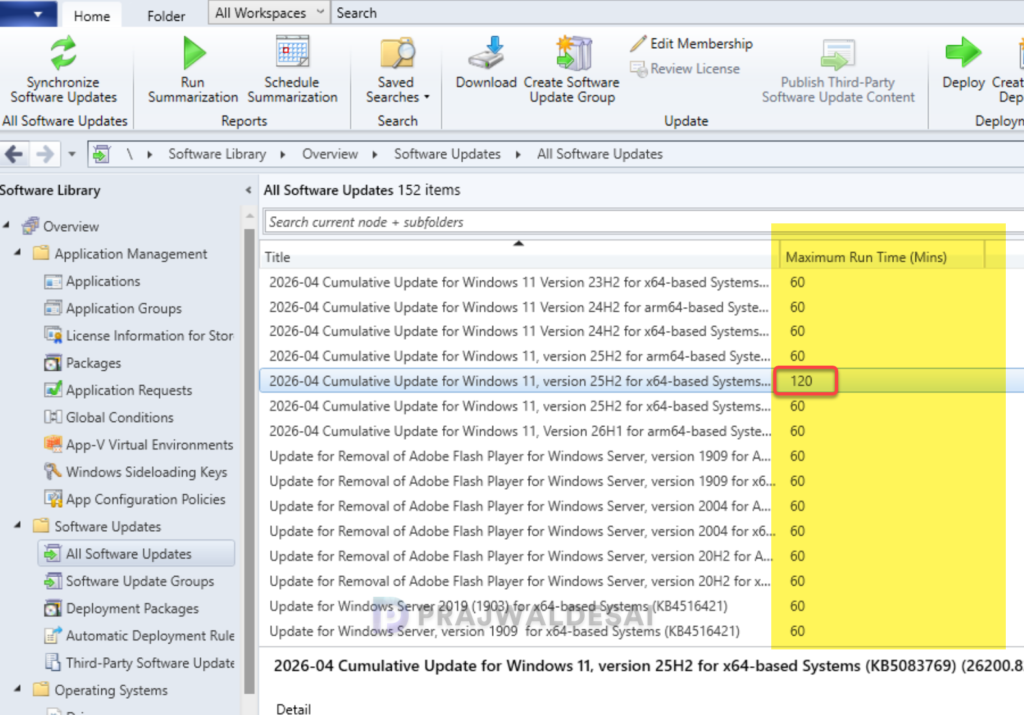
To check the configured maximum run time for an update, add the “Maximum Run Time (Mins)” column in the All Software Updates view within the console, and the value will be displayed.
To check the max run time of an update via Powershell, input the article ID and execute the below command.
Get-CMSoftwareUpdate -ArticleId 5083769 | Select-Object MaxExecutiontime