


In this post, I’ll show you how to disable folder options in Windows File Explorer using Intune or Group Policy. By configuring the policy setting “Do not allow folder options to be opened from the Options button on the View tab of the ribbon“, you can enable or disable the access to Folder Options in File Explorer for Windows users.
On Windows 11/10 devices, the File Explorer offers dedicated Folder Options for users to change the way files and folders open, view hidden files, what appears in the navigation pane, and other advanced view settings.
Disabling Folder Options is typically done in scenarios where you need to restrict access to certain folder features for security, administrative, or productivity reasons. For example, in a shared or public computer environment, like libraries or schools, administrators may want to restrict Windows users from viewing hidden files or changing folder views.
In one of my earlier guides, I showed you how to remove the security tab from file explorer using Intune and other methods. Organizations that have already restricted their users from accessing the security tab in file explorer via Intune can also consider disabling the access to folder options with either Intune policy or GPO.
Note: If the Windows devices are part of the Active Directory environment, I recommend using Group Policy to disable folder options. If your Windows devices are managed via Intune MDM, use the settings catalog to restrict access to folder options.
Method 1: Disable Folder Options using Intune
Let’s create a new policy in Intune admin center to disable folder options for Windows users. Open the browser and sign in to the Microsoft Intune admin center. Navigate to Devices > Manage devices > Configuration > Create > New policy. Choose Windows 10 and later and select “Settings catalog”. Specify your policy name and description and click Next.
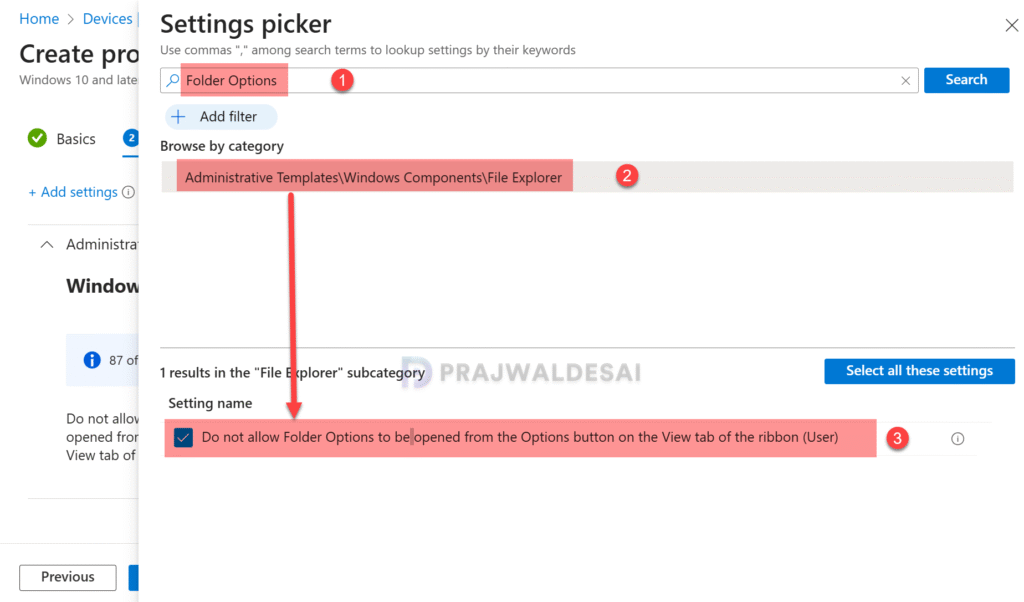
In the Settings Picker, search for “Folder Options“. From the results, select the category Administrative templates\Windows Components\File Explorer and then select the policy setting “Do not allow Folder Options to be opened from the Options button on the View tab of the ribbon (User)” as shown in the below image.
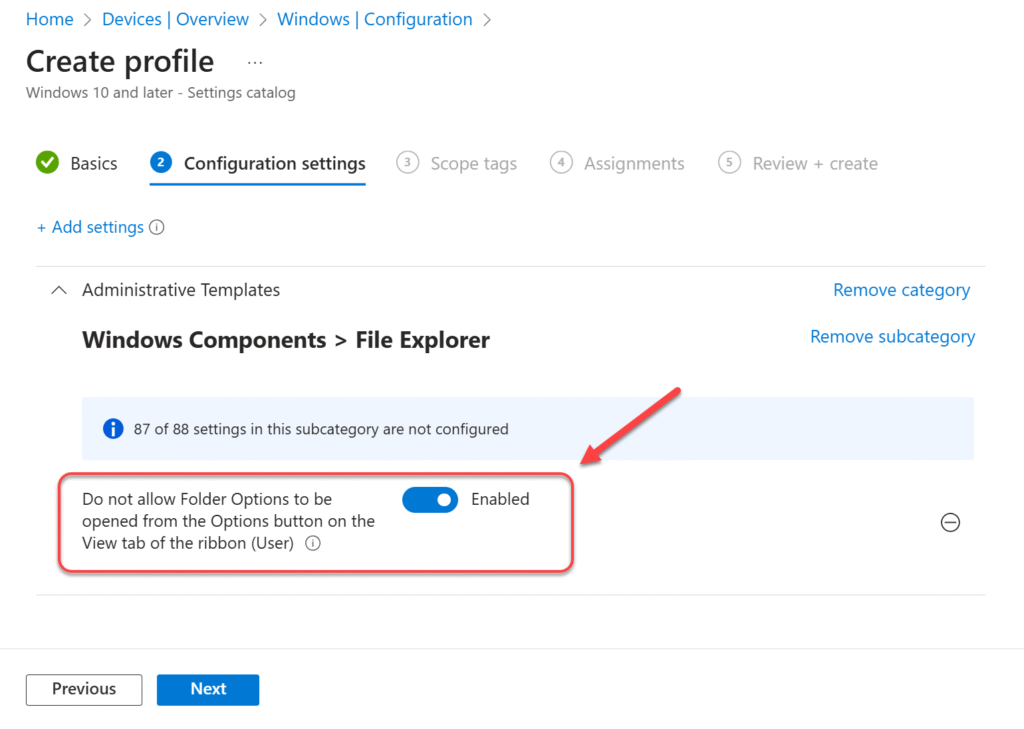
Enable the policy setting Do not allow folder options to be opened from the Options button on the View tab of the ribbon (User). This will restrict users from accessing folder options in the Windows file explorer ribbon. Click Next.
In the scope tags section, you specify scope tags. Specifying scope tags is optional, and you may skip this step. Learn how to create and use Scope Tags in Intune. Click Next.
In the Assignments window, select the user groups to which you want to assign the policy. I recommend deploying the profile to a few test user groups first and then expanding it to more users if the testing is successful. Select Next.

On the Review + Create page, review all the settings that you have configured for configuring the restricting access to the Folder options via Intune and select Create.
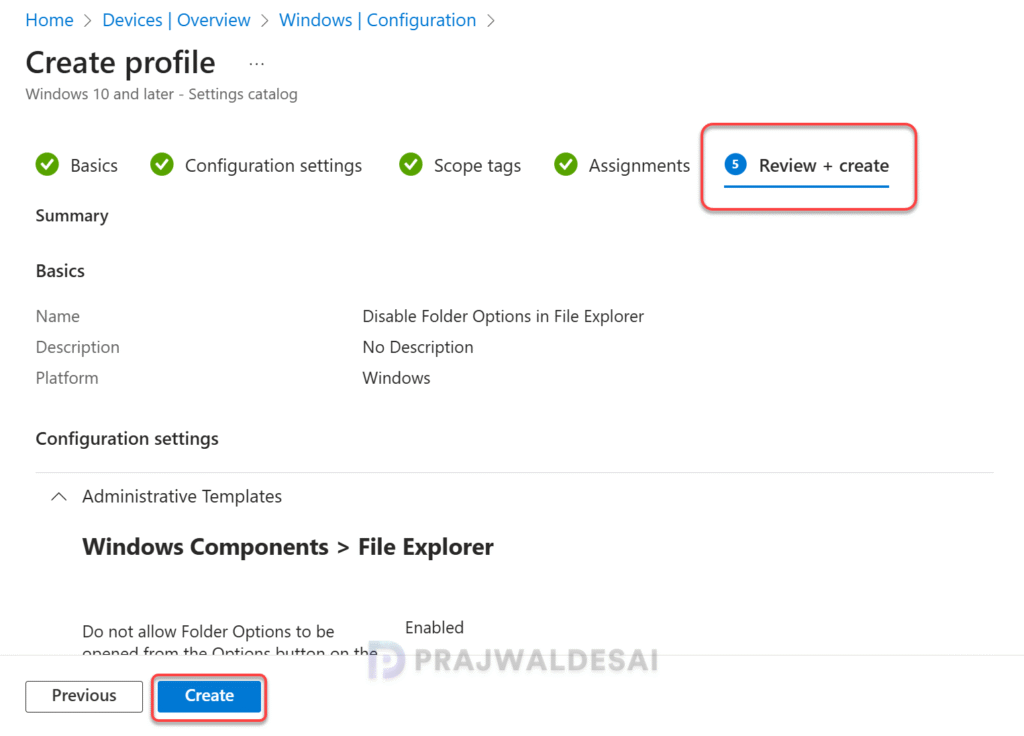
A new policy is created, and you can find it under the list of Configuration Profiles. To speed up the policy assignments, you can sync Intune policies using different methods on your windows computers.
To monitor the disable Folder Options in File explorer policy in Intune, go to Devices > Windows > Configuration. Select the ‘Disable Folder Options‘ profile. On the Policy overview page, check the device and user check-in status. You can see the number of devices or users on which the policy has been applied successfully.
Method 2: Disable Folder Options using Group Policy
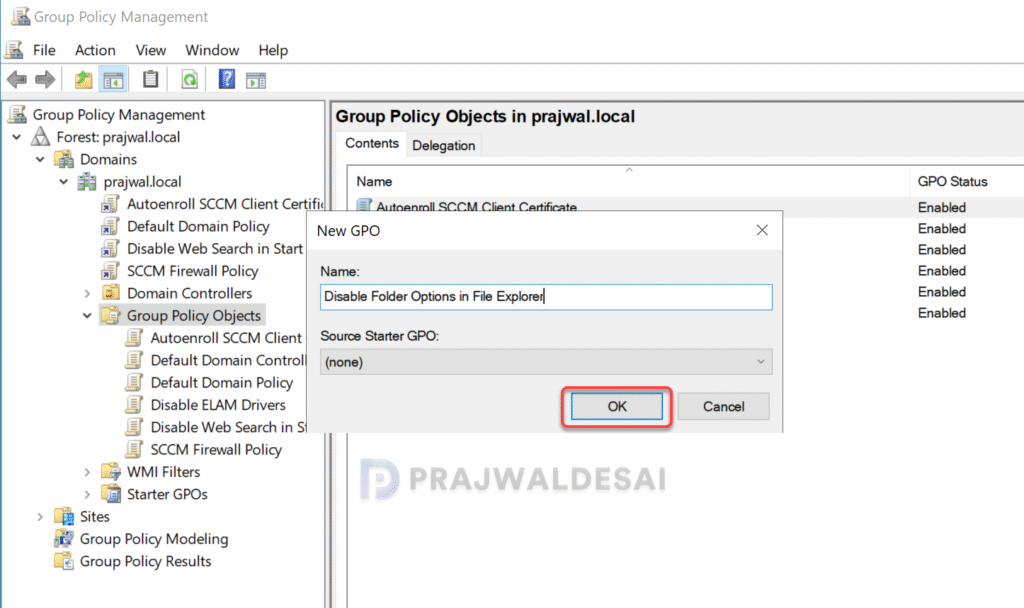
Let’s start by creating a new GPO to disable the folder options for Windows users. On your Active Directory server, open the Group Policy Management console. Expand the domain, right-click Group Policy Objects and select New. Enter the GPO name as ‘Disable Folder Options in File Explorer‘ and click OK.
Next, right-click this newly created GPO and select Edit. In the Group Policy Management Editor, navigate to User Configuration > Policies > Administrative Templates > Windows Components > File Explorer. Locate and edit the policy setting “Do not allow Folder Options to be opened from the Options button on the view tab of the ribbon” and select Enabled. Click Apply and OK. Close the group policy management editor.
Policy Description
- If you enable this policy setting, users will receive an error message if they tap or click the Options button or choose the Change folder and search options command, and they will not be able to open Folder Options.
- If you disable or do not configure this policy setting, users can open Folder Options from the View tab on the ribbon.

After creating the GPO, you must link it to an OU if you haven’t already. You can also link it to the domain, but doing so will apply the policy settings applicable to every computer and user in the domain, so it is not advised.
You can update the group policy on the client computers to speed up your testing. There are multiple ways to perform the group policy update on remote computers. On a test client machine, you can manually perform the group policy update by running the gpupdate /force command.
Verify if Folder Options in File Explorer are Disabled
In this final step, we will determine if the folder options are disabled for users via Intune policy or Group policy. Sign in to a Windows device and open the File Explorer. Click on three horizontal dots on the ribbon and you’ll see that ‘Options‘ are disabled or greyed out for the user. This confirms that users cannot access the options anymore on their logged in device.
The comparison image below illustrates two scenarios: on the left, the user has access to the Options in the file explorer; on the right, the successful disabling of file options for user through an Intune or Group policy.

Conclusion
I hope this guide helps you to disable the folder folders from the view tab of the file explorer for Windows users. Disabling Folder Options in File Explorer and restricting access to the security tab are typically done in specific scenarios where administrators need to control user access and maintain system security or consistency. For large organizations, both Intune and Group policy are effective ways to restrict access to folder options.
If you have any questions related to managing folder options with Intune or GPO, please let me know in the comments below.
