

In this detailed guide, I’ll show you how to configure UAC (User Account Control) using Intune. I will create a new settings catalog policy and configure UAC for Windows users using the options available under the Local Policies Security Options category.
According to Microsoft, User Account Control is a Windows security feature designed to protect the operating system from unauthorized changes. When changes to the system require administrator-level permission, UAC notifies the user, providing the opportunity to approve or deny the change.
To configure UAC, you can use different methods such as Microsoft Intune, CSP, Group Policy, and Registry. For devices managed by an MDM solution like Intune, utilize the settings catalog to enforce UAC settings. For Windows devices that are on-premises and joined to an Active Directory domain, rely on Group Policy.
Important: The following Windows editions support User Account Control (UAC): Windows Pro, Windows Enterprise, Windows Pro Education/SE, Windows Education.
Key Features of UAC
When configuring UAC settings via Intune for your organization, it’s important to understand the benefits it provides.
- Protection Against Malware: By limiting the privileges of applications, UAC helps prevent malware from making system-wide changes without explicit user consent.
- Standard User Privileges by Default: Runs most applications and processes with limited standard user rights, even for administrators, reducing malware impact.
- Elevated Privileges Prompt: Notifies users and asks for permission (or admin credentials) before any action requiring administrator rights (e.g., installing software, changing system settings, or modifying the registry).
- Secure Desktop: When UAC is enabled and in action, the UAC prompt is displayed on the desktop to prevent malicious software from interfering with the prompt.
To enhance security, your organization can enable app control for business in Intune alongside a UAC policy, ensuring only authorized applications are permitted.
How User Account Control Prompts Work
When UAC policy is enforced, the user experience for standard users is different from administrators.
- Standard Users: For standard users, a credential prompt is presented to the user. Providing administrative credentials gives you administrator rights to complete the task.
- Administrators: For administrators, a consent prompt is presented when a user attempts to perform a task that requires a user’s administrative access token. The user has to select Yes or No to continue.
Configure UAC (User Account Control) Intune Policy
Let’s create a new Intune policy to configure UAC (User Account Control) for Windows 10/11 devices.
Open the browser and sign in to the Intune admin center. Navigate to Devices > Windows > Configuration > Create > New Policy. Choose Windows 10 and later as Platform and Settings Catalog as Profile Type. Click Create.
On the Basics tab, specify the name of the profile as “Configure UAC Settings“. You may add a brief description about the profile. Click Next to continue.

On the Configuration settings tab, click + Add settings. In the Settings picker, search for Local Policies Security Options. Select the Local Policies Security Options category.
I have selected the following User Account Control settings for my case, and their descriptions are provided in the following section.
- User Account Control Use Admin Approval Mode
- User Account Control Switch To The Secure Desktop When Prompting For Elevation
- User Account Control Run All Administrators In Admin Approval Mode
- User Account Control Only Elevate UI Access Applications That Are Installed In Secure Locations
- User Account Control Detect Application Installations And Prompt For Elevation
- User Account Control Behavior of the Elevation Prompt for Standard Users
- User Account Control Behavior of the Elevation Prompt for Administrators
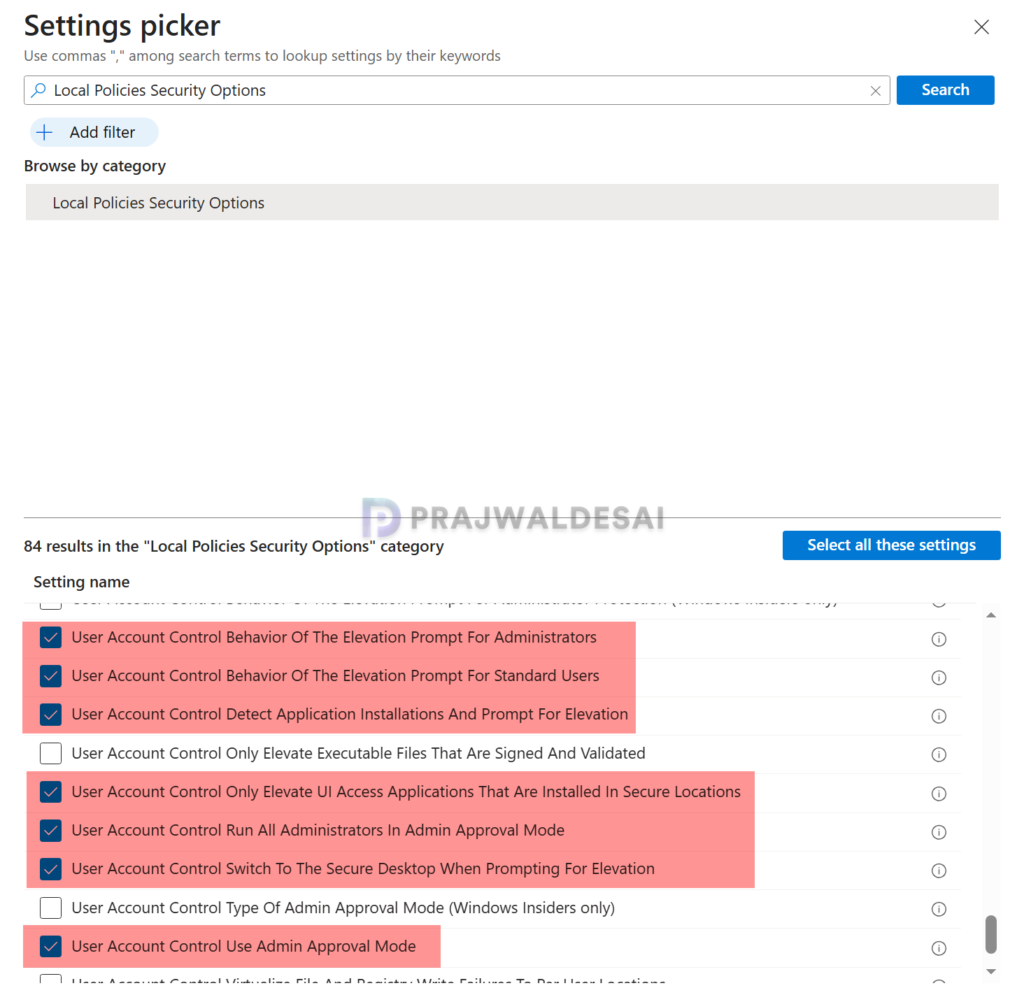
You’ll notice that there are many UAC settings and configurations offered by Microsoft. I recommend reading all of them and configuring the ones that are required for your organization. Enabling too many settings can complicate UAC implementation and make troubleshooting more difficult. Select only the settings that are truly necessary for your enterprise.
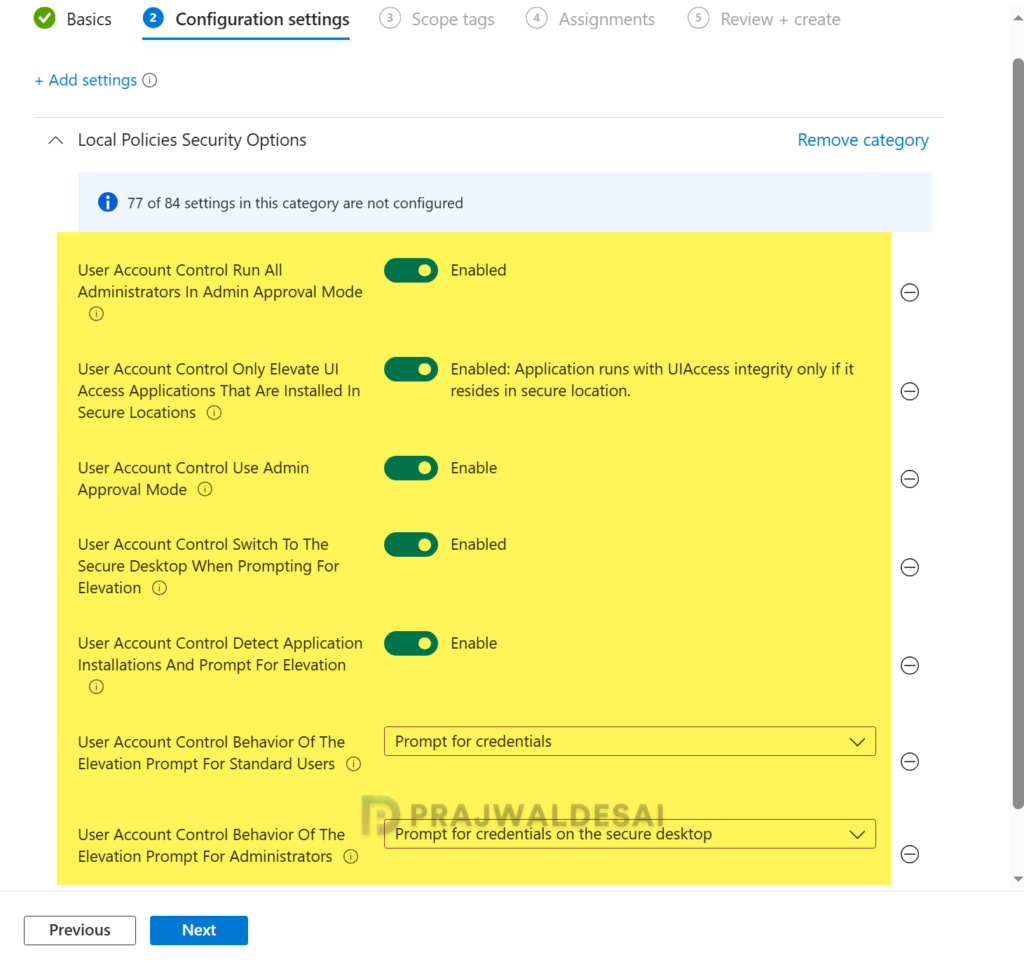
The table below outlines the User Account Control settings, their descriptions, and the specific value configured for each setting for my policy.
| UAC Setting Name | Description | Configuration |
|---|---|---|
| User Account Control Use Admin Approval Mode | This policy setting controls the behavior of Admin Approval Mode for the built-in Administrator account. 1. Enabled, the built-in administrator account uses Admin Approval Mode. 2. Disabled, the built-in administrator account runs all applications with full administrative privilege. | Enabled |
| User Account Control Switch To The Secure Desktop When Prompting For Elevation | This policy setting controls whether the elevation request prompt is displayed on the interactive user’s desktop or the secure desktop. 1. Enabled: All elevation requests go to the secure desktop regardless of prompt behavior policy settings for administrators and standard users. 2. Disabled: All elevation requests go to the interactive user’s desktop. | Enabled |
| User Account Control Run All Administrators In Admin Approval Mode | This policy setting controls the behavior of all User Account Control (UAC) policy settings for the computer. 1. Enabled: The admin approval mode is enabled. 2. Disabled: The admin approval mode and all related UAC policy settings are disabled. | Enabled |
| User Account Control Only Elevate UI Access Applications That Are Installed In Secure Locations | This policy setting controls whether applications that request to run with a User Interface Accessibility (UIAccess) integrity level must reside in a secure location in the file system. 1. Enabled, if an application resides in a secure location in the file system, it runs only with UIAccess integrity. 2. Disabled, an application runs with UIAccess integrity even if it does not reside in a secure location in the file system. | Enabled: Application runs with UIAccess integrity only if it resides in secure location. |
| User Account Control Detect Application Installations And Prompt For Elevation | This policy setting controls the behavior of application installation detection for the computer. 1. Enabled: When an application installation package is detected that requires elevation of privilege, the user is prompted to enter an administrative user name and password. If the user enters valid credentials, the operation continues with the applicable privilege. 2.Disabled: The application installation packages are not detected and prompted for elevation. Enterprises that are running standard user desktops and use delegated installation technologies such as Group Policy Software Installation or Systems Management Server (SMS) should disable this policy setting. In this case, installer detection is unnecessary. | Enabled |
| User Account Control Behavior of the Elevation Prompt for Standard Users | This policy setting controls the behavior of the elevation prompt for standard users. The options include 1. Prompt for credentials: (Default) 2. Automatically deny elevation requests 3. Prompt for credentials on the secure desktop | Prompt for credentials |
| User Account Control Behavior of the Elevation Prompt for Administrators | This policy setting controls the behavior of the elevation prompt for administrators. The options include 1. Elevate without prompting 2. Prompt for credentials on the secure desktop 3. Prompt for consent on the secure desktop 4. Prompt for credentials 5. Prompt for consent 6. Prompt for consent for non-Windows binaries (default) | Prompt for credentials on the secure desktop |
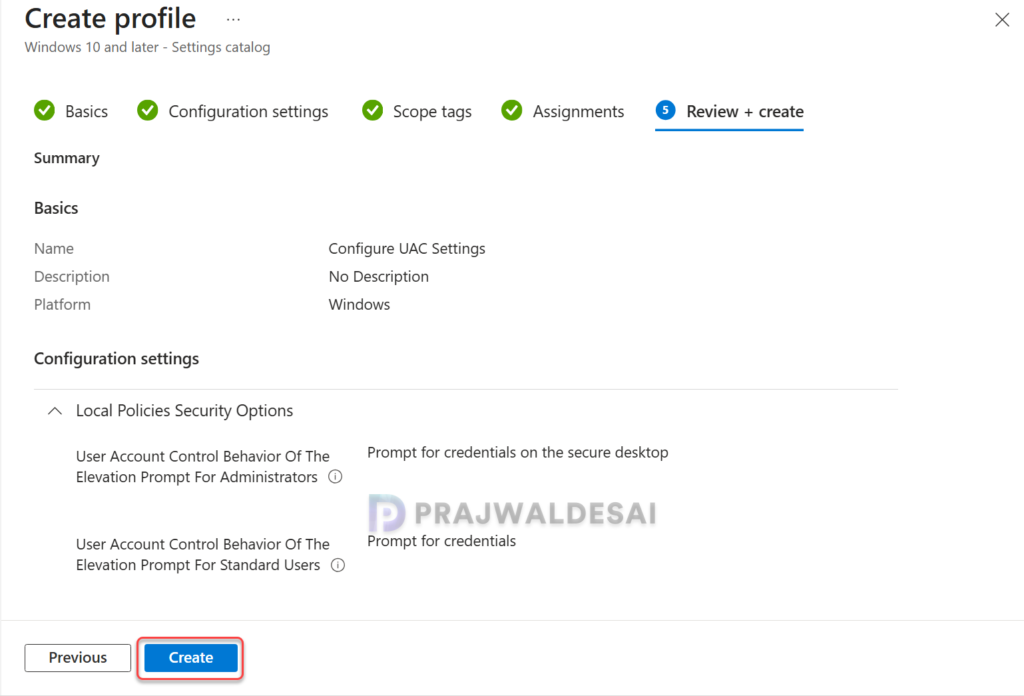
The below image shows the UAC settings that I have configured in my policy. Click Next.
In the scope tags section, you specify scope tags. Specifying scope tags is optional, and you may skip this step and use the default tag instead. Click Next.
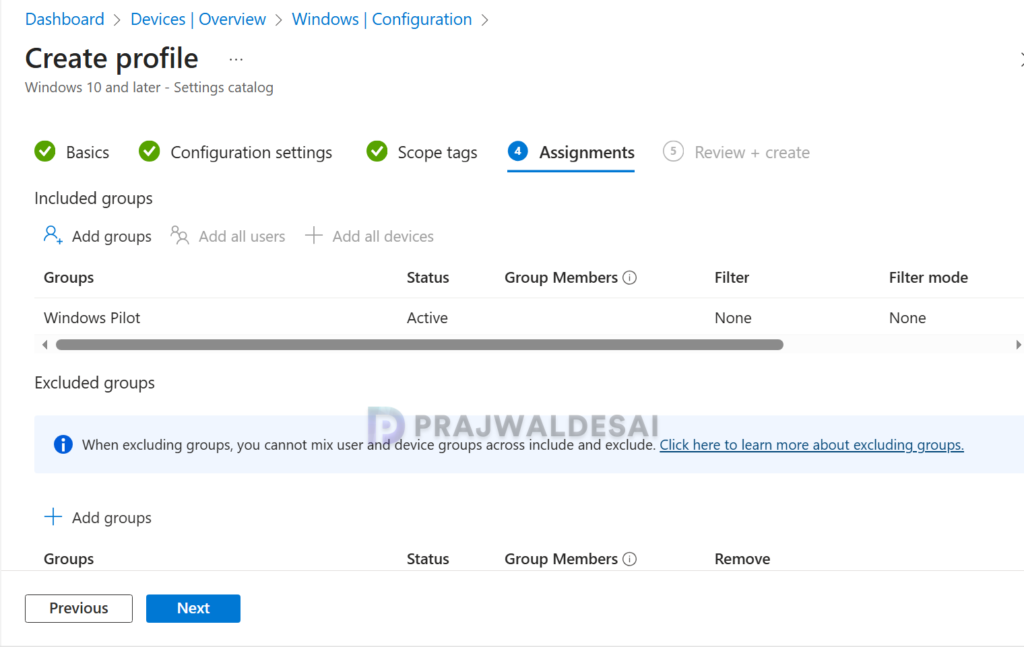
In the Assignments tab, select the Entra ID security user groups to which you want to assign the policy. If you are deploying this policy for the first time, I recommend deploying it to a few test groups first and then expanding it to more users or devices if the testing is successful. Select Next.
On the Review + Create page, review all the policy settings that you have configured so far and select Create. A newly created policy must appear in the Configuration Profiles list. The policy will now be deployed to your selected device/user groups, enforcing the configured UAC settings.
Sync Intune Policies
To speed up the policy assignments, you can manually sync Intune policies using various methods on Windows computers. The sync action prompts devices to instantly connect with Intune and apply the most up-to-date policies. This is typically performed to test an app or policy deployment and verify its functionality.
Monitoring UAC Policy in Intune
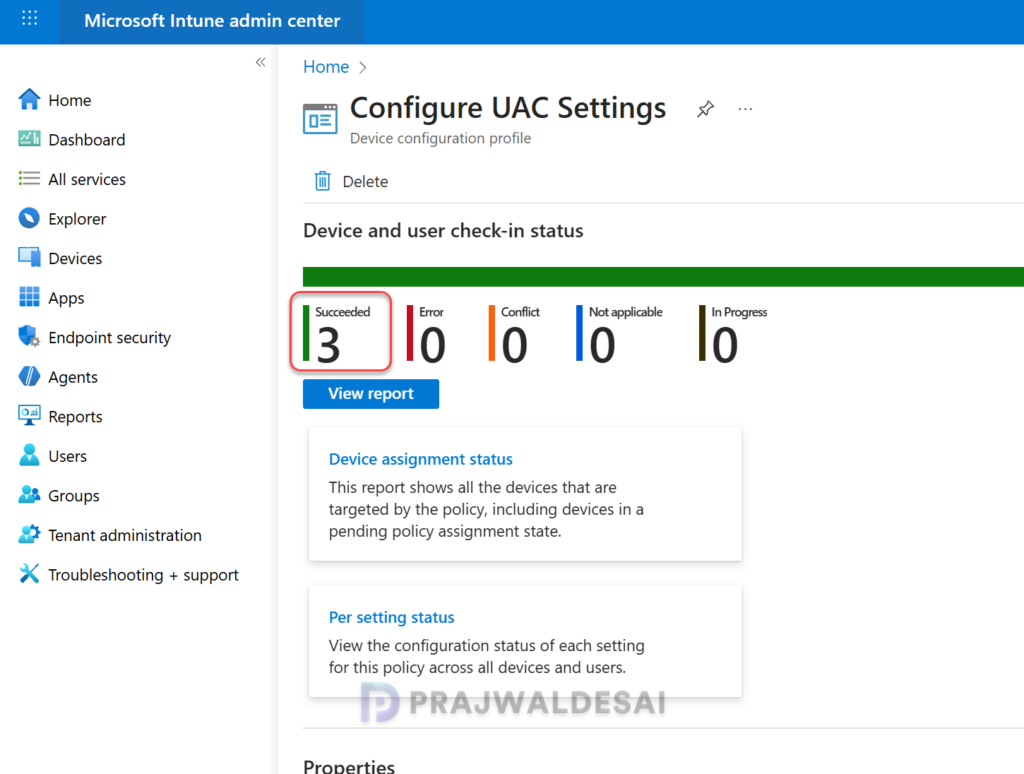
To monitor the UAC profile assignments in Intune, go to Devices > Windows > Configuration. Select the UAC Configuration profile. On the Policy overview page, check the device and user check-in status. You can see the number of devices or users on which the policy has been applied successfully.
End User Experience
Once the UAC policy settings are successfully applied to the targeted devices, it’s time to check if those settings actually work. There are a total of 7 UAC settings that I have applied via Intune policy to my devices. Out of those, I’ll pick the “User Account Control Behavior Of The Elevation Prompt For Standard Users” setting for my testing. This setting allows you to test the elevation prompt behavior for standard users, which is precisely what we need.
Scenario 1: UAC Behavior of elevation prompt is set to Prompt for Credentials
In the first scenario, let me show you what the end user sees when the UAC behavior for standard users is set to prompt for credentials in Intune policy. When the user attempts to perform an operation that requires elevation of privilege, the user is prompted to enter an administrative username and password. If the user enters valid credentials, the operation continues with the applicable privilege.
When attempting to modify a file in a secure location on Windows, the user encounters a User Account Control (UAC) pop-up with the message, “Do you want to allow this app to make changes to your device?” To proceed, the user must enter an administrative username and password.

Scenario 2: UAC Behavior of elevation prompt is set to Deny elevation requests
In the second scenario, let’s see what the end user sees when the UAC behavior for standard users is set to deny elevation requests automatically. When the user attempts to perform an operation that requires elevation of privilege, a configurable access denied error message is displayed.
In the below image, we see that when attempting to modify user account properties in the control panel, the user encounters a message: “This program is blocked by group policy. For more information, contact your system administrator”.

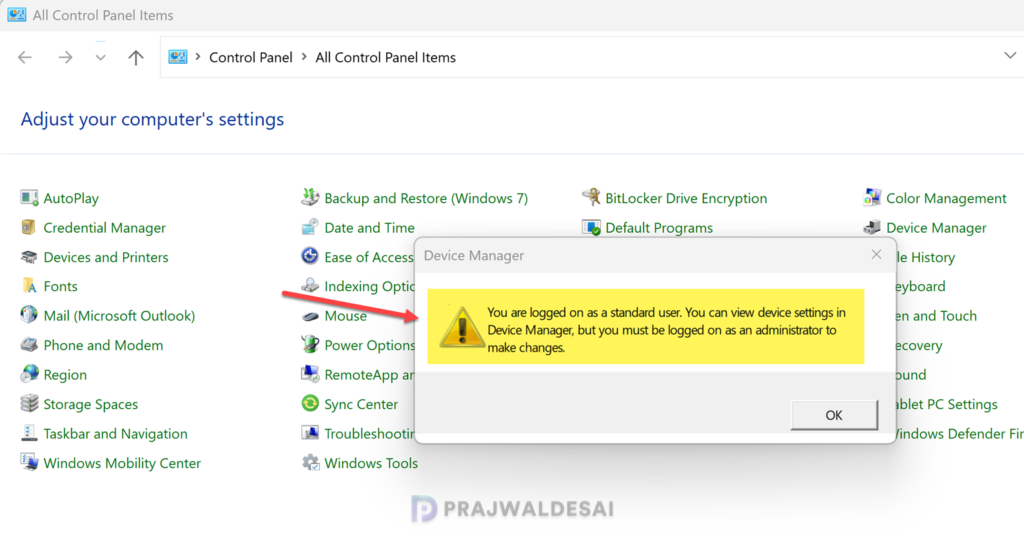
For some components of Windows, the UAC policy lets users access the settings but doesn’t allow modifying the settings. For example, when the user attempts to access the device manager via Control Panel, the following message is displayed to the user. You are logged on as a standard user. You can view device settings in Device Manager, but you must be logged on as an administrator to make changes.
Registry Keys for User Account Settings
The registry keys for User Account Control on Windows are found in the below-mentioned path. You don’t have to change or modify anything in the registry if the UAC settings are configured via Intune policy. This is just for your information.
Computer\HKEY_LOCAL_MACHINE\SOFTWARE\Microsoft\Windows\CurrentVersion\Policies\System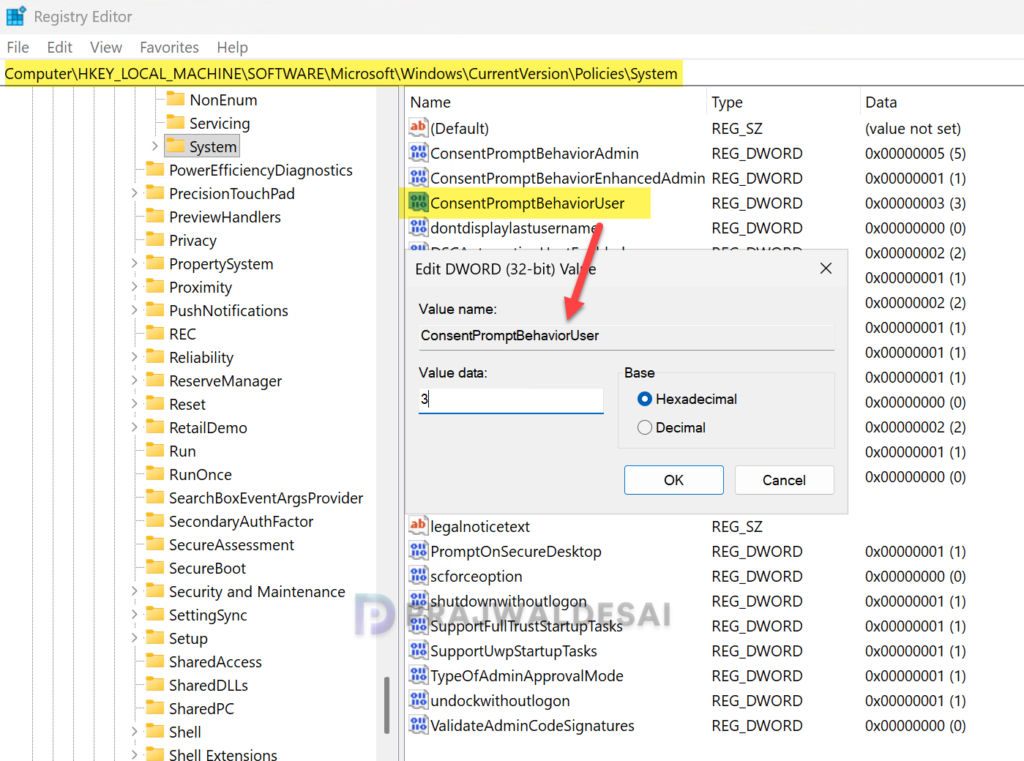
Let’s discuss the UAC setting that we tested above, which is the behavior of the elevation prompt for standard users. The value of the ‘ConsentPromptBehaviorUser‘ registry key reveals the User Account Control (UAC) elevation prompt setting you’ve configured for standard users. The table below provides ConsentPromptBehaviorUser values and what each value indicates.
| ConsentPromptBehaviorUser Value | Description |
|---|---|
| 0 | Automatically deny elevation requests. |
| 1 | Prompt for credentials on the secure desktop. |
| 3 (Default) | Prompt for credentials. |
Similarly, there is another registry key, ‘ConsentPromptBehaviorAdmin,’ that contains the values in accordance with the behavior of the elevation prompt setting you’ve configured for administrators in admin approval mode. The table below provides ConsentPromptBehaviorAdmin values and a description of each value.
| ConsentPromptBehaviorAdmin Value | Description |
|---|---|
| 0 | Elevate without prompting. |
| 1 | Prompt for credentials on the secure desktop. |
| 2 | Prompt for consent on the secure desktop. |
| 3 | Prompt for credentials. |
| 4 | Prompt for consent. |
| 5 (Default) | Prompt for consent for non-Windows binaries. |
Troubleshooting
- In some cases, the UAC policy settings may fail to apply to devices or users via Intune. To troubleshoot these issues, review the essential Intune IME logs.
- Open the Event Viewer and look for event logs in the following path: Applications and Service Logs > Microsoft > Windows > AppxDeployment-Server > Microsoft-Windows-AppxDeploymentSever/Operational.
- If you encounter policy assignment failure on a remote device, generate an MDM diagnostic report for IT support. This can be done from Settings > Accounts > Access work or School > Info. Click on the Create Report button.
