In this basic guide, I’ll explain what collection size limits are, why they matter, and how to configure them in your Configuration Manager environment.
From what I know, there is no fixed hard limit on the number of collections you can create in SCCM. Having a huge number of collections can impact performance, especially during site maintenance and client evaluation. In such cases, you will have to monitor the collection evaluation using SQL queries or the CEViewer tool.
Configuring collection size restrictions in deployment verification settings helps Configuration Manager admins in managing high-risk task sequence deployments and reducing accidental deployments with unwanted outcomes, alerting them to high-risk situations.
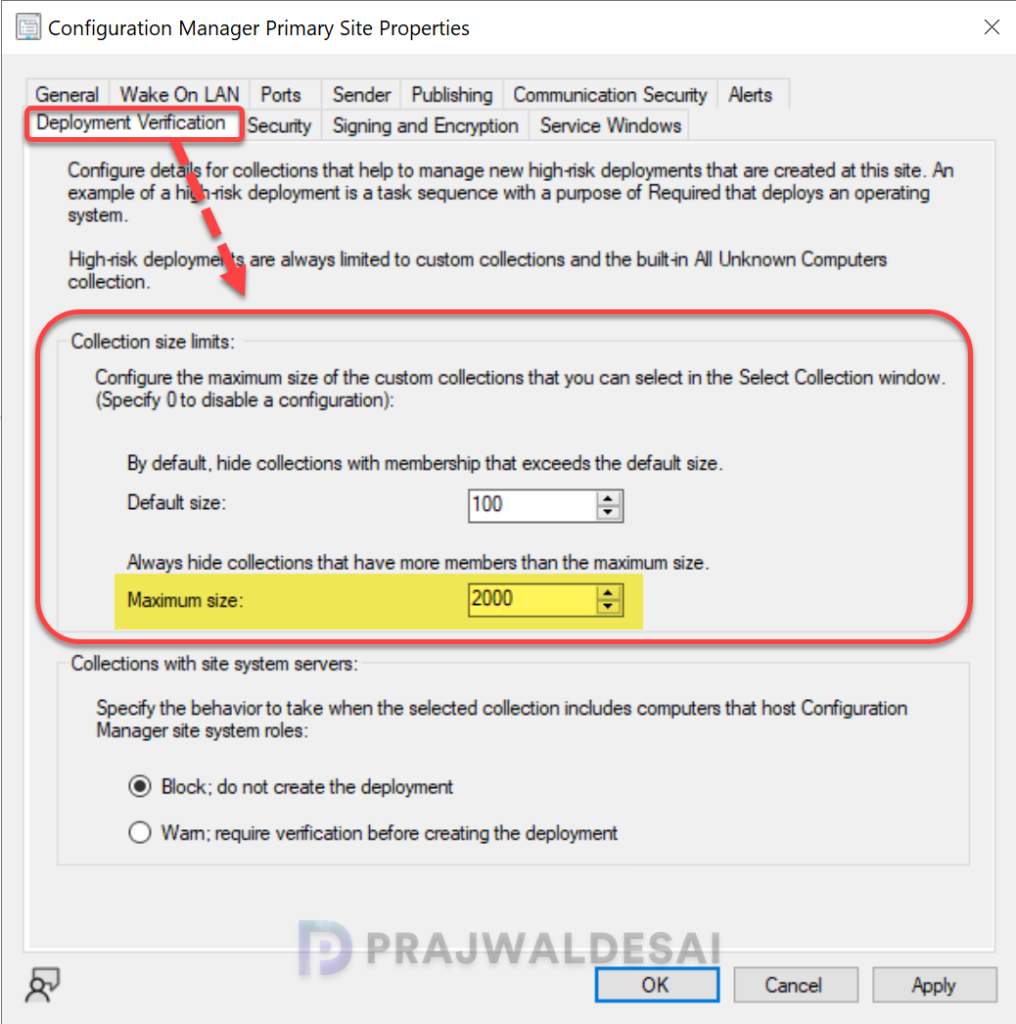
When you set size limits for collections, Configuration Manager will hide those that exceed these limits during deployment creation (like task sequences or applications) in the Select Collection window. Collections with fewer clients than the defined limit will be shown.
The Importance of Size Limits in Collections
Task sequences that deploy operating systems, particularly those set as ‘Required‘ are considered high‑risk. For instance, a wrongly targeted task sequence deployment to a massive collection can result in the widespread, unintended installation of an operating system. Collection size limits act as a protective layer by:
- Hiding collections that exceed a defined number of members
- Warning administrators when they attempt high‑risk deployments
- Reducing the chance of accidental mass deployments
How to Configure Collection Size Limits in SCCM
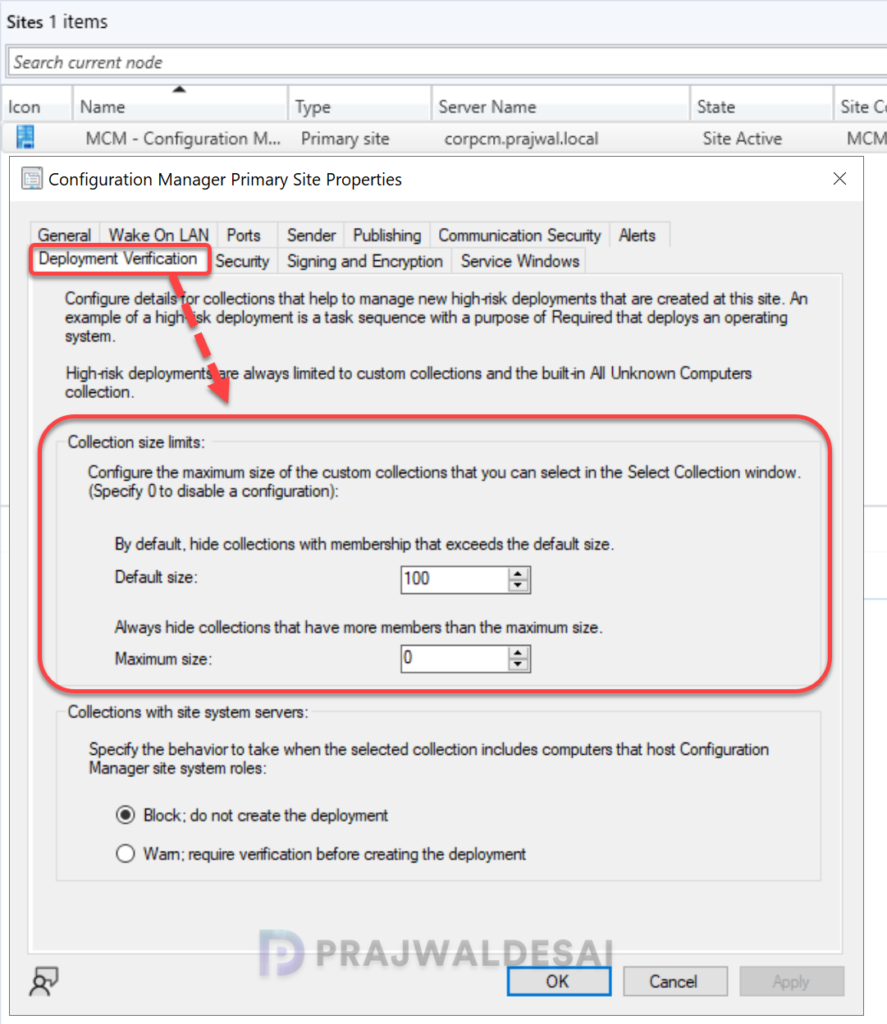
First, launch the Configuration Manager console. Go to Administration > Site Configuration > Sites. Select your primary site, right-click, and choose Hierarchy Settings. Switch to the General tab to find the collection size limits settings. Configure the maximum size of the collection (must be greater than the default size) as per your business requirements and click Apply and OK.
Default Size Limits
Lastly, if you want to reset the size limits of collections to the default size, go to your site properties, and, in the deployment verification tab, configure the default size to 100 and the maximum size to 0. The default value is 0, meaning the setting is ignored. Click Apply and OK.