I recently encountered a question in my community forums about a Configuration Manager upgrade failure. According to the ConfigMgrPrereq.log, the error was caused by the Asset Intelligence role installed on the server. The solution is straightforward: uninstall the role, and the upgrade should proceed without any problems.
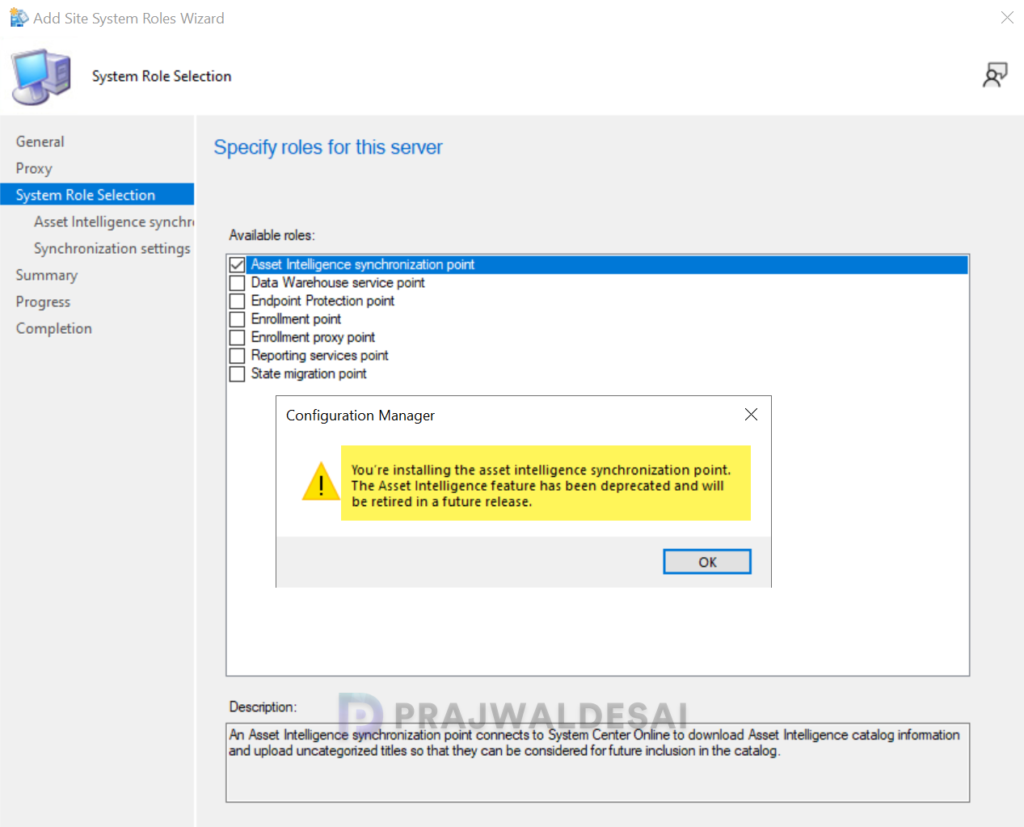
Starting in version 2203, a warning displays during the prerequisite check if you have the asset intelligence synchronization point site system role. The asset intelligence feature is deprecated and will be removed in a future release.
If you don’t have any roles installed that are deprecated, you shouldn’t ideally encounter such errors. That’s why it is important to always perform a prerequisite check before installing any update and keep in mind about the deprecated roles and features in SCCM. You can read more about deprecated features in Configuration Manager.
Asset Intelligence Role Halts Configuration Manager Upgrade
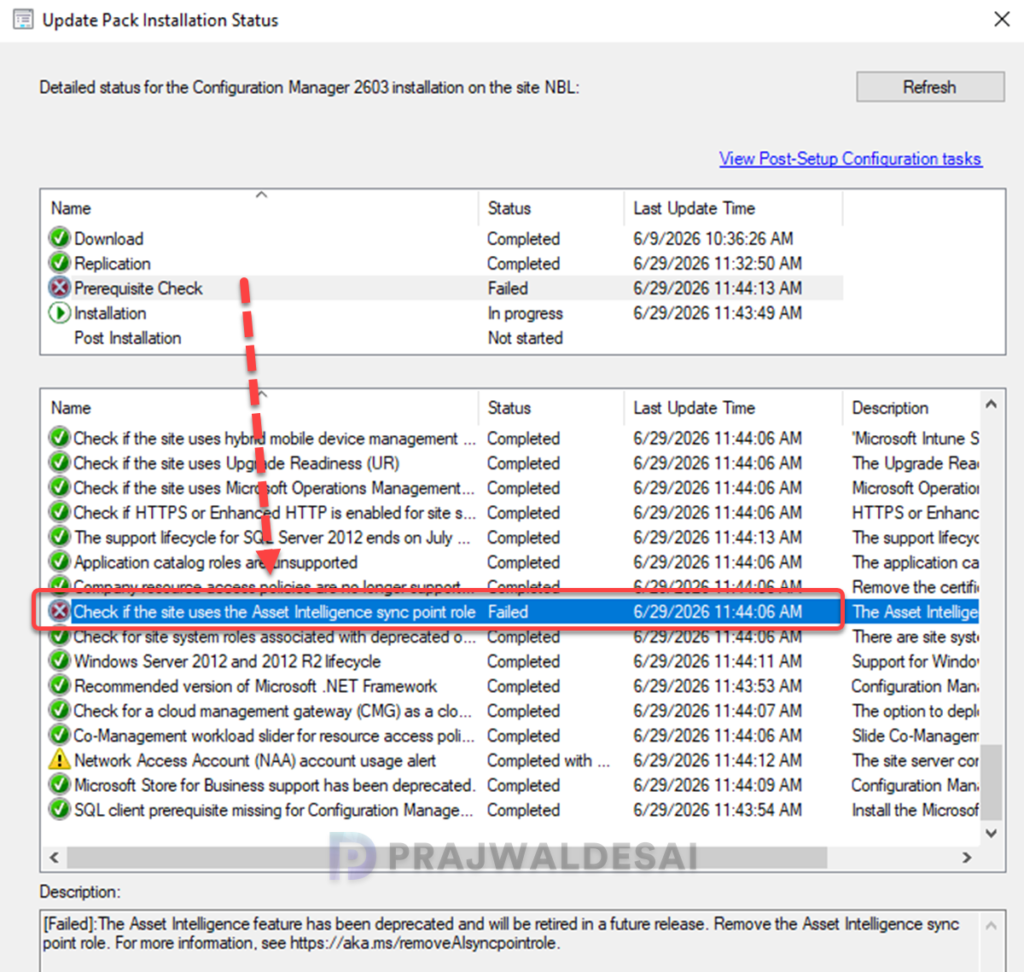
The image below shows a failed Configuration Manager upgrade. When reviewing the update’s installation status in the Monitoring workspace, it appears that the Prerequisite Check step that checks the presence of the Asset Intelligence sync point role gets triggered and errors out.
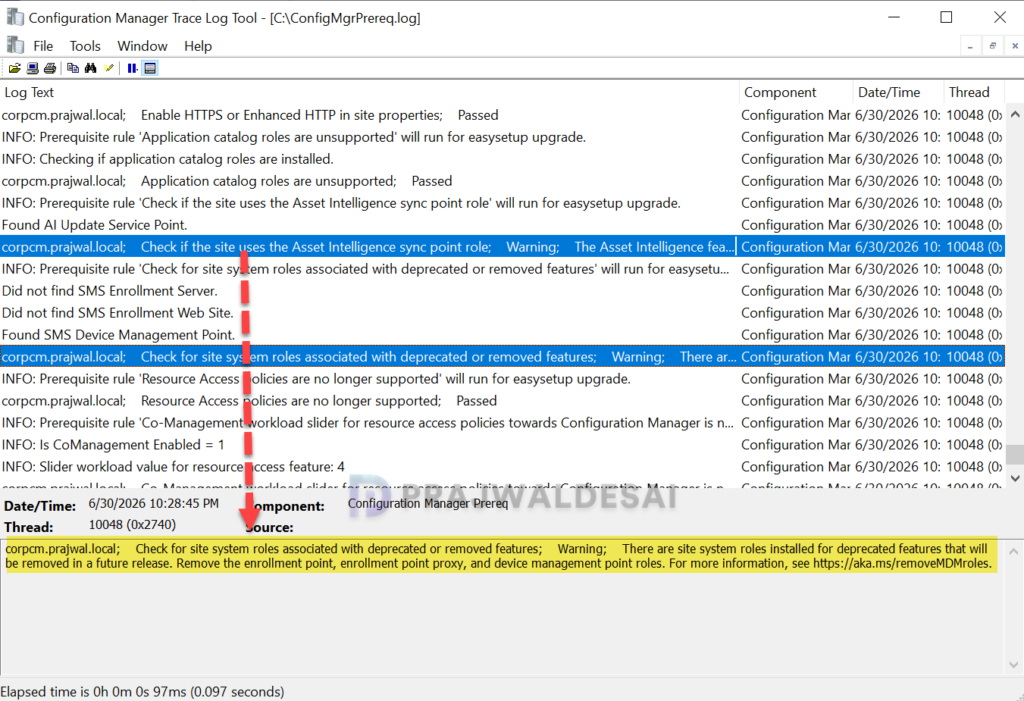
Reviewing the ConfigMgrPrereq.log file shows the complete warning message. Check if the site uses the Asset Intelligence sync point role; Warning: The Asset Intelligence feature has been deprecated and will be retired in a future release. Remove the Asset Intelligence sync point role.
Remove the Asset Intelligence synchronization point role
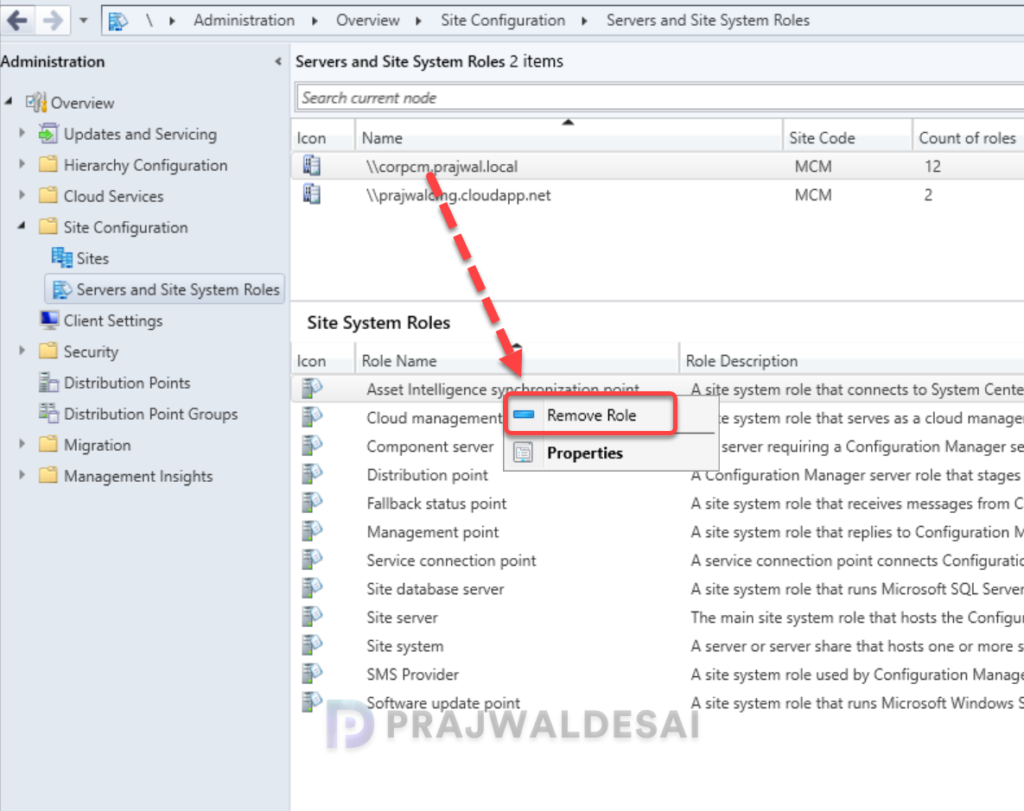
If your SCCM upgrade fails due to the presence of the Asset Intelligence sync point role, here’s how you can uninstall it. In the Configuration Manager console, go to Administration > Site Configuration > Server and Site System Roles. Select your site server, and under Site System Roles, right-click the Asset Intelligence synchronization point role and select Remove Role.
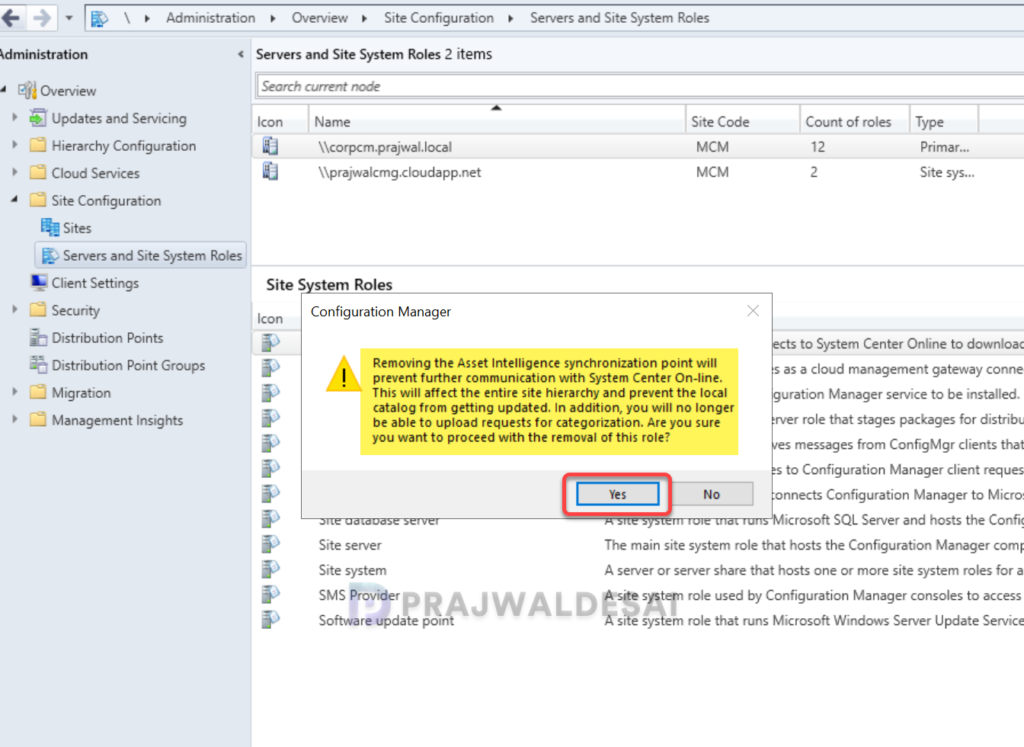
You may see a warning box notifying you that removal of the role will prevent further communication with the System Center online. Click Yes to confirm the role removal.
On the site server, review the AIUSSetup.log that records the installation and uninstallation of the Asset Intelligence sync point site system role. The below lines from the log file confirm the successful removal of the AI sync role from the Configuration Manager server.
AIUS Setup Started....
Parameters: C:\Program Files\Microsoft Configuration Manager\bin\x64\rolesetup.exe /deinstall /siteserver:CORPCM AIUS 0
Deinstalling the AIUS
Enabling MSI logging.  AIUS.msi will log to C:\Program Files\Microsoft Configuration Manager\logs\AIUSMSI.log
Deinstalling AIUS, with product code {0120FCAB-A7B4-4D3C-BFBB-8D6E0B6ECC09}
AIUS deinstall exited with return code: 0
Deinstallation was successful.
Removing AIUS Registry. ~RoleSetup().After completing the above steps, restart the server. Log in to the server and launch the Configuration Manager. Navigate to the Updates and Servicing node and start the upgrade process once more.
Lastly, I wanted to show you what happens when you attempt to re-install a deprecated role such as the Asset Intelligence synchronization role on your server. An administrator, when attempting to install any deprecated role, will see a warning that the role has been deprecated. Microsoft doesn’t prevent you from installing it, but you shouldn’t install it anyway.