Welcome to the complete guide on configuring Copilot in Microsoft Edge using Intune. Intune provides extensive policies to manage Copilot features for the Edge browser. These settings ensure that organizations can customize, restrict, or enable Copilot features within Microsoft Edge for users based on compliance requirements.
Many organizations today choose Microsoft Edge as the preferred browser for their employees because it is highly secure and offers advanced features. Additionally, most of its configurations can be easily managed through the Intune settings catalog, Configuration Manager, or group policies.
Remember that most of the Edge Copilot settings you intend to manage via Intune requires users to be signed in to Microsoft Edge with an Entra ID account and an eligible Microsoft 365 Copilot license.
Prerequisites
The following are the prerequisites required to configure Copilot settings in Edge using Intune.
- Windows devices must be managed via Intune and must have a valid Intune license assigned. See how to enroll Windows 11 devices in Intune.
- Using the latest version of Edge is recommended (version 145 or later) because most of the latest and updated Copilot features can be applied without any problems.
- Copilot settings deployed through Intune apply exclusively to users who are signed in to Microsoft Edge with an Entra ID account. These policies do not apply to users who log in using personal Microsoft accounts.
- Before setting up the configuration policy, ensure you have a Microsoft Entra group set up in the Microsoft 365 Admin Center that includes the target users or devices.
Copilot Edge Policies available in Intune
The table below outlines all the policies available for managing Copilot settings in the Edge browser through Intune, along with a description of each policy. Not all of these settings need to be configured by every organization. Understand the purpose of each setting and customize only those that align with your business needs.
| Policy Name | Description | Usage |
|---|---|---|
| Control whether Microsoft 365 Copilot Chat shows in the Microsoft Edge for Business toolbar | This policy controls whether the Microsoft 365 Copilot Chat icon will be shown in the Microsoft Edge for Business toolbar for Microsoft 365 Copilot licensed and unlicensed users. | If the policy is enabled: Copilot will appear in the toolbar. If the policy is disabled: Copilot will not appear in the toolbar. |
| Control Copilot access to Microsoft Edge page content for Entra account user profiles when using Copilot in the Microsoft Edge sidepane | This policy controls whether the Copilot in the Microsoft Edge sidepane can access Microsoft Edge page content. This includes page summarization and similar contextual queries sent to Copilot. It only applies to users who are signed in to Microsoft Edge with their Entra account and are using Copilot in the sidepane. | If you enable this policy, Copilot will be able to access Microsoft Edge page content when users ask a contextual query to Copilot in the Microsoft Edge side pane. If you disable this policy, Copilot will not be able to access Microsoft Edge page content. |
| Control Copilot access to page context for Microsoft Entra ID profiles | This policy controls access to page contents for Copilot in the Microsoft Edge sidebar when users are logged into their MSA Copilot account. It applies only to Microsoft Entra ID Microsoft Edge profiles and not for MSA Microsoft Edge profiles. This policy doesn’t control access to Copilot with enterprise data protection (EDP). | If you enable this policy, Copilot will have access to page content when logged in with Entra ID. If you disable this policy, Copilot will not be able to access page context. |
| Allow sharing tenant-approved browsing history with Microsoft 365 Copilot Search | This policy controls whether browsing history in Microsoft Edge is shared with Microsoft 365 Copilot Search to provide more relevant search results. This feature is available only to users who are signed in to Microsoft Edge with an Entra ID account and have an eligible Microsoft 365 Copilot license. | If you enable or don’t configure this policy, browsing history will be shared with Microsoft 365 Copilot Search by default, and users can turn off sharing using the toggle in Microsoft Edge settings. If you disable this policy, browsing history won’t be shared with Microsoft 365 Copilot Search. |
Configuring Copilot Settings in Microsoft Edge using Intune
Let’s create an Intune policy to configure the copilot settings for the Edge browser.
- Sign in to Intune admin center and go to Devices > Windows > Configuration and create a new policy.
- Choose Windows 10 and later as Platform and Settings Catalog as Profile Type. Click Next.
- On the Basics tab, specify the name profile name and description. Click Next to continue.
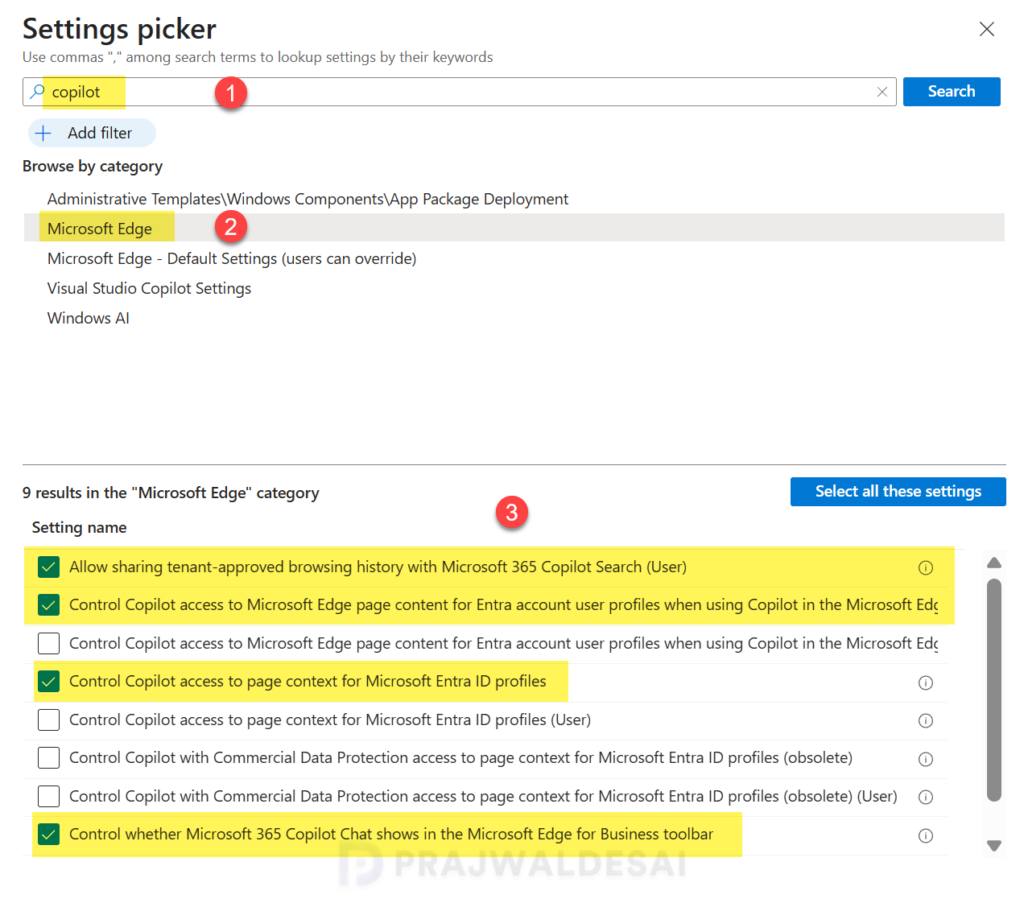
- In the Settings Picker, search for the term “Copilot“. From the results, select the Microsoft Edge category, and you should now find all the copilot policy settings exclusively available for the Edge browser.
- Select the individual Edge Copilot policy setting that you wish to manage via Intune and close the settings picker.
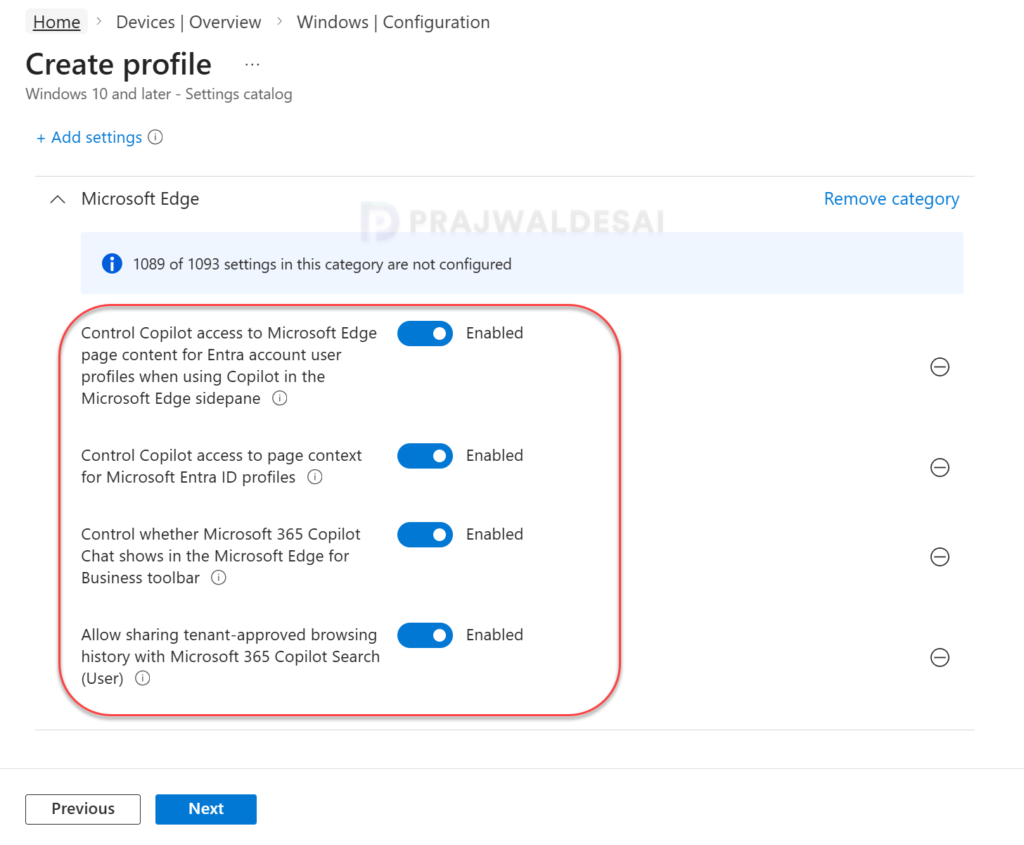
For each of the chosen settings, you can simply use the toggle switch to enable it. In my case, the following copilot policy settings are enabled for the Edge browser.
- EdgeEntraCopilotPageContext: Control Copilot access to Microsoft Edge page content for Entra account user profiles when using Copilot in the Microsoft Edge side pane.
- CopilotPageContext: Control Copilot access to page context for Microsoft Entra ID profiles.
- Microsoft365CopilotChatIconEnabled: Control whether Microsoft 365 Copilot Chat shows in the Microsoft Edge for Business toolbar.
- ShareBrowsingHistoryWithCopilotSearchAllowed: Allow sharing tenant-approved browsing history with Microsoft 365 Copilot Search.
Once you’ve configured the settings, click Next.
In the scope tags section, add your scope tags. If you haven’t created them, I have published a step-by-step guide on creating Intune scope tags. Note that specifying scope tags is optional, and you may skip this step. Click Next.
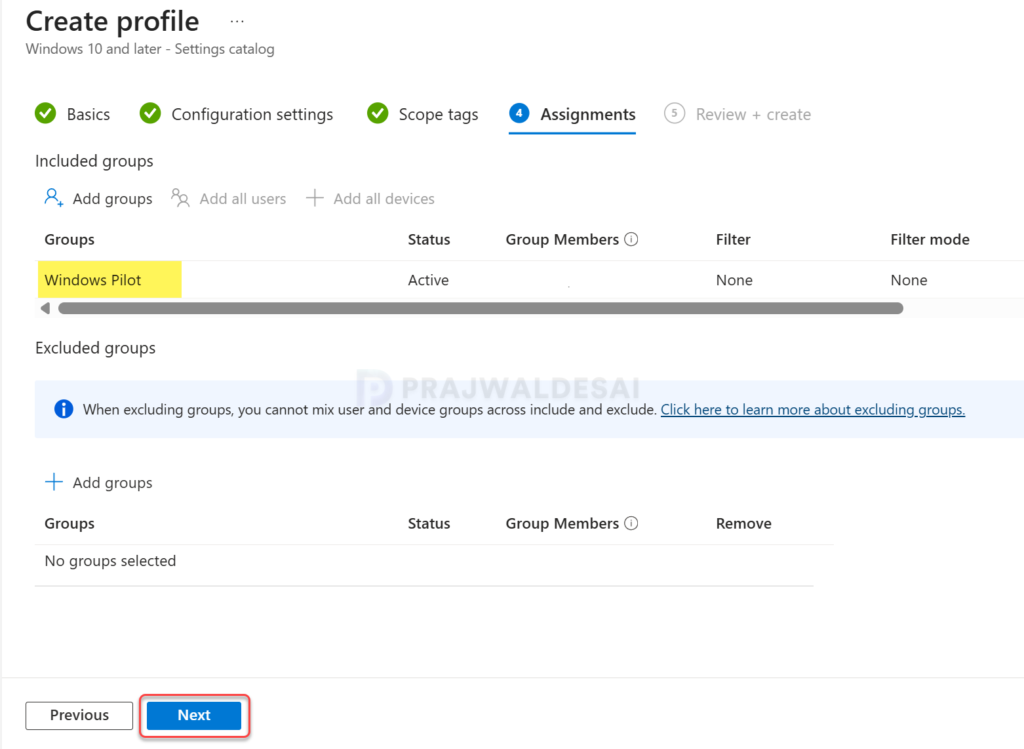
In the Assignments window, select the Entra security groups to which you want to assign the policy. Start by deploying the profile to a select group of users. If the testing proves successful, gradually roll it out to a larger user base. Select Next.
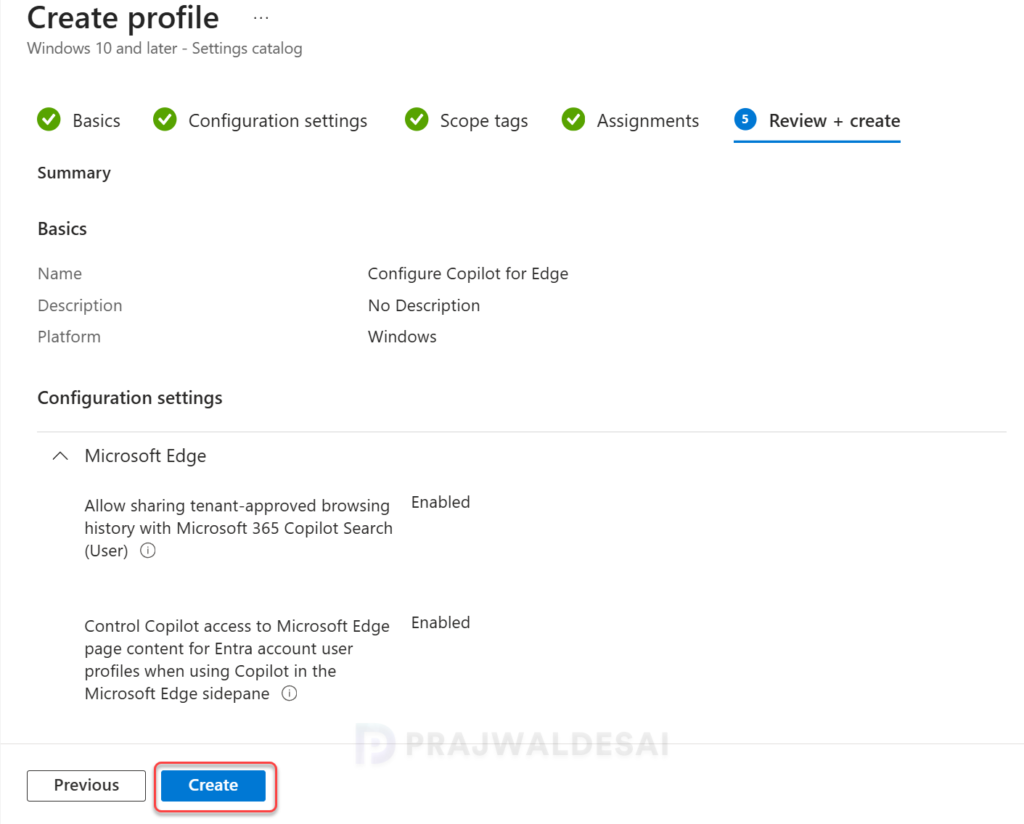
On the Review + Create tab, carefully review all the configured policy settings, then click Create. You should find this new profile in the list of all configuration profiles for Windows devices in Intune admin center.
Sync Intune Policies
Updates may take up to 90 minutes to be downloaded to devices targeted by the configuration profile. If the above policy is taking time to apply to targeted groups, you can speed up the policy assignments by manually syncing Intune policies. In this guide, I have demonstrated different methods to initiate Intune policy sync, including PowerShell method. The sync action will force devices to immediately check-in with Intune and retrieve the latest policies.
Monitor Policy Assignments
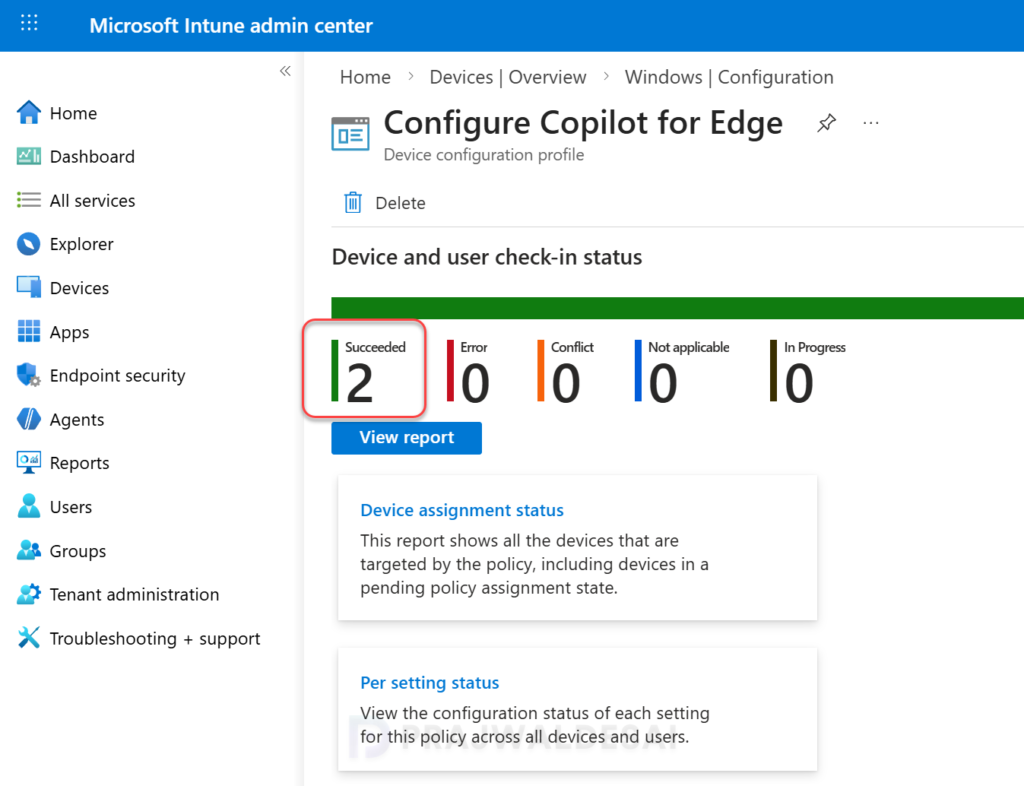
In the Intune admin center, go to Devices > Windows > Configuration and here select the Configure Copilot Settings for Edge profile. On the Policy overview page, check the device and user check-in status.
Here you will find the number of devices or users on which the policy has been applied successfully. The view report button lets you see the names of devices or users for which the policy deployments have been successful.
If you notice policy assignment failures, you can review the essential Intune IME logs to determine the exact cause of failure and take further steps to resolve it.
End User Experience
Intune administrators can verify if the Copilot settings configured in our policy for the Edge browser have been successfully applied to organizational devices by viewing the settings.
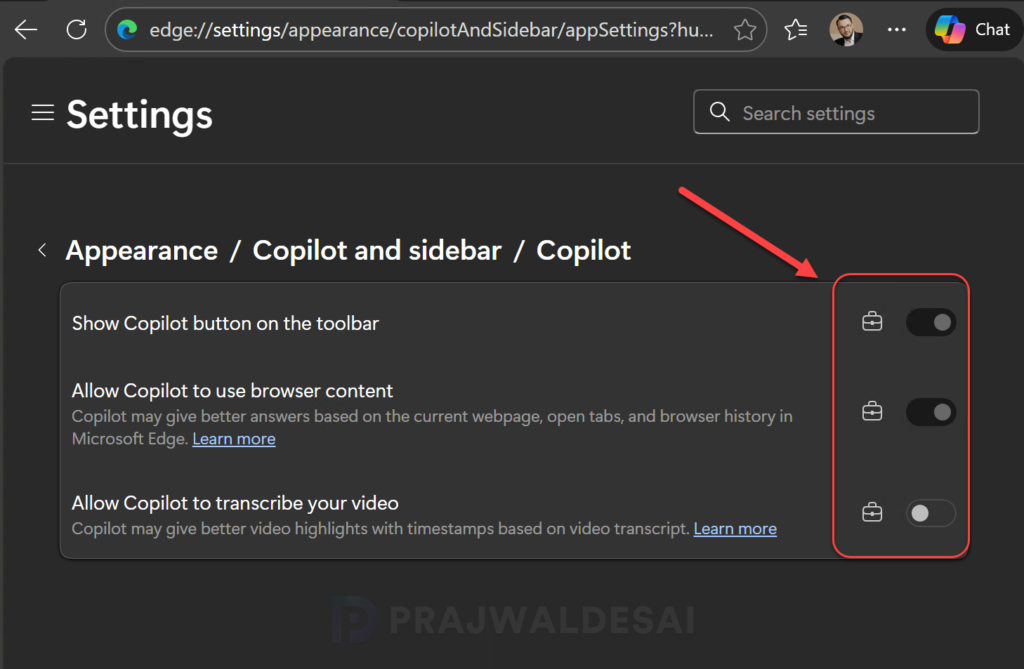
Here’s what users observe when they try manually to adjust Copilot settings in the Edge browser. On the Windows 11 device targeted with the policy, launch the Edge browser. Navigate to Settings > Appearance > Copilot and Sidebar. Under App specific settings, select Copilot. Here, the following settings are greyed out (cannot be configured).
- Show Copilot button on the toolbar
- Allow Copilot to use browser content
- Allow Copilot to transcribe your video
A suitcase icon appears next to each setting, signifying that it is now managed by your organization through an Intune policy.