


Microsoft has rolled out hotfix KB36419072 for Configuration Manager versions 2509, 2503, and 2409. This update enhances the product’s security and reliability by requiring authentication for providing Configuration Manager feedback.
Starting 26 June 2026, when you submit feedback for Configuration Manager product, it will no longer accept unauthenticated requests. That means you’ll have to sign in either with a Microsoft account to submit the feedback.
Recently, Microsoft has also released a hotfix KB36495448 for versions 2509 and 2503 to resolve an issue with software updates when third-party updates are used in a co-managed environment. For tracking hotfixes across all current branch versions, I suggest referring to the guide on Configuration Manager Hotfixes and Update Rollups.
Changes to feedback in SCCM Console
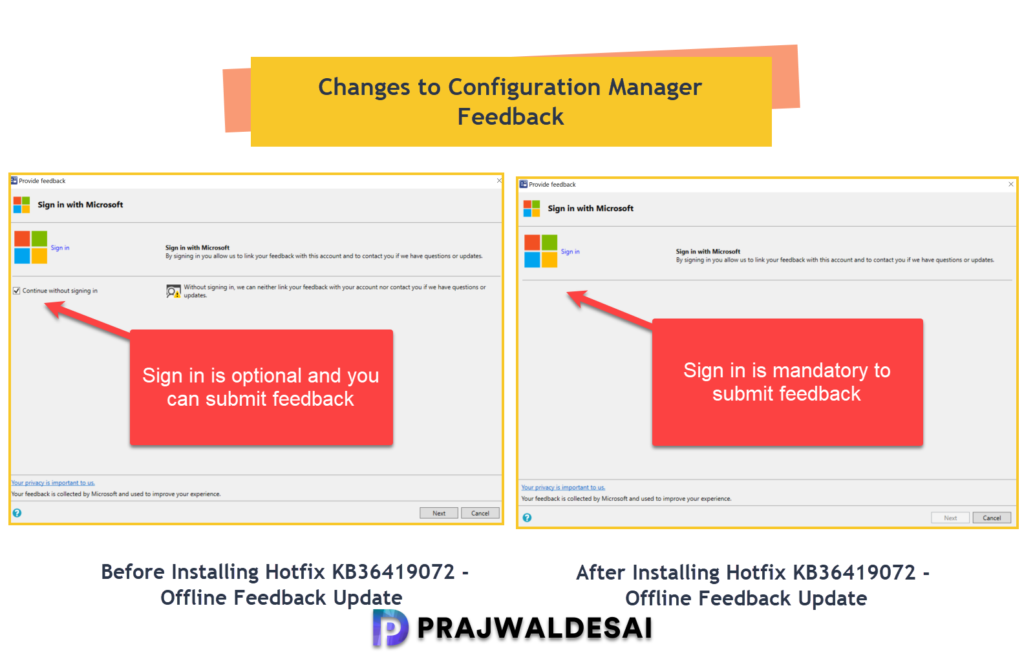
The image below illustrates a clear comparison of authentication enforcement when submitting feedback through the Configuration Manager console. On the left, prior to installing hotfix KB36419072, users could submit feedback without signing in. On the right, after installing the KB36419072 update, users are required to sign in to submit feedback.
Prerequisites
Hotfix KB36419072 applies to the following versions of Configuration Manager:
- Configuration Manager, version 2409 (with Update rollup KB30385346)
- Configuration Manager version 2503 (with Update rollup KB32851084).
- Configuration Manager version 2509.
This update doesn’t replace any previously released update. Also, the update doesn’t initiate a site reset after installation.
For more information, refer to the KB36419072 hotfix documentation by Microsoft.
KB36419072 Known Issues
Microsoft mentions that with this change, there is a known issue that the standalone tool UploadOfflineFeedback.exe won’t work, this will be fixed in the next release, but you can still use other embedded UX options to send feedback.
Install Configuration Manager Hotfix KB36419072
Here is how you can install the KB36419072 hotfix for Configuration Manager.
- Launch the Configuration Manager console on the server.
- Navigate to Administration\Overview\Updates and Servicing.
- Right-click Configuration Manager Hotfix (KB36419072) and select Install Update Pack.
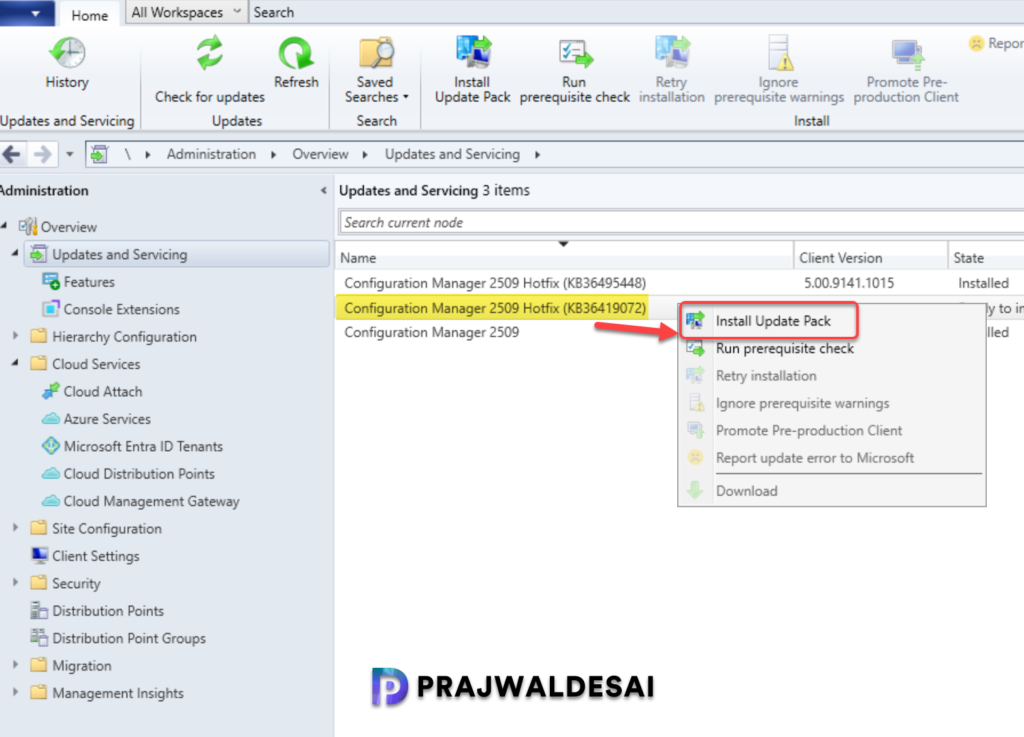
It is highly recommended that you run a prerequisite check for this update on your production server before installing it. For lab environments, you can enable the option “Ignore any prerequisite check warnings and install the update.” Click Next.
Accept the license terms required for installing the hotfix. Click Next.
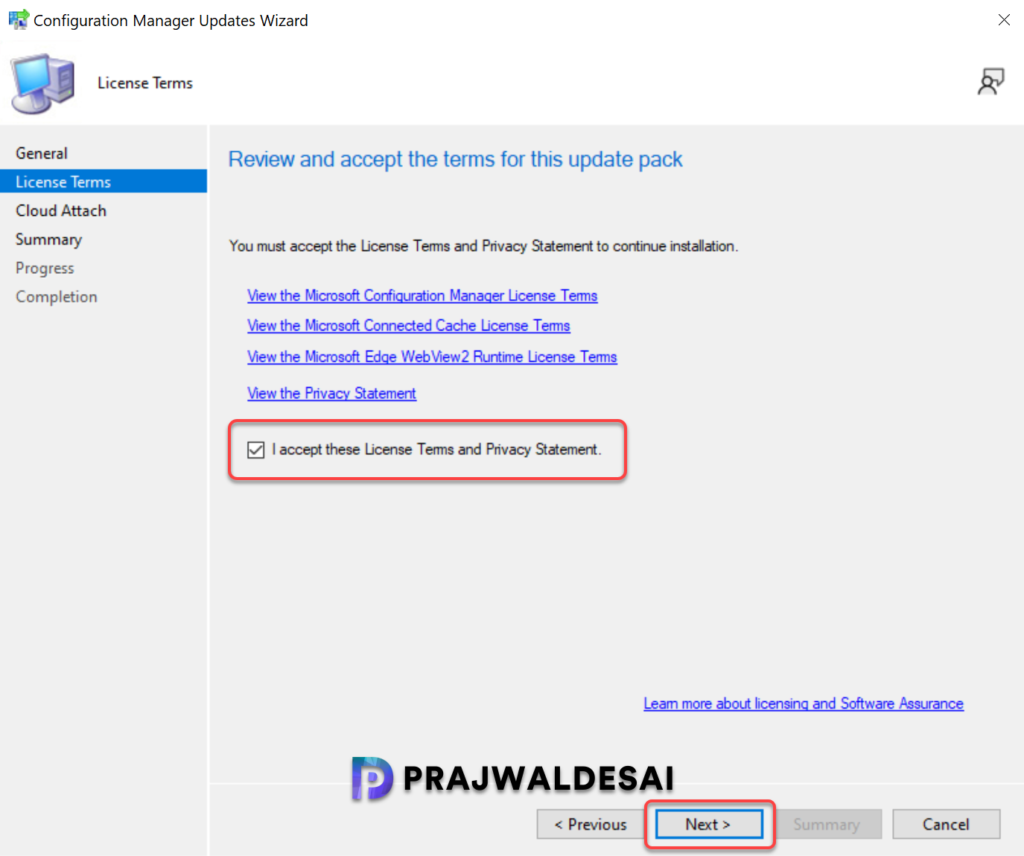
Complete the steps included in the hotfix installation wizard and wait for the hotfix to install.
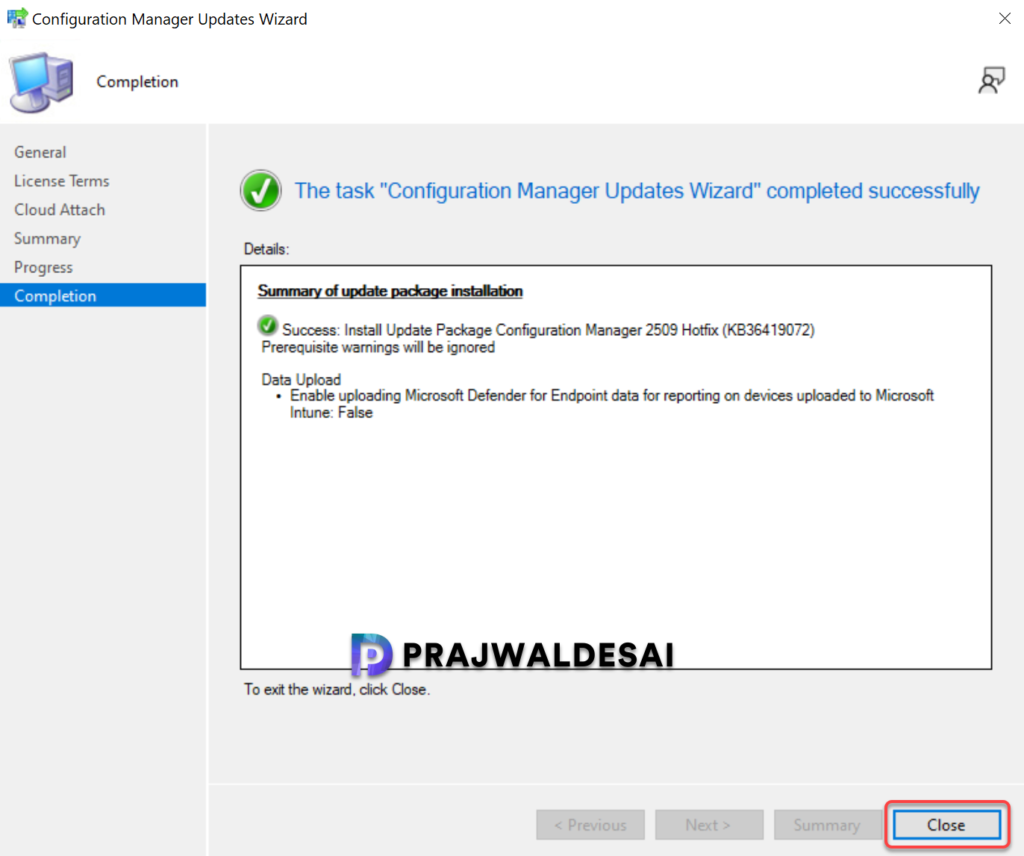
Console Upgrade
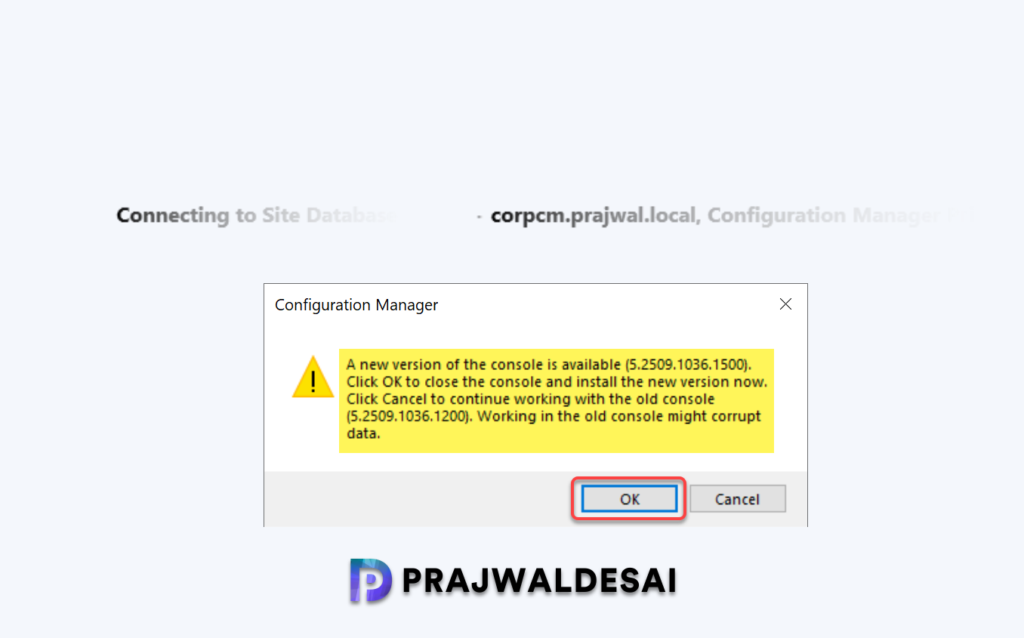
The hotfix KB36419072 upgrades the Configuration Manager console to version 5.2509.1036.1500. To upgrade the console, click on Install the new console version and complete the upgrade procedure.
Tip: During the console upgrade, review the console admin upgrade log files in case you encounter any errors.
Monitor and Verify Hotfix Installation
To track the progress of KB36419072 hotfix installation, navigate to Monitoring\Overview\Updates and Servicing Status. If the hotfix fails to install, this section will show you the exact step where the update failed. Another way to track the hotfix installation is by reviewing the cmupdate.log file.
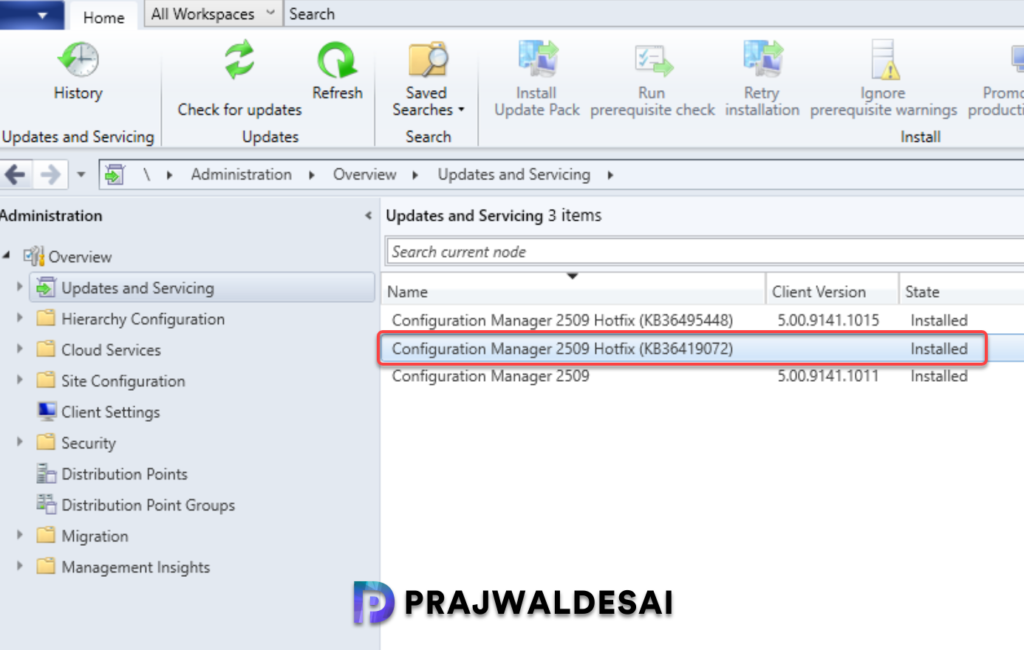
To verify if the KB36419072 hotfix is installed, open the console and go to Administration > Updates and Servicing. If the State column for the hotfix shows ‘Installed‘, it means the update installation is completed.
Updating Secondary Sites
After installing the KB36419072 update on a primary site, pre-existing secondary sites must be manually updated. This must be done on all the secondary sites present in your setup.
Login to the Secondary site server, open the Configuration Manager console. Go to Administration > Site Configuration > Sites > Recover Secondary Site, and then select the secondary site. Run the following SQL Server command on the site database to check whether the updated version of a secondary site matches that of its parent primary site:
select dbo.fnGetSecondarySiteCMUpdateStatus ('SiteCode_of_secondary_site')If the above command returns value 1, it means the site is up-to-date, with all the hotfixes applied on its parent primary site. If the value 0 is returned, the site has not installed all the fixes that are applied to the primary site. You should use the Recover Secondary Site option to update the secondary site.

Hello. Does this update KB36419072 include KB36495448 ? Or must we install KB36495448 first , then KB36419072 ?
Thanks
Both are separate updates and can be installed in any order.
Tkank you for this clear answer.