In this post, I will demonstrate different ways to hide gaming in Windows settings using Intune. For Windows users, you can restrict access to the gaming section in the Settings app using Settings Catalog, OMA-URI, or a Device Restrictions profile.
Windows 11 offers some impressive features tailored for gaming. The gaming section in Windows settings includes options like the Xbox Game Bar, capture settings, and Game Mode. Additionally, Windows 11 enhances the gaming experience with modern features such as Auto HDR, DirectX 11 support, and variable refresh rate compatibility on supported displays.
Let’s be honest, not everyone uses Windows 11 for gaming. Organizations managing Windows 11 corporate-owned devices through Intune can efficiently restrict user access to gaming settings. Similarly, gaming options can also be controlled via Group Policy for Windows devices joined to Active Directory and managed on-premises.
Key Points
With Intune, you can go with three different methods for hiding the gaming menu in its settings, each with distinct advantages. If you’re unsure which method to decide on, allow me to share some details to help you decide more easily.
- Device Restrictions: This method simply hides the entire gaming section under the settings app for users, and it also hides the notifications. Numerous users have expressed concerns about the gaming block policy also restricting access to notification settings.
- Settings Catalog: I recommend this method because you can specify a page visibility CSP rule that can hide specific gaming features or hide all the features.
- Custom OMA-URI: With OMA-URI, you can hide the gaming as well as the options within it using the PageVisibilityList CSP. I prefer using the settings catalog instead of OMA-URI to restrict the gaming section in the settings app, as the settings catalog is updated more frequently.
Method 1: Hide Gaming under Windows Settings using Device Restrictions
The gaming section under the Windows settings can be quickly restricted with the device restrictions profile. This method hides the Game Bar, Game DVR, and Game Mode, but it may also block notifications. That’s because it adds the ms-settings:quietmomentsgame page to the Settings/PageVisibilityList CSP as described by Microsoft.
Here’s how you can create a device restriction profile in Intune and hide the gaming section in settings app for Windows 11/10 users.
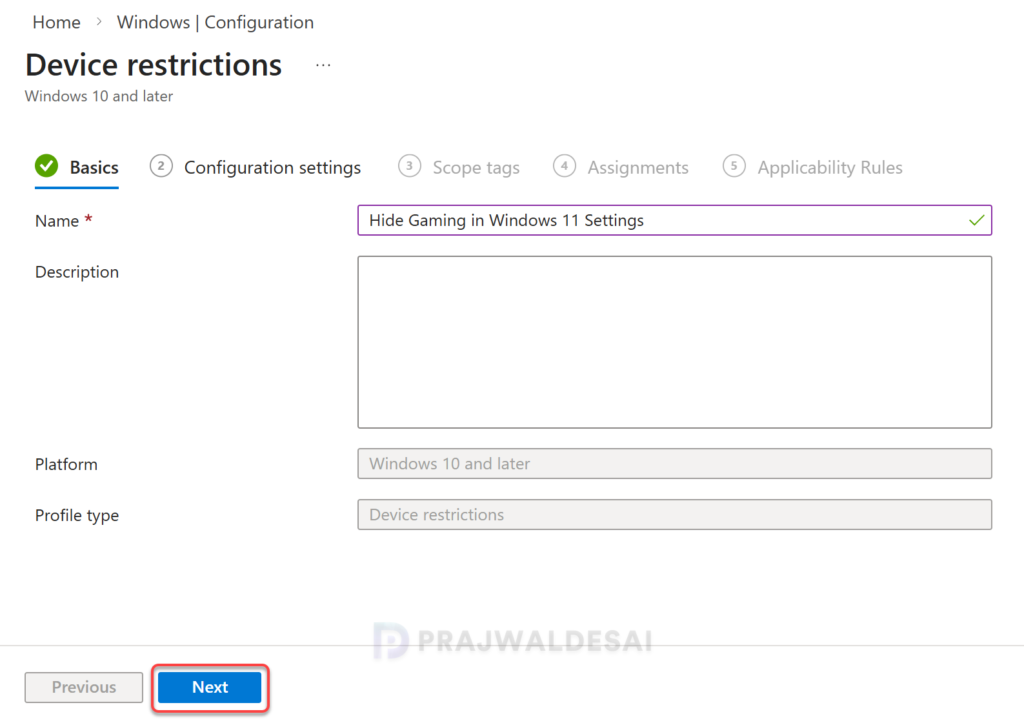
Sign in to the Microsoft Intune admin center. Go to Devices > Windows > Configuration. Click + Create and select New Policy. Select Platform: Windows 10 and later. Select Profile type: Templates > Device restrictions. On the Basics page, specify the profile name as “Hide gaming in Windows settings” and optionally specify the description. Click Next.
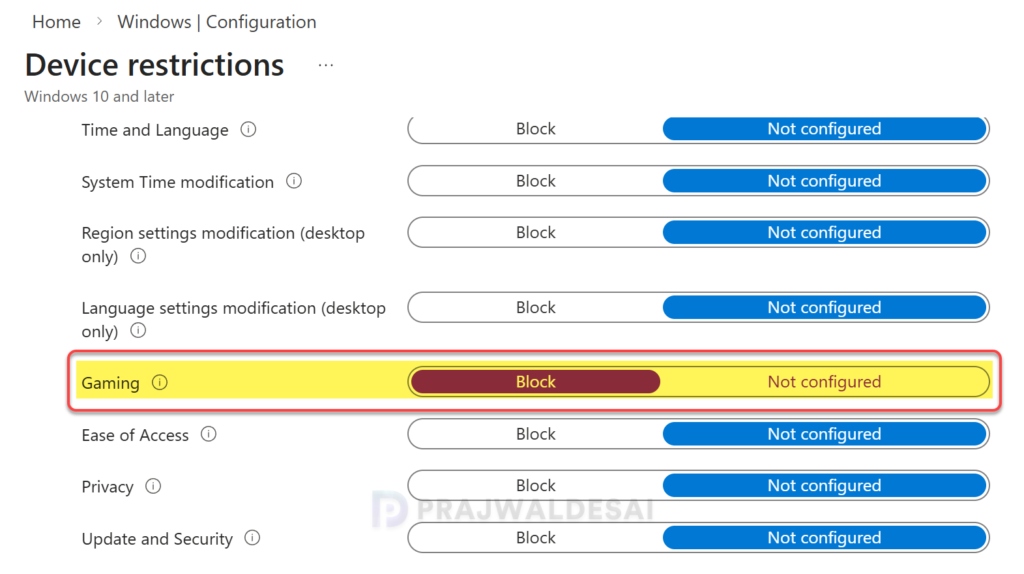
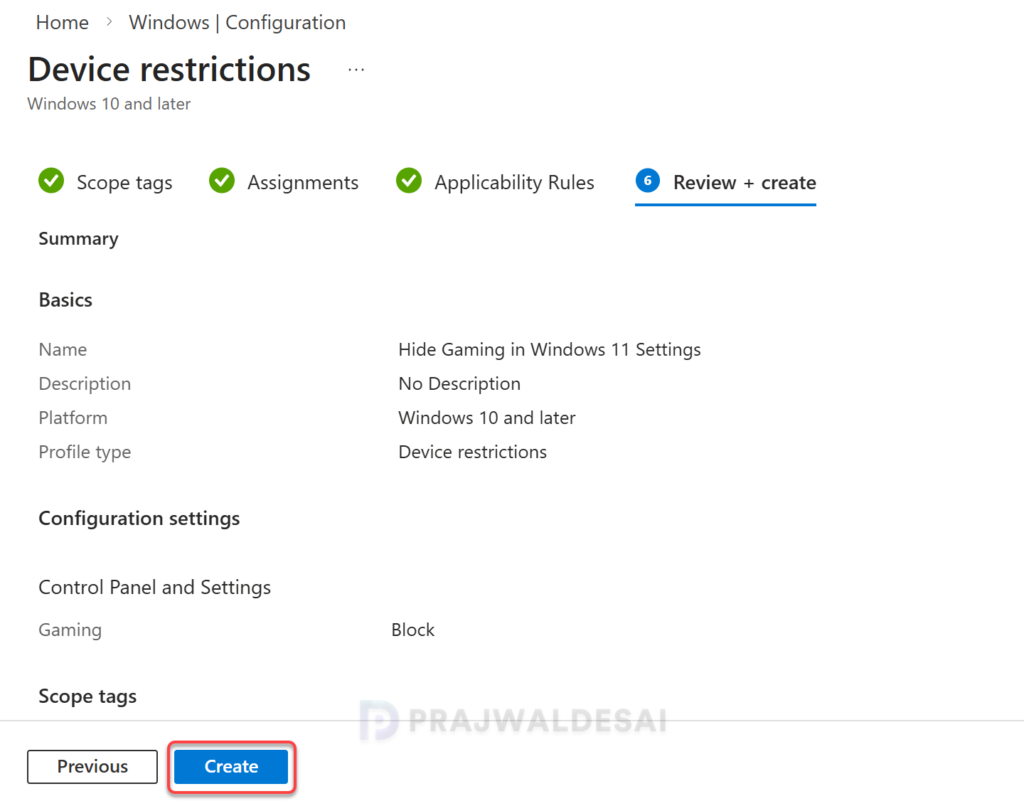
Under Configuration settings, expand the Control Panel and Settings. Locate Gaming and set it to Block. This should completely block access to the gaming section for Windows users. Click Next.
In the scope tags section, add your scope tags. If you haven’t created them, I have published a step-by-step guide on creating Intune scope tags. Note that specifying scope tags is optional, and you may skip this step. Click Next.
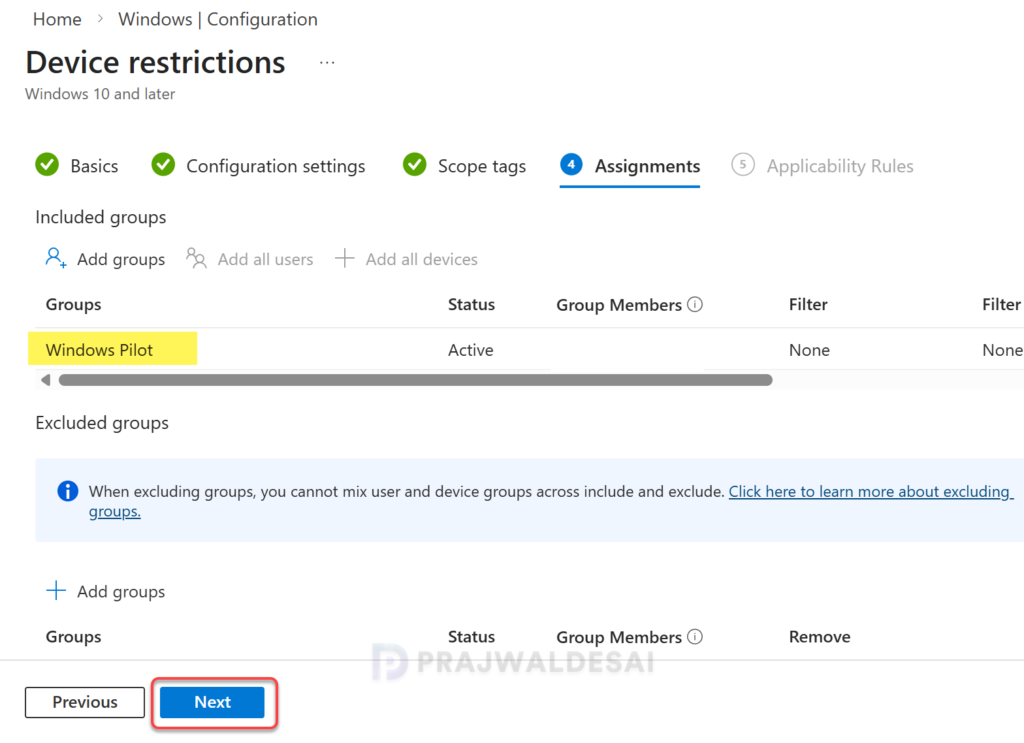
In the Assignments window, select the Entra groups to which you want to assign the policy. Start by deploying the profile to a select group of test users or devices. If the testing proves successful, gradually roll it out to a larger user or device base. Select Next.
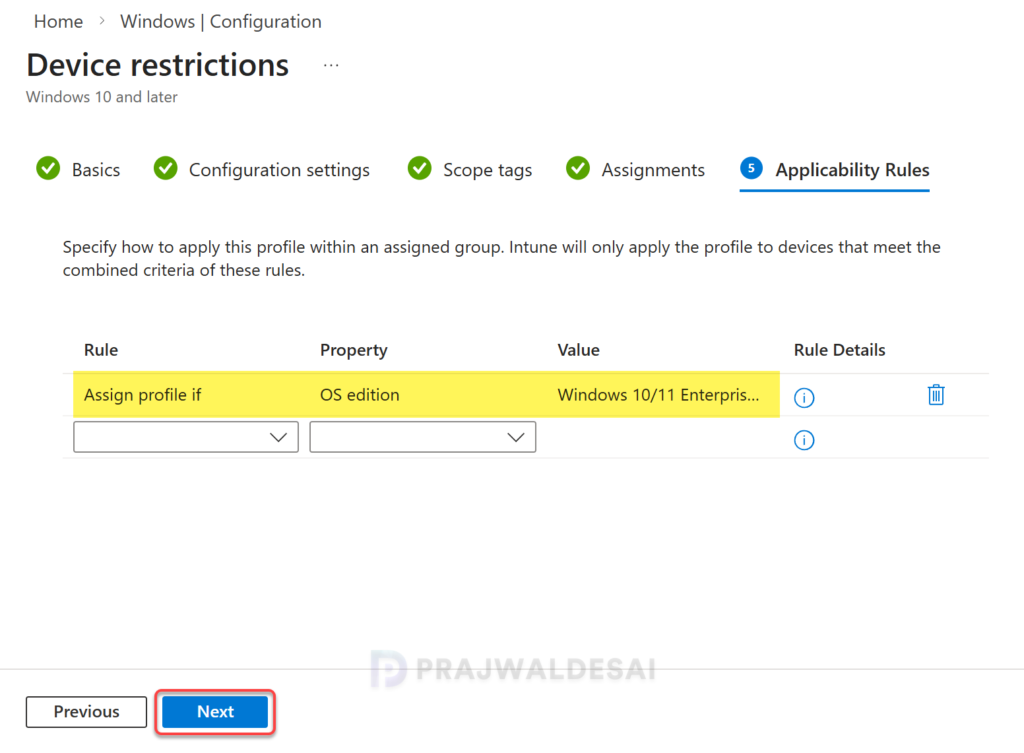
On the Applicability Rules tab, you can choose to apply the profile to your devices that meet the rule criteria. For example, you can target this profile to devices that are running Windows 10/11 Pro or Enterprise editions. This is an optional step; you can skip it and click Next.
On the Review + Create tab, carefully review all the configured policy settings, then click Create. You should find this new device restrictions profile in the list of all configuration profiles for Windows devices in the Intune admin center.
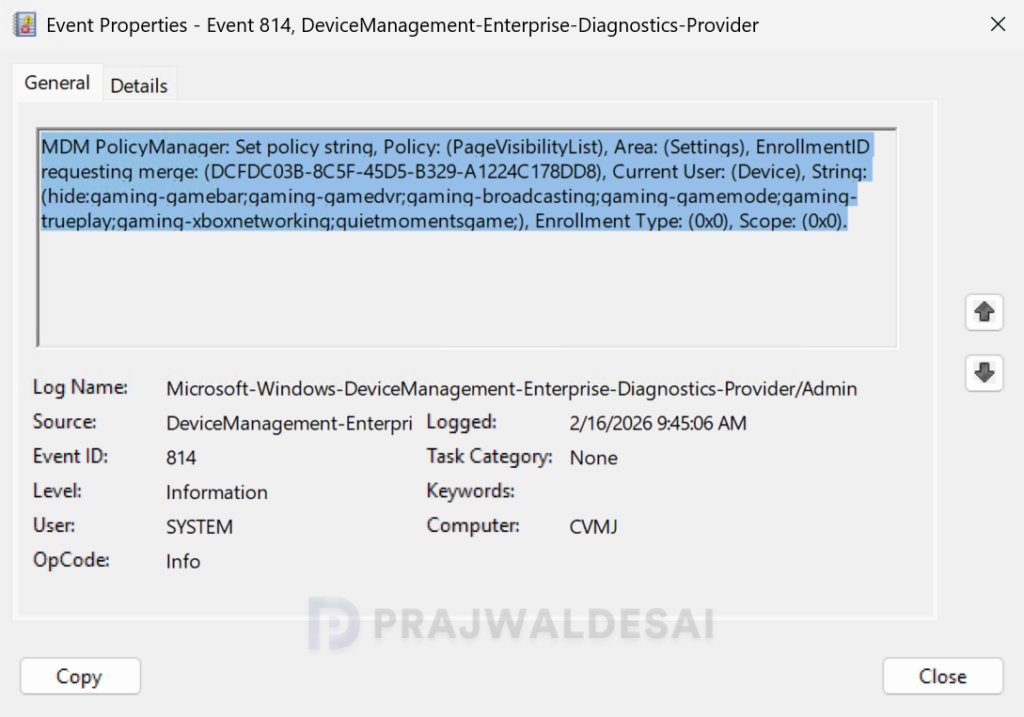
When you apply the above device restrictions profile to hide the gaming on the Windows devices, the Event Viewer with Event ID 814 with policy name “PageVisibilityList” lists the string that actually hides the gaming section in the settings app. Furthermore, the rule includes the “quietmomentsgame;” which blocks the user’s access to notification settings.
hide:gaming-gamebar;gaming-gamedvr;gaming-broadcasting;gaming-gamemode;gaming-trueplay;gaming-xboxnetworking;quietmomentsgame;You can exclude “quietmomentsgame;” from the above string and use the same to hide the gaming section in the settings app via the settings catalog or OMA-URI. I have demonstrated the same in the further section.
Important: In Windows 11, version 22H2 and later, when you configure this policy to hide any pages that contain quietmoments in the URI (for example, ms-settings:quietmomentsgame), the Notifications page under the System category is hidden.
Refer to the Monitoring Policy Assignments topic at the bottom of this post to see how you can monitor the profile assignments.
Method 2: Hide Gaming in Windows Settings Using Settings Catalog
With the Settings Catalog, you can hide the gaming section under Windows settings using the PageVisibilityList setting. To begin with, sign in to the Intune admin center. Navigate to Devices > Windows > Configuration > Create > New Policy. Choose Windows 10 and later as Platform and Settings Catalog as Profile Type.
Specify the name and description for the profile. Click Next. In the Settings Picker, search for “page visibility“. From the results, under settings, select the Page Visibility List setting. Close the settings picker.
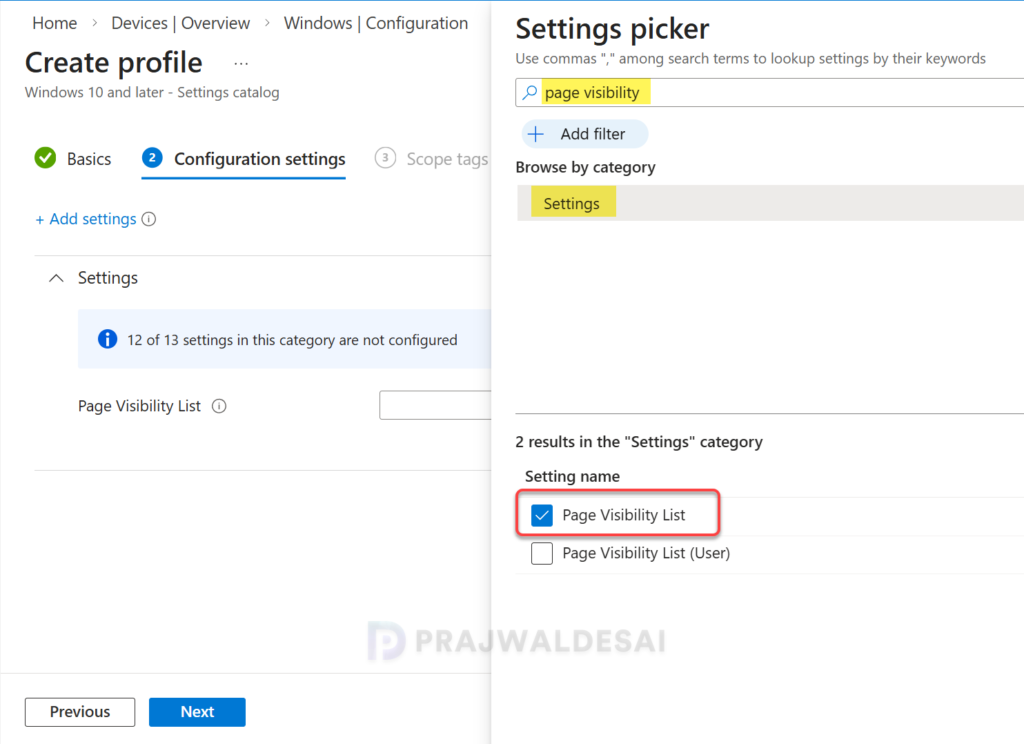
Enter the below string in the page visibility list text box. This string hides the settings such as game bar, game mode, Xbox networking, and game broadcasting. Click Next.
hide:gaming-gamebar;gaming-gamedvr;gaming-broadcasting;gaming-gamemode;gaming-trueplay;gaming-xboxnetworking;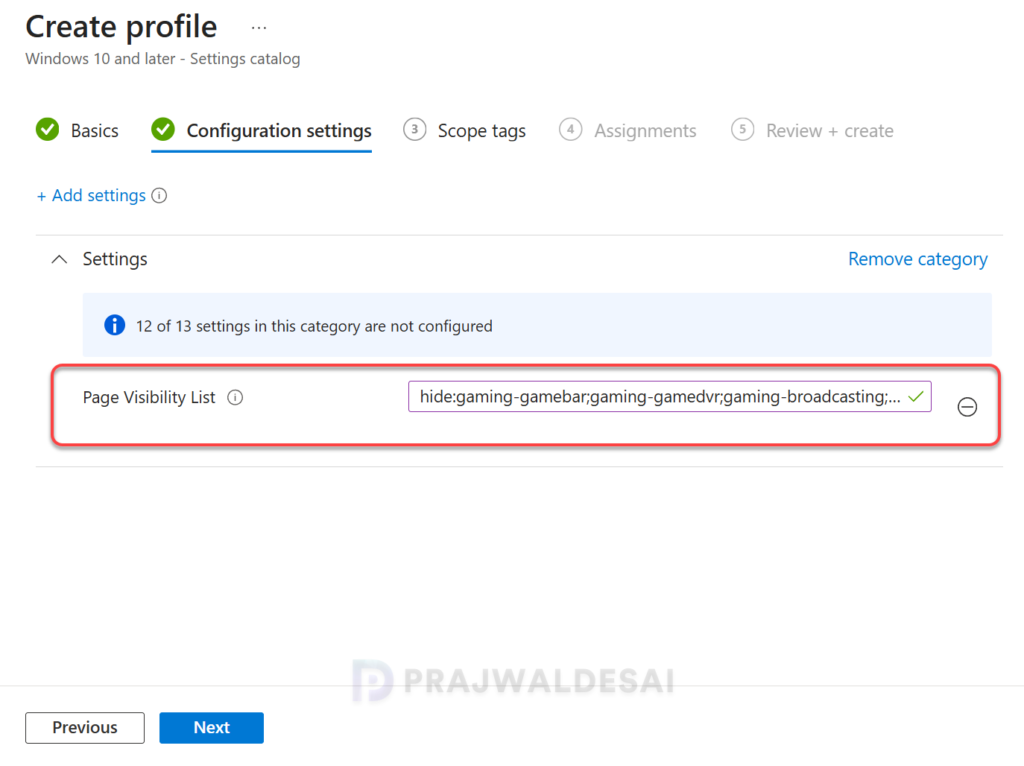
Specify the optional scope tags in the next step. On the Assignments tab, add your device groups to target this profile and go to the next step. On the Review + Create tab, carefully review all the configured policy settings, then select Create.
Refer to the Monitoring Policy Assignments topic at the bottom of this post to see how you can monitor the profile assignments.
Method 3: Hide Gaming in Windows Settings using OMA-URI
In this method, I will show you how to use custom OMA-URI settings to restrict access to gaming in the settings app on Windows 11/10 devices.
Sign in to the Intune admin center. Navigate to Devices > Windows > Configuration and create a new policy. Select Platform: Windows 10 and later. Select Profile type: Templates > Custom. On the Basics page, specify the profile name and optionally specify the description. Click Next.
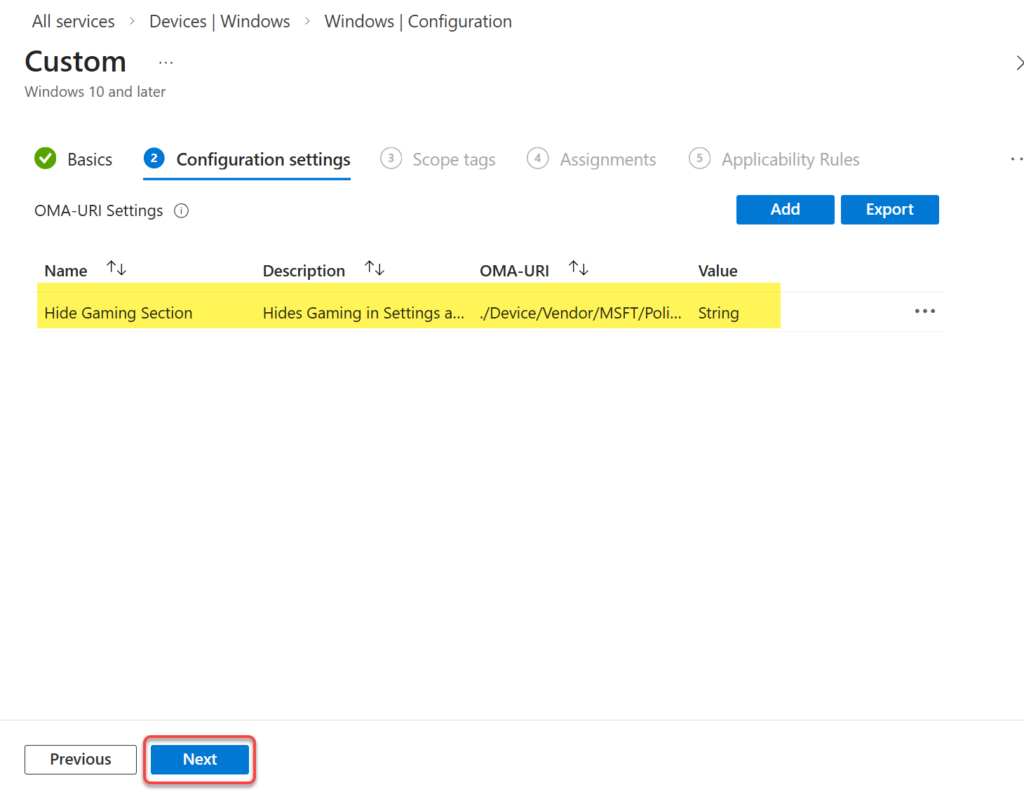
On the Configuration Settings tab, click on the Add button and specify the following OMA-URI settings.
- Name: Hide Gaming Section
- Description: Hides Gaming in Settings app for Windows Users
- OMA-URI: ./Device/Vendor/MSFT/Policy/Config/Settings/PageVisibilityList
- Data type: String
- Value: hide:gaming-gamebar;gaming-gamedvr;gaming-broadcasting;gaming-gamemode;gaming-trueplay;gaming-xboxnetworking;
Click Save.

The OMA-URI settings that you specified above are now displayed in the Configuration settings. Click Next.
In the scope tags section, add your scope tags. If you haven’t created them, I have published a step-by-step guide on creating Intune scope tags. Note that specifying scope tags is optional, and you may skip this step. Click Next.
In the Assignments window, select the Entra groups to which you want to assign the policy. Start by deploying the profile to a select group of test users or devices. If the testing proves successful, gradually roll it out to a larger user or device base. Select Next.
On the Review + Create tab, carefully review all the configured OMA-URI policy settings, then select Create.

Sync Intune Policies
If the above policy is taking time to apply to targeted groups, you can speed up the policy assignments by manually syncing Intune policies. In this guide, I have demonstrated different methods to initiate Intune policy sync, including the PowerShell method. The sync action will force devices to immediately check in with Intune and retrieve the latest policies.
Monitoring Policy Assignments
No matter what method you opted for blocking access to gaming settings with Intune, you can always monitor the policy assignments in the Overview pane of the policy. In the Intune admin center, go to Devices > Windows > Configuration, and here select the Hide gaming in Windows settings profile. On the Policy overview page, check the device and user check-in status.
Here you will find the number of devices or users on which the policy has been applied successfully. The view report button lets you see the names of devices or users for which the policy deployments have been successful.
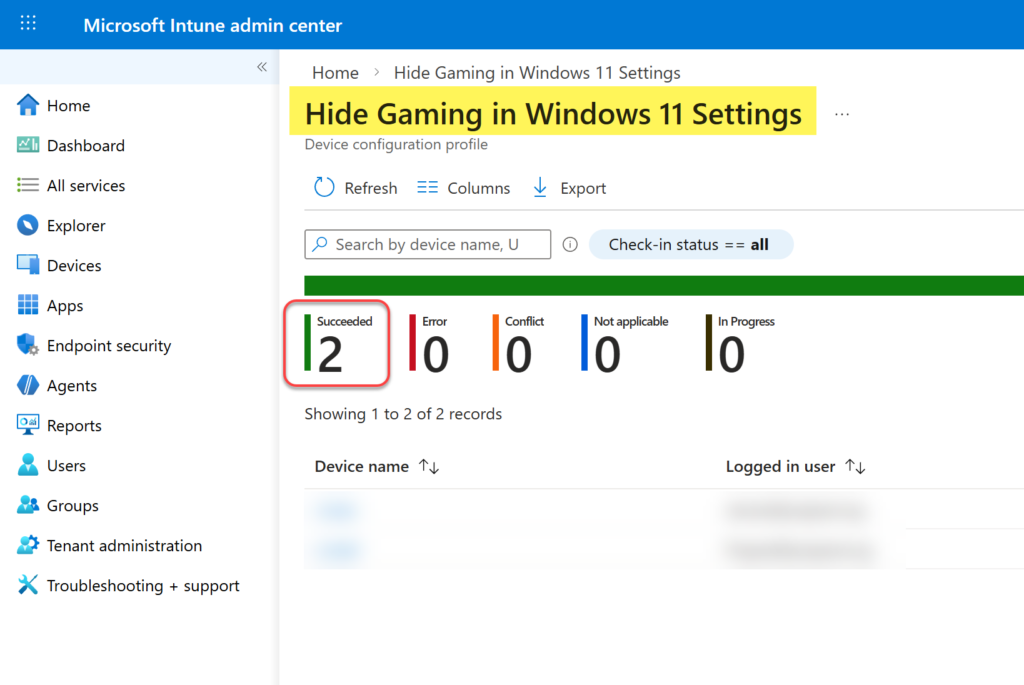
If you notice policy assignment failures, you can review the essential Intune IME logs to determine the exact cause of failure and take further steps to resolve it.
End User Experience
Here’s how Intune administrators can manually verify if the gaming section is hidden for Windows users using these methods.
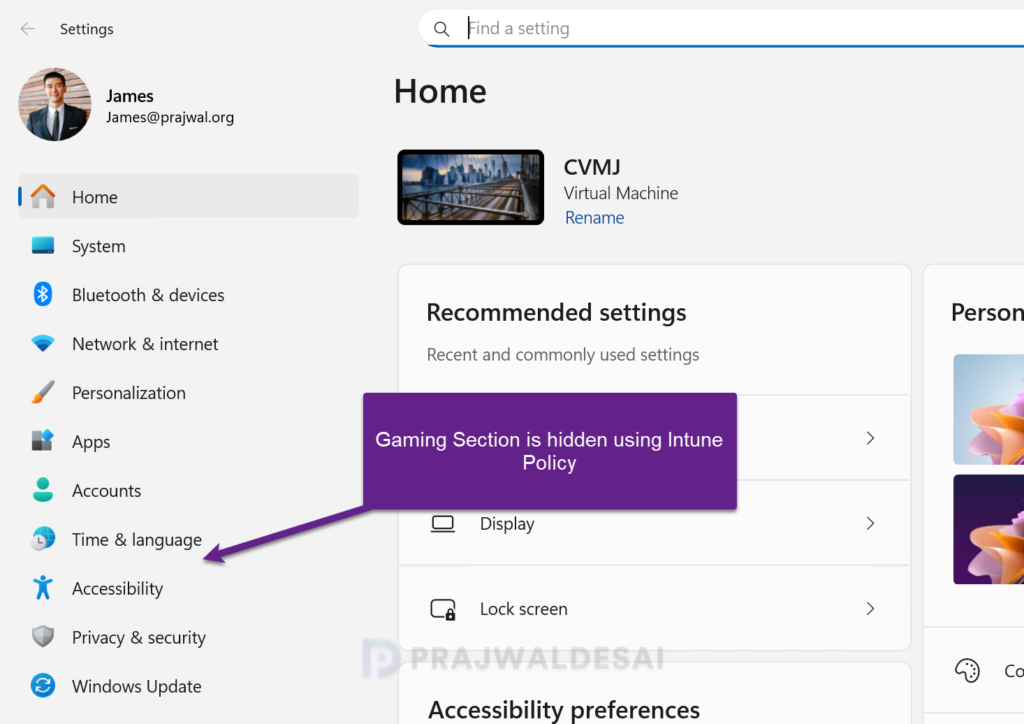
Sign in to the Windows 11/10 device that is targeted with the above Intune policy. Click Start and open the Settings app. Here, notice that the Gaming section is hidden for users using Intune policy. This confirms that the above policy settings that we applied via Intune have worked flawlessly.
Next, on the Windows device targeted with the above policy, open the Event Viewer and go to the following path: Applications and Services Logs > Microsoft > Windows > Devicemanagement-Enterprise-Diagnostics-Provider > Admin. Look for the Event ID 814 with policy name “PageVisibilityList” to confirm if the policy is applied successfully.
MDM PolicyManager: Set policy string, Policy: (PageVisibilityList), Area: (Settings), EnrollmentID requesting merge: (DCFDC03B-8C5F-45D5-B329-A1224C178DD8), Current User: (Device), String: (hide:gaming-gamebar;gaming-gamedvr;gaming-broadcasting;gaming-gamemode;gaming-trueplay;gaming-xboxnetworking;quietmomentsgame;), Enrollment Type: (0x0), Scope: (0x0).