


In this post, I will show you how to enable management point status alerts in SCCM. You can configure SCCM to generate alerts when a management point is unhealthy, either through the console or by using PowerShell.
For any SCCM setup, the proper functioning of the Management Point (MP) role is crucial, as it delivers policy and service location details to clients while also receiving configuration data from them. If the MP fails or malfunctions, trust me, SCCM becomes almost unusable.
In my earlier guide, I demonstrated different ways to check if the management point is healthy and working fine. Many administrators are unaware of a hidden feature that displays alerts directly in the console whenever the management point malfunctions or goes into a critical state. Let me show you how to enable that option.
What Triggers Alerts for Management Point
From my experience, an alert for an unhealthy Management Point can be triggered by several issues, including:
- Role Uninstallation: When you are uninstalling the MP role on the server. Or the Management Point fails to uninstall with error code 1603.
- Certificate problems: Issues with the client authentication certificate used for HTTPS communication can break the MP role.
- Configuration Changes: While switching the client connections between EHTTP and HTTPS.
- Configuration errors: Incorrect IIS settings or problems with the MP’s account permissions can disrupt its function, leading to alert generation.
Tip: You should always check the component status of management point (SMS_MP_CONTROL_MANAGER) and review MP logs to determine the actual cause of the problem.
Enable Management Point Status Alerts in SCCM Console
Launch the Configuration Manager console. Navigate to Administration > Overview > Site Configuration > Server and Site System Roles. Select your server that is installed with MP role and under Site System Roles, right click Management Point and select Properties.

In the General tab of the Management Point properties, select the option “Generate alert when the management point is not healthy,” then click Apply and OK. The console will now display alerts whenever the management point is offline or experiencing issues.

Turn on Management Point Status Alerts using PowerShell
In this method, I’ll show you how to enable the health status alert for management point using PowerShell. The Set-CMManagementPoint cmdlet lets you configure the settings for a management point in Configuration Manager.
Launch the Configuration Manager console and click on the blue bar in the upper-left corner and, from the drop-down menu, select Connect via Windows PowerShell. Run the following command in PowerShell window to trigger an MP alert when the role is not healthy.
Set-CMManagementPoint -SiteSystemServerName SCCMSiteServer FQDN -SiteCode Sitecode -GenerateAlert 1
If you wish to stop seeing the unhealthy management point alerts in the console, you can use the below command.
Set-CMManagementPoint -SiteSystemServerName SCCMSiteServer FQDN -SiteCode Sitecode -GenerateAlert 0Example of Management Point Unhealthy Alerts
Now let me show you some examples of how the alerts look when the management point role is unhealthy or has problems. This is very similar to what we saw with the ADR failure alerts in SCCM.
When the admin launches the SCCM console, in the Administration or Monitoring workspace, the following alert is displayed: Site Role “Management Point” is not healthy.
The alert is classified into 3 types: Critical, Warning, and Information. Each of these has been assigned with a specific icon. In the below screenshot, the alert that is generated is a critical alert and this must be addressed by the administrator immediately.
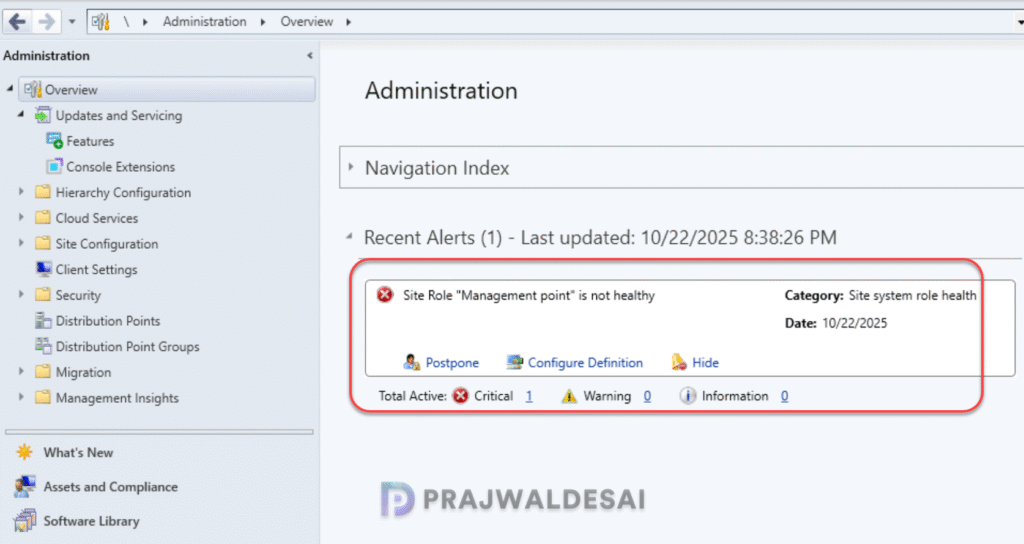
When you click on the Critical alert, the console takes you to Monitoring > Overview > Alerts > Critical. Here, you can find out more details about the alert. You can either postpone the alert, configure it and adjust it your requirements, disable, hide it or simply delete it.

