


In this blog post, I’ll show you how to uninstall or remove pre-installed Microsoft Store apps using Intune on Windows devices. The settings catalog includes a dedicated policy setting known as “Remove Default Microsoft Store packages from the system” to get rid of built-in Microsoft Store apps on Windows 11.
Windows 10 and 11 come with a collection of pre-installed Store apps designed for various purposes. However, many users find these apps unnecessary and rarely use them. Many organizations prefer to remove most of them such as Sticky Notes, Paint, Solitaire game, Xbox, Clipchamp, and other applications that are unnecessary for enterprise environments.
From the perspective of IT professionals and system administrators, all that was needed was an official method to uninstall these pre-installed apps. To address this Microsoft has come up with a new policy introduced with Windows 11 25H2 that lets Administrators remove the pre-installed MS store packages via Group Policy or Microsoft Intune.
Tip: For devices managed by an MDM solution like Intune, utilize the settings catalog to remove built-in apps. For Windows devices that are on-premises and joined to an Active Directory domain, rely on Group Policy for removal of pre-installed Microsoft store packages.
Built-in Store Apps that can be removed via Intune
Before moving forward, here’s the updated list of pre-installed MS Store apps that can be removed from Windows 11 devices using Intune.
- Microsoft Copilot
- Microsoft Photos
- Xbox TCUI
- Windows Terminal
- Snipping Tool
- Windows Notepad
- Microsoft Sticky Notes
- Microsoft Solitaire Collection
- Xbox Speech To Text Overlay
- Windows Media Player
- Quick Assist
- Paint
- Microsoft Clipchamp
- Windows Sound Recorder
- Microsoft To Do
- MSN Weather
- Microsoft Teams
- Microsoft News
- Xbox Gaming App
- Xbox Identity Provider
- Microsoft 365 Copilot
- Windows Calculator
- Feedback Hub
- Outlook for Windows
- Windows Camera
Prerequisites
Policy-based removal for Microsoft Store apps via Intune requires the following prerequisites.
- Windows 11 devices must be enrolled in Intune. See how to enroll Windows 11 into Intune.
- Your devices must be Entra ID Joined, Hybrid-Joined, or Entra ID Registered.
- Ensure the devices are running Windows 11 version 25H2 or later.
- You can uninstall default store packages only on Windows 11 Enterprise and Education editions.
- Devices that support multi-user sessions are not supported.
- Administrative access to Microsoft Intune admin center.
Remove Pre-installed Microsoft Store Apps using Intune
Let’s create a new policy in Intune admin center to uninstall pre-installed Microsoft Store apps on Windows devices.
Open the browser and sign in to the Intune admin center. Navigate to Devices > Windows > Configuration > Create > New Policy. Choose Windows 10 and later as Platform and Settings Catalog as Profile Type. Click Create.

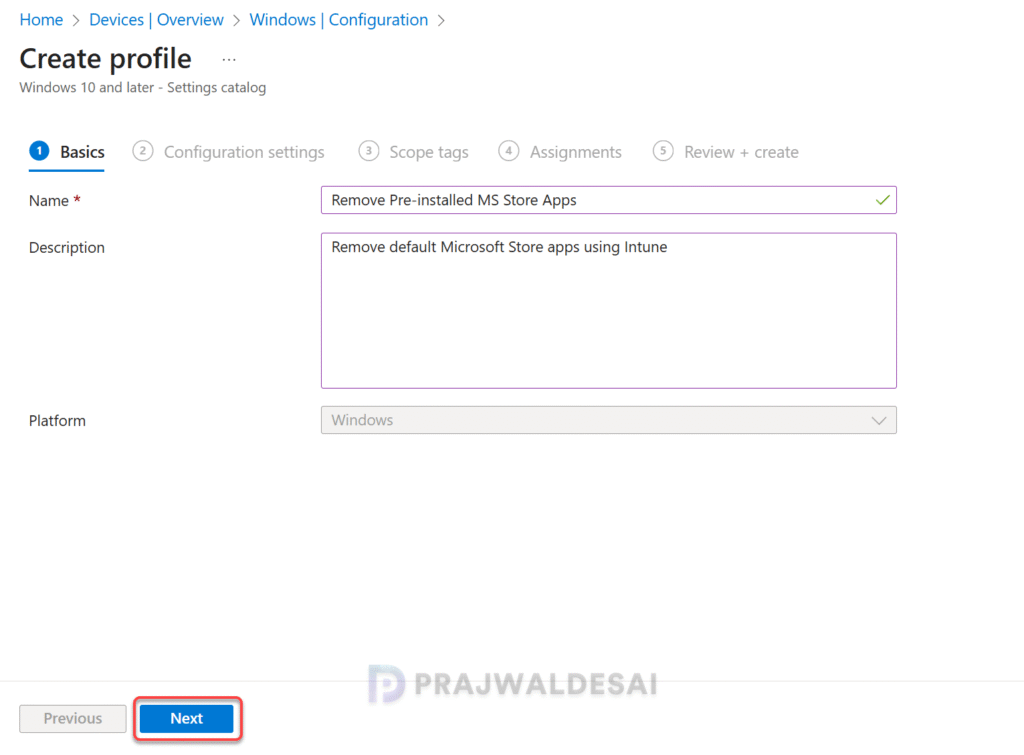
On the Basics tab, specify the name of the profile as “Remove Preinstalled MS Store apps.” You may add a brief description about the profile. Click Next to continue.
In the Settings Picker page, search for the term “Microsoft Store Packages.” From the results, select the category Administrative Templates\Windows Components\App Package Deployment. Now select the setting “Remove Default Microsoft Store Packages” and close the settings picker.

Remove Default Microsoft Store Packages: If you enable this policy, the selected Microsoft Store apps in the provided list will be uninstalled from the system. If the policy is disabled or not configured, no default Microsoft Store packages will be removed from the system.
Some apps have a single or double asterisk next to their names. Let’s understand what they signify. * means it is a headless app (with no UI) whereas ** means the app is the default handler for a common file type or protocol. Removing this app might result in a degraded user experience. Microsoft doesn’t recommend removing this app.
First, enable the Remove Default Microsoft Store packages from the system policy setting. Next, for every app that you want to uninstall, use the toggle to set it to True. The packages with the value ‘True‘ are the default apps selected for removal. You can update the package values from false to true or vice versa, based on your organization’s requirements.
For the purpose of testing, in the below example, I have chosen the following built-in apps for uninstallation: Microsoft Paint, Microsoft News, Microsoft Solitare Collection, and Sticky Notes. Click Next.

In the scope tags section, you specify scope tags. Specifying scope tags is optional, and you may skip this step and use the default tag instead. Click Next.
In the Assignments tab, select the Entra ID security user groups to which you want to assign the policy. If you are deploying this policy for the first time, I recommend deploying it to a few test groups first and then expanding it to more users or devices if the testing is successful. Select Next.

On the Review + Create page, review all the policy settings that you have configured so far and select Create. A newly created policy must appear in the Configuration Profiles list.

Synchronize Intune policies
To speed up the policy assignments, you can manually sync Intune policies using various methods on windows computers. The sync action prompts devices to instantly connect with Intune and apply the most up-to-date policies. This is typically performed to test an app or policy deployment and verify its functionality.
Monitor Microsoft Store Apps Removal Policy
To monitor the Microsoft store apps removal policy in Intune, go to Devices > Windows > Configuration. Select the ‘Remove Pre-installed MS Store Apps‘ profile. On the Policy overview page, check the device and user check-in status. You can see the number of devices or users on which the policy has been applied successfully.

Verify the Removal of Microsoft Store Packages
In this section, I will show you how to confirm if removal of the MS Store packages was successful on end devices.
Manually verify apps removal: Log in to the Windows 11 device. Click on Start and type the name of the app configured for removal via Intune policy. The app should no longer appear in the search results. In the image below, the MS Paint app is no longer visible in the search results, indicating that the “Remove Preinstalled MS Store apps” policy has successfully removed the app.
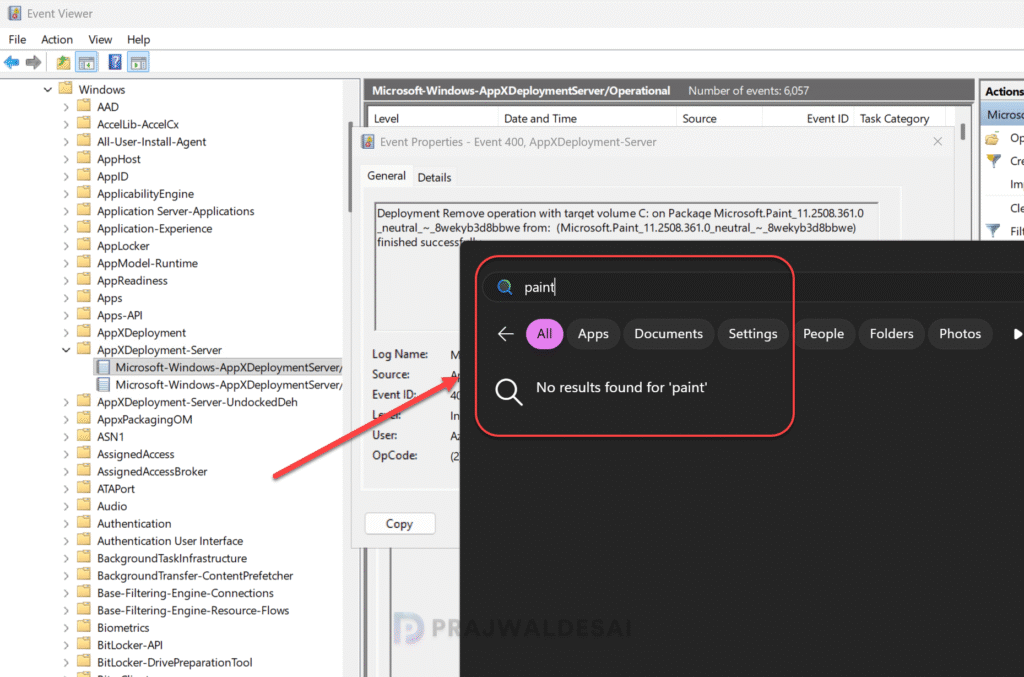
View the event logs: The event logs for apps removal can be found by opening the event viewer and navigating to Applications and Service Logs > Microsoft > Windows > AppxDeployment-Server > Microsoft-Windows-AppxDeploymentSever/Operational.
Once an app has been removed, an Event ID: 400 will be logged. The text of the event will start with “Deployment Remove operation with target volume C: on Package Microsoft.Paint finished successfully.” This confirms the Paint app has been uninstalled successfully.
Log Name:      Microsoft-Windows-AppXDeploymentServer/Operational
Source:        Microsoft-Windows-AppXDeployment-Server
Event ID:      400
Task Category: (3)
Level:         Information
Keywords:      AppXDeploymentServer Keyword
Deployment Remove operation with target volume C: on Package Microsoft.Paint_11.2508.361.0_neutral_~_8wekyb3d8bbwe from:  (Microsoft.Paint_11.2508.361.0_neutral_~_8wekyb3d8bbwe)  finished successfully.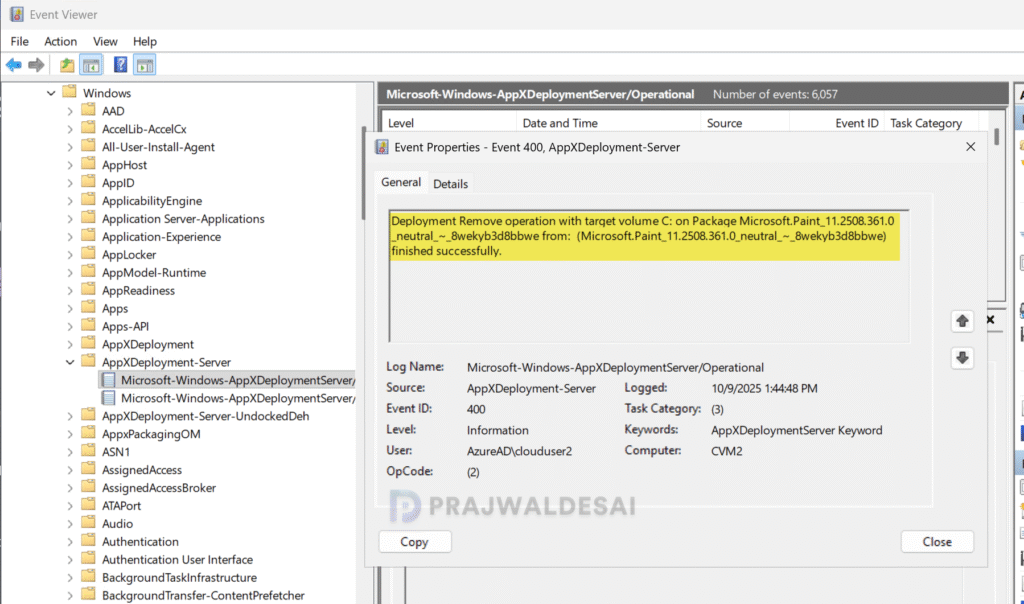
Troubleshooting
- In some cases, the Microsoft Store apps removal policy may fail to apply to devices via Intune. To troubleshoot these issues, review the essential Intune IME logs.
- Open the Event Viewer and look for event logs in the following path: Applications and Service Logs > Microsoft > Windows > AppxDeployment-Server > Microsoft-Windows-AppxDeploymentSever/Operational.
- If you encounter policy assignment failure on a remote device, generate an MDM diagnostic report for IT support. This can be done from Settings > Accounts > Access work or School > Info. Click on the Create Report button.

I have applied it, Thx
This settings does not seem to be generally available. It’s not showing on my Intune settings picker.
https://support.microsoft.com/en-gb/topic/policy-based-removal-of-pre-installed-microsoft-store-apps-e1d41a92-b658-4511-95a6-0fbcc02b4e9c