

In this article, you’ll learn how to download and import ADMX templates for Microsoft Edge browser. To configure Microsoft Edge with GPO, you must install ADMX administrative templates. The ADMX templates add rules and settings for Microsoft Edge to the Policy Definition template folder on individual computers.
To configure ADMX templates for Microsoft Edge, you need the Microsoft Edge browser on the client computers. Thanks to Microsoft, on Windows 11, the Edge browser is preinstalled and has entirely replaced Internet Explorer.
Microsoft regularly releases policy templates containing new settings to manage the settings of the Edge browser. Administrators will need to import these settings into the active directory in order to use them. Once you import them, these settings can be configured using Group Policy or Microsoft Intune.
Read: How to deploy Edge updates using Configuration Manager
Edge ADMX Templates
The Edge ADMX template files add rules and settings for Microsoft Edge to the group policy Central Store in your Active Directory domain. You can then configure the specific policies you want to set.
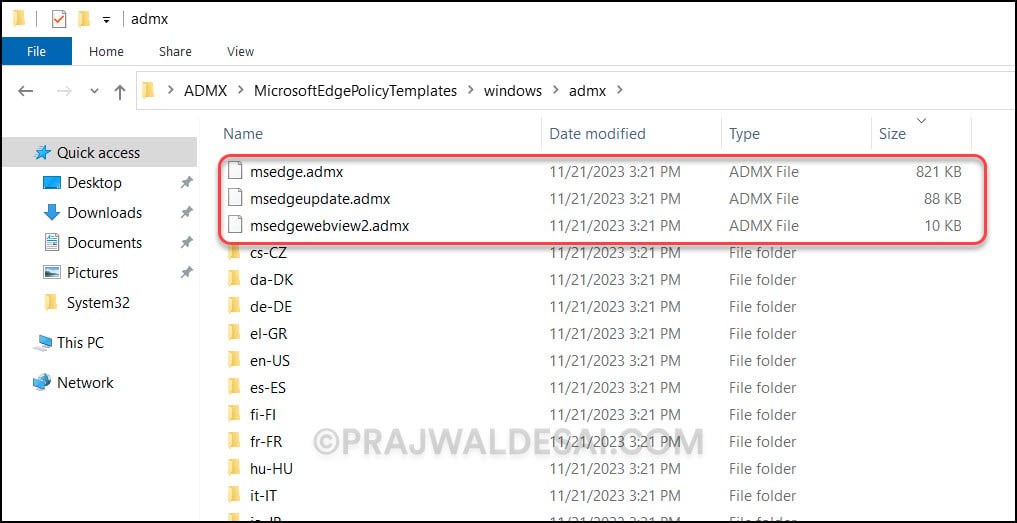
There are three administrative templates available for Microsoft Edge:
- msedge.admx: This is used to configure Microsoft Edge settings
- msedgeupdate.admx: This helps you manage Microsoft Edge updates
- msedgewebview2.admx: Configure the Edgewebview2 settings with this template such as webview2 release channels, PDF reader for WebView2 etc.
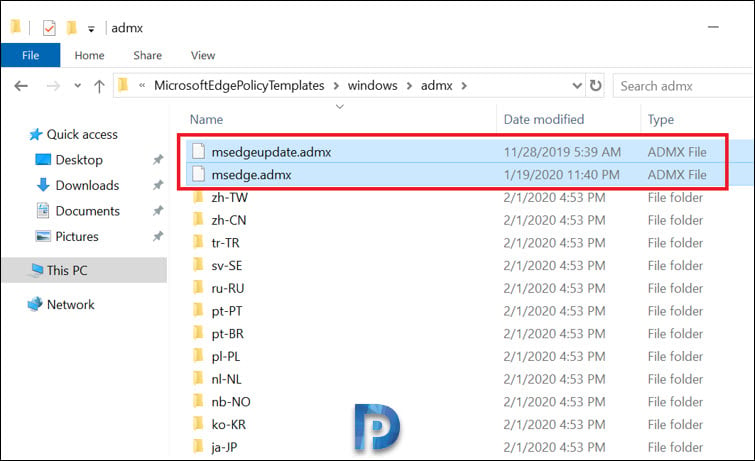
The screenshot below shows the types of administrative templates that are available for the Edge browser. After extracting the MicrosoftEdgePolicyTemplates.zip file, you will find these ADMX template files in the MicrosoftEdgePolicyTemplates\Windows\admx folder.
With the above listed Microsoft Edge policy template files, you can either use the group policy object (GPO) or Microsoft Intune to configure policy settings for Microsoft Edge and manage Microsoft Edge updates on all versions of Windows.
It is beneficial to know that Microsoft releases new administrative templates for Windows 11 and Windows 10 computers containing several new settings regularly.
Read: How to block Edge Extensions using Intune
Download ADMX Templates for Microsoft Edge
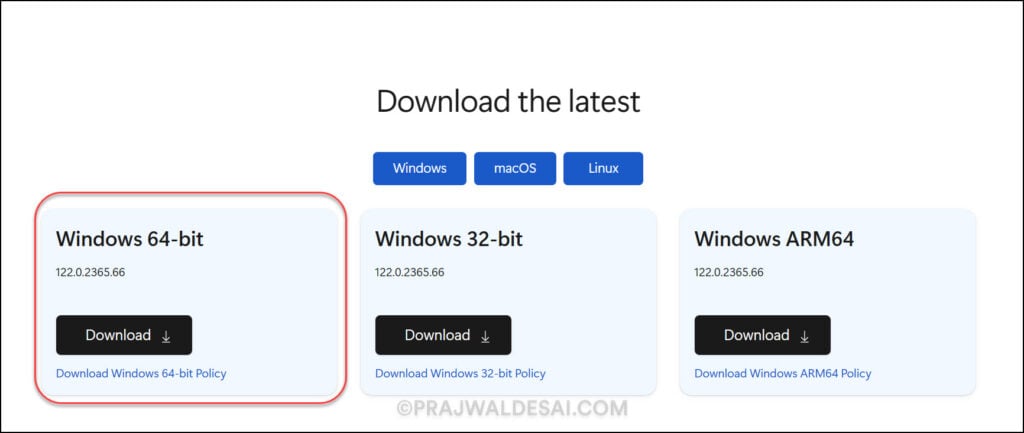
This section details the steps to download and install the Microsoft Edge administrative templates. The Edge template files are available for Windows, macOS, and Linux. For Windows, you can get the policy template files for 64-bit, 32-bit, and ARM64.
Use these steps to download the latest ADMX templates for the Microsoft Edge browser from the Microsoft download site.
- Visit the Edge for Business Download page.
- Select the Edge channel/build (opt for stable builds).
- Next, select the Windows platform (32-bit or 64-bit) and click the Download Windows 64-bit policy link.
In the below example, we are downloading the Edge administrative templates for Windows 64-bit.
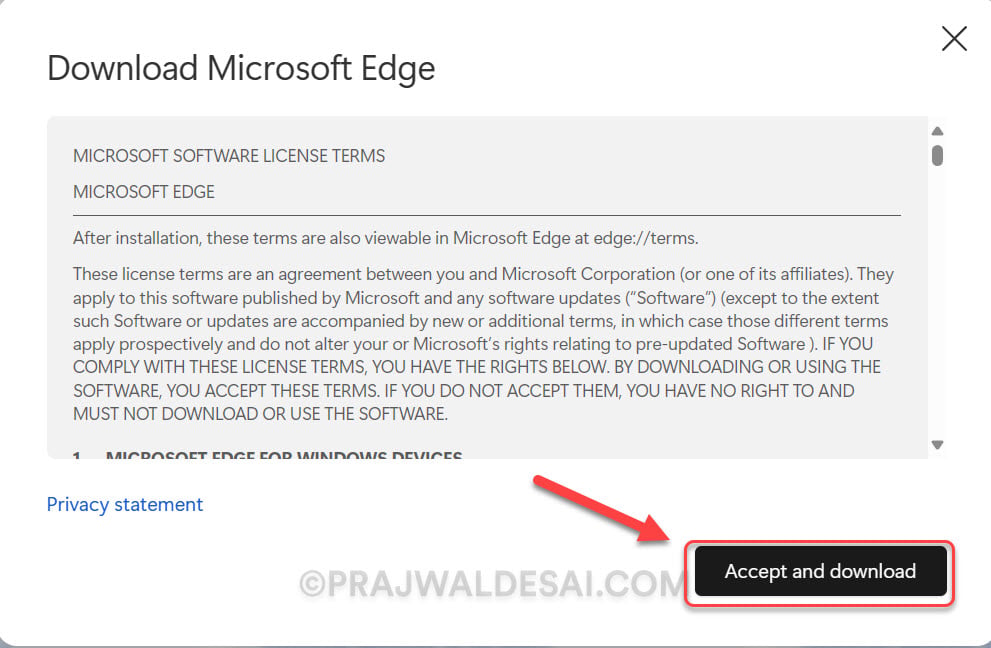
On the Download Microsoft Edge Policy file window, click Accept and Download.
The browser downloads the MicrosoftEdgePolicyTemplates.cab file. The MicrosoftEdgePolicyTemplates.cab contains the policy templates (ADMX Templates) for the Microsoft Edge browser.
Extract Microsoft Edge Policy Templates
To view the ADMX template files for Edge, you must extract the content of the MicrosoftEdgePolicyTemplates.cab to a folder. Double-click on the MicrosoftEdgePolicyTemplates.cab file, and now you see the MicrosoftEdgePolicyTemplates.zip file. Right-click the template zip file and select Extract.
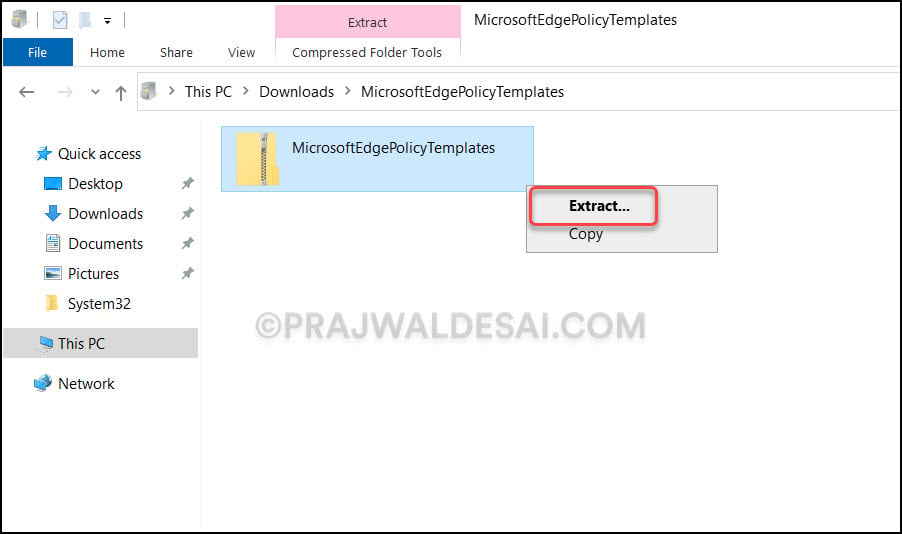
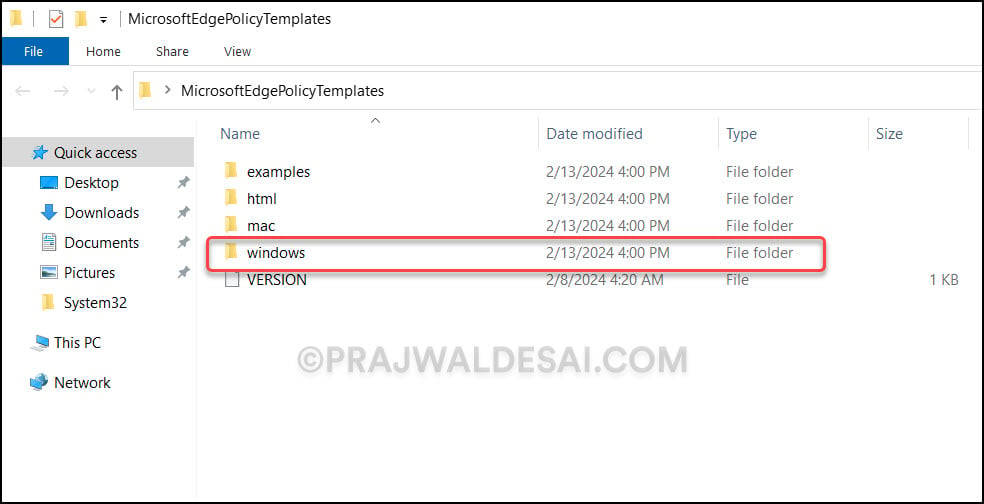
Choose the folder location to extract the template files. Once the template files are extracted, to view them, go to the MicrosoftEdgePolicyTemplates\windows folder. You will find two folders here: admx and adm.
Import Edge ADMX Templates to Active Directory
This section details the steps to add or import the Edge ADMX templates to Active Directory.
The process of importing ADMX templates for Edge involves two steps:
- Import the Edge ADMX templates
- Import the Edge ADML files
Important: Ensure you are using an account that has domain administrator privileges for importing Edge ADMX templates. Otherwise, the import process will fail.
Go to the MicrosoftEdgePolicyTemplates\windows\admx folder. Copy the msedgeupdate.admx and msedge.admx files to “%systemroot%\PolicyDefinitions“. Refer to the below screenshot for better understanding.
Some administrators may encounter the message “destination folder access denied“. To bypass that message, select Do this for all current items and click Continue.

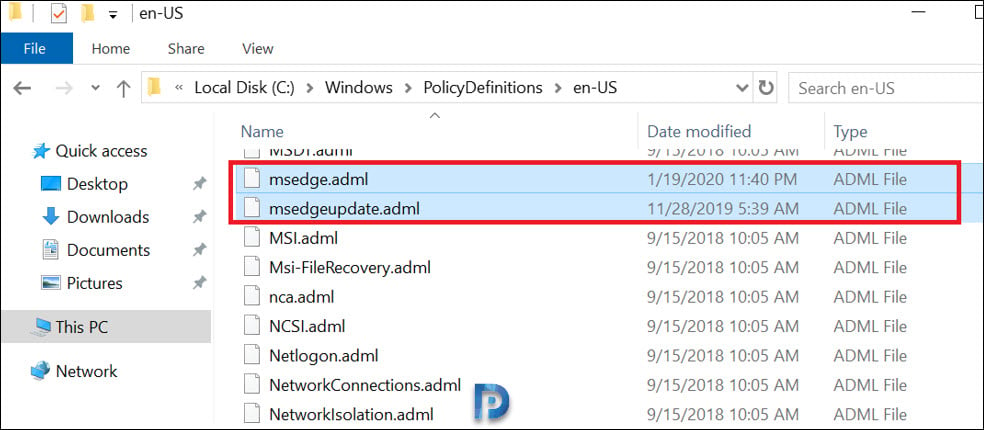
Once you copy the ADMX file, you have to copy their related ADML files too. Go back to the MicrosoftEdgePolicyTemplates\windows\admx\en-US folder path.

Copy the ADML files to “%systemroot%\PolicyDefinitions\en-US“. This completes the process of importing the Edge ADMX templates on a domain controller.
Note: In the below example, we have copied over the Edge adml files to the En-US folder as the operating system language is English – US. If the OS language is different in your case, make sure you copy the Edge language-specific adml files to the relevant folder.
Using Edge ADMX Templates – Create a GPO
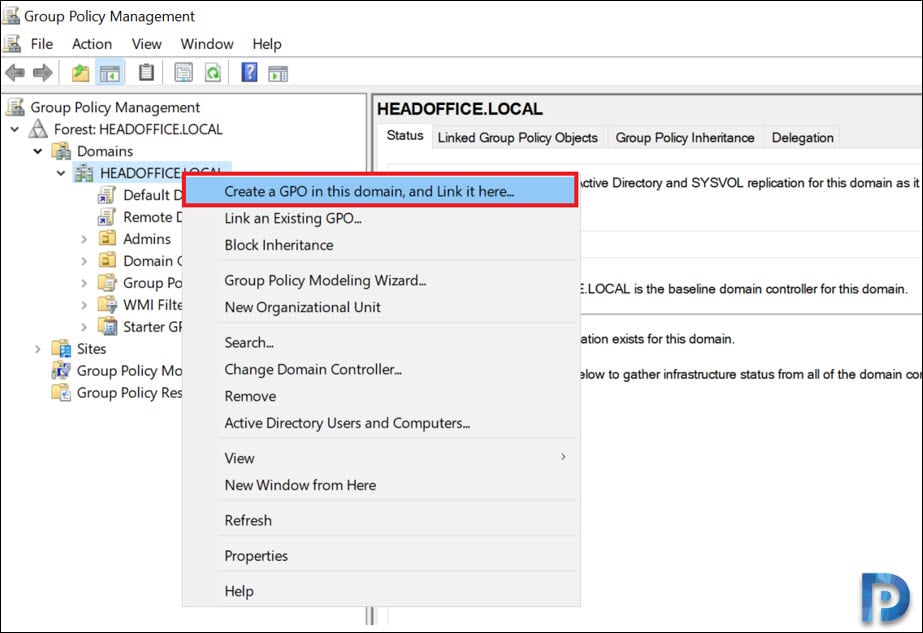
Once the Edge ADMX templates are imported into the AD, the next step is to create a GPO using the ADMX template settings. To accomplish that, launch the Group Policy Management console on the domain controller. Right-click your domain entry and select Create a GPO in this domain, and Link it here.
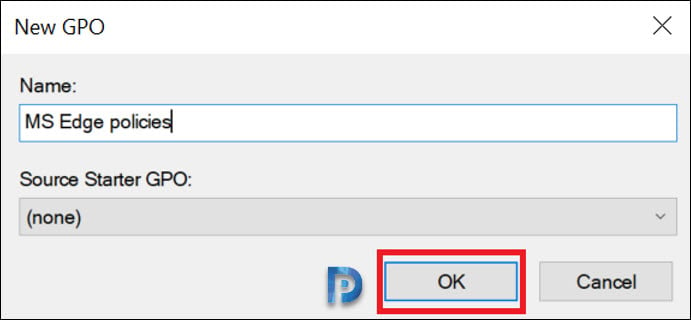
You can specify the GPO name as “MS Edge Policies” or something meaningful. To edit this GPO, right-click on it and select Edit.
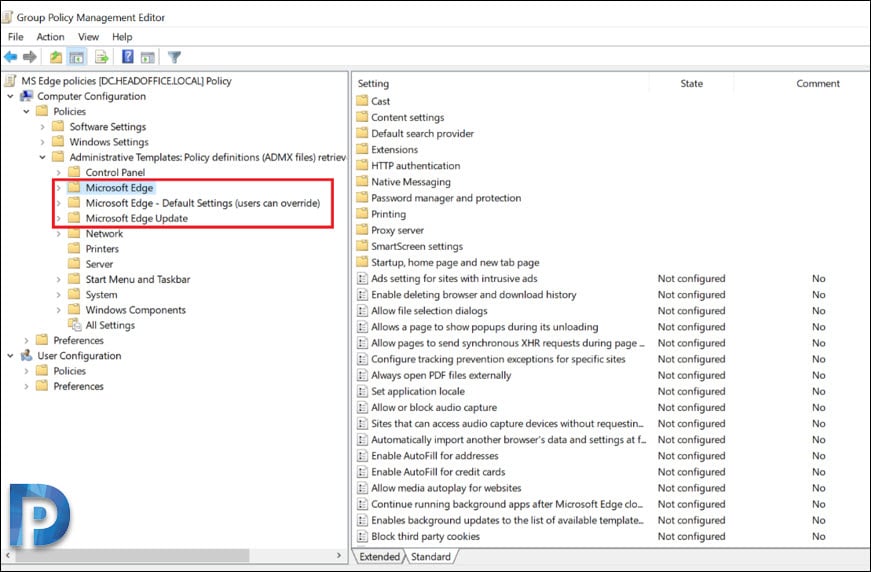
In the group policy management editor, navigate to Computer Configuration\Policies\Administrative Templates.
We see the following policies are available to customize the Microsoft Edge browser:
- Microsoft Edge: Configure the mandatory policies for your Edge browser.
- Microsoft Edge – Default Settings (users can override): Configure the preferred default settings for Microsoft Edge.
- MS Edge Update: Contains the policy settings to configure how Microsoft Edge installs the updates. Also includes the individual settings for Microsoft Edge channels such as Beta, Dev, and Canary builds.
- Microsoft Edge WebView2: This contains the policy settings to configure the WebView2 settings for the Edge browser.
You can go through the individual policies, configure the settings that you require, and deploy the GPO to your computers.

Is it possible to change the Edge profile image without login to MS account, via these GPOs policies?
Kinda adding custom brand logo in profile picture place holder, but without signing in to MS account, and do that locally.
Hi there is another file not mentioned here.
‘adm’ where doe this one go to?
I like firefox MUCH better than IE but on certain occasions i would have a ff winfdow open and it shows the window error thing. i go back and it was firefox is already running or something s i cant use it….
Hello Prajwal,
Can we have group policy settings reference spreadsheet for Edge Chromium ?
As we can download the group policy settings reference spreadsheet for Win10.
Does Edge chromium have different admx files, or can you just use the edge admx files also for chromium?
I would also like to know this. I came here after downloading and installing the ADMX/L files on my DC, matched versions etc, but none of my GPOs actually work, yet Edge states it is “managed by my organization.” My biggest quandary is applying favorites, where in IE our organization has several sites, the ADMX settings have a similar input as the original Edge (an .htm file exported) GPO options, but asks for a list in its example, far beyond what can be input in the field. Best I can figure is despite the Edge ver match, there must be a Chromium difference somewhere. On top of that, homepage, new tab page, startup experience etc don’t work.
I have followed your instructions, but I do not see the 3 entries for Edge under Administrative Templates. Should these show up right away?
After some research I found the issue. Probably was me not being as knowledgeable as I should be about GPO’s and adding in new definitions.
If you are running a Domain and want to add to your Domain GPO list place the files in the appropriate directories located at this location;
\\{domain}\sysvol\{domain}\Policies\PolicyDefinitions
Thanks for this!
Thank Youuu,
you saved my day.
thanks to Youssef also for this nice thread.