

In this guide, I will cover the new features added to Configuration Manager Technical Preview 1911 and the steps to install this update.
Microsoft Ignite brought a significant announcement this year: Configuration Manager is now integrated into Microsoft Endpoint Manager. Additionally, several other products will also join the Microsoft Endpoint Manager suite.
Technical preview versions are meant to run in your lab or isolated setups. You should never install it in your production as it has a life span of 180 days, and it’s purely meant for the testing. My current tech preview lab is running SCCM technical preview 1910, and I will be upgrading to version 1911. For a list of all technical preview releases and builds numbers, read this post.
Install Configuration Manager Technical Preview 1911
Use the below steps to install Configuration Manager Technical Preview 1911 update.
- Start by launching the Configuration Manager console.
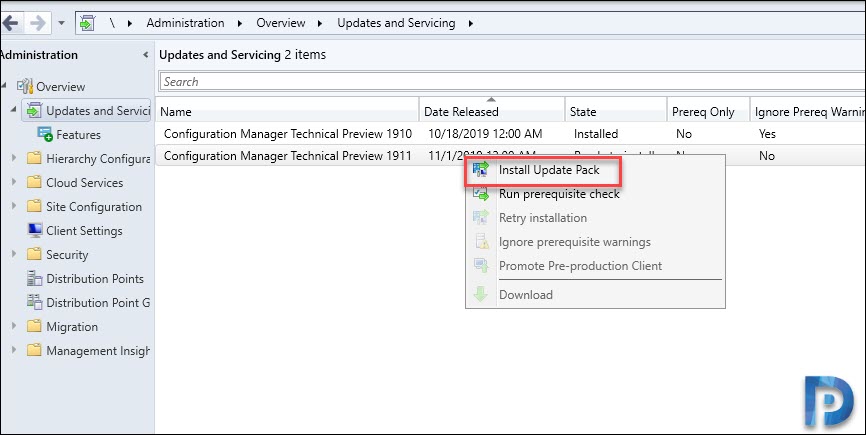
- Go to Administration > Updates and Servicing node.
- Right click Configuration Manager Technical Preview 1911 and select Install Update Pack.
On the General page, select ignore the prerequisite check warnings and click Next. Just a quick note, this version includes updates:
- Configuration Manager site server updates
- Configuration Manager console and client updates
- Fixes for known issues
- New features
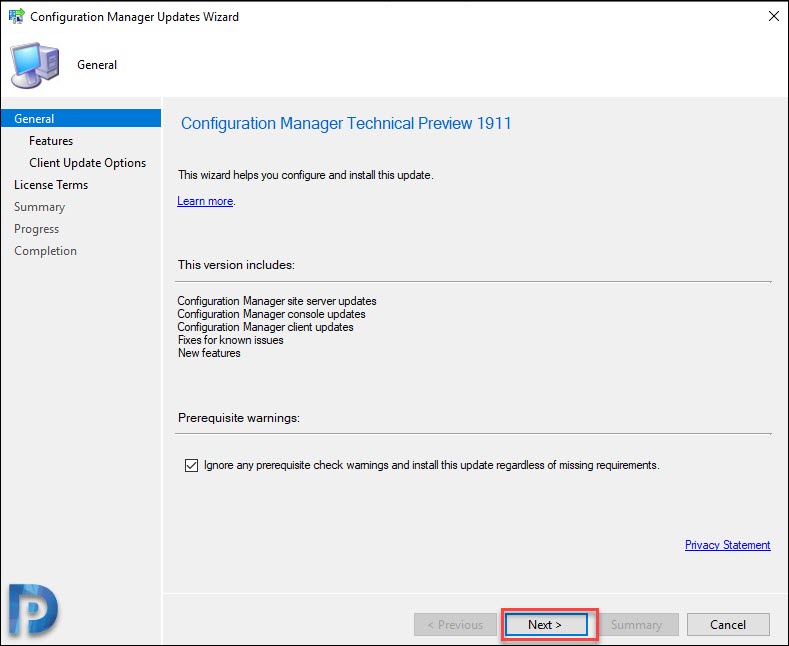
Click Next.

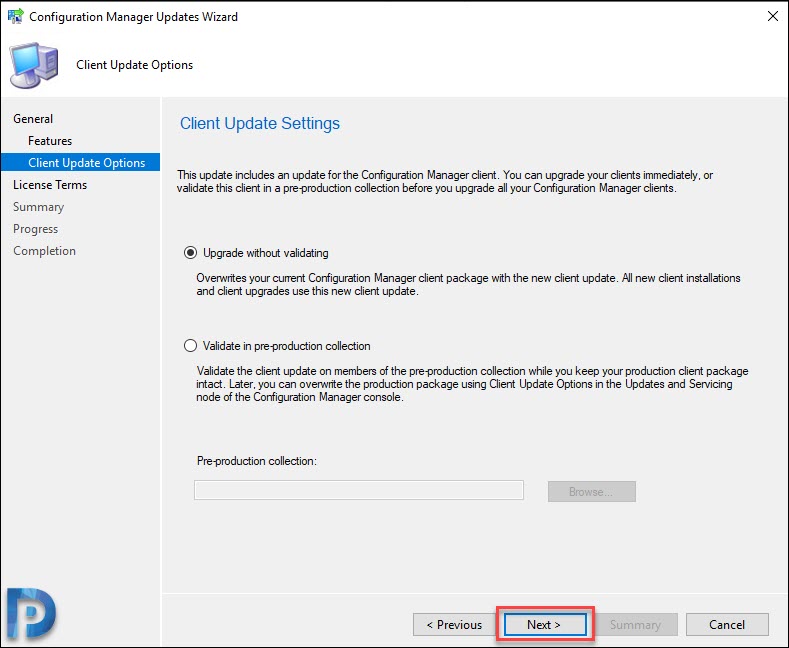
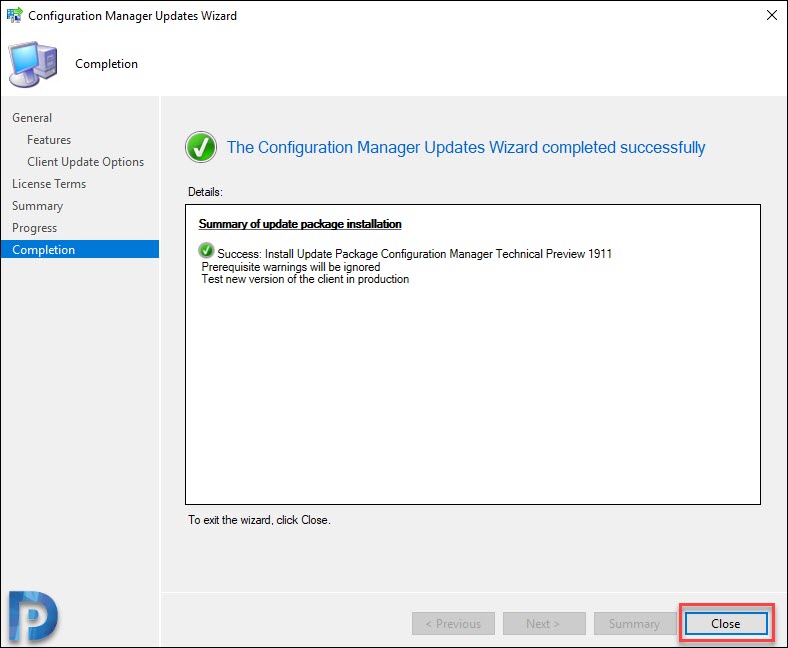
Under Client Update options, select Upgrade without validating. Click Next.
Finally, on the Completion page, click Close.
Monitor Upgrade
To monitor update installation status, go to Monitoring > Overview > Updates and Servicing Status. Right click Configuration Manager technical preview 1911 and click Show Status.
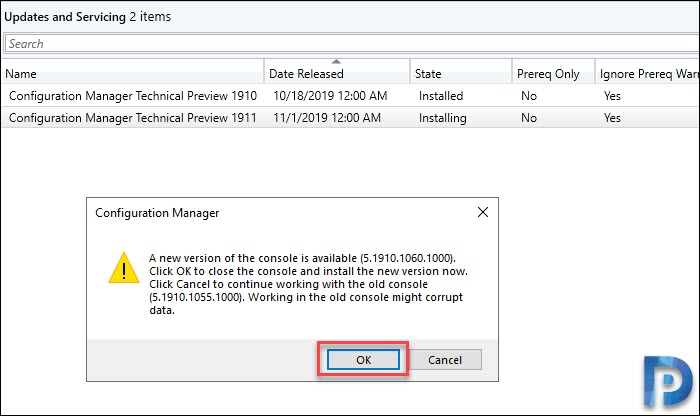
The last step is to update the console. A new version of console (5.1910.1060.1000) will be installed over the old version (5.1910.1055.1000). Click OK. If you encounter any errors, check the logs related to the console upgrade.
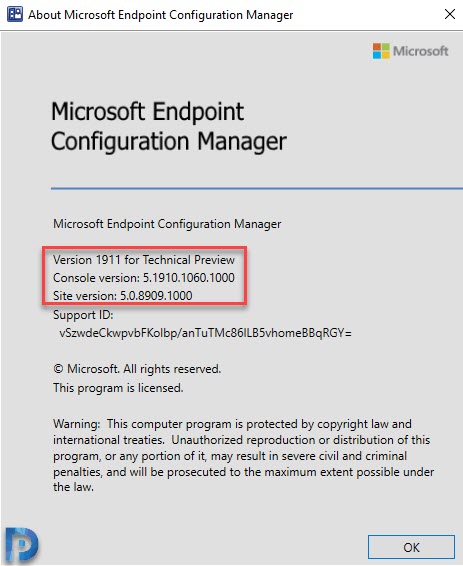
Open the About Configuration Manager and verify the following.
- Version 1911 for Technical Preview
- Console version – 5.1910.1060.1000
- Site version – 5.0.8909.1000
Notice it is now Microsoft Endpoint Configuration Manager. Click OK.
You will also notice the change in the name when you launch the console. It’s now Microsoft Endpoint Configuration Manager 1911 Tech preview.

New Features in Technical Preview 1911
There is just one new feature introduced in tech preview version 1911 and that is Microsoft Connected Cache support for Intune Win32 apps. You can read about this feature here.
When you enable Microsoft Connected Cache on your SCCM distribution points, they can now serve Microsoft Intune Win32 apps to co-managed clients.
