

Microsoft has released the October 2026 Patch Tuesday security update, KB5127648, for Windows 11 versions 24H2, 25H2, and 26H2. The update fixes several vulnerabilities (over 1009 CVEs) and resolves critical issues like the black screen in Azure Virtual Desktop and the Always On VPN bug.
For end users, this update brings enhancements across File Explorer, Widgets, emoji support, and accessibility and improves both the usability and reliability of Windows 11. So installing this update is worth it.
The KB5127648 October 2026 update includes improvements from the following previously released updates:
- September 8, 2026-KB5124008 (OS Builds 26200.9445 and 26100.9445)
- September 14, 2026—KB5129195 (OS Builds 26200.9457 and 26100.9457) Out-of-band
- September 22, 2026—KB5124010 (OS Builds 26300.9550, 26200.9550, and 26100.9550)
Fixes and improvements in the KB5127648 update
This update includes important quality improvements:
- Security updates: Security improvements added to this update are provided in the Security Update Guide.
- Secure Boot: This is an ongoing deployment of updated certificates via Windows Update for eligible devices.
- New Tips Widget: To help users learn about Windows features and productivity boosts, a new Tips Widget has been introduced to the Widgets experience. It provides succinct advice and suggestions.
- Refreshed Emojis: Windows 11 now includes support for Emoji 17.0, bringing a fresh set of emojis to users, including Distorted Face, Fight Cloud, and Hairy Creature. Microsoft has also refreshed several existing emoji designs to improve visual consistency across platforms with the October 2026 update.
- Windows Explorer: Fix for crash issues in multi-user environments like Azure Virtual Desktop.
- Audio: Fix for AC-3 audio playback issues.
- Always On VPN: Fix for VPN connection issues post-installation of KB5124008.
- Storage Spaces: Fix for virtual disks failing to come online, affecting clustered workloads.
- Date and Time: New Manitoba time zone for upcoming change in 2026.
- ReFS security: New auditing and policy controls for ReFS volumes on external storage.
- Printing: Fix for failed printing with specific drivers post-August 2026 update.
- Gaming: Fix for mouse input stutter in games.
- Windows Hello: Fix for fingerprint sign-in issues after a cold boot. This was the most awaited fix for many users.
- Authentication: Strengthened NTLMv1 security with new default behavior, impacting certain network connections.
Important
Windows 11, version 24H2 Home and Pro, has reached the end of updates. The final update for these editions is the October 2026 monthly security update. Devices using these versions will no longer receive monthly security or non-security preview updates with protection against the latest threats. To remain secure and updated, Microsoft recommends upgrading to the latest version of Windows 11.
Installing Windows 11 KB5127648 Update
The KB5127648 security update is offered through Windows Update for devices running Windows 11 26H2, 25H2, and 24H2. If you don’t see the update listed, open the “Windows Update” settings, and click the “Check for Updates” button.
The 2026-10 Security Update (KB5127648) update begins to download, and wait for it to complete the installation. The update requires a system reboot to complete the installation. Simply click the “Restart Now” button to restart your computer.
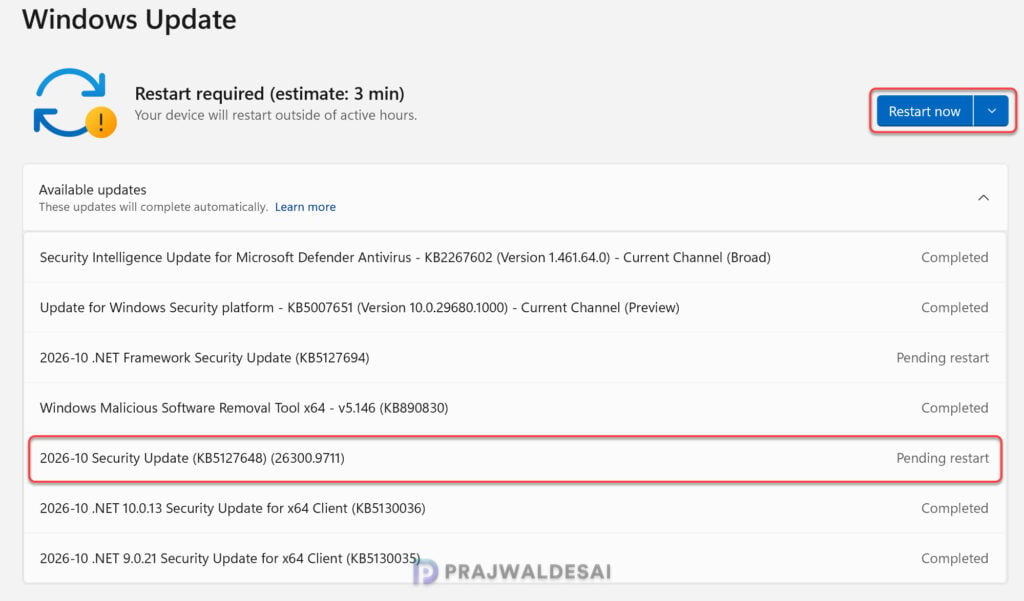
After installing the October 2026 update, the devices are updated to the following build numbers:
- Windows 11 24H2: OS build 26100.9711
- Windows 11 25H2: OS build 26200.9711
- Windows 11 26H2: OS build 26300.9711
For organizations, the security content alone makes deployment a priority. Administrators looking to deploy the October 2026 update can use enterprise update management solutions such as WSUS, Configuration Manager, and Microsoft Intune.
KB5127648 Known Issues
The Windows 11 KB5127648 update has several known issues reported by users and documented by Microsoft. Here are the key problems:
- Smart App Control Issue: After installing KB5127648, some devices might be unable to turn on Smart App Control in Windows Security. This issue primarily impacts devices where Smart App Control was previously disabled. As a workaround, you can modify the registry to restore the ability to turn on Smart App Control.
- WPA2-Enterprise Wi-Fi Authentication Problems: The update disrupts WPA2-Enterprise (802.1X/PEAP) wireless network authentication. Windows 11 clients may fail to authenticate, causing connectivity issues in enterprise environments. Microsoft has acknowledged the problem and provided a temporary workaround.
- Remote Desktop Connection Failures: Non-administrative users may experience failures when attempting Remote Desktop connections, receiving error code 0xC000000D. This issue impacts devices after installing the update. IT administrators can mitigate this issue on devices affected by the Remote Desktop connection failure by using their existing policy management method to temporarily turn off Administrator protection.
Lastly, here’s a comprehensive guide by me detailing the updates released for each version of Windows 11, including their respective KB numbers and build numbers.
