

Microsoft has released a new hotfix KB40345593 for Configuration Manager version 2603, specifically addressing bulk registration token verification failures that arise on management points after installing update rollup KB39169655.
After you install the KB39169655 update rollup, bulk registration token verification fails on the management point for devices that aren’t Microsoft Entra joined and connect through a cloud management gateway (CMG) to obtain a Configuration Manager-issued client authentication token.
This issue affects the bulk registration token scenario and may also affect other scenarios in which devices that aren’t Microsoft Entra joined communicate through the CMG. It doesn’t impact devices that use Microsoft Entra authentication. Installing KB40345593 fixes the registration token verification issue for non-Microsoft Entra devices, allowing them to get client authentication tokens via the CMG.
Bulk Registration Token Verification Failures
On the management point, errors similar to the following are recorded in the management-point-installation directory\Logs\CCM_STS.log. As a result, affected devices can’t complete bulk registration through the CMG to obtain their individual client authentication tokens.
ProcessRequest - Start
Incoming request URL: https://<management-point>/CCM_STS
Validated PreAuth SelfProve token. UniqueId: <client-id>. ClientKey: <public-key>
ProcessRequest - Exception: System.IO.FileLoadException:
Could not load file or assembly
'mpisapiclr, Version=5.0.9146.1045, Culture=neutral,
PublicKeyToken=31bf3856ad364e35' or one of its dependencies.
The located assembly's manifest definition does not match the assembly reference.
(Exception from HRESULT: 0x80131040)Important Points
- The KB40345593 appears in the Updates and Servicing node only if KB39169655 is installed. Furthermore, the fixes included with this update apply to the Management point role.
- This update doesn’t require a computer restart but does require a site reset after installation. This must be manually done on the servers where you’ve installed the update.
- The hotfix includes updates to only the site server. You don’t have to update the console or clients after the update installation.
All the above information is also documented in the Microsoft documentation on the Bulk registration token verification fails after installing Configuration Manager 2603 update rollup.
Installing SCCM 2603 Hotfix KB40345593
Open the SCCM console and go to Administration > Overview > Updates and Servicing. Select the Configuration Manager 2603 Hotfix (KB40345593) update, and in the top ribbon, click Install Update Pack.
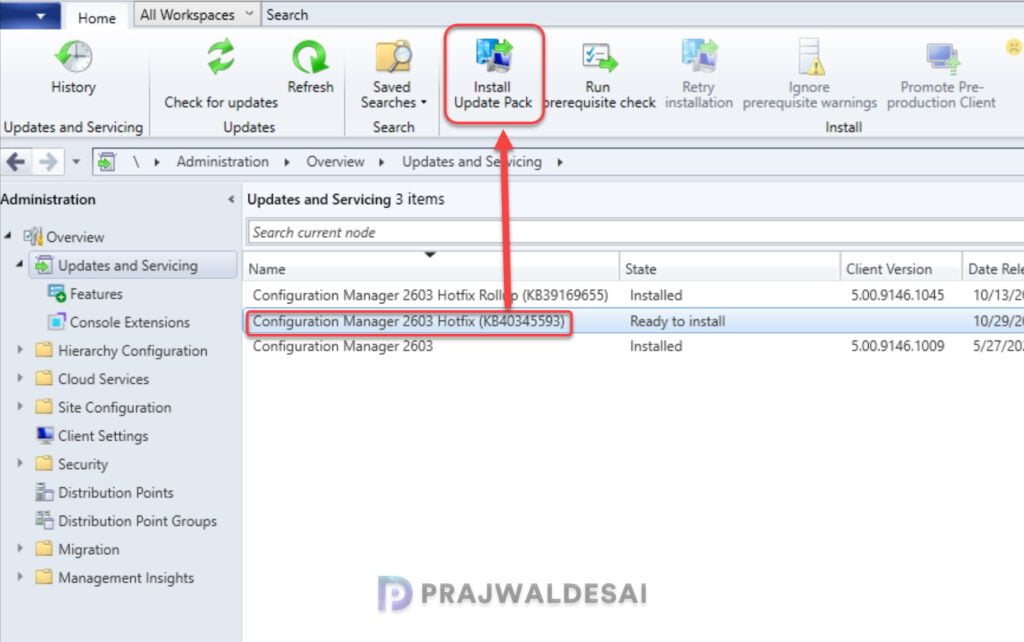
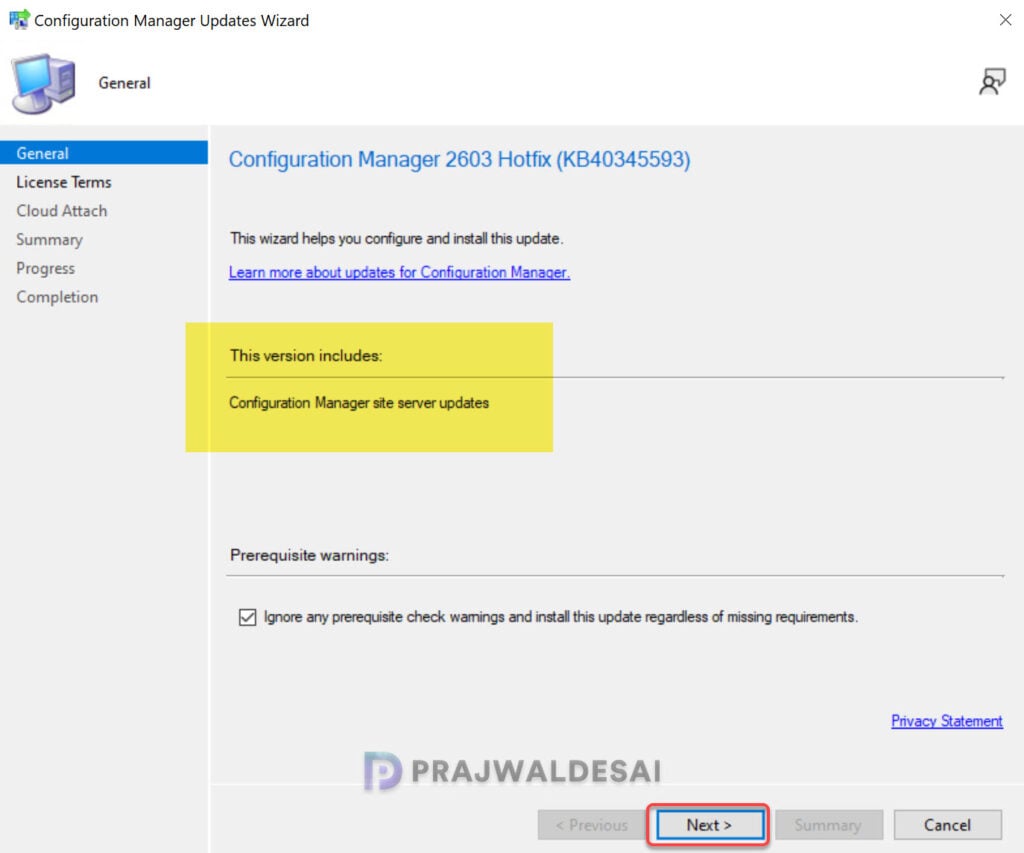
The hotfix includes only site server updates. There is no update included for console and clients. I highly recommend running a prerequisite check before installing this update. Click Next.
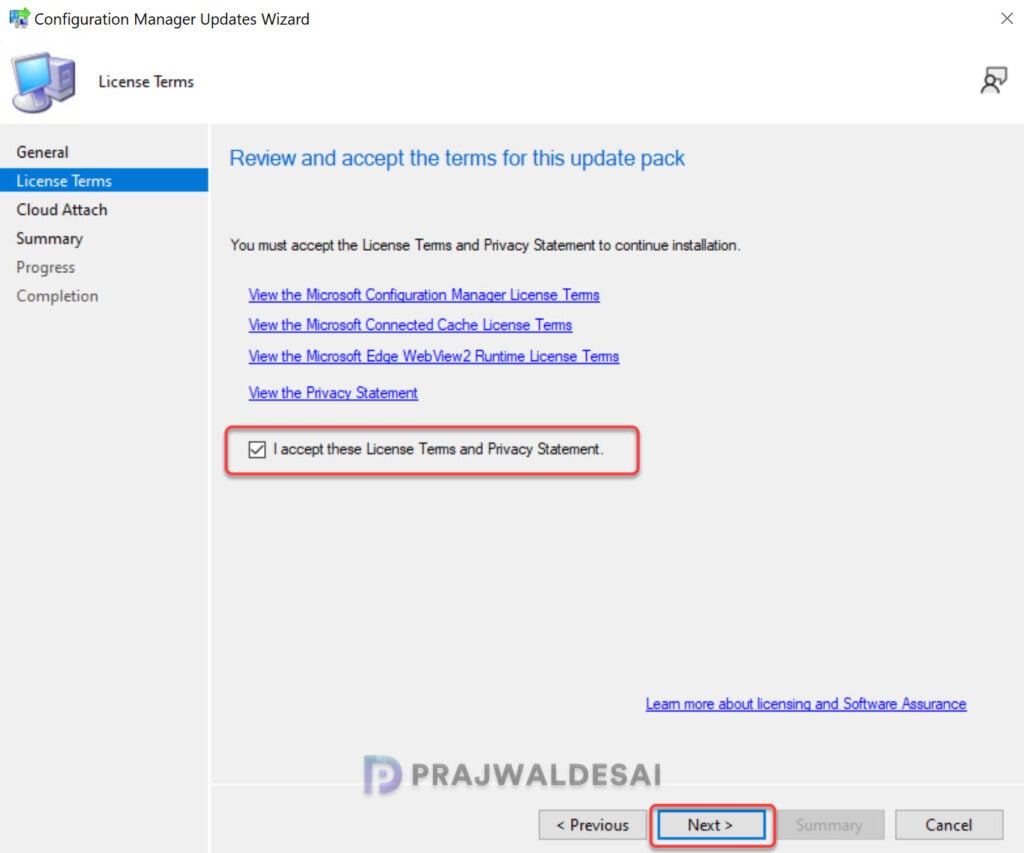
Accept the license terms for installing the update. Click Next.
Complete the remaining steps in the wizard and close the update installation wizard. The hotfix installation begins now.
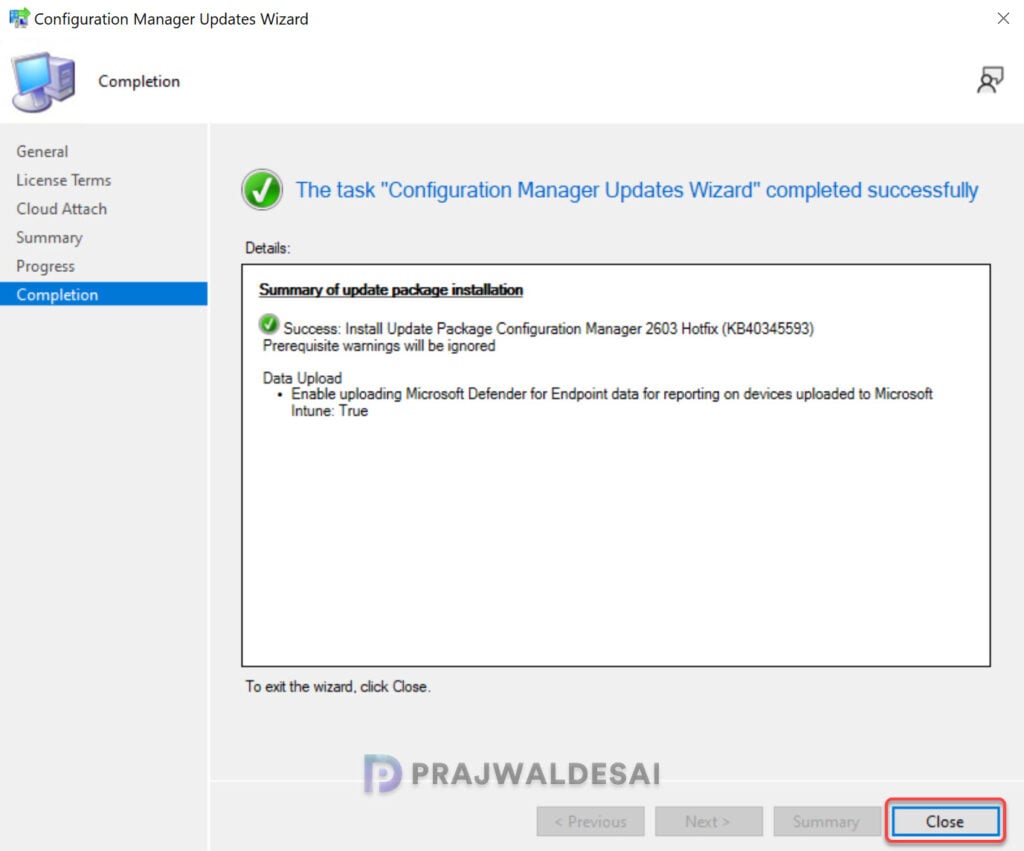
To track the progress of hotfix installation, navigate to Monitoring\Overview\Updates and Servicing Status. If the hotfix fails to install, this section will show you the exact step where the update failed. Another way to monitor the hotfix installation progress is by reviewing the cmupdate.log file.
To verify if the KB40345593 hotfix is installed, open the console and go to Administration > Updates and Servicing. If the State column for the hotfix shows Installed, it means the update installation is completed.
Updating Secondary Sites
Secondary sites must be manually updated with KB40345593 using the Recover Secondary Site option in the console. This must be manually done on all the secondary sites present in your setup.
On the secondary site server, open the Configuration Manager console. Go to Administration > Site Configuration > Sites > Recover Secondary Site, and then select the secondary site. Run the following SQL Server command on the site database to check whether the updated version of a secondary site matches that of its parent primary site:
select dbo.fnGetSecondarySiteCMUpdateStatus ('SiteCode_of_secondary_site')If the above command returns value 1, it means the site is up-to-date, with all the hotfixes applied on its parent primary site. If the value 0 is returned, the site has not installed all the fixes that are applied to the primary site.
