This post is a complete guide to importing Fujitsu catalog into SCCM. By importing the Fujitsu third-party custom catalog into Configuration Manager, you can subscribe and publish Fujitsu device updates to your software update point (SUP), and then deploy them to clients.
Fujitsu makes some excellent notebooks for business professionals who seek optimum mobility for business trips and ergonomics in the office. A long time back, I worked on a project for an organization where I imported Adobe custom catalog into SCCM and deployed the updates to Adobe applications. This guide follows nearly identical steps for importing the Fujitsu catalog.
If you are new to custom catalogs, you should know that they’re manually added sources for third-party software updates. I highly recommend reading my post on Paid and Free Catalogs for Third-Party Software Updates. The post details the various types of third-party patch catalogs and highlights vendors offering both free and paid catalog options for SCCM.
Steps for Importing Fujitsu Catalog into SCCM
The procedure for importing the Fujitsu custom catalog involves adding the Fujitsu catalog (.cab file), synchronizing the catalog, configuring SUP to sync Fujitsu updates and deploying them to Windows clients.
Before you proceed further, make sure you have enabled and configured thrid-party updates in SCCM.
Step 1: Add or Import Fujitsi Custom Catalog
Use these steps to import or add Fujitsu custom catalog in Configuration Manager:
- Launch the Configuration Manager (SCCM) Console.
- Navigate to Software Library\Overview\Software Updates.
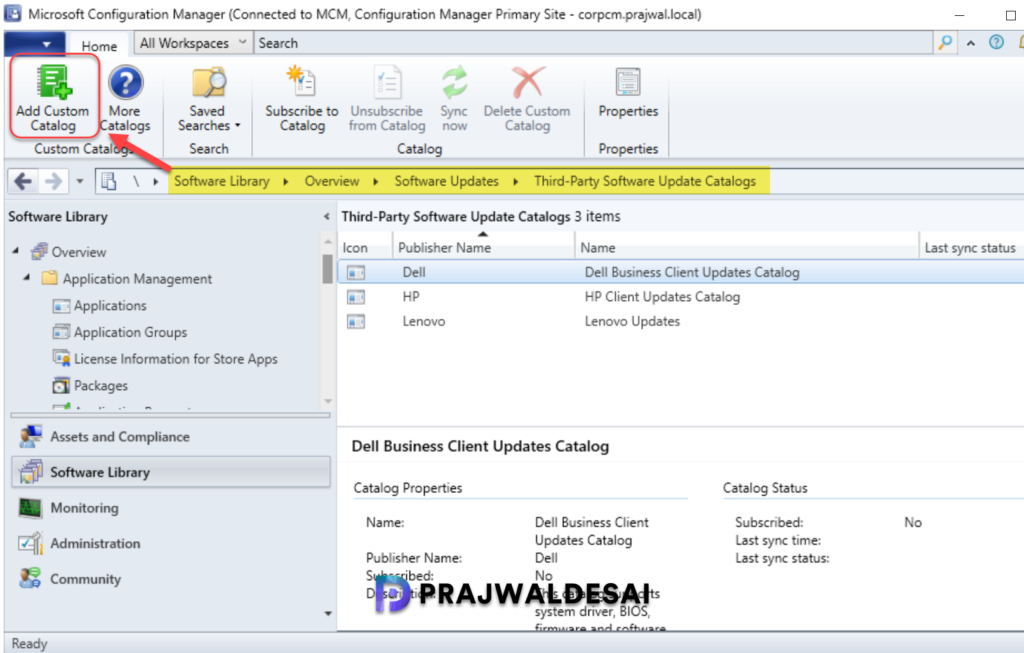
- Select Third-Party Software Update Catalogs and in the top ribbon select Add Custom Catalog.
In the General window, specify the below download URL provided by Fujitsu. Enter the publisher name, catalog name, catalog description and click Next.
https://support.ts.fujitsu.com/GFSMS/globalflash/FJSVUMCatalogForSCCM.cab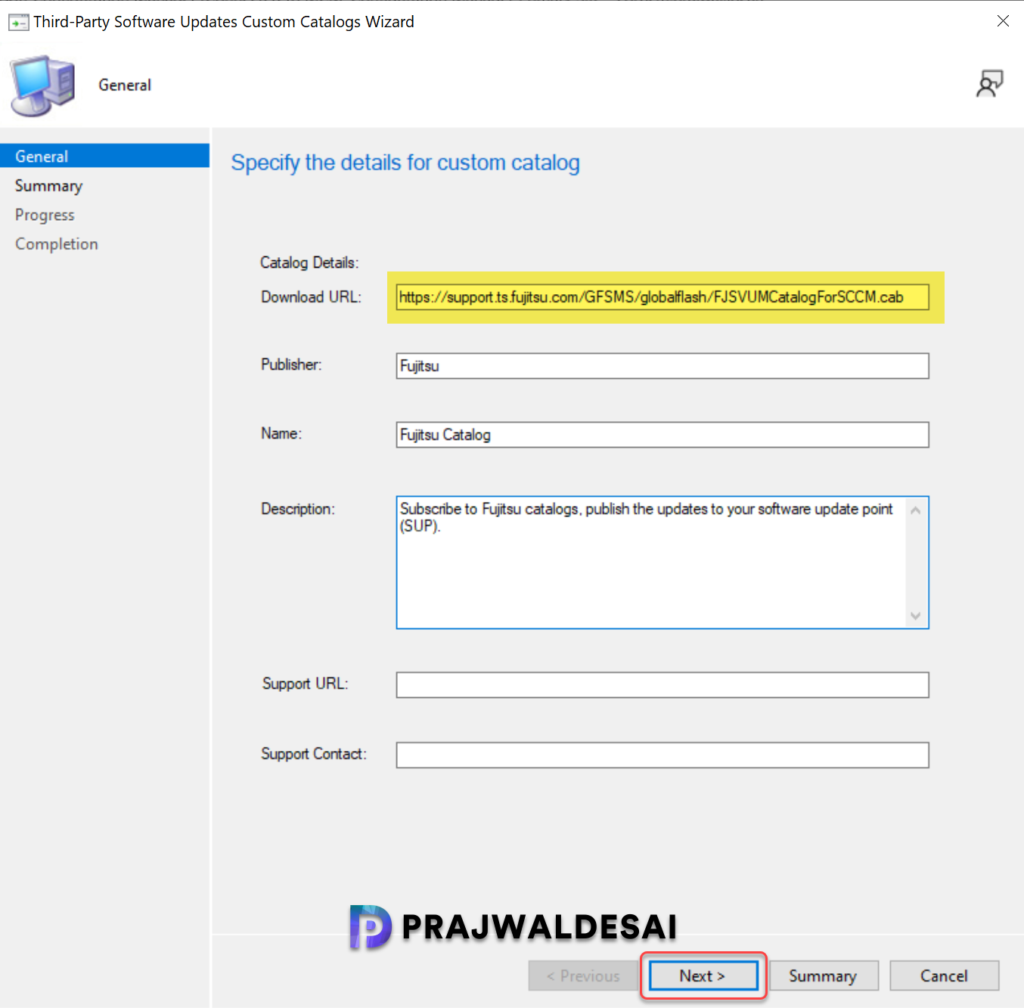
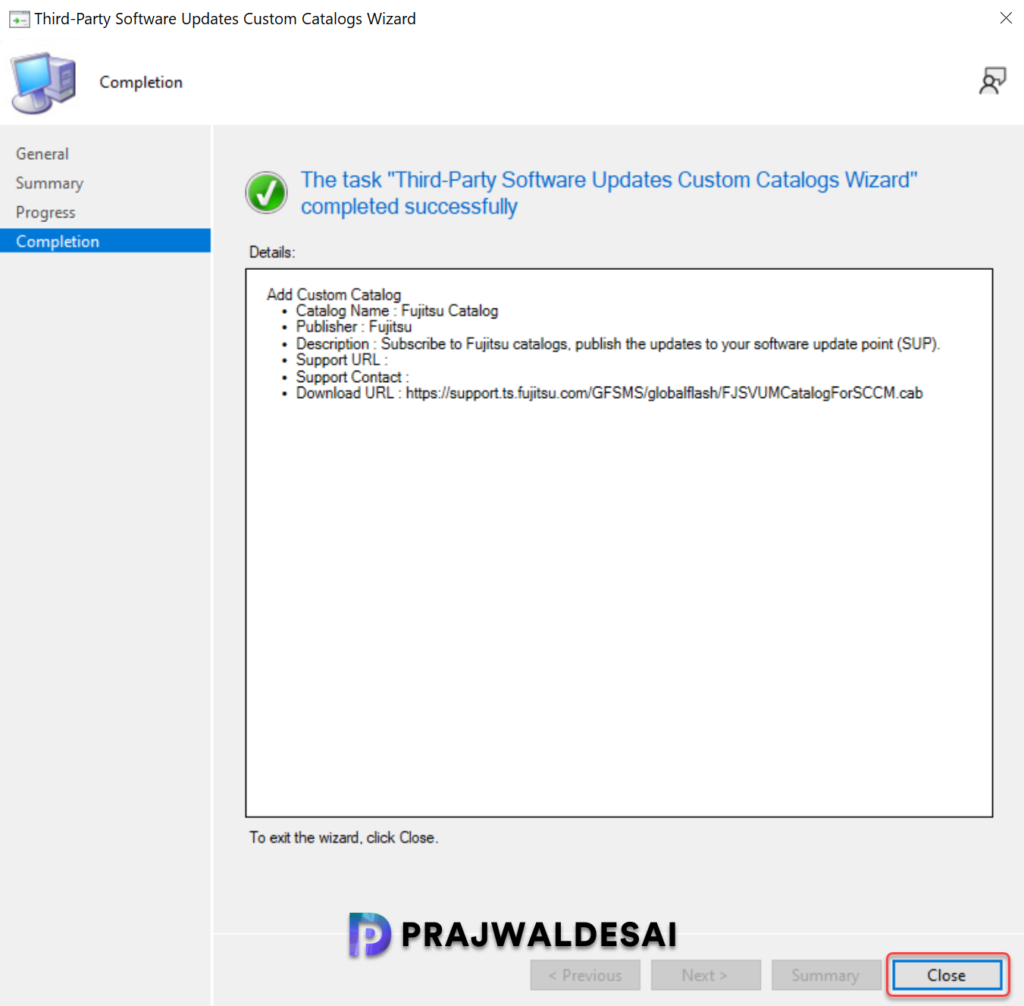
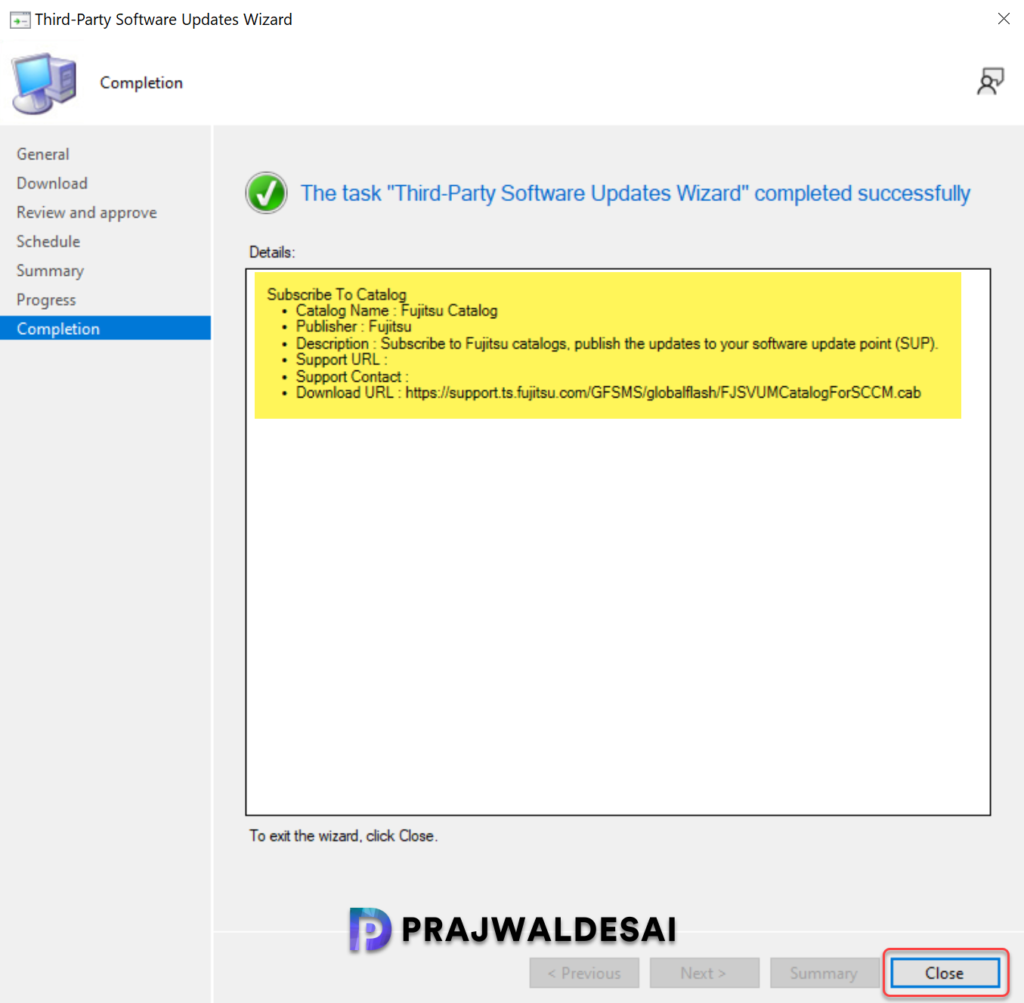
On the Summary page, review the selections and click Next. On the Completion window, click Close.
Step 2: Subscribe to Fujitsu Catalog & Sync Updates
You can subscribe to Fujitsu catalog in SCCM with following steps.
- Launch the SCCM console.
- Go to Software Library > Overview > Software Updates > Third-party software update catalogs.
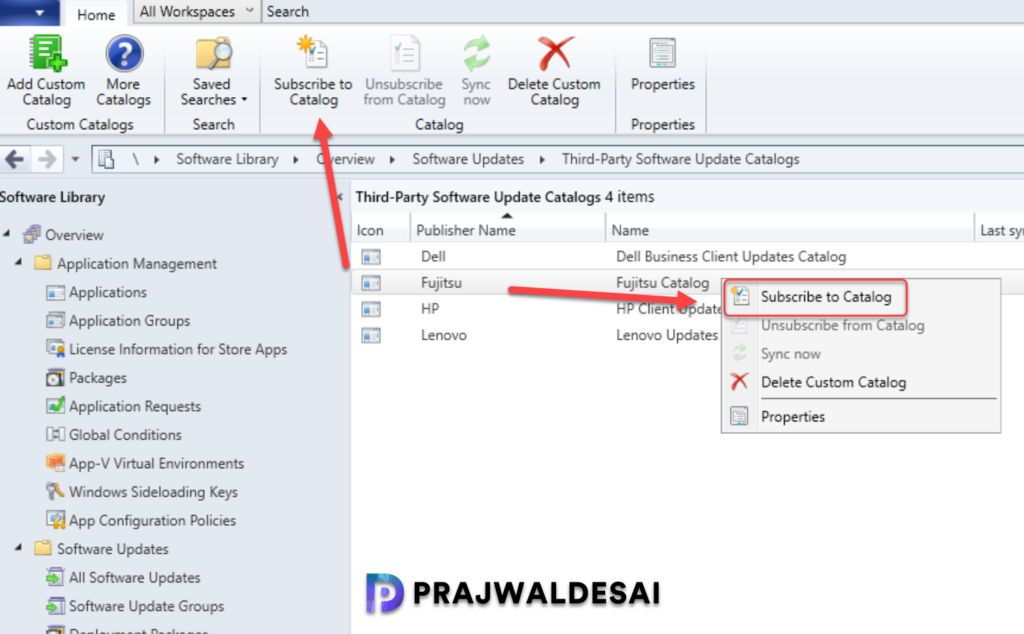
- Right-click the Fujitsu custom catalog and select Subscribe to Catalog.
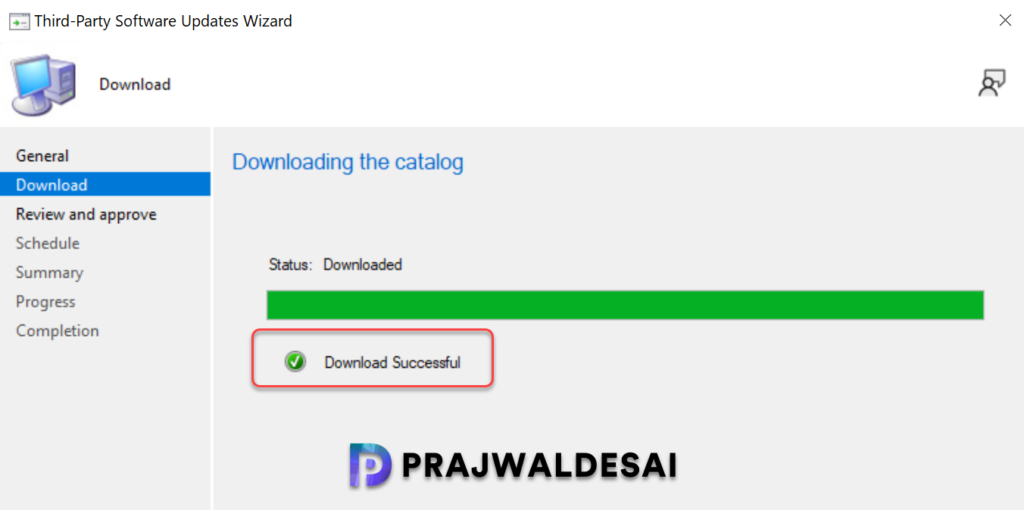
Wait a few seconds for the catalog to download. After the download is complete, click Next.
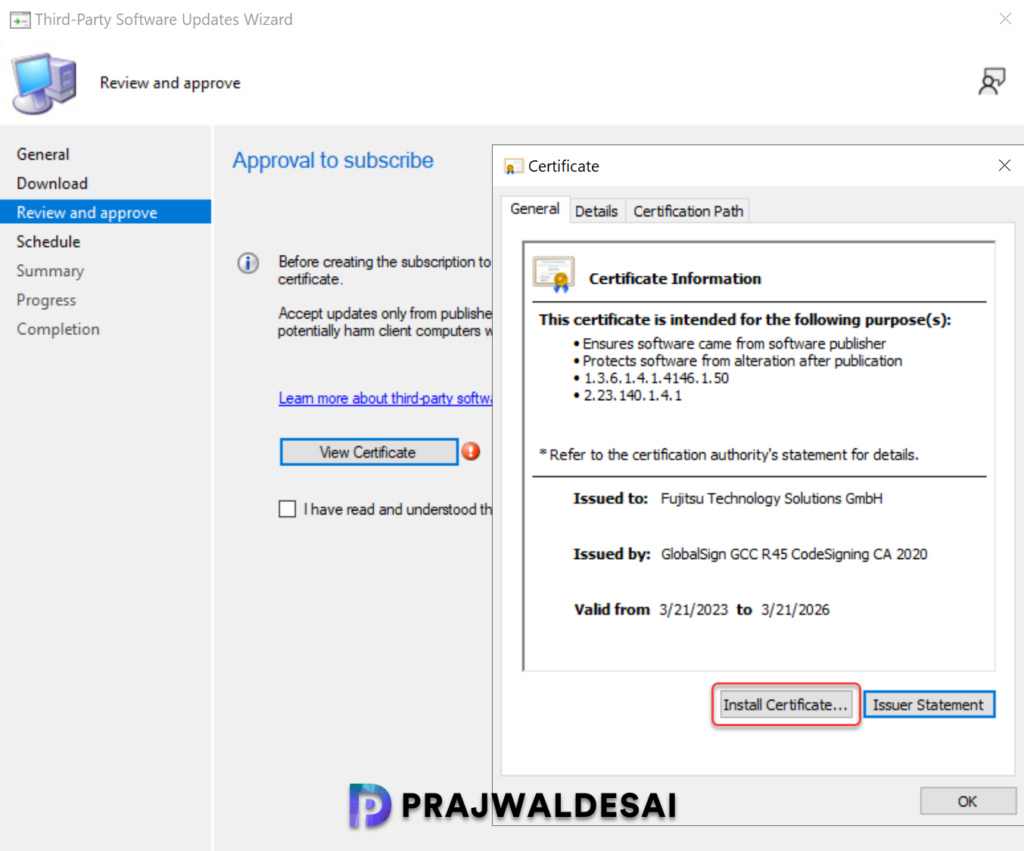
In this step, you provide approval to subscribe to Fujitsu updates. Click View Certificate and select Install Certificate. On the certificate import wizard window, choose the store location as Local machine and click Next.
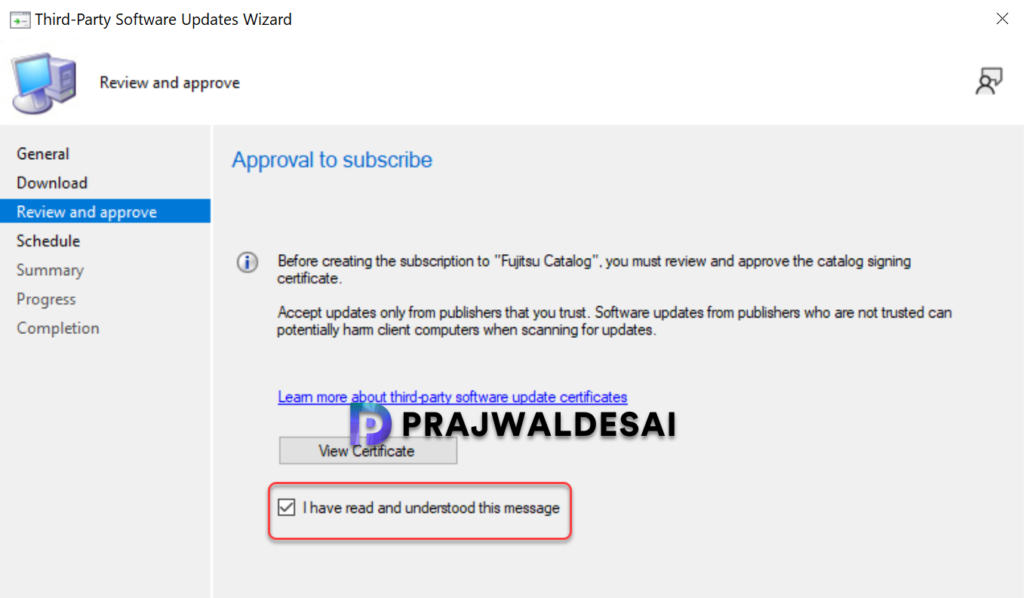
In the Review and approve window, check the box “I have read and understood this message.” Click Next.
On the Schedule page, you can set a custom schedule for the catalog and determine when you want to sync Fujitsu application updates. This is optional, and you can do it later as well. Click Next.

Review the selections on the Summary page and click Next. Close the third party software updates wizard.
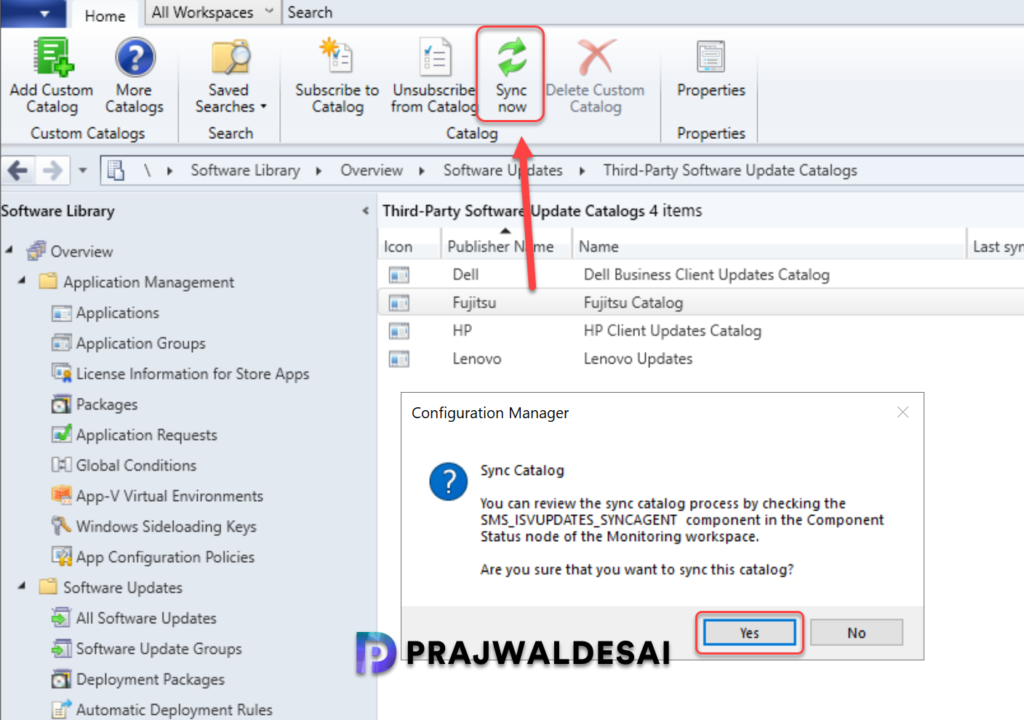
Once you have subscribed to Fujitsu catalog, select the catalog and click Sync now. To monitor the update synchronization, review the SMS_ISVUPDATES_SYNCAGENT.log. This log file is located in C:\Program Files\Microsoft Configuration Manager\Logs folder.
Step 3: Enable Fujitsu Products in SUP
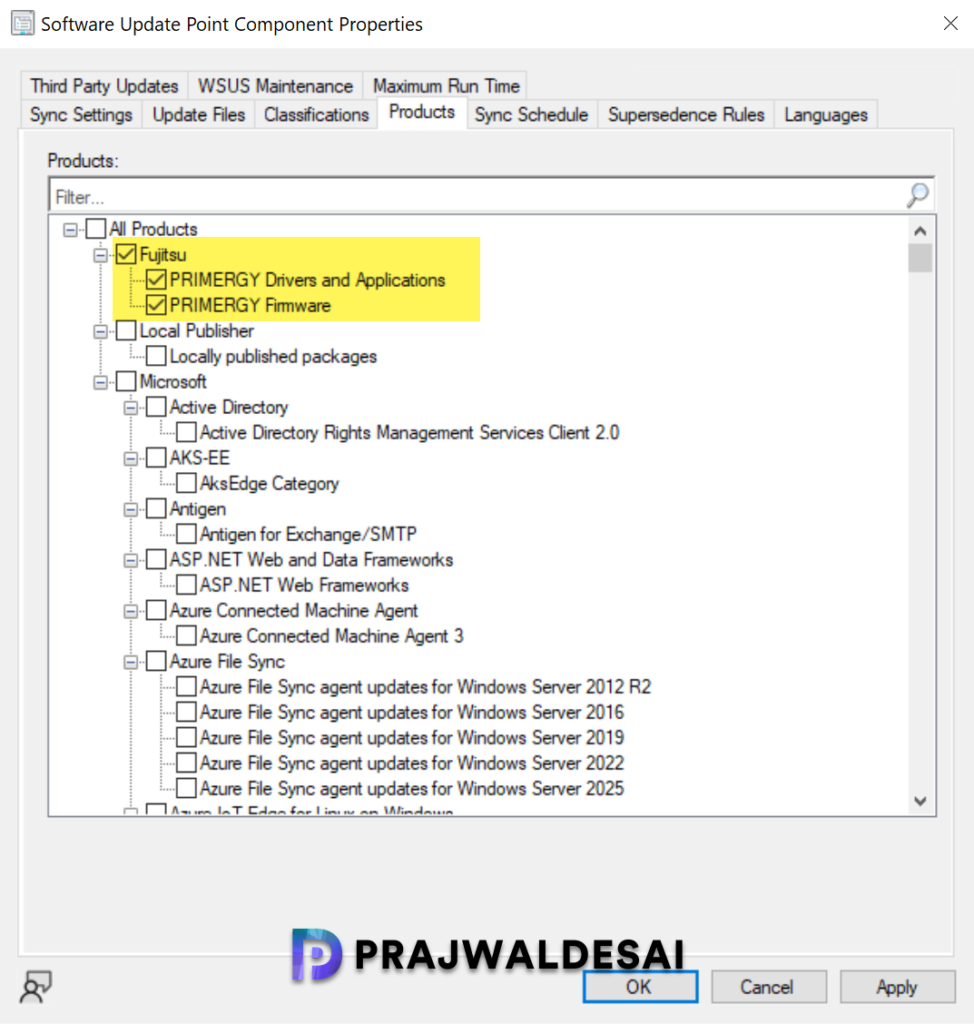
Go to Software Update Point component properties and select Products tab. From the list of products, select Fujitsu, PRIMERGY Drivers and Applications, PRIMERGY Firmware. Click OK.
Step 4: Synchronize Software Updates
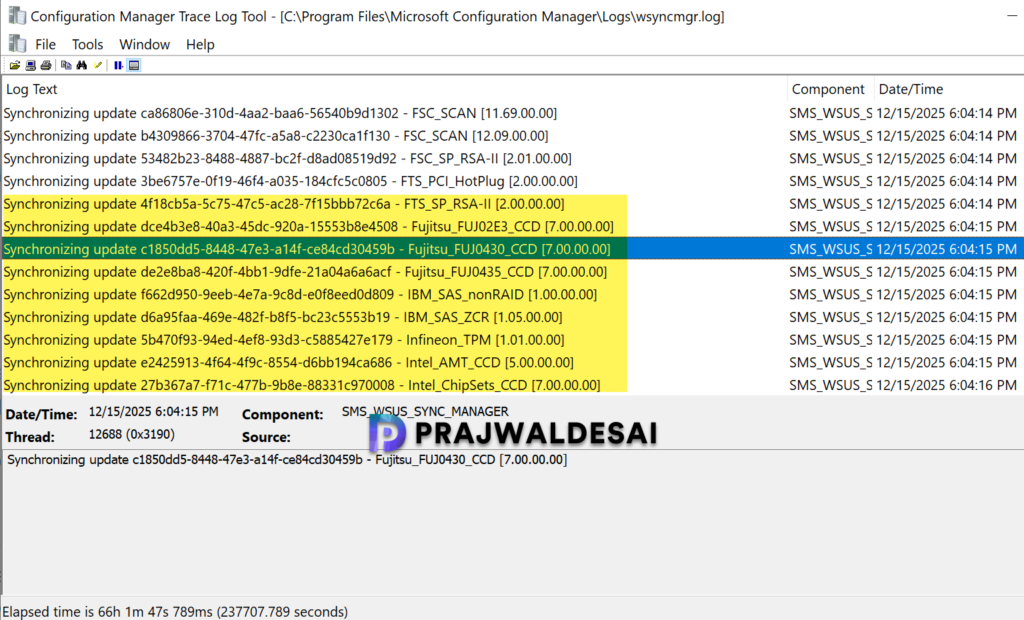
After you make any changes to products or classifications in SUP, you must manually synchronize the updates. Go to Software Library\Overview\Software Updates\All Software Updates and click Synchronize Software Updates. Review the software update point synchronization details using wsyncmgr.log file.
Step 5: Verify Fujitsu Third-Party updates in SCCM
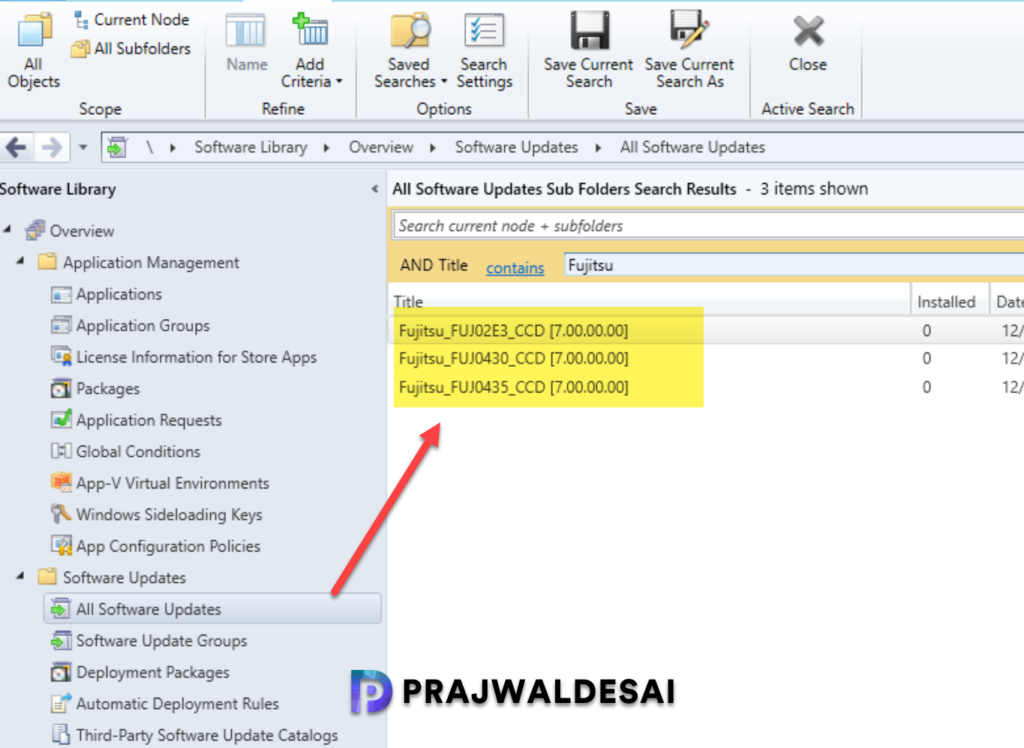
To check if you see the Fujitsu product updates in the console, navigate to Software Library\Overview\Software Updates\All Software Updates. Utilize the search feature to find Fujitsu updates. As shown in the screenshot below, third-party updates for Fujitsu are successfully displayed in the console.
Next, you can deploy Fujitsu application updates using Configuration Manager to your Windows devices.