

Microsoft has released ConfigMgr hotfix KB35360093 for versions 2409 and 2403 to resolve an elevation of privilege issue with administration service and CMPivot in Configuration Manager.
The security update was released on October 15, 2025, and is available in the Updates and Servicing node of the Configuration Manager console for version 2403 and 2409 environments with the following updates applied.
- KB28204160: Update rollup for Microsoft Configuration Manager version 2403
- KB30385346: Update rollup for Microsoft Configuration Manager version 2409
It is important to note that KB 35360093 security update is also included with KB32851084 Update rollup for Microsoft Configuration Manager version 2503. If you’re currently using version 2403 or 2409 and planning to upgrade to version 2503, you can skip installing this hotfix. More details about this hotfix can be found here.
Install ConfigMgr Hotfix KB35360093
Open the SCCM console and go to Administration > Overview > Updates and Servicing. Select the Configuration Manager hotfix KB35360093, and in the top-ribbon select Install Update Pack.
Note: If the state of the update shows as Ready to Download, wait for some time while it downloads in the background. If not, right-click the hotfix and choose Download.
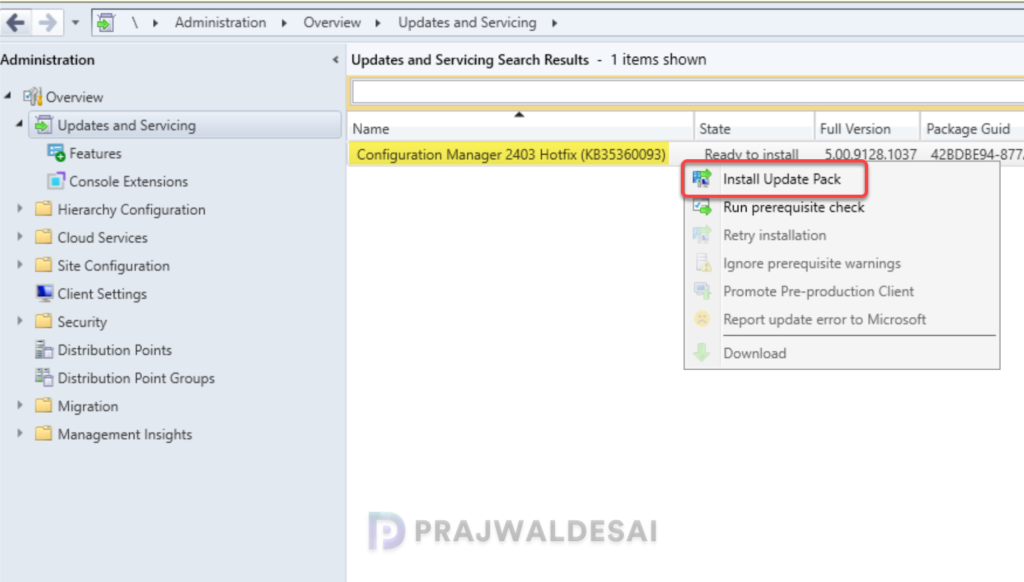
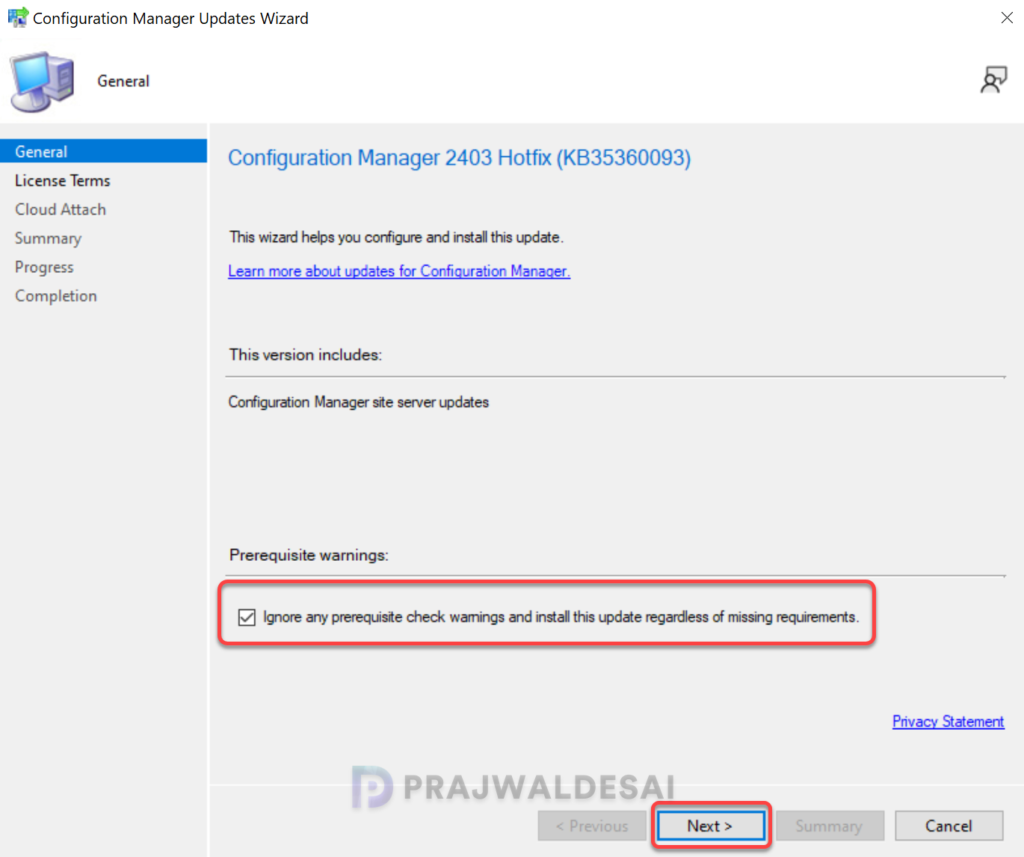
The KB35360093 hotfix provides updates exclusively for the site server. It does not include updates for the console or clients, resulting in a significantly faster installation compared to other hotfixes. I highly recommend running a prerequisite check before installing this update. Click Next.
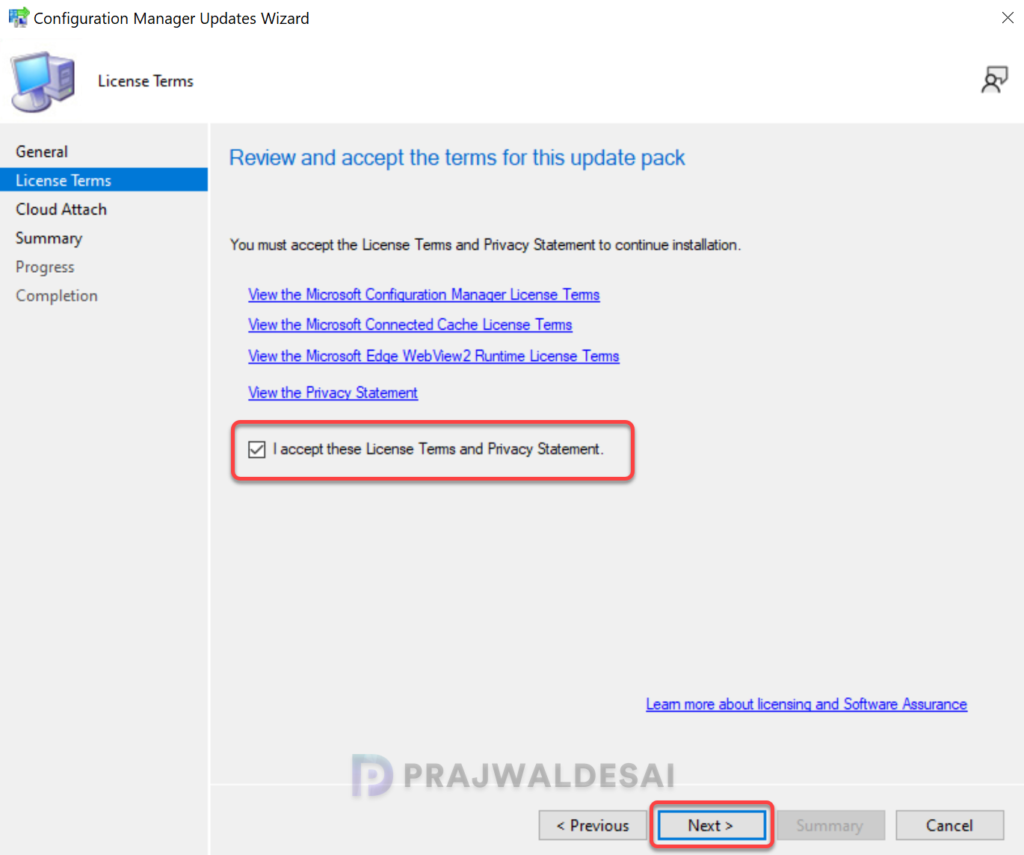
Accept the license terms for installing the hotfix. Click Next.
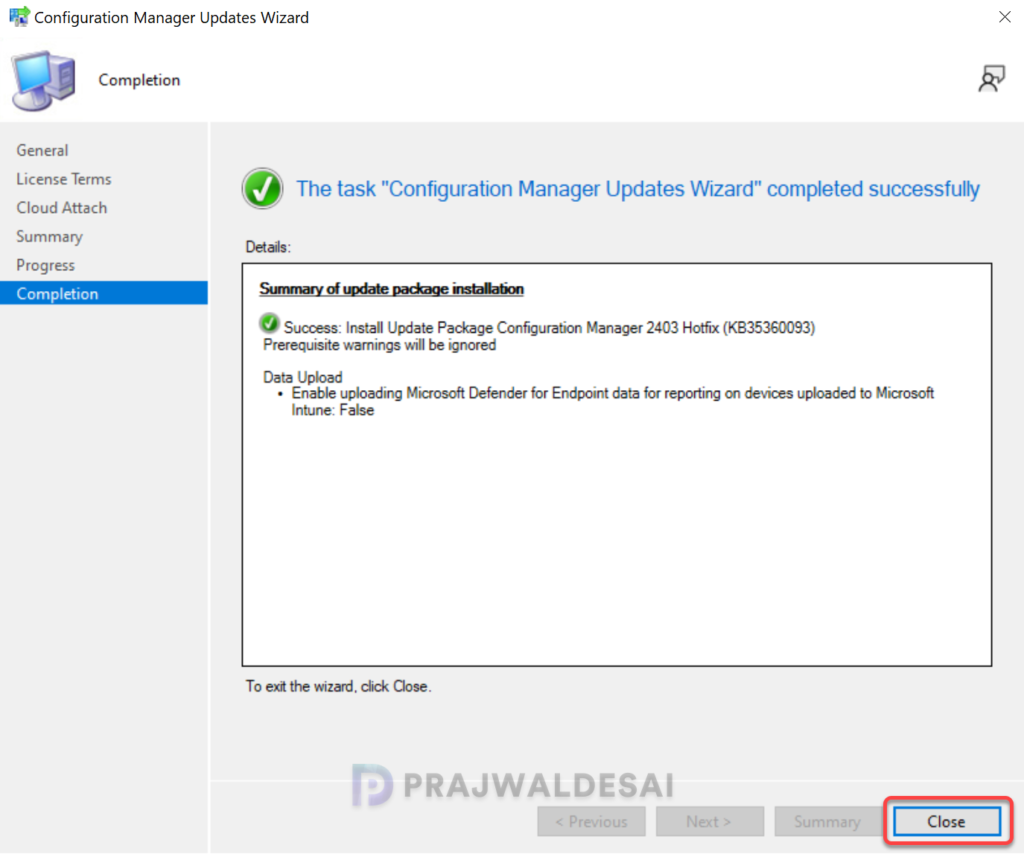
Complete the remaining steps in the wizard and close the update installation wizard. The hotfix installation begins now.
Monitor Installation of Hotfix
To track the progress of hotfix KB35360093 installation, navigate to Monitoring\Overview\Updates and Servicing Status. If the hotfix fails to install, this section will show you the exact step where the update failed. Another way to track the hotfix installation is by reviewing the cmupdate.log file on the site server.
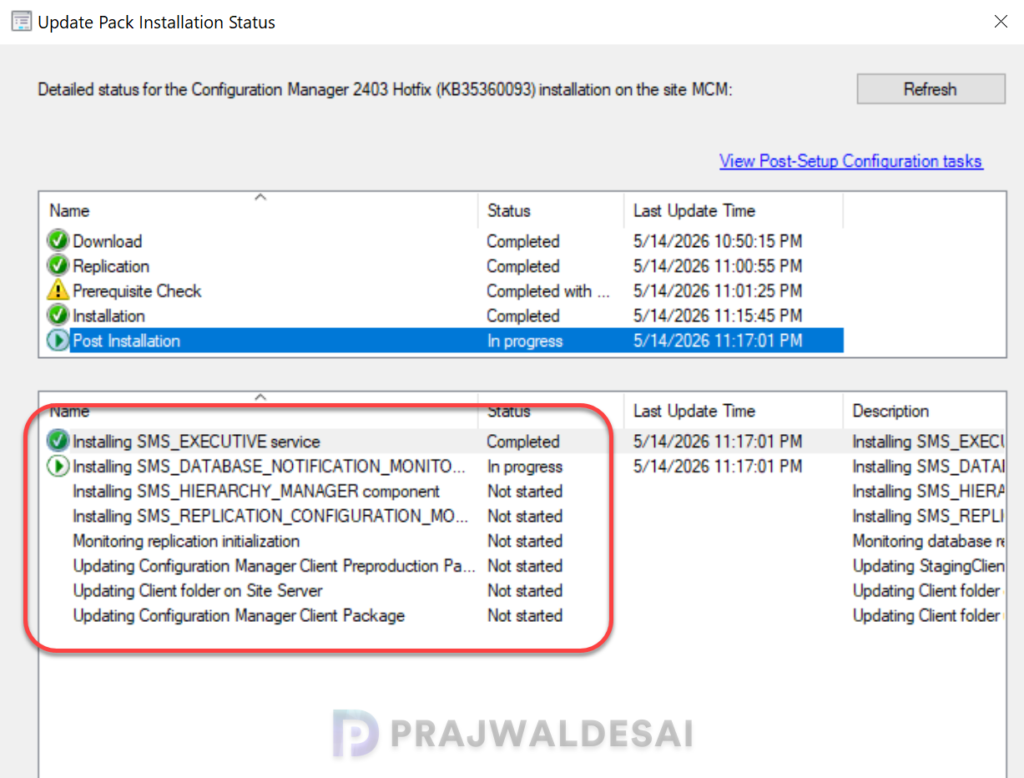
The hotfix KB35360093 required a total of 10 minutes to install on the server, and there were no errors encountered at any point in the installation process. You don’t have to restart your server after the installation of this update, but expect a site reset after installation.
Verify Hotfix Installation
To verify if the KB35360093 hotfix is installed, open the Configuration Manager console and go to Administration > Updates and Servicing. If the State column for the hotfix shows ‘Installed‘, it means the update installation is completed.
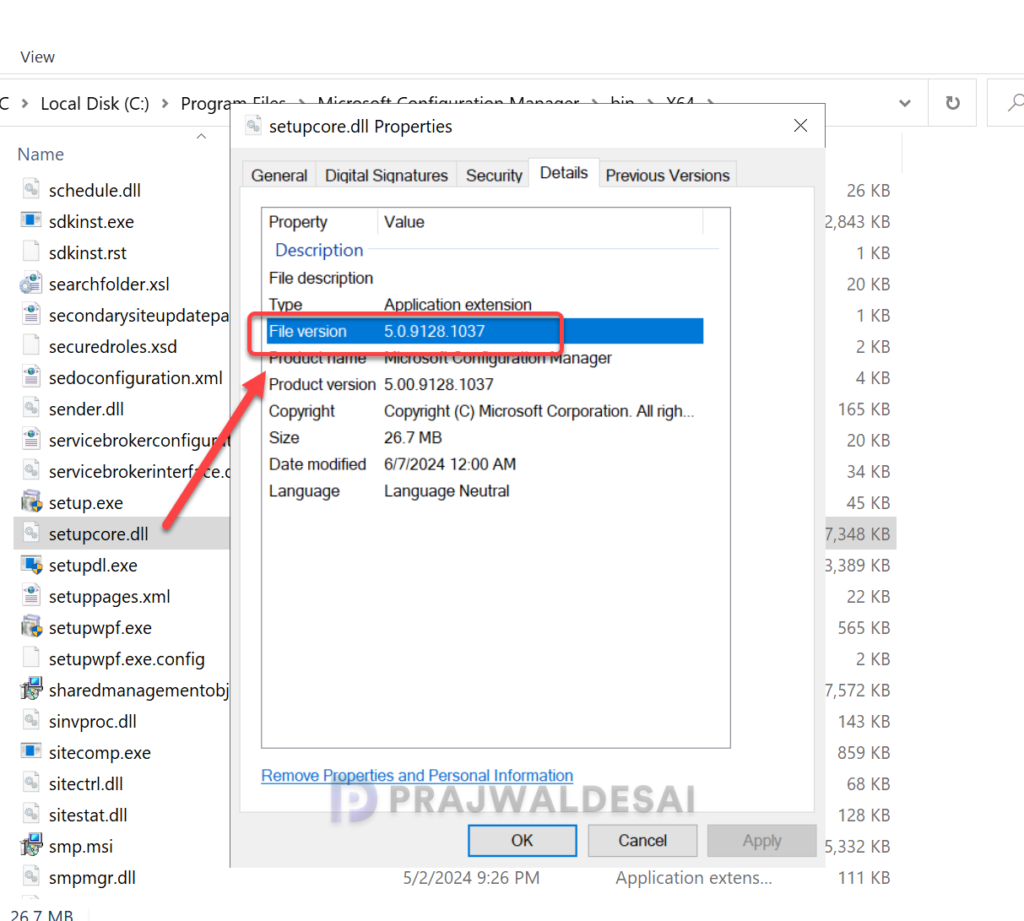
Post the hotfix installation, the Configuration Manager site (setupcore.dll) is updated to the following versions:
- 2403: 5.00.9128.1037
- 2409: 5.00.9132.1031
KB35360093 Installation on Secondary Sites
After installing the KB35360093 security update on a primary site, pre-existing secondary sites must be manually updated. This must be done on all the secondary sites present in your setup.
On the secondary site server, open the Configuration Manager console. Go to Administration > Site Configuration > Sites > Recover Secondary Site, and then select the secondary site. Run the following SQL Server command on the site database to check whether the updated version of a secondary site matches that of its parent primary site:
select dbo.fnGetSecondarySiteCMUpdateStatus ('SiteCode_of_secondary_site')If the above command returns value 1, it means the site is up-to-date, with all the hotfixes applied on its parent primary site. If the value 0 is returned, the site has not installed all the fixes that are applied to the primary site. You should use the Recover Secondary Site option to update the secondary site.
Lastly, take a look at all the hotfixes and rollups released for Configuration Manager current branch versions.
