

In this post, I am going to list all the alert resolution states in SCOM and explain what these alerts indicate. I will also show you how you can retrieve resolution states using some useful PowerShell cmdlets.
In System Center Operations Manager (SCOM), alerts can exist in different resolution states to help categorize and manage their status. These states allow administrators to track the lifecycle of an alert and determine how it is being handled.
If you’re actively working on SCOM, alerts can provide vital information on what’s actually going on your in your setup. For instance, you can configure an alert to trigger whenever a specific event ID is logged or when a particular service encounters a failure. For more information, learn how alerts are produced in SCOM.
Pre-Defined Alert Resolution States in SCOM
The table below includes all the built-in alert resolution states available in SCOM, along with their corresponding IDs and detailed descriptions.
| Resolution State | ID | Description |
|---|---|---|
| New | 0 | When an alert is generated, its resolution state is New. |
| Closed | 255 | An alert that is closed by the administrator. |
| Acknowledge | 249 | Indicates that the alert has been reviewed but is not yet resolved. |
| Assigned to Engineering | 248 | Used to assign alerts to a specific team or department for further investigation. |
| Awaiting Evidence | 247 | Signifies that the alert is being worked upon. |
| Resolved | 254 | The alert is resolved. |
| Scheduled | 250 | This state indicates that the alert is not yet resolved and is waiting to be addressed or investigated. |
How to view SCOM alert resolution states
Open the Operations Manager console. Go to Administration Workspace and select Settings. Right-click on Alerts located on the right-hand side, then select Properties. Navigate to the Alert Resolution States tab to view the list of resolution states along with their corresponding IDs.
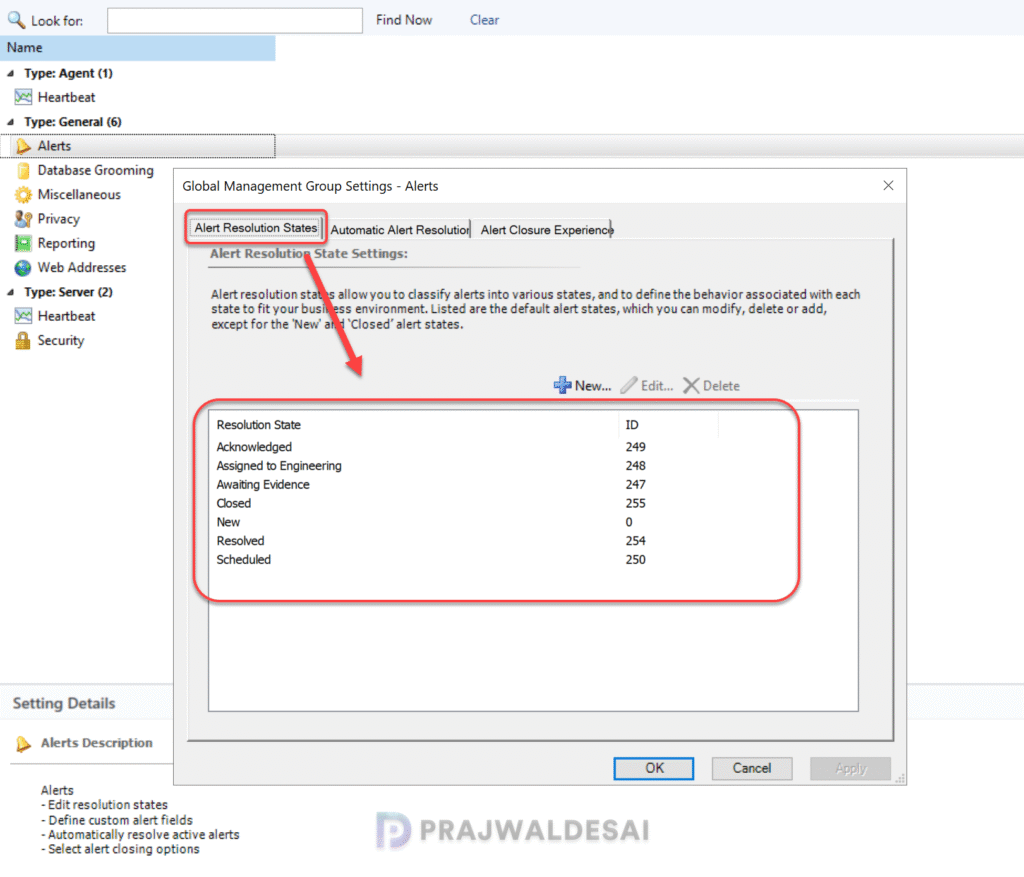
Important: These predefined alert resolution states cannot be edited or deleted, as this is intentional by design. Only the custom alerts can be edited or modified.
Get SCOM resolution states with PowerShell
The Get-SCOMAlertResolutionState cmdlet gets the alert resolution states in the management group. Each resolution state is assigned an ID, a code number which uniquely identifies that resolution state. Run the below command to list all the resolution states.
Get-SCOMAlertResolutionState
To get resolution states by using a resolution state code, run the below command.
Get-SCOMAlertResolutionState -ResolutionStateCode ID
Manually Set the resolution state for an alert
The resolution state of an alert can be modified by the administrator when required. To achieve that, open the Operations console, go to Monitoring. Right-click an alert and hover Set Resolution State, and select the desired resolution state.

