


In this post, I will explain how to delete an application in SCCM using the console and the Remove-CMApplication PowerShell cmdlet. If you have outdated or unused applications, you can remove them from Configuration Manager to free up disk space.
During a recent audit of the SCCM environment, I observed numerous outdated applications that not only consumed valuable disk space on distribution points but also introduced potential security vulnerabilities. I immediately suggested the administrators to remove these apps from SCCM.
The good thing about ConfigMgr is it allows you to find the apps that are not deployed to any users or devices. If you have got numerous inactive applications in SCCM that were packaged by previous administrators, this guide shows you how to permanently remove them using multiple methods.
Delete an application in SCCM Console
To remove an application from the SCCM console:
- Launch the Configuration Manager Console.
- Navigate to Software Library\Overview\Application Management\Applications.
- Select the application that you wish to delete, right-click the application and select Delete.
Fix unable to delete active SCCM application
When deleting an actively deployed application, when you right-click it and choose Delete, the application will not get deleted. That’s because SCCM prevents removing the applications that are actively deployed to a collection.
The following message appears when you attempt to delete a deployed application:
Configuration Manager cannot delete this application because other applications or task sequences reference it, or it is configured as deployment.
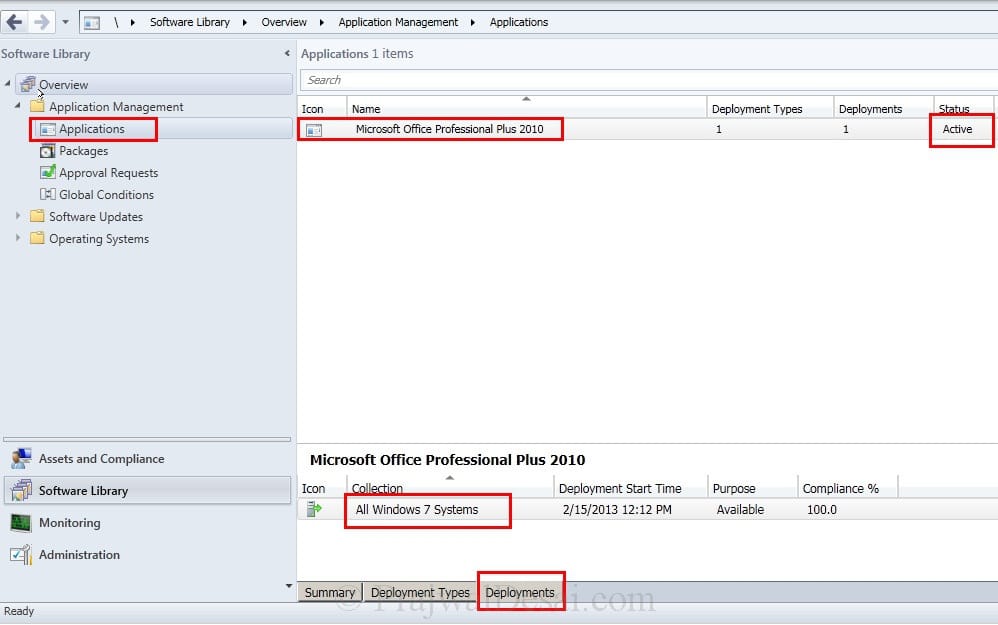
It clearly shows that the number of active deployments is 1 which means the application is deployed once. Click OK.

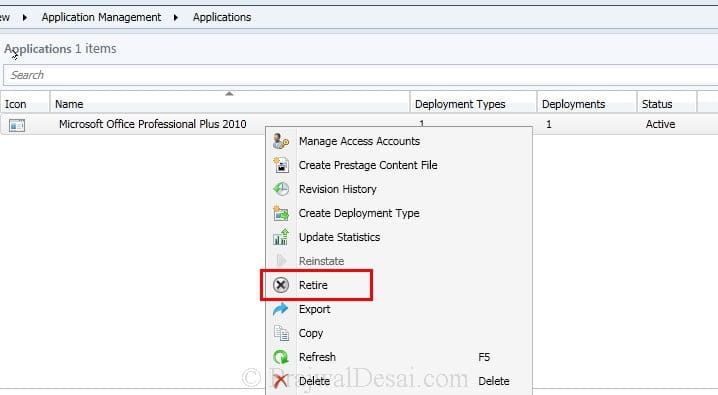
To resolve the above issue, before you delete the application, you must first retire that application. To retire the application, right-click the application and select Retire.
In certain instances, it is impossible to retire an application, and a warning box of this nature is displayed.
Configuration Manager cannot retire this application because other applications or task sequences reference it, or it is configured as deployment.
So, why is that you are unable to retire or delete an application. If the application has already been deployed to a collection, it is not possible to delete it. To get rid of the application, you must first delete the deployment.
In the below example, you see that the office application is already deployed to a device collection. First remove the deployment using the delete option.
If you have deployed the applications to multiple collections, you have to remove each deployment manually.

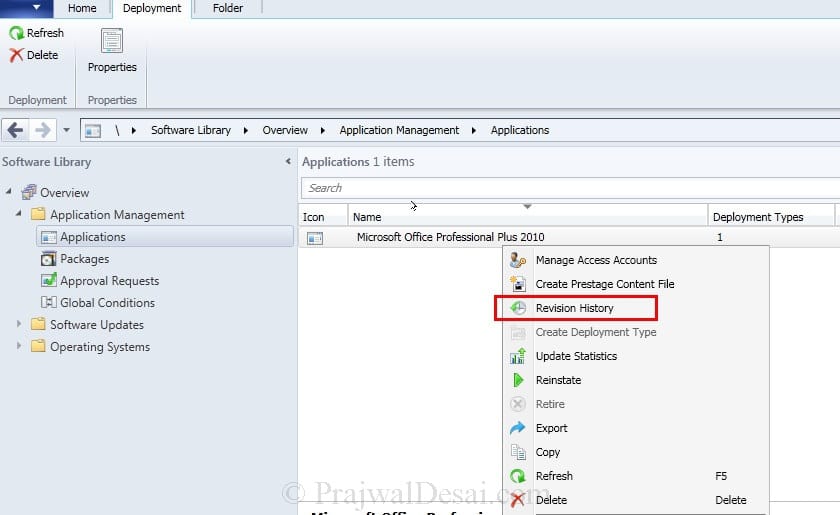
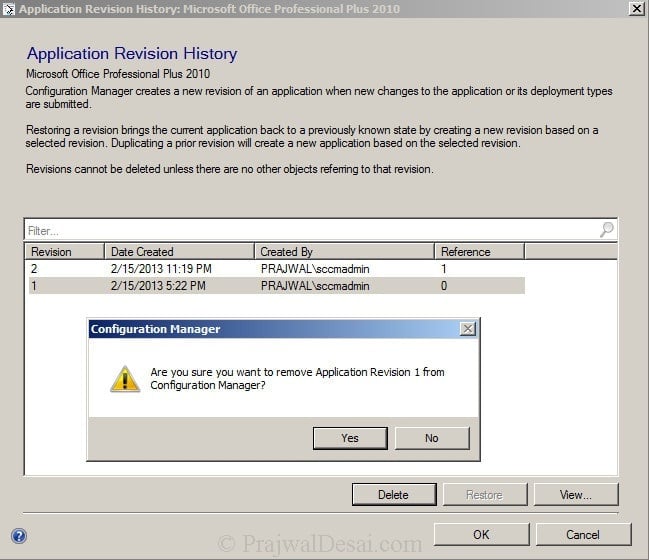
Right-click the Application and select Revision History.
On the Application Revision History window, start deleting the revisions from the bottom.
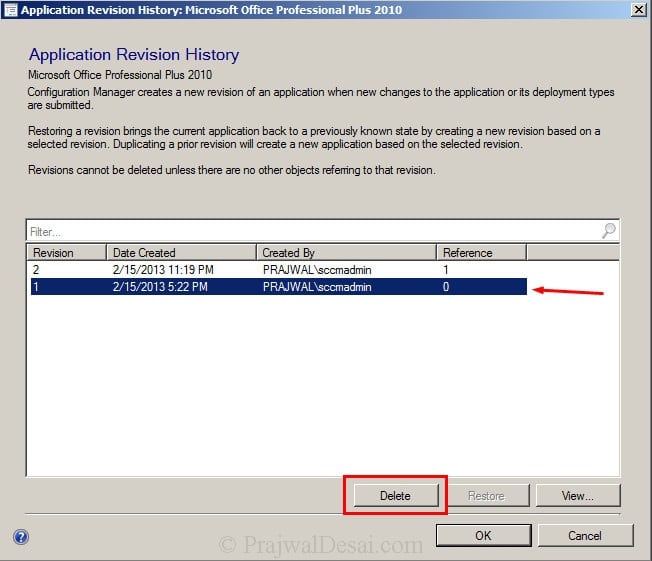
When you complete deleting all the revisions, click OK to close Application Revision History window.
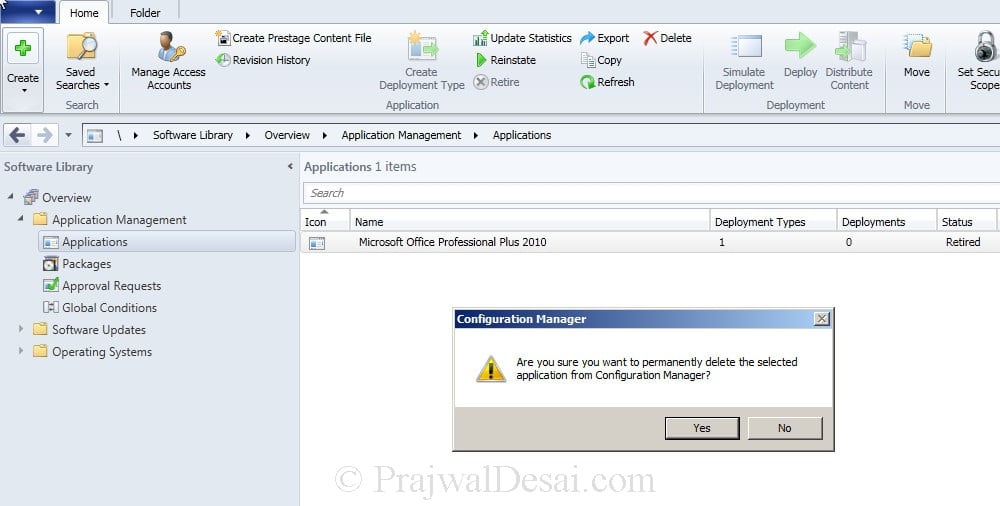
Once you have deleted all the revisions, right the application and select Delete. Now you see a warning box :-
Are you sure you want to permanently delete the selected application from Configuration Manager? Select Yes to confirm the deletion of application.
Use Remove-CMApplication to delete an application from SCCM
To delete an application from SCCM using PowerShell, you can use the Remove-CMApplication cmdlet. This cmdlet removes an application from Configuration Manager so that it cannot be installed by clients.
Before using this PowerShell method, ensure that any active deployments or task sequence references are removed first, as the application cannot be deleted if actively deployed.
Launch the PowerShell from ConfigMgr console. Run the below command that finds the application named APP 1. It uses the pipeline operator to pass the object to Remove-CMApplication, which removes the application. The -Force parameter removes the app without promoting for a user input.
PS XYZ:\> Get-CMApplication -Name "APP 1" | Remove-CMApplication -Force
The below PowerShell command removes the application object with the specified model name.
PS XYZ:\> Remove-CMApplication -ModelName "ScopeId_BD667DB5-E3EF-496A-BB27-0191B81F54B6/Application_47f79bbb-61c8-40bb-a291-e175b19e9521" -Force
I am having a strange problem when retiring then subsequently deleting the app from the console. I recently inherited a SCCM environment with a CAS, several MPs and DPs and previous managers using that term loosely only add apps never deactivating, retiring, or deleting obsolete items. For example, day one I found 31 versions of Chrome in the system all with active deployments. I disabled and retired the obsolete versions immediately and then a couple weeks later I deleted the packages. Here is the strange part the deleted packages are not deleting the connected content on the MPs and DPs. Based on all the information from various resources including this site once retired we should be able to delete the app, and the connected content is deleted. Any insights would be great.
Hi Prajwal,
Thank you for this post. I deleted deployments and try to deploy again for uninstall but it is failing.
It was deployed with PSDT (Powershell Deployment Toolkit). So how can i uninstall it now ? Please help me.
Thanks & Regards,
Chintan Bhatt
Is there an easy way to delete multiple applications at once?
Not unless it has multiple deployments.
I should have clarified.. I have multiple outdated applications in Application Management. How can I delete them all instead of one by one. I only wish to keep the 3 most recent versions. None of these are marked as “Retired” nor have active deployments. Is this possible? Thanks
I have an SCCM application that I cannot delete as it has an ‘active deployment’. I cannot retire the application for the same reason.
However, when I look at the deployments tab it is empty and says ‘no items found’.
There is only one revision in the ‘Application Revision History’. When I click on this I can only view it, not delete it.
It’s stuck. I’m stuck!
Does anyone have any idea?
This is bit strange as you mentioned it has an active deployment but nothing shows up under deployments tab of application properties. Can you report this issue in forums and I will take a look at this. Or you can contact me using contact form.
Hi Prajwal, your site is really helpful. Thank you.
What happens to the application that was sent to various distribution points, are they automatically deleted when the app is deleted from the console?
I did retire one application. Now i want to uninstall the same application from all systems.
can you please help to get the right steps?
To uninstall the application, you must deploy either a script or deploy the application as required which uninstalls it.
Thanks Prajwal this article helped me a lot
Glad to hear that.
Hi Prajwal,
Please let me know what will happens to the content on dp..?is it get remove automatically or we need to remove the app from dp before deleting it from the console?? I thing this info should be in the blog but will appreciate if you clear this point in comment also…
Great article, I was having issues with deployments showing up in Software Center even after I had deleted them. I realize now that I wasn’t removing them using the correct method.
Incorrect – Right click the Collection and click Delete.
Correct – Right click the Deployment and click Delete.
If I delete the deployment of one app, is that means the devices which are installed this app will get removed?
Nope, if you delete any deployment the apps deployed to computers won’t be uninstalled.
Hi Prajwal,
I’m not able to delete the history at all my only option is “View”. Any suggestions?
It’s possible you don’t have the permissions to do so.
This happened to me. Retire the app before you can delete the last revision remaining. Otherwise, if you’re unable to delete any revision, it’s possible your permissions are not set the same.
Same issue here I have only one revision available but only the option “View”. I am a full administrator in the SCCM Console. What else do I need? Apparently after deleting the Deployment Types now I have the “Delete Option” available!!! is it expected?
Thanks,
Dom
Hi Prajwal,
I trying to get SCCM report for only the server in our environment with :OS version/RAM /number of processer /Domain/With services pack /Hard Disk /Physical or VM
Below query I’m not get the way we want.
Possible to have your suggestion.
SELECT DISTINCT(CPU.SystemName0) AS [System Name],
CPU.Manufacturer0 AS Manufacturer,
CPU.Name0 AS Name,
COUNT(CPU.ResourceID) AS [Number of CPUs],
CPU.NumberOfCores0 AS [Number of Cores per CPU],
CPU.NumberOfLogicalProcessors0 AS [Logical CPU Count]
FROM [dbo].[v_GS_PROCESSOR] CPU
GROUP BY
CPU.SystemName0,
CPU.Manufacturer0,
CPU.Name0,
CPU.NumberOfCores0,
CPU.NumberOfLogicalProcessors0
It’s not the answer to your issue, but will save you some time from troubleshooting your query/report.
Launch CMD as Admin, type in systeminfo /s ServerName and you’ll get an output of everything you just asked. If you want further details, you can logon to the machine or use Computer Management (compmgmt.msc) to remotely connect to the machine and get list of disks/partitions. If it’s a VM, you’ll have to check from the vCenter.
Hi Prajwal,
Nice article, but if I can ask – what happens to the software distributions that you have when initially creating the software.
Does that get removed automatically as well… I normally do this task manually but if there is any way to automate it – then I’d be very interested in knowing this.
Hi
Am new to scccm. We are using sccm 2012. I have some doubt, can i able to uninstall software by using sccm 2012 which software does not install by using sccm.
can i able to use third party software if possible please suggest me any good third party tool.
Hi Prajwal, I like your website.
Thanks
Thanks Zaid.
How do i create inbuilt reports ?
You can create custom reports using SQL builder. I will post information on this in one of upcoming posts.
Hi Prajwal,
On SCCM there is a term called Application Supersedence, which we can do replace an application on the client with another application or with new version of the same application. To perform the supersedence we must uninstall the current application firstly, then we can do to deploy a new application to the clients.
Can we uninstall a client application from SCCM, or we must do it manually on client systems?
Thanks.
When you supersede an application, you can specify a new deployment type to replace the deployment type of the superseded application and also configure whether to upgrade or uninstall the superseded application before the superseding application is installed.
Hi Prajwal, Firstly great blog! Secondly, if you right click and delete the application before you remove the revision history it appears that these revisions remain in the content library (filestore). Is there a utility or exe that I can run that can remove orphaned folders?
Thanks,
Jimmy
Hey Jimmy, good question. I haven’t come across any such utility.