

A new hotfix rollup KB36949461 has been released by Microsoft for ConfigMgr version 2509. The hotfix improves access controls for the Network Access Account, resolves error code 0x80070643 while installing or upgrading the CM client on ARM x64 devices, and much more.
If I recall correctly, this marks the fourth hotfix released for version 2509. Microsoft has shifted its release cycle for current branch versions to just one update per year. However, it’s evident that Microsoft is actively rolling out hotfixes to resolve existing issues in these CB versions.
The KB36949461 hotfix update is now available for all customers in the Updates and Servicing node of the Configuration Manager console. I strongly recommend installing this update as it not only resolves critical issues but also includes the fixes for four previously released hotfixes. Now, let’s explore what this hotfix addresses and go through the steps to install it in your environment.
Resolved Issues in KB36949461 Update
The following issues are addressed with the release of KB 36949461 update for SCCM version 2509.
- Incorrect restart error during Build and Capture task sequences on Windows 11 24H2.
- Misreporting of Windows 10 IoT Enterprise LTSC 2021 as unsupported.
- Compliance check failures in co-managed environments.
- Installation failures of applications with OS requirements after upgrading to 2509.
- Update source issues for co-managed clients with third-party catalogs.
- Client upgrade failures (error code 0x80070643) on Windows 11 ARM64 devices.
- Security enhancements for the Network Access Account.
Hotfixes that are included in this update
- KB 36419072: Offline feedback update for Configuration Manager.
- KB 36495448: Co-management and 3rd party update scan source fix for Configuration Manager.
- KB 37172183: Software Center compliance check fails with GET_TOKEN_FROM_STS_ERROR in co-managed environments.
- KB 37447175: Security update to harden access to Network Access Account information.
Install Hotfix KB36949461 for Configuration Manager
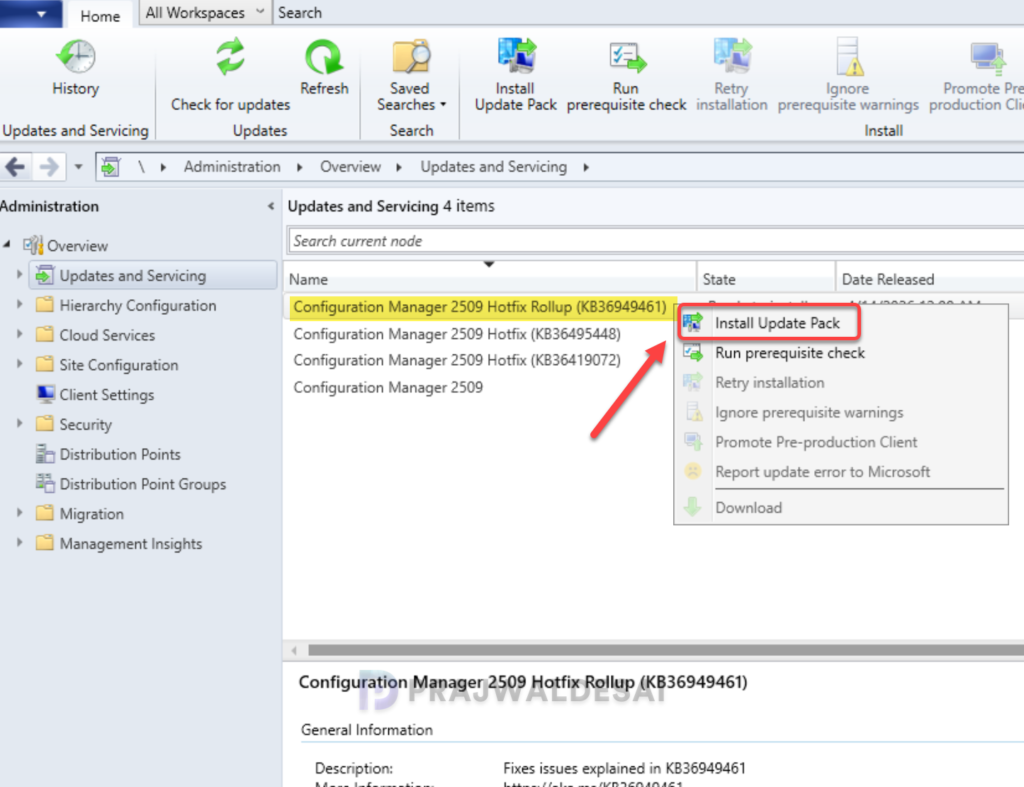
Open the SCCM console and go to Administration > Overview > Updates and Servicing. Select the Configuration Manager hotfix rollup (KB36949461) and in the top-ribbon select Install Update Pack.
Note: If the state of the update shows as Ready to Download, wait for some time while it downloads in the background. If not, right-click the hotfix and choose Download.
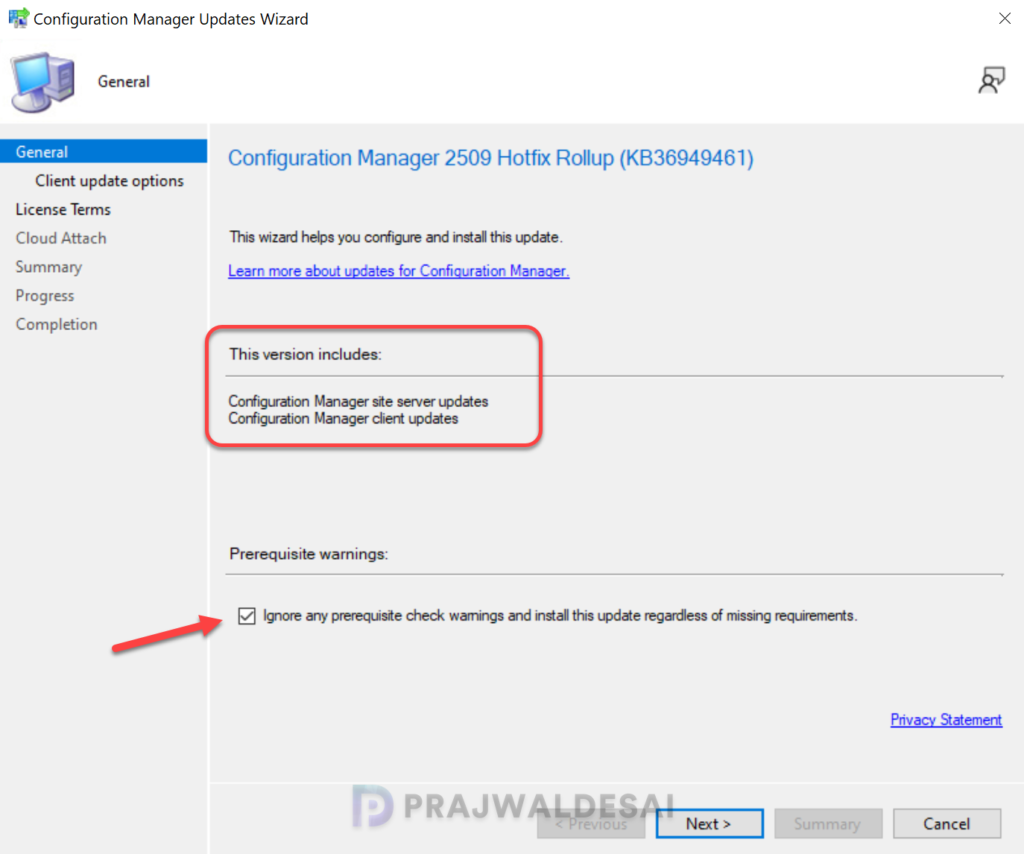
The hotfix includes updates for site server, clients, and console. I highly recommend running a prerequisite check before installing this update. Click Next.
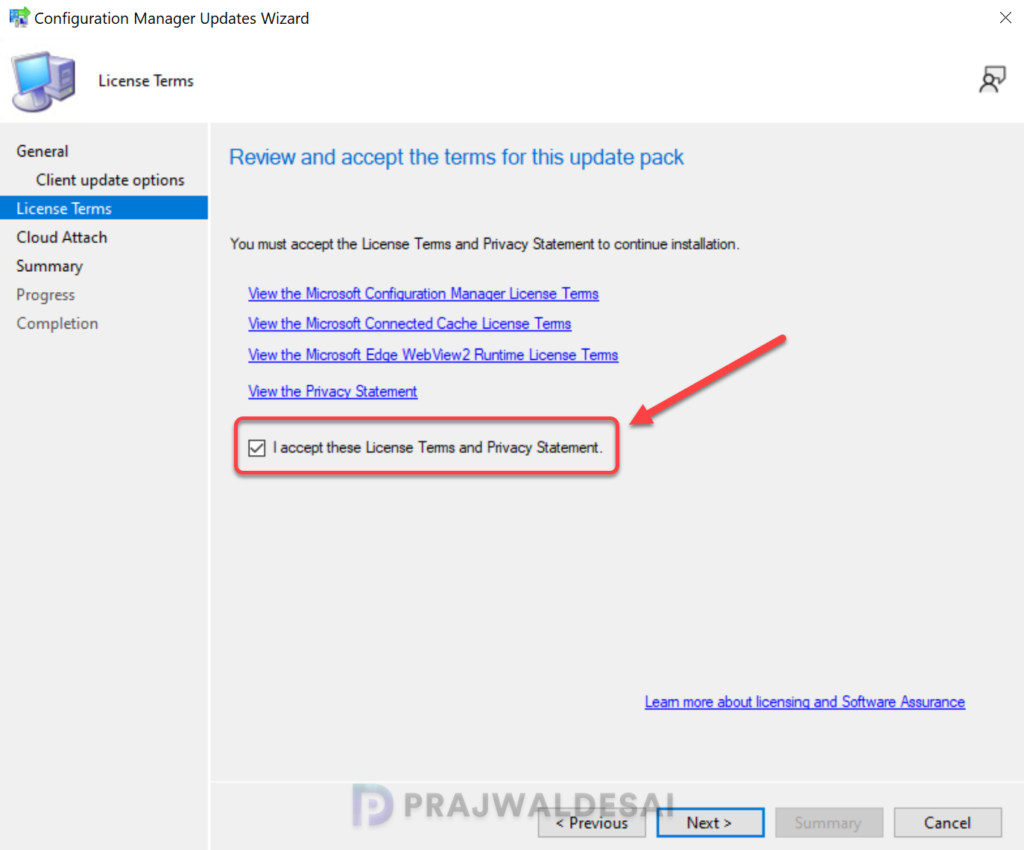
Accept the license terms for installing the update. Click Next.
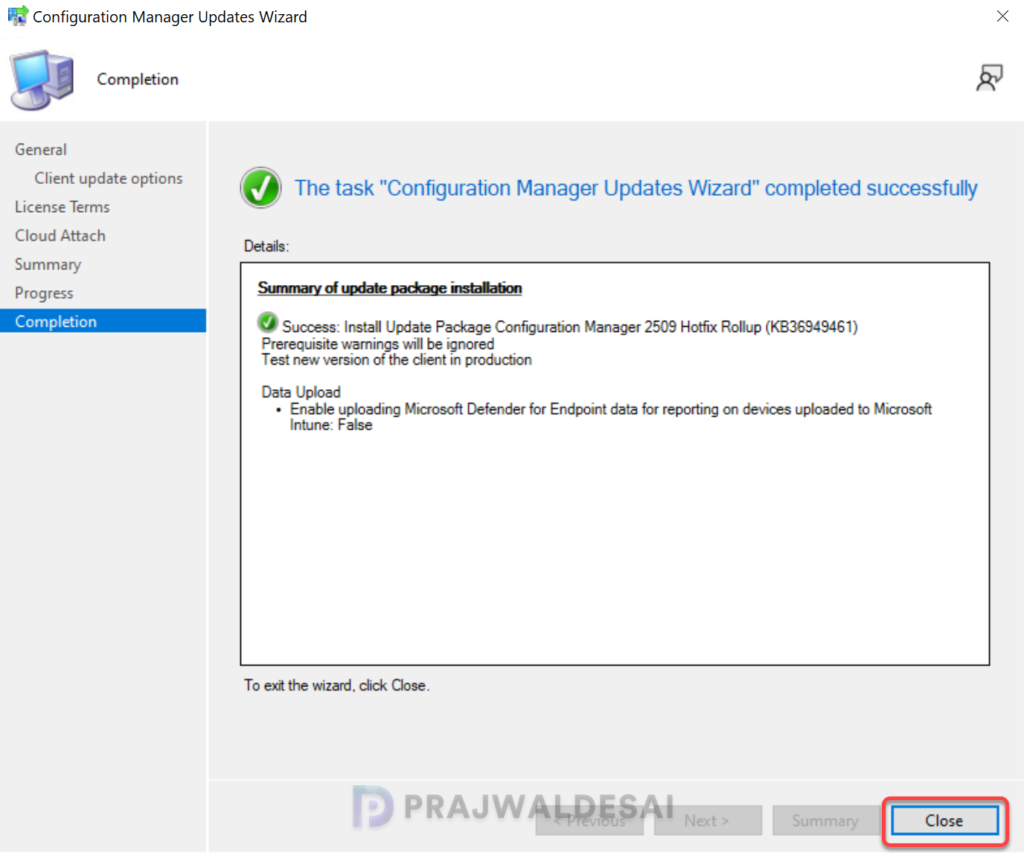
Complete the remaining steps in the wizard and close the update installation wizard. The hotfix installation begins now.
Console Upgrade
Although the hotfix rollup does mention that it includes updates to only site servers and clients, during my testing, I noticed that the console upgrade is also required. If you’re prompted for the console upgrade, complete it. The hotfix upgrades the Configuration Manager Console to version 5.2509.9141.1030.
This update doesn’t require a computer restart but will initiate a site reset after installation.
Verify Hotfix Installation
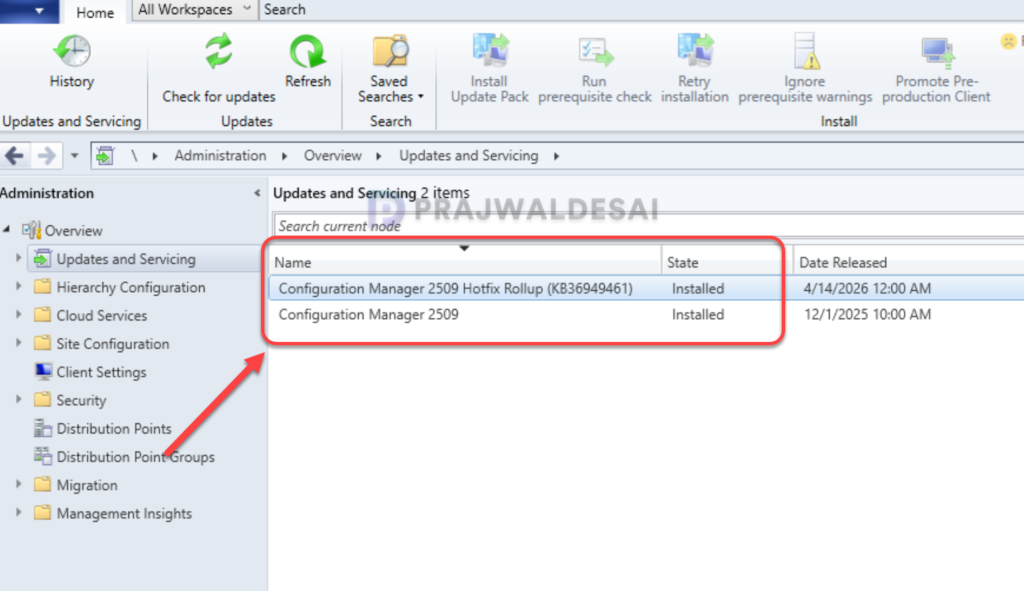
To verify if the KB36949461 hotfix rollup is installed, open the console and go to Administration > Updates and Servicing. If the State column for the hotfix shows ‘Installed‘, it means the update installation is completed.
In my lab setup, I noticed that after installing the KB 36949461 hotfix update, the previously installed hotfixes will disappear from the console. You will see only the above installed hotfix and Configuration Manager 2509.
Installing Hotfix for Secondary Sites
After installing the hotfix update KB36949461 on a primary site, pre-existing secondary sites must be manually updated. This must be done on all the secondary sites present in your setup.
On the Secondary site server, open the Configuration Manager console. Go to Administration > Site Configuration > Sites > Recover Secondary Site, and then select the secondary site. Run the following SQL Server command on the site database to check whether the updated version of a secondary site matches that of its parent primary site:
select dbo.fnGetSecondarySiteCMUpdateStatus ('SiteCode_of_secondary_site')If the above command returns value 1, it means the site is up-to-date, with all the hotfixes applied on its parent primary site. If the value 0 is returned, the site has not installed all the fixes that are applied to the primary site. You should use the Recover Secondary Site option to update the secondary site.
Upgrade Clients
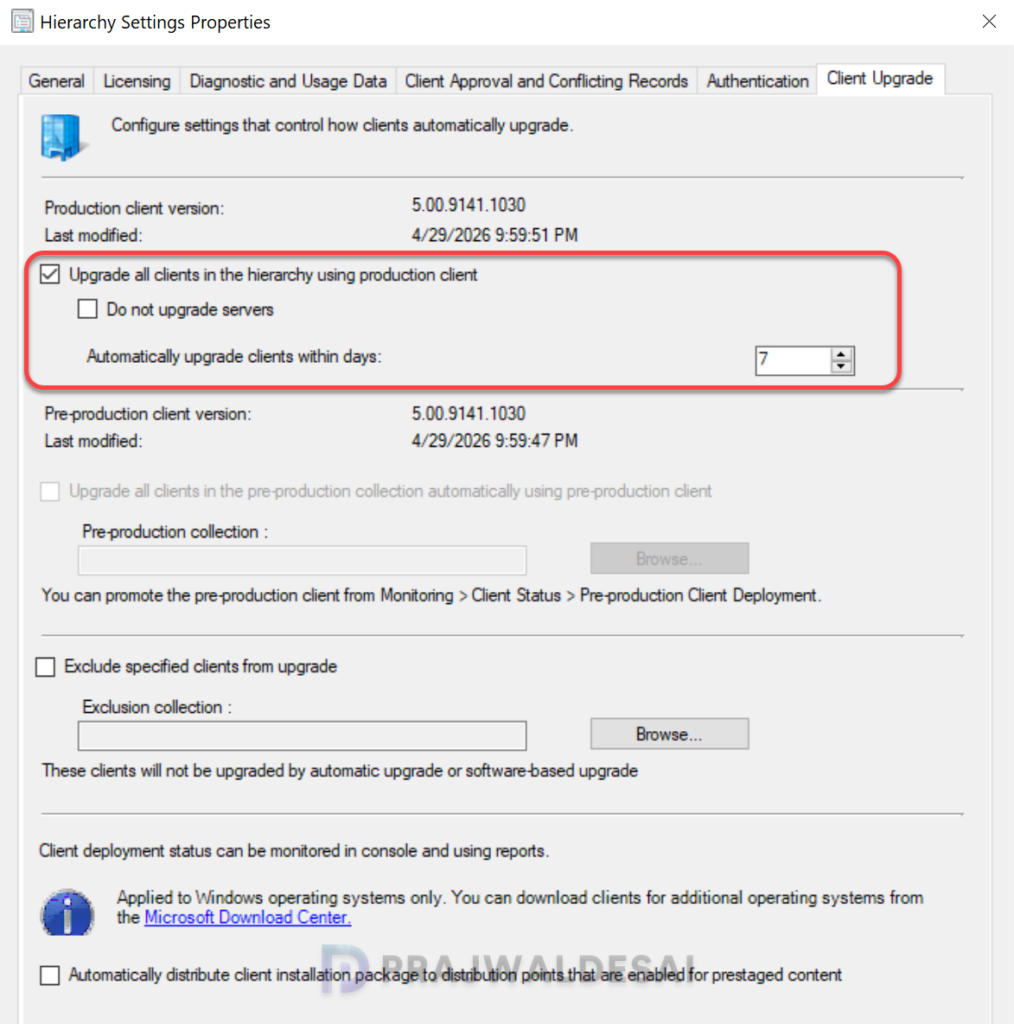
The hotfix rollup KB36949461 updates the client agent version to 5.00.9141.1030. Make sure you upgrade the clients to the latest version to get the fixes and new features. For more help on upgrading the clients, refer to the guide SCCM client upgrade options.

hello Prajwal,
are you sure that this Rollup KB36949461 includes KB36419072 and KB36495448 ?
In the Console, it’s said that it supersedes them, but Ms says “The following fixes are not included in this update rollup. If these fixes were previously installed as individual hotfixes, installing this update rollup overwrites those changes. These fixes will be included in a future update rollup.” (https://learn.microsoft.com/en-us/intune/configmgr/hotfix/2509/36949461).
Superseeding is not Including.
Thanks
The hotfix IDs have been changed from what I saw just now. I will do some checks and update the guide.
Same issue as Mikael. Ran the hotfix, it claimed to install successfully. The client version updated and is already deploying to clients just fine. But the console did something strange. It opened without prompting for a console update but inside the console was the yellow bar at the top that said something was out of sync and it had a link to install the new console version. I did so and it went through the install process. However, “About Microsoft Configuration Manager” still shows Version 2509, Console Version 5.2509.1036.1200, and Site Version 5.0.9141.1000. Tried using the AdminConsole.msi located on the server to manually install it but was still not updated to new versions. Did a google search for that KB and Google’s AI says there are multiple reports of the console not updating with that KB (of course, I know Google AI isn’t always to be trusted) with fixes to install it manually. I tried that, at least I thought installing manually would be pulling the AdminConsole.msi from the server would do that, still didn’t update it.
Thank you for this article.
We have updated our server with this KB. We can see that the client version is now 9141.1030 and that the console has been updated, but in the “About Microsoft Configuration Manager” menu, the Site version is still indicated as 5.0.9141.1000. Do you observe the same behavior?