


In this step-by-step guide, I will demonstrate how to deploy PowerShell scripts using SCCM. Using Run Scripts functionality, you can deploy critical scripts on client computers managed by Configuration Manager.
Configuration Manager includes a built-in feature to create and run PowerShell scripts. This powerful tool enables the creation of advanced, automated scripts that are easy to understand and widely shared within the community.
The main purpose of deploying these scripts is to streamline the development of custom administrative tools for software management, simplify repetitive tasks, and help complete large-scale operations more efficiently and consistently. Organizations using Windows devices can also use Intune to deploy PowerShell scripts.
Script Deployment Methods
You can run PowerShell scripts in SCCM using two primary methods:
- Run Scripts feature: In my opinion, this is the recommended method to execute scripts. Use this method for instant, real-time script execution for clients.
- Packaging the script as an Application or Package: You can package your script as an application or package for software installation, with or without detection.
Run Scripts Features
You can use the Run Scripts functionality in Configuration Manager to do the following things:
- Create, edit scripts and manage script usage through roles and security scopes.
- Organize your scripts into separate folders.
- Run scripts on collections or individual on-premises managed Windows PCs.
- Schedule scripts’ runtime in UTC on collections or individual on-premises managed Windows PCs.
- Get rapid aggregated script results from client devices.
- Monitor script execution and view reporting results from script output.
Prerequisites
The table below outlines the prerequisites for effectively deploying PS scripts via SCCM.
| Prerequisite | Description |
|---|---|
| PowerShell | The client must be running PowerShell version 3.0 or later. Make sure the PS execution policy on the target machines allows for the execution of scripts. |
| SCCM Version | Configuration Manager clients must be using version 1706 or later. |
| Permissions | You must be a member of the appropriate Configuration Manager security role. 1. To import and author scripts: Your account must have Create permissions for SMS Scripts. 2. To approve or deny scripts – Your account must have Approve permissions for SMS Scripts. 3. To run scripts: Your account must have Run Script permissions for Collections. |
| Script Testing | Test your script thoroughly before deploying it on Windows devices. |
Steps to Deploy PowerShell Scripts using SCCM
I’ll now walk you through the steps to create and run PowerShell scripts in SCCM. The below procedure uses the Run Scripts feature for running scripts on Windows devices.
Step 1: Create a PowerShell Script
The first requirement is to have a PowerShell script ready for deployment. I am going to use a very basic PowerShell script that creates a folder named ‘LogFiles‘ in the root directory. You save this script as createfolder.ps1.
New-Item -Path "C:\" -Name "Logfiles" -ItemType "Directory"Open the Configuration Manager console. Navigate to Software Library > Overview > Scripts. Right-click Scripts and select Create Script.

On the Script page of the Create Script wizard, configure the following:
- Script name: Enter a name for the script.
- Script description: You may add an optional description for the script.
- Script language: Currently, only PowerShell scripts are supported.
- Script timeout seconds: Specify the time to execute the script (60 seconds – 1800 seconds).
- Import: Click on the Import button and select a PowerShell script. The script is displayed in the Script field.
Click Next to continue.

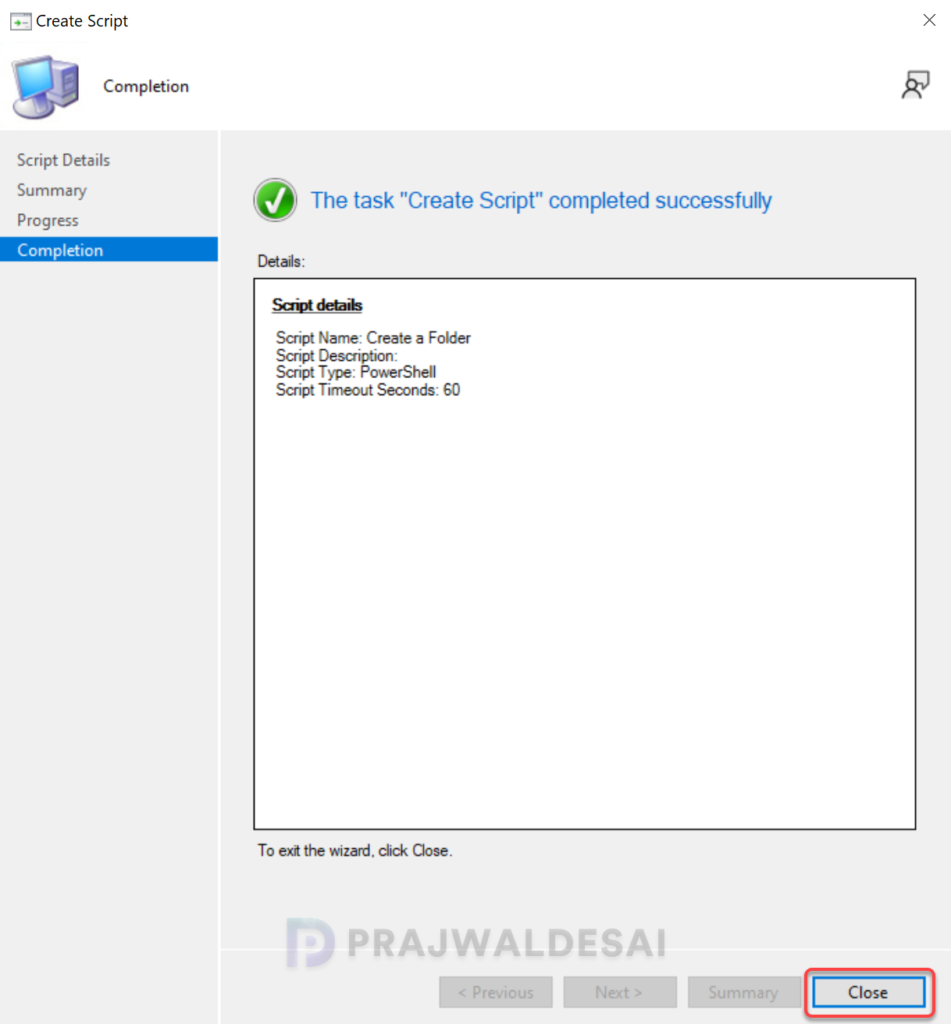
Review the script details on the summary page and click Next. On the Completion page, click Close.
Step 2: Approve the Script
Before running the script on client computers, it must be approved. If you create a script and find the approval option in SCCM is greyed out, this occurs because, by design, users cannot approve scripts they have authored. To resolve this issue, disable the “Script Authors require additional script approver” option.
To approve the script, go to Software Library > Scripts. Right-click the PowerShell script and select Approve.

You’ll have to go through Approve or Deny script wizard and review the script details for the final time. Click Next.
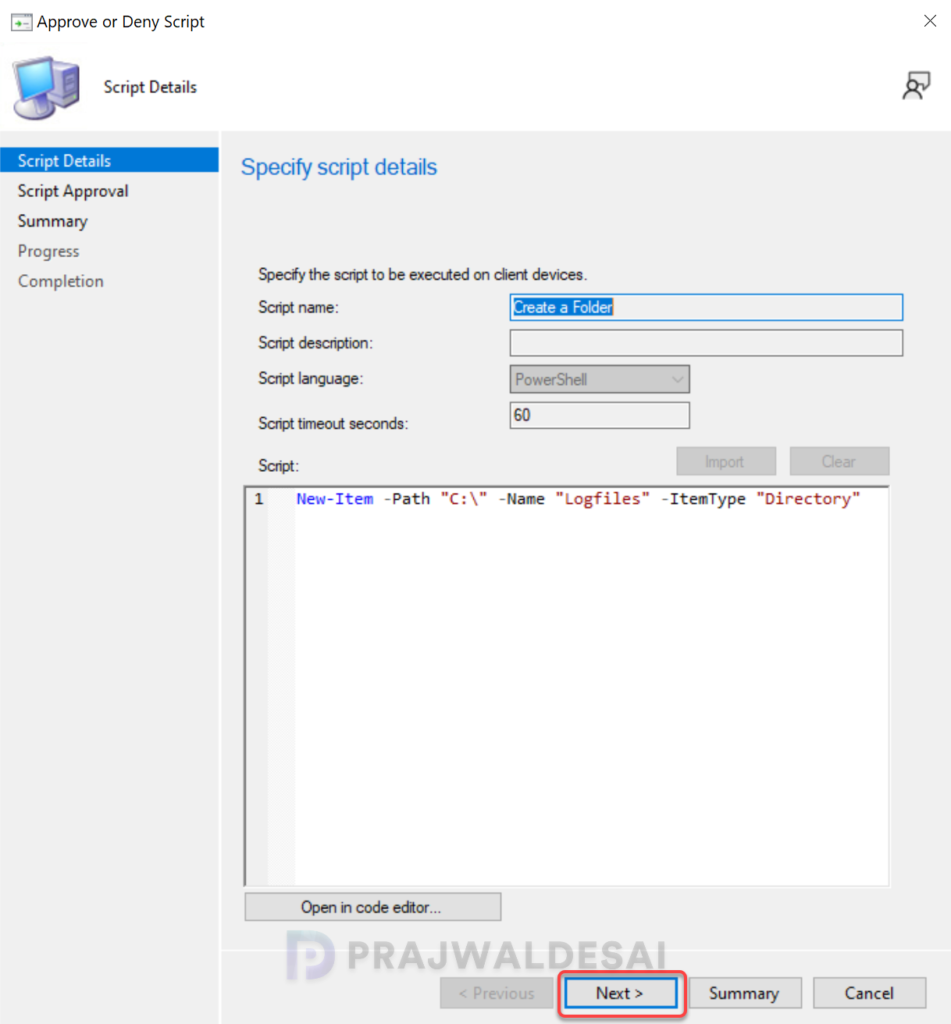
On the Script Approval page, select Approve. Click Next.

Close the Approve or Deny script wizard.
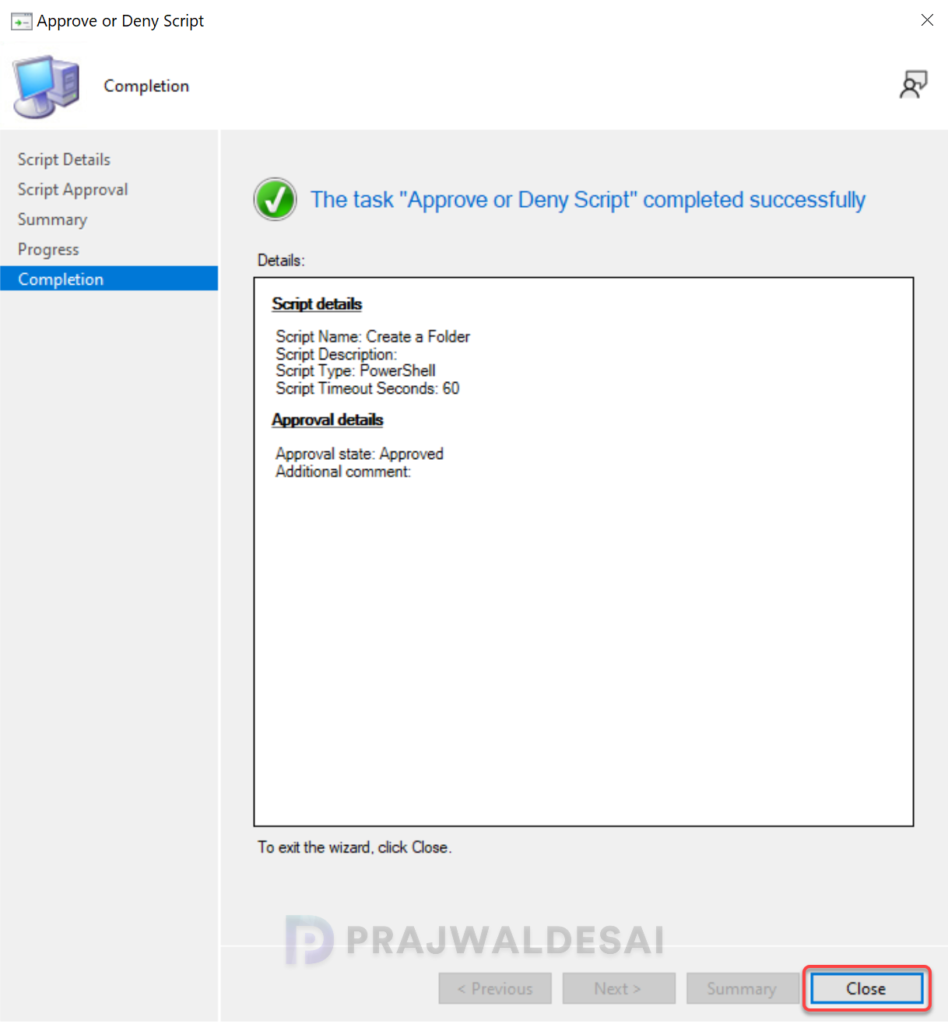
Once you do that above steps, refresh the console, and you will see the approval state of the script shows as Approved. If you see that, you’re doing right, proceed to the next step.

Step 3: Run the Script on Target Devices
After a script is approved, you can run it against a single device or a collection. To run the script in the Configuration Manager console, go to click Assets and Compliance > Device Collections. Select a collection of your choice, right-click and select Run Script.

On the Script page of the Run Script wizard, choose a script from the list. If you don’t see your script here, it means it isn’t approved yet. Click Next.

Starting with SCCM version 2309, you can schedule scripts’ runtime in UTC. This is a very handy feature for administrators who want to execute scripts at a specific time. If you don’t wish to schedule the script, click Next.

On the Script Status Monitoring page, you can monitor a script in real time as it executes, and later return to the status and results for a given Run Script execution. Close the wizard.

Once execution of your script begins, it’s launched quickly through a high-priority system that times out in one hour.
Step 4: Monitor Script Execution
When you run a script on many clients, you can monitor the script deployment progress in the Monitoring workspace of the console. In the console, go to Monitoring workspace > Script Status. Right-click the script that you wish to monitor and select Show Status. Here you can find the script execution completion status.
Note: If the clients are offline, the script execution will fail. The clients have to be online for the scripts to execute. If the target device is turned off during the one-hour time period, you must run it again.
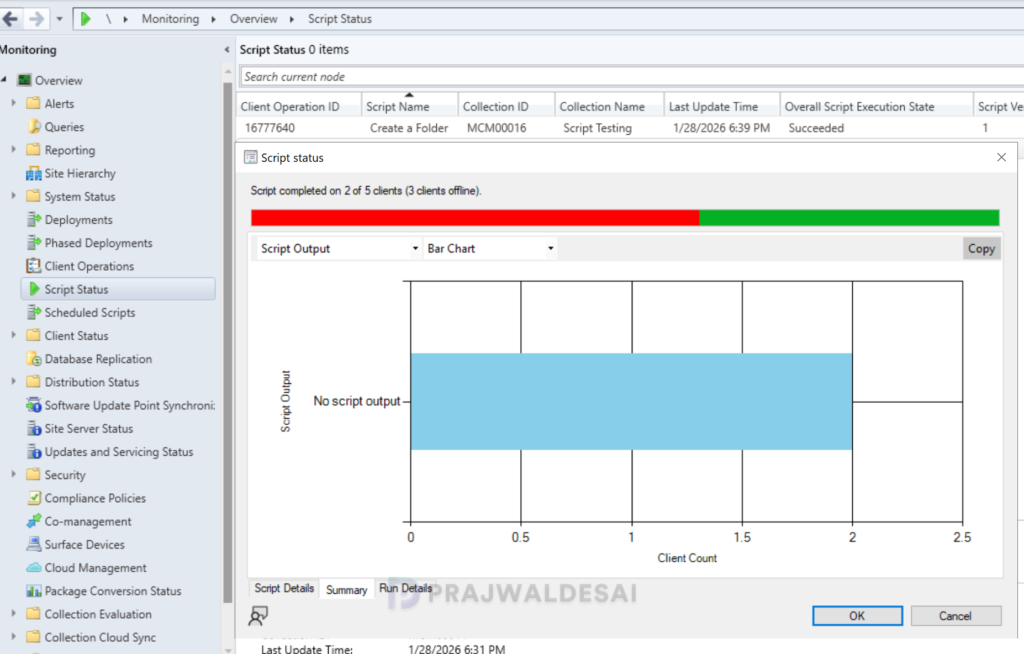
If you have scheduled a script to run at a specific time, you can monitor its execution status in the Monitoring > Scheduled Scripts node.
Log Files
The following log files are useful for troubleshooting the Run Scripts feature in SCCM.
- On the client, review the Scripts.log and CcmMessaging.log. These logs are located in C:\Windows\CCM\logs folder.
- On the MP, review the MP_RelayMsgMgr.log located in C:\SMS_CCM\Logs folder.
- On the site server, review the SMS_Message_Processing_Engine.log located in C:\Program Files\Configuration Manager\Logs folder.
For a list of other logs, check the comprehensive list of Configuration Manager client and server logs.

Delete a Script from Configuration Manager
Once the script deployment is complete, you can safely remove it from the console if it’s no longer needed. To delete a PowerShell script from SCCM console, go to Software Library > Overview > Scripts. Select a script and click on Delete. Select Yes to confirm the script deletion.

Note: Once you’ve deleted a script from the console, you cannot recover it back. I recommend taking a backup of the script before permanently deleting it. Learn how to back up the SCCM server efficiently.
Limitations of Run Scripts Feature
When using Run Scripts, the following limitations apply.
- Scripting languages: Supports only PowerShell.
- Parameter types: integer, string, and list.
Automating Run Scripts with Windows PowerShell
You can automate the Run Scripts feature by utilizing the following PowerShell cmdlets.
