

On December 3, 2025, Microsoft released a new CMG Deployment Maintenance hotfix KB35958849 for SCCM versions 2409 and 2503. Let’s dive into what this hotfix addresses and the steps to install it in your environment.
This hotfix KB35958849 resolves the following issue encountered with CMG deployment in SCCM. The Create or Update Public IP Address deployment maintenance task for a cloud management gateway (CMG) fails every 20 minutes. This issue happens if the subscription is created in a region with Availability Zones, and can also happen during a CMG upgrade.
The above issue is logged in CloudMgr.log file with the following information.
Resource Manager - Creating Public IP Address {CMG_Name} with deployment CreatePublicIPAddress{GUID}
ERROR: Exception occured for service {CMG_Name} : System.AggregateException: One or more errors occurred.
STATMSG: ID=9418...
STATMSG: ID=9401...Note: If CMG is not deployed in your Configuration Manager environment, you can skip installing the hotfix. Alternatively, you can upgrade directly to version 2509 to ensure you’re on the latest version.
Availability of KB 35958849 Update
The KB 35958849 update is available in the Updates and Servicing node of the Configuration Manager console for versions 2409 and 2503. Note that the changes are only applicable in environments using a cloud management gateway that have KB32851084 Update rollup installed.
The CMG Deployment Maintenance update doesn’t require a computer restart or a site reset after installation. Furthermore, the update doesn’t include client and console updates. For more information about this hotfix, see Cloud management gateway deployment maintenance update for Configuration Manager 2409, 2503.
Install Hotfix KB35958849 for Configuration Manager
Open the SCCM console and go to Administration > Overview > Updates and Servicing. Select the Configuration Manager hotfix KB35958849 and in the top-ribbon select Install Update Pack.
Note: If the state of the update shows as Ready to Download, wait for some time while it downloads in the background. If not, right-click the hotfix and choose Download.
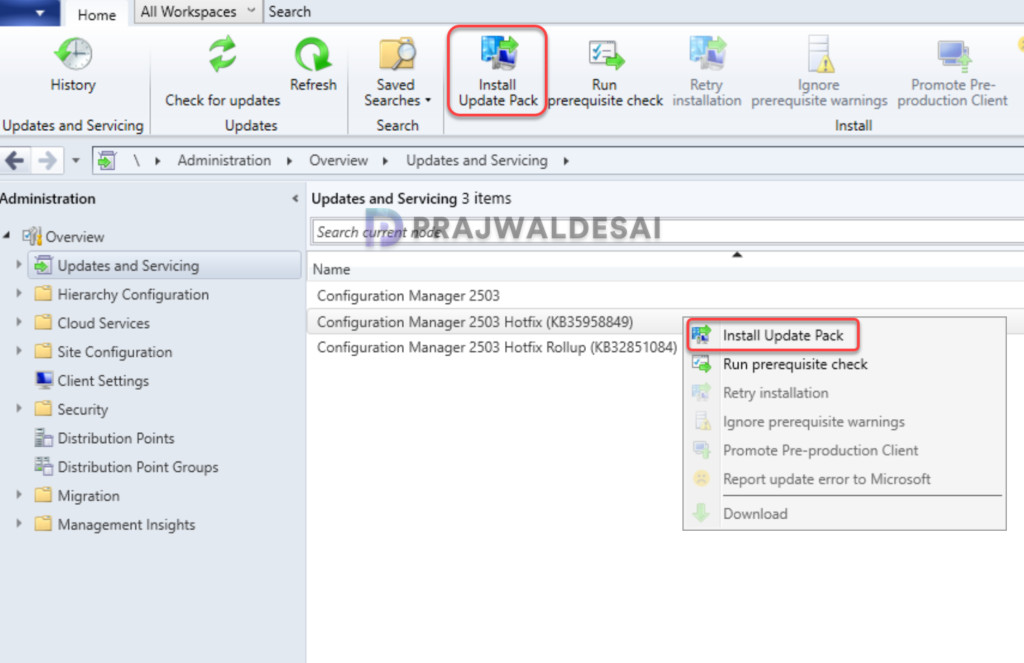
The KB35958849 hotfix includes updates only for site server. I highly recommend running a prerequisite check before installing this update. Click Next.

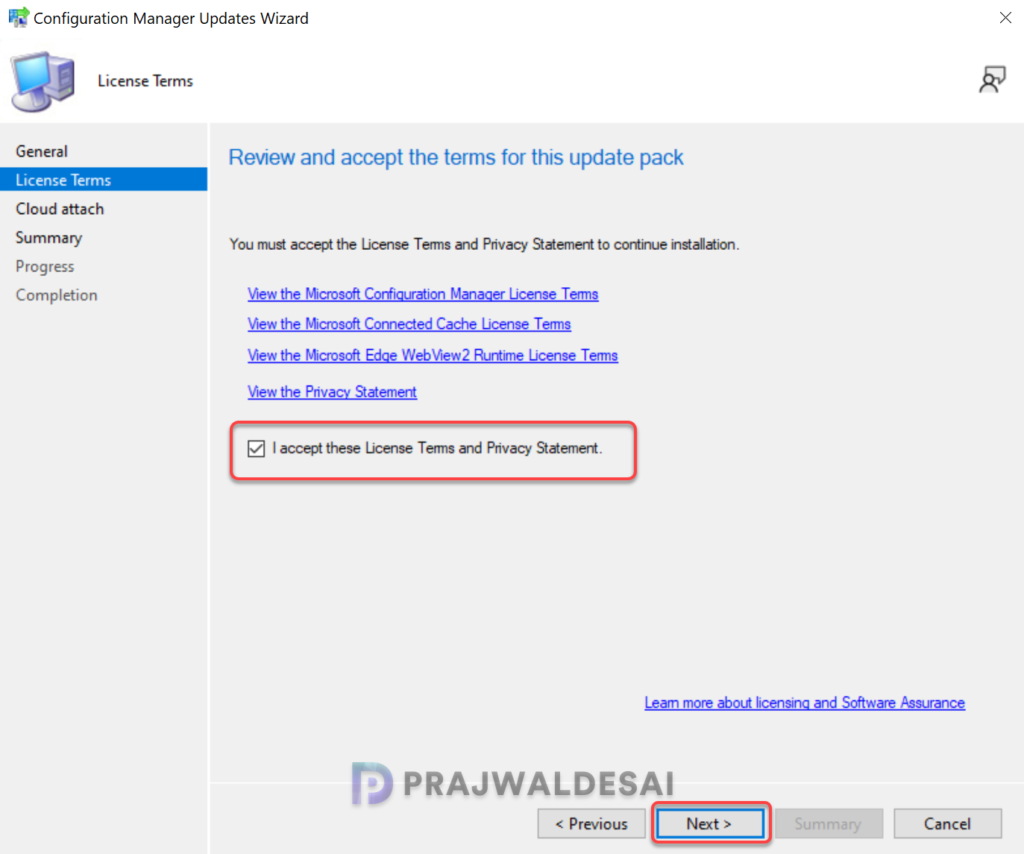
Accept the license terms for installing the update. Click Next.
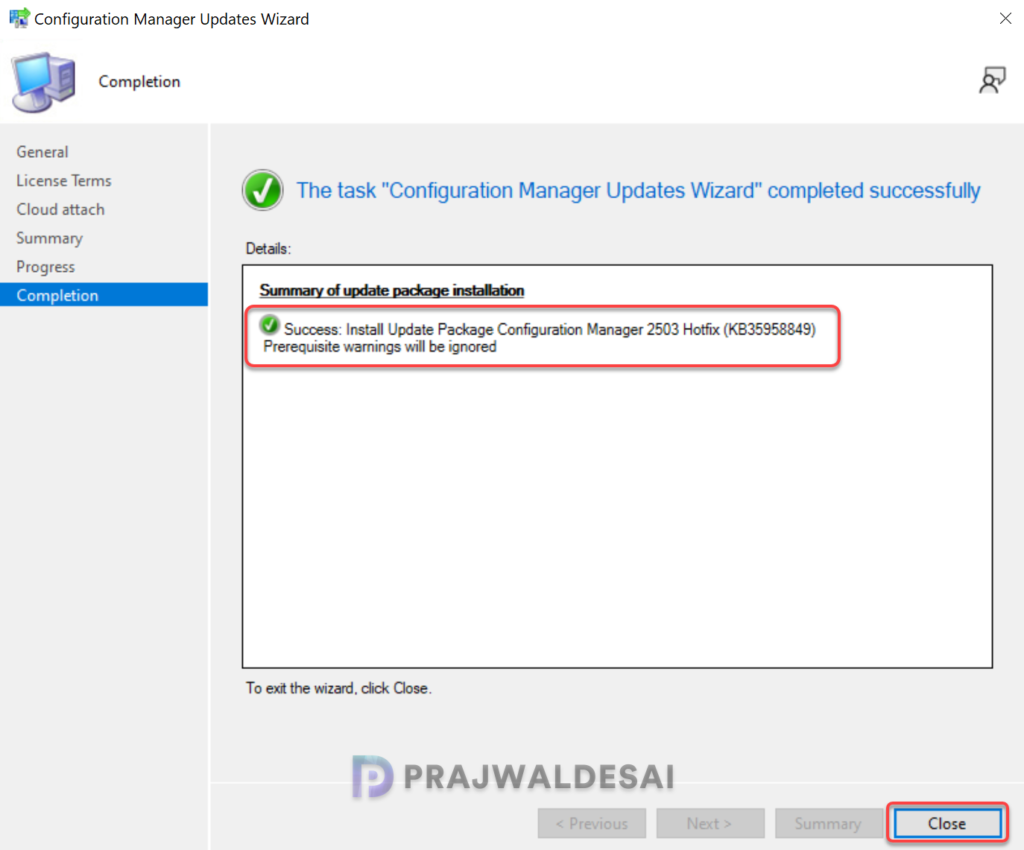
Complete the remaining steps in the wizard and close the update installation wizard. The hotfix installation begins now.
Monitor hotfix installation
To track the progress of KB35958849 hotfix installation, navigate to Monitoring\Overview\Updates and Servicing Status. If the hotfix fails to install, this section will show you the exact step where the update failed. Another way to track the hotfix installation is by reviewing the cmupdate.log file.
While the hotfix installation is in progress, I noticed the most of the CMG components were stopped. I believe this is normal and all these components should be automatically online once the hotfix installation is completed. The hotfix updates the microsoft.configurationmanager.cloudservicesmanager.dll to version 5.0.9135.1014.
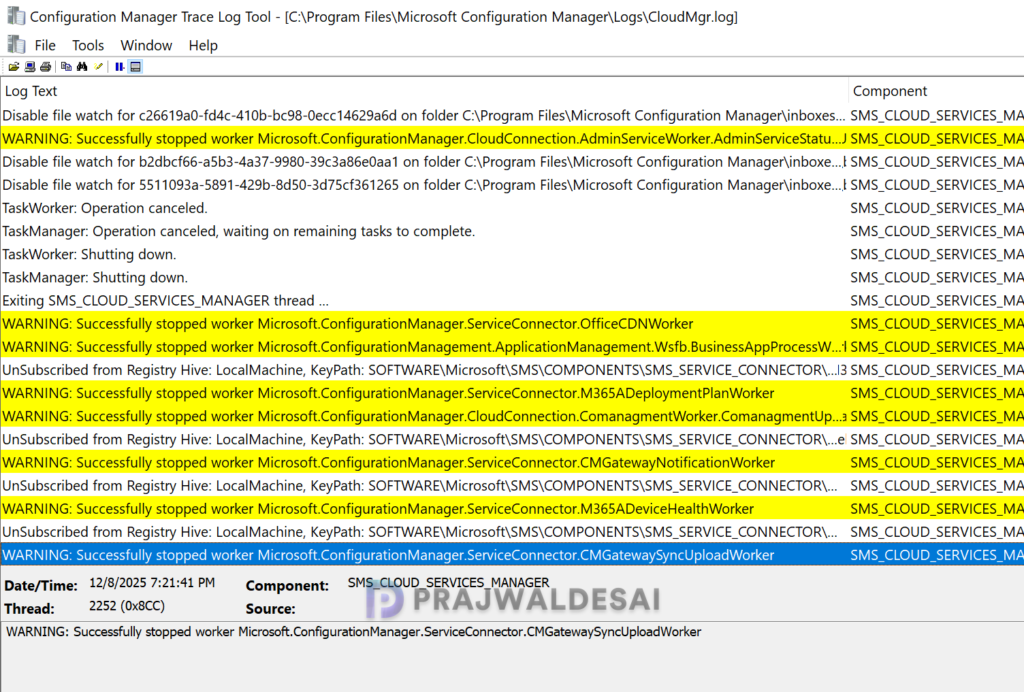
WARNING: Successfully stopped worker Microsoft.ConfigurationManager.ServiceConnector.OfficeCDNWorker	SMS_CLOUD_SERVICES_MANAGER
WARNING: Successfully stopped worker Microsoft.ConfigurationManagement.ApplicationManagement.Wsfb.BusinessAppProcessWorker
WARNING: Successfully stopped worker Microsoft.ConfigurationManager.ServiceConnector.M365ADeploymentPlanWorker
WARNING: Successfully stopped worker Microsoft.ConfigurationManager.CloudConnection.ComanagmentWorker.ComanagmentUpdateWorker
WARNING: Successfully stopped worker Microsoft.ConfigurationManager.ServiceConnector.CMGatewayNotificationWorker
WARNING: Successfully stopped worker Microsoft.ConfigurationManager.ServiceConnector.M365ADeviceHealthWorker
WARNING: Successfully stopped worker Microsoft.ConfigurationManager.ServiceConnector.CMGatewaySyncUploadWorker
In my case, the hotfix KB35958849 update required a total of 8 minutes to install on the server, and there were no errors encountered at any point in the installation process. You don’t have to restart your server after the installation of this update.
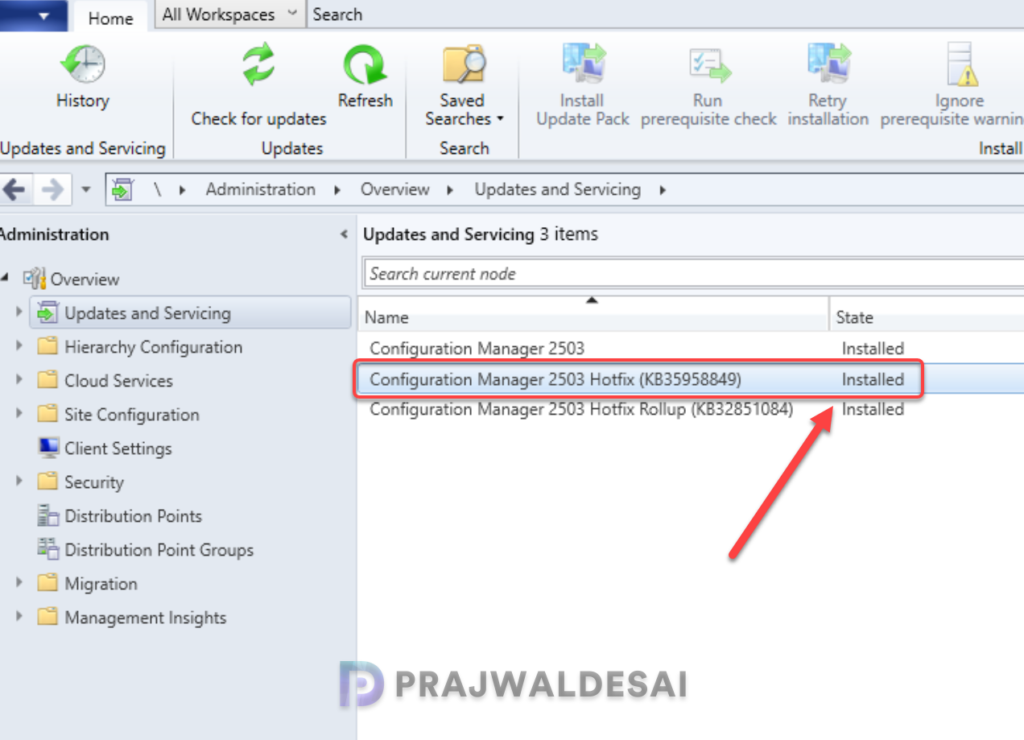
To verify if the KB35958849 hotfix is installed, open the console and go to Administration > Updates and Servicing. If the State column for the hotfix shows ‘Installed‘, it means the update installation is completed.
Installing Hotfix for Secondary Sites
After installing the hotfix update KB35958849 on a primary site, pre-existing secondary sites must be manually updated. This must be done on all the secondary sites present in your setup.
On the Secondary site server, open the Configuration Manager console. Go to Administration > Site Configuration > Sites > Recover Secondary Site, and then select the secondary site. Run the following SQL Server command on the site database to check whether the updated version of a secondary site matches that of its parent primary site:
select dbo.fnGetSecondarySiteCMUpdateStatus ('SiteCode_of_secondary_site')If the above command returns value 1, it means the site is up-to-date, with all the hotfixes applied on its parent primary site. If the value 0 is returned, the site has not installed all the fixes that are applied to the primary site. You should use the Recover Secondary Site option to update the secondary site.

Sir, I am presently running ConfigMgr 2509. My understanding this hotfix is part of this version you just covered. As of today I just tried to get CMG installed and configured and I am stuck in the CMG wizard with the “.usgovcloudapp.net” instead of the intended “.cloudapp.net”. I don’t remember installing this hotfix under 2409 and I was wondering if it is even possible to still install this hotfix in 2509. Ironically both Azure Services and CMG state the Azure Environment as AzurePublicCloud.
I have facing this issue. I have installed KB35958849 but the file you mension is not updated to 5.0.9135.1014 it is still runnning 5.0.9132.1032, can I redeploy a hotfix somehow, or any suggestions?
You mean the client upgrade is not working?