

In this post, I will show you how to modify SSL port for Advanced Insights portal. If you’ve another web service using the same port as Advanced Insights dashboard, you can reconfigure the server to use a different TCP port.
When I installed Patch My PC advanced insights for SCCM, TCP Port 444 was chosen for accessing the dashboard. Recently, on my Configuration Manager server, I noticed that another service was configured to use the same port and due to this conflict, I wasn’t able to access the Advanced Insights web portal dashboard.
Tip: By installing the SCCM console extension for advanced insights, you can still access all Advanced Insights dashboards and individual devices, collections, updates, etc.
Network Ports used by Advanced Insights
Advanced Insights uses the following network ports for its operations:
- Advanced Insights Frontend: TCP Port 443
- Advanced Insights API: TCP Port 44301
The frontend port can be modified to use a different port, but you cannot modify the Advanced Insights API port number. Read more about network requirements for Advanced Insights.
For new Advanced Insights installations, you can customize the ports during the setup. For existing installations, you can change the frontend network port by using advanced insights configuration. I’ll demonstrate how it’s done.
How to Modify SSL Port for Advanced Insights
If you have a web browser accessing the Advanced Insights dashboard, close it. Next, go to Settings > Apps, click Advanced Insights app and select Modify. On the Modify, Repair or Remove installation wizard, select Modify as shown in the below image.

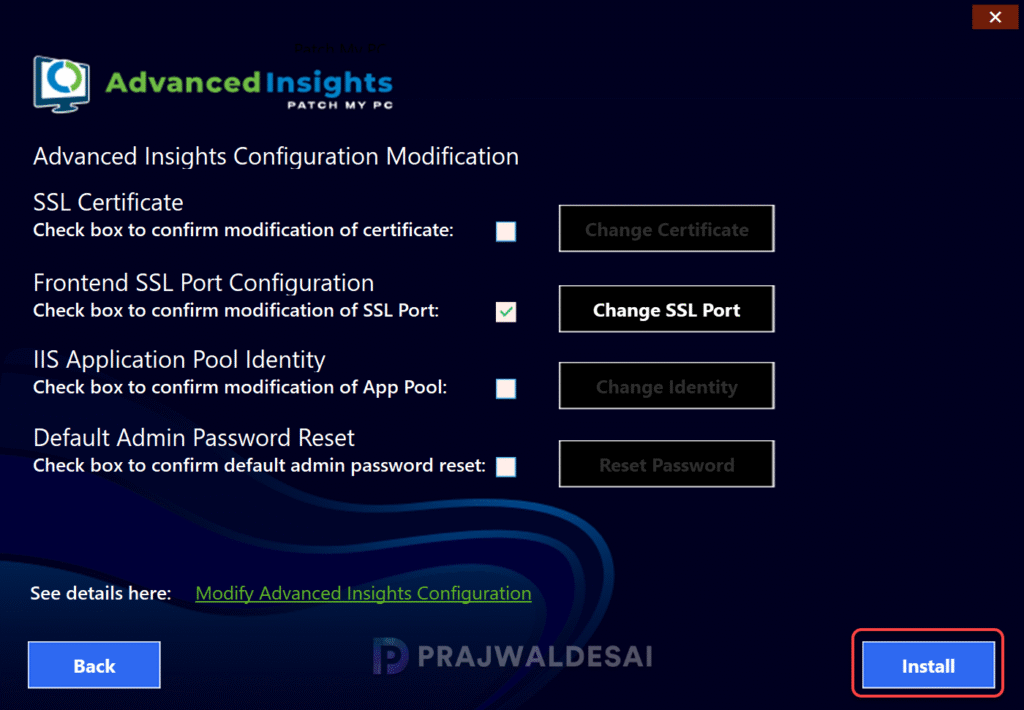
Look for the setting ‘Frontend SSL Port Configuration‘ and click Change SSL Port.

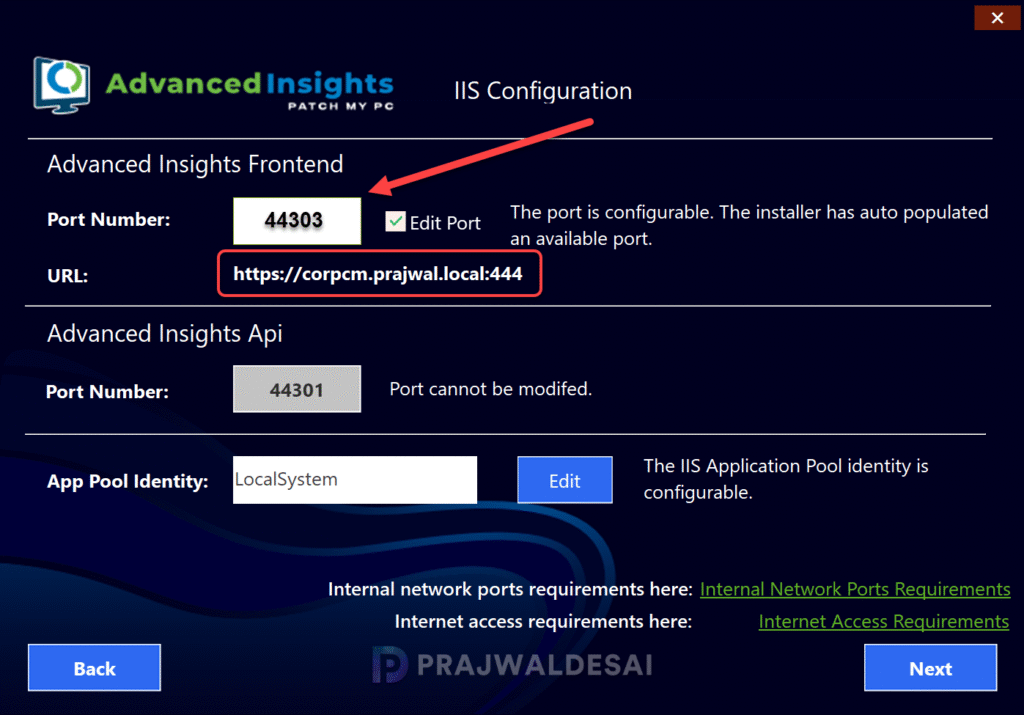
On the IIS configuration page, click “Edit Port” and specify the port number for Advanced Insights Frontend. For my lab, I have modified the frontend port from 444 to 44303. Click Next.
Click on Install to update the configuration.
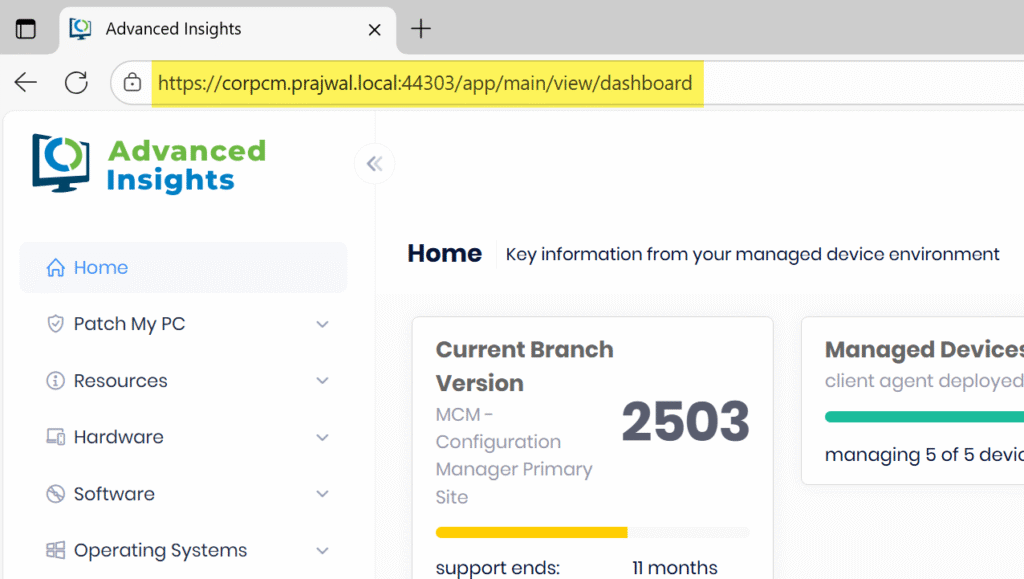
To verify if the new SSL port is used, launch the Advanced Insights tool. In the web browser, you will notice that the dashboard URL (https://corpcm.prajwal.local:44303) now uses the custom port that you specified in the above step.
That’s all I wanted to cover in this guide. Before you go, check out the guide on renewing the expired certificate for Patch My PC Advanced Insights.
