

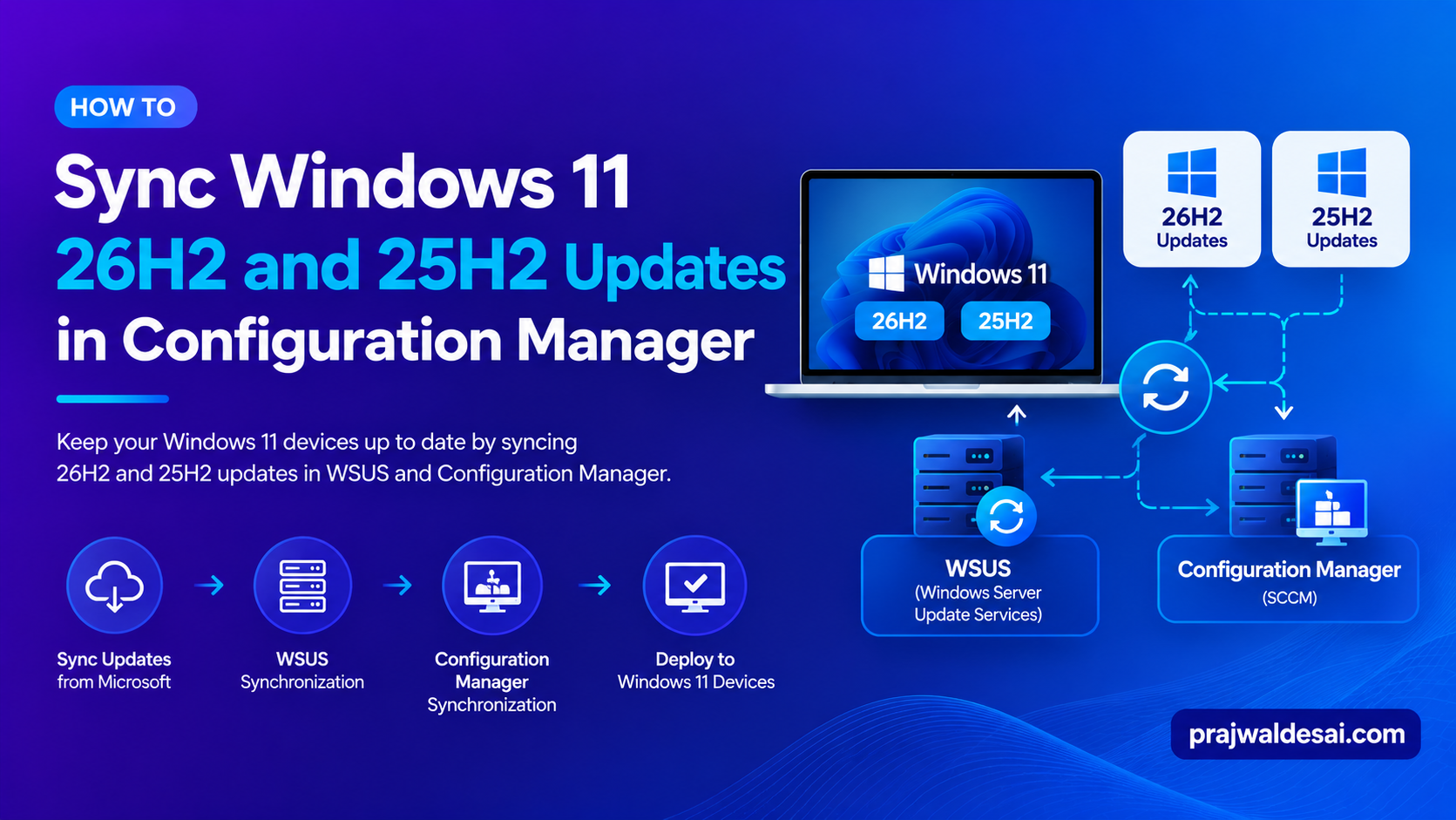
In this post, I’ll show you how to enable and sync Windows 11 26H2/25H2 updates in WSUS and SUP (Software Update Point). If you’re going to deploy updates for Windows 11 versions 26H2, 25H2 via Configuration Manager (SUP) or WSUS standalone, this guide is for you.
Before we go ahead, let me provide some important information about these versions:
- Windows 11, version 26H2, the annual feature update for year 2026, was released by Microsoft on September 29, 2026. Whereas Windows 11, version 25H2 was released on September 30, 2025.
- Both versions are available as an enablement package (eKB). It installs like a regular monthly security patch, requiring only a quick download and a single restart.
- For commercial organizations, Windows 11, version 26H2 and 25H2 can be deployed through Intune, SCCM, Windows Autopatch and the Microsoft 365 admin center.
I suggest bookmarking my guide on Windows 11 update release history to stay informed about updates for all Windows 11 versions and build numbers.
WSUS is Deprecated
Microsoft has announced that WSUS is deprecated. Organizations that still rely on WSUS to distribute the Windows 11 updates should consider Intune or Autopatch for client update management and Azure Update Manager for server update management.
Sync Updates for Windows 11 26H2/25H2 in Standalone WSUS
Launch the WSUS admin console on the Windows Server. Select your WSUS server and click on Options. On the right-hand side, select Products and Classifications. In the Products tab, locate Windows 11 and enable it. Click on Apply and OK.

The next step is to synchronize the updates. In the WSUS console, select Synchronizations and, under the Actions menu, select Synchronize Now. This will force WSUS to check the latest updates for the products that you have enabled.
Wait for the sync to complete and once that is done, you should find the updates for W11 26H2 and 25H2 on the WSUS console. You can further deploy updates using WSUS.
Sync Windows 11 26H2 and 25H2 updates in Software Update Point
If you deploy Windows updates with SCCM, you can enable the Windows 11 product under the Software Update Point role properties and get the latest updates for Windows 11 26H2 and 25H2.
Launch the Configuration Manager console. Go to Administration\Overview\Site Configuration\Sites. Select the site and go to Software Update Point properties. Select the Products tab and enable Windows 11 products. Click Apply and OK.

After performing the above steps, the Configuration Manager console may not immediately show the 26H2/25H2 updates. That’s because you haven’t performed the SUP sync yet. Do so by manually running the software update point synchronization. Once the sync is complete, the SCCM console shows the Windows 11 updates for versions 26H2 and 25H2 for deployment.
Why don’t I see any 26H2/25H2 Updates in SCCM?
Here are three reasons why you might not see updates for Windows 11 26H2/25H2 and the enablement package in ConfigMgr/WSUS.
- Windows 11 26H2 is a new release and Microsoft will release updates for this version in coming months. Look for the update in the Microsoft Update Catalog to confirm its release.
- Make sure you have selected Windows 11 product in SCCM or WSUS and performed the synchronization to get the updates.
- Lastly, review the wsyncmgr.log file to see if the updates are synced correctly without any errors.
