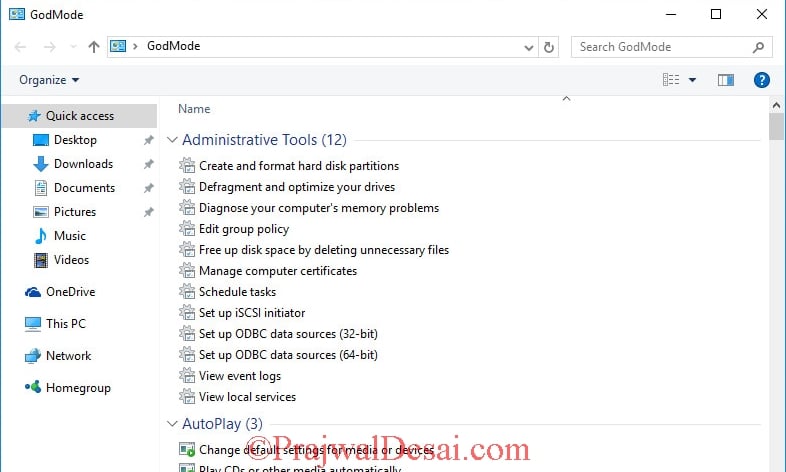
In this post I will show you how to enable God mode in Windows 10. God Mode isn’t actually a Registry tweak, but it’s so fun to try this out. God mode has been a hidden feature and was available on Windows 7 and 8.1 as well.
The steps shown in this post will work on Windows 7, Windows 8 as well. When activated, it is a folder that contains links to all of the settings on a Windows system.
So basically you see all the settings in one folder. This creates a folder containing every individual Control Panel and Administrative item that’s available in Windows 10. You can drag and drop any of the commands to your desktop in order to create a shortcut for the command, but it will be pinned to the Start screen.
How to enable God Mode in Windows 10
To enable God Mode in windows 10 :-
- Login to the Windows 10 client with account that has administrative privileges.
- Create a new folder on desktop.
- Right click and rename it as God Mode .{ED7BA470-8E54-465E-825C-99712043E01C}. Press Enter.

You can notice that the icon changes and you will see God Mode activated in Windows 10. Once the new folder has been created you can modify the folder name to anything you chose.

Double click the God Mode icon and when you open that folder, you’ll have god-like access to 250+ functions and tools, some of them different from previous Windows versions.
You can drag and drop any of the commands to your desktop in order to create a shortcut for the command, but it will be pinned to the Start screen.