


Microsoft released the Windows 11 KB5089573 update, introducing various performance improvements designed to enhance PC speed, responsiveness, and reliability. Improvements include Bluetooth shared audio, enhanced insights into NPU usage in task manager, faster MS Store app downloads, reliability of the touch keyboard on the sign‑in screen, and much more.
The May 2026 non-security preview update applies to both Windows 11 versions 25H2 and 24H2. After installing this update, users will experience improved OS interactions, faster app launches, more responsive features like Start and Search, and enhanced stability in functions such as sign-in, File Explorer, and touch gestures.
As always for the preview updates, Microsoft rolls out the performance upgrades gradually, so it may take a few weeks for the speed improvements to be fully active on your system. I like this approach because the phased rollout allows the company to assess the update’s effects and maintain stability across various hardware setups.
New Features and Improvements in KB5089573 Update
The KB5089573 update introduces more than 15 changes and fixes across various Windows components. Here are some of the most exciting updates.
- New Shared Audio: This feature enables two people to listen to the same audio from a single Windows 11 PC at the same time. It uses Bluetooth® LE Audio broadcast technology to make sharing easy.
- Magnifier: Magnifier provides clearer and more consistent announcements when working with a screen reader. It also supports magnification of permitted protected content.
- Task Manager: Task Manager now provides enhanced insight into NPU usage on PCs equipped with an NPU. New optional columns, including NPU and NPU Engine, are available on the Processes, Users, and Details pages. This update improves the CPU speed display on the Performance page of Task Manager for VMs.
- Camera Improvements: Windows 11’s Multi-App Camera feature lets multiple apps use your camera simultaneously. The Basic Camera mode provides a simplified camera setup, helpful for troubleshooting or enhancing stability if your camera encounters issues.
- Windows Setup: You can now choose a custom name for your user folder on the Device Name page during Windows setup. The updated experience makes it easier to select a custom name during setup only. If this step is skipped, Windows uses the default folder name and continues setup as usual.
- Performance Improvements: This update accelerates app launch and core shell experiences such as the Start menu, Search, and Action Center.
- Windows Hello: KB5089573 update optimizes the Windows Biometric service (WinBio) and improves sign‑in behavior on the lock screen and sign‑in screen.
- Windows Search Box: Windows Search will now find and prioritize files with as few as two characters.
- USB Improvements: This update improves reliability for displays attached to USB4 docks and hubs.
- Sensors: This update improves resiliency against apps that could keep the sensor hub powered on and drain power, impacting battery life.
- HID Improvements: This update improves battery life related to the HID and input stack for failed HID devices.
- Reliability: This update enhances Windows reliability on the sign-in and lock screens, in File Explorer, with touch gestures on touchscreen devices, and when adjusting themes in Settings.
- Microsoft Store: With this update, the download performance and bandwidth usage of the MS Store have been improved.
- Input: The KB5089573 update significantly improves the reliability of the touch keyboard on the sign‑in screen, the reliability of explorer.exe when closing the input switcher, and performance when opening or navigating to clipboard history.
Updates to AI Components
The KB5089573 update for Windows 11 includes the updates for the following AI components.
| AI Component | Version |
|---|---|
| Image Search | 1.2605.856.0 |
| Content Extraction | 1.2605.856.0 |
| Semantic Analysis | 1.2605.856.0 |
| Settings Model | 1.2605.856.0 |
Download Update from Microsoft Update Catalog
The Windows 11 KB5089573 update should be downloaded and installed automatically from Windows Update. However, if you wish to get the standalone package(s) for this update, go to the Microsoft Update Catalog website and download it.
How to Get the Windows 11 KB5089573 Update
The KB5089573 update is offered through Windows Update for devices running Windows 11 25H2 and 24H2. If you don’t see the update listed, open the “Windows Update” settings, turn on the “Get the latest updates as soon as they’re available” option, and click the “Check for Updates” button.
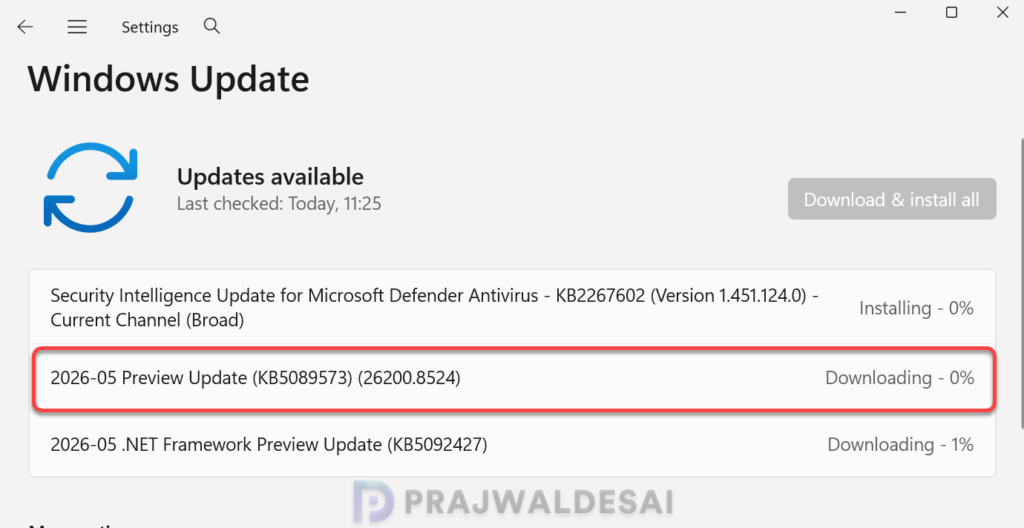
I got the following updates through Windows Update on my Windows 11 PC.
- 2026-05 Preview Update (KB5089573) (26200.8524)
- 2026-05 .NET Framework Preview Update (KB5092427)
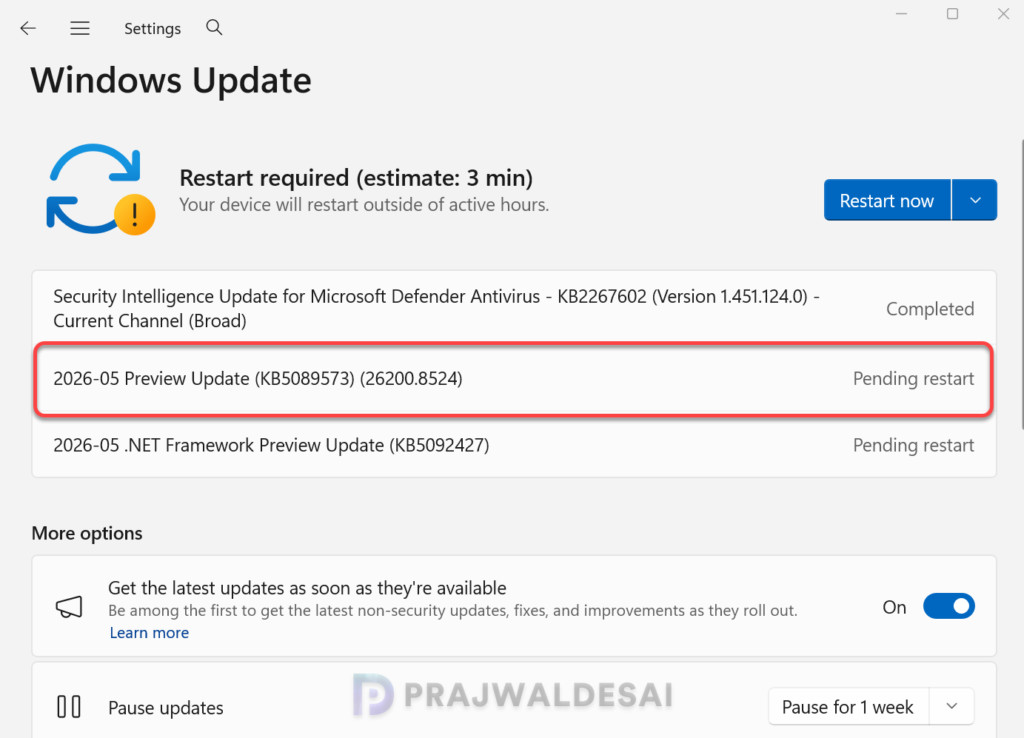
The update requires a system reboot to complete the installation. Simply click the “Restart Now” button to restart your computer. Once your system restarts, your Windows 11 25H2 build will be updated to version 26200.8524, and the Windows 11 24H2 build will be updated to version 26100.8524.
Deploying KB5089573 Update via WSUS/SCCM
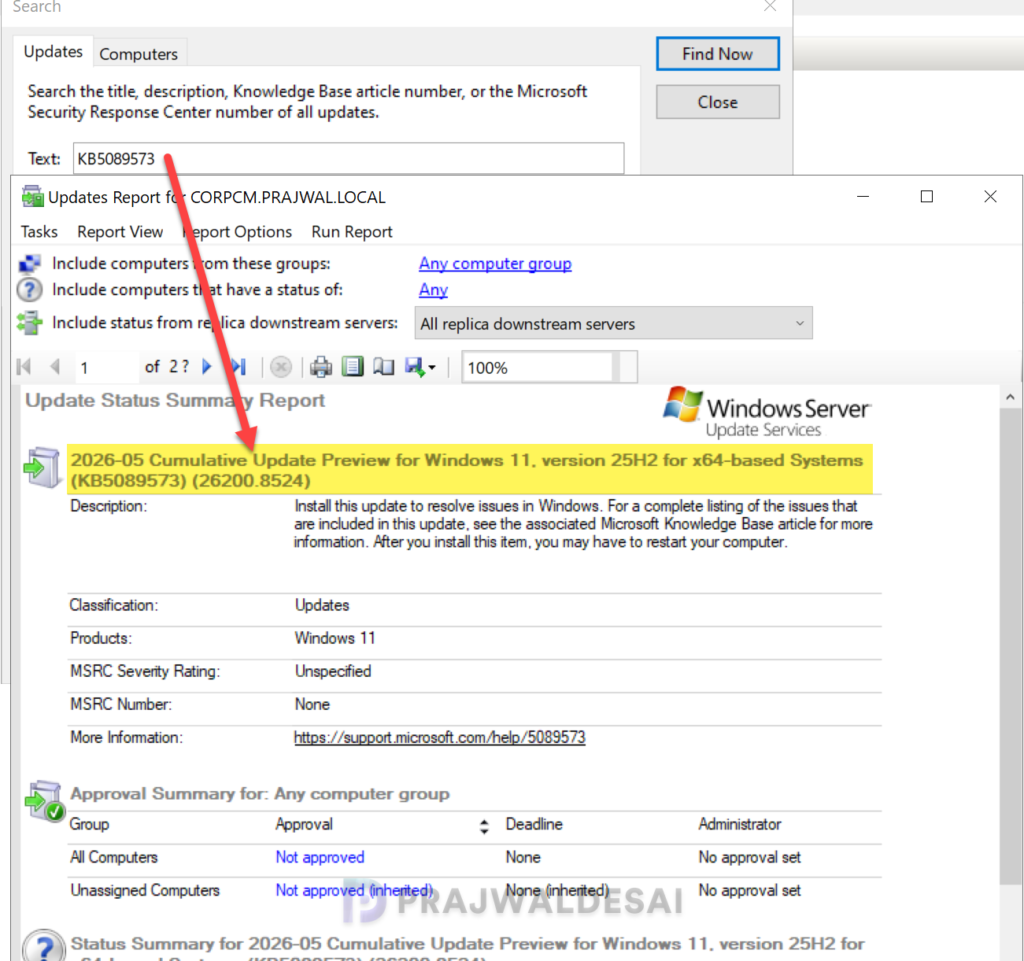
Organizations that rely on WSUS or Configuration Manager to distribute software updates to on-premise devices can deploy the KB5089573 update efficiently. If you don’t see the update either in WSUS or SCCM, you must first manually import the update into WSUS.
In the below image, I have successfully imported the KB5089573 update into WSUS. If you’re using WSUS standalone in your setup, right-click the update and approve it. I suggest rolling out the update to a group of pilot devices initially, and once it’s confirmed that the update causes no issues, proceed to deploy it across all Windows 11 devices. The deployment occurs based on the schedule you’ve configured.
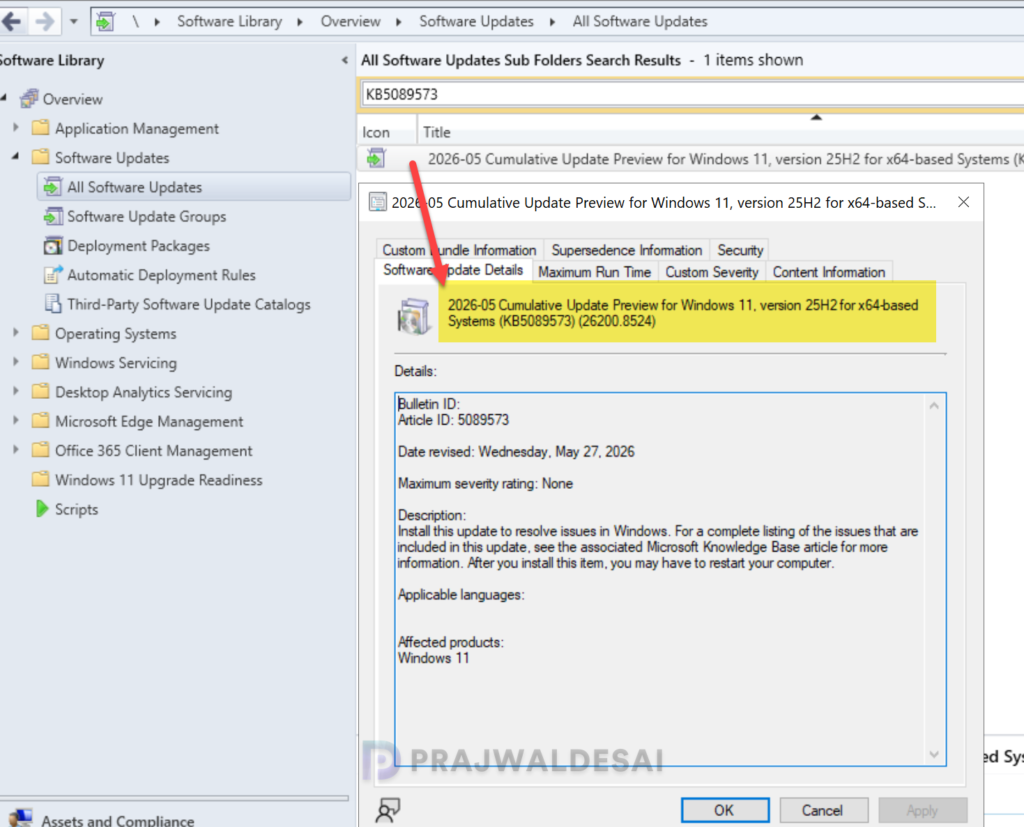
To deploy the update using Configuration Manager, ensure you open the console and synchronize the software updates. This will display all the latest updates from WSUS, including those you manually imported into the console.
Once the sync is complete, go to Software Library > Software Updates > All Software Updates. In the search bar, type “KB5089573” and click Search. You should now see the update 2026-05 Cumulative Update Preview for Windows 11, version 25H2 for x64-based Systems (KB5089573) (26200.8524) listed in the console. From here, you can refer to the SCCM patching guide to deploy it to your Windows devices.
Uninstall Update
If you haven’t installed the Windows 11 KB5089573 update yet, you may pause updates in Settings. If you’ve already installed the update and you are encountering some known issues, go to Settings > Windows Update > Update history > Uninstall updates. Alternatively, you may also use PowerShell to list the updates and uninstall them.
Known Issues
After you install this update (KB5089549), some devices might fail to complete installation with error code 0x800f0922. This issue occurs on devices that have limited free space on the EFI System Partition (ESP), especially if it has 10 MB or less available.
Affected customers can use one of the following workarounds to mitigate this issue.
1. Modify ESP Registry setting: Open the command prompt as administrator and run the below command.
reg add "HKLM\SYSTEM\CurrentControlSet\Control\Bfsvc /v EspPaddingPercent /t REG_DWORD /d 0 /f"Reboot your computer after running the above command and retry installing the update.
2. Mitigate the issue by using Known Issue Rollback (KIR): This issue is mitigated using Known Issue Rollback (KIR). Restarting your Windows device might help the resolution apply more quickly.
Lastly, here’s a comprehensive guide detailing the updates released for each version of Windows 11, including their respective KB numbers and build numbers.
