


I recently encountered an issue reported by a customer stating that the majority of support center tools were crashing on their machine. The customer reported that the support center tools stopped functioning following the SCCM migration.
The recommended solution is to identify the root cause of the tool crashes; however, in most cases, repairing the Support Center for Configuration Manager effectively resolves the majority of these issues.
The support center has got powerful capabilities including troubleshooting and real-time log viewing. The tools are also helpful in capturing the state of a Configuration Manager client computer. You can automate the distribution of Support Center tools to a large number of devices using SCCM.
Why do support center tools crash?
- Corrupt or damaged support center installation files may result in issues where the tools fail to function as intended.
- In some cases, a firewall or security software, such as an antivirus program, might block these tools from opening, mistakenly identifying them as malicious.
The most challenging aspect is identifying the exact cause of the tools crashing. While the Event Viewer can provide some insights, you’ll need to continue troubleshooting until you pinpoint the root cause. You may also use CMPivot to identify application crashes on client computers.
If you identify that a firewall is causing the support center to crash or restrict their launch, you can create a rule to explicitly allow these applications. Similarly, if a third-party antivirus program is the issue, you can set up custom exclusions for the relevant files. The support center tools are located in C:\Program Files (x86)\Configuration Manager Support Center.
Repair Support Center Tools
To fix the support center tools crashing problem, you can quickly repair the installation. There are two ways to repair: Programs and Features and Support Center installer. Sign in to the device where the support center is installed. Go to Control Panel > Programs > Programs and Features. Look for Configuration Manager Support Center and select Repair.
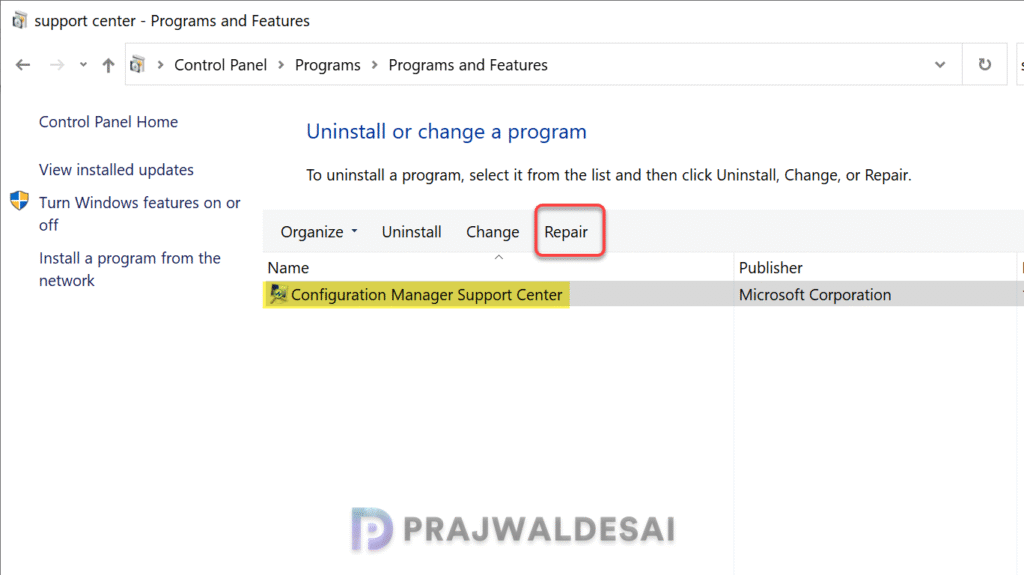
The repair wizard fixes the corrupt files by reinstalling them. The process is quick and shouldn’t take more than 20 seconds to complete.
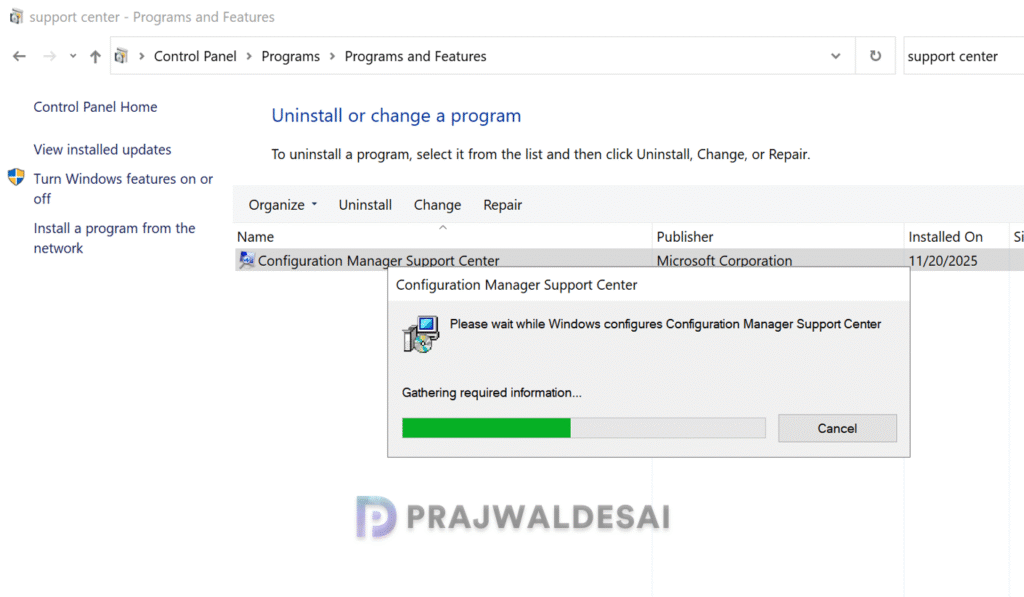
After completing the repair operation, attempt to launch any support center tools; they should now function properly.
