


In this post, I will show you how to configure Microsoft Edge favorites using Intune. I will demonstrate the structure of a favorites file and guide you on creating your own favorites file for Edge deployment.
Microsoft Edge Favorites are the equivalent of bookmarks in most web browsers. They allow you to save and organize links to websites that you want to revisit later. By adding a webpage to your favorites, you can quickly access it without needing to search for it again.
Edge users can manually favorite their current page by selecting the “Add this page to favorites” option in the address bar. However, if you need to deploy a common set of favorites to Edge users, using Intune or Group Policy is the most effective approach.
Organizations can leverage Intune policies to add internally hosted sites like SharePoint, HR payroll portals, or JIRA documentation to Edge favorites. A key advantage of this approach is that users are restricted from modifying or deleting the Managed Favorites folder once the policy is applied. So, let’s get started!!
Prerequisites
- Devices must be enrolled in Intune and have an active license assigned.
- Devices must remain online and communicate with Intune to fetch the latest policies.
- Update the Edge browser to its latest version throughout your organization.
Template for Creating Edge Favorites
Before you deploy Edge favorites to users, I recommend you go through the documentation on Configure Favorites policy that explains what favorites are composed of and how to create a favorite file. Microsoft explains that each Edge favorite contains the keys “name” and “url,” which hold the favorite’s name and its target.
For example, a favorite name can be – “Prajwal Desai” and the url points to – https://www.prajwaldesai.com. Microsoft Edge amends incomplete URLs as if they were submitted via the Address Bar, For example, “prajwaldesai.com” becomes “https://www.prajwaldesai.com/“.
To create a sub-folder, you can add a favorite by specifying the “children” key that contains a list of favorites. Note that it doesn’t contain “url” key because it’s basically a sub-folder and should not redirect to any site.
The image below illustrates the template structure for creating an Edge favorites file, presented in a flowchart. I hope this flowchart makes it easy to understand and create your own file defining the favorites for the Edge browser.
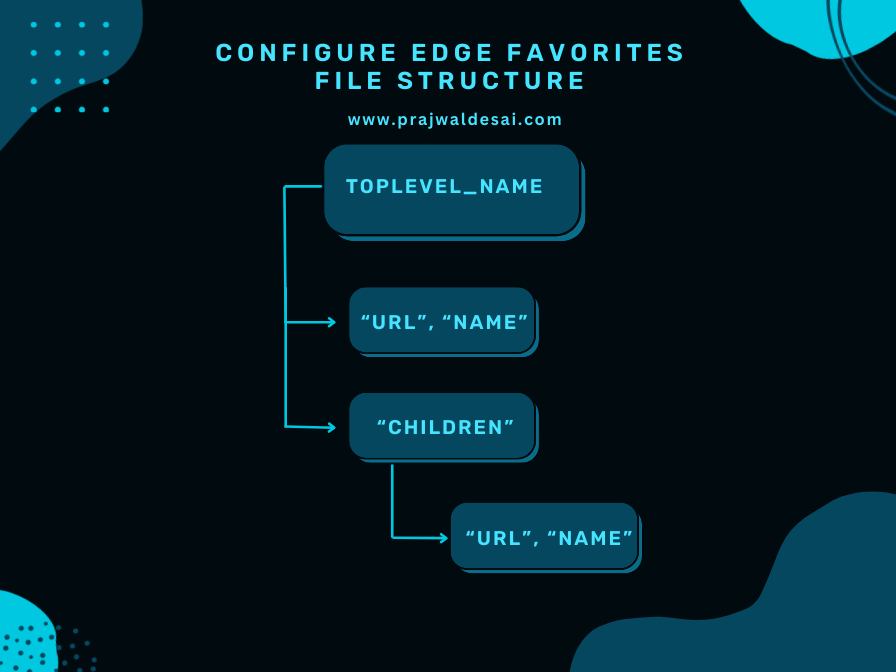
Create an Edge Favorites File
Here’s an example of a simple favorites structure in text format for the Edge browser that I designed. This layout aligns with Microsoft’s recommended format for favorites files. It includes my primary website and forums, with the “Children” key listing several Microsoft-related sites.
[
  {
    "toplevel_name": "Prajwal Desai Favorites"
  },
  {
    "name": "Prajwal Desai",
    "url": "prajwaldesai.com"
  },
  {
    "name": "Forums",
    "url": "forums.prajwaldesai.com"
  },
  {
    "children": [
      {
        "name": "Microsoft Intune Blog",
        "url": "techcommunity.microsoft.com/category/microsoftintune/blog/microsoftintuneblog"
      },
      {
        "name": "Microsoft Edge",
        "url": "www.microsoft.com/windows/microsoft-edge"
      }
    ],
    "name": "Microsoft Edge links"
  }
]The toplevel_name appears on the bookmarks or favorites bar, serving as the folder where all your favorite sites are stored. You can easily add more favorite sites by editing the file and customizing it to suit your preferences.
Configure Favorites for Edge using Intune
Let’s create a new policy in Intune admin center to configure the favorites for the Edge browser. Open the browser and sign in to the Intune admin center. Navigate to Devices > Windows > Configuration > Create > New Policy. Choose Windows 10 and later as Platform and Settings Catalog as Profile Type. Click Create.

On the Basics tab, specify the name of the profile as “Deploy Microsoft Edge Favorites.” You may add a brief description about the profile. Click Next to continue.

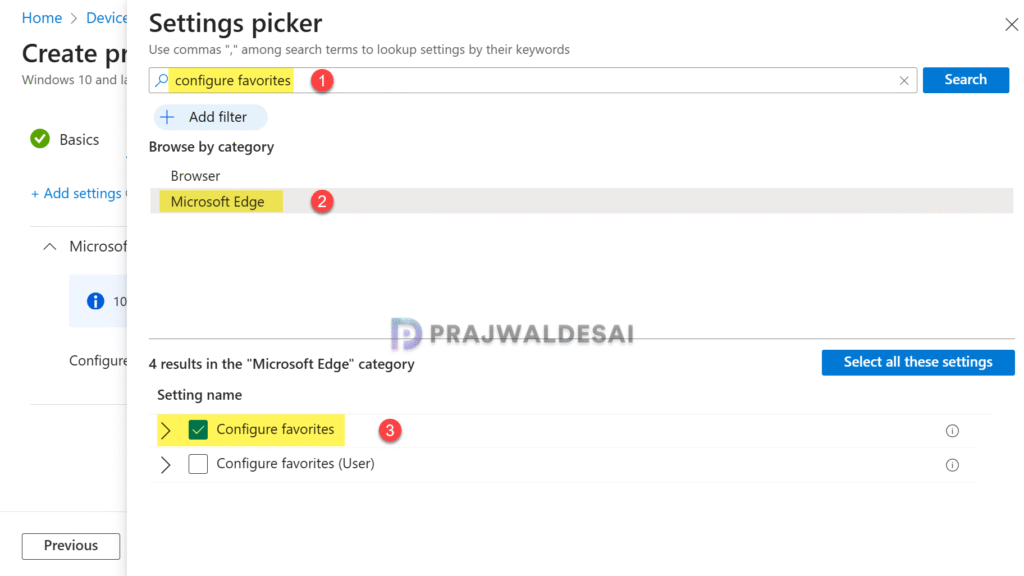
In the Settings Picker page, search for “Configure Favorites.” From the results, select the category named Microsoft Edge. Now select the setting “Configure Favorites” and close the settings picker.
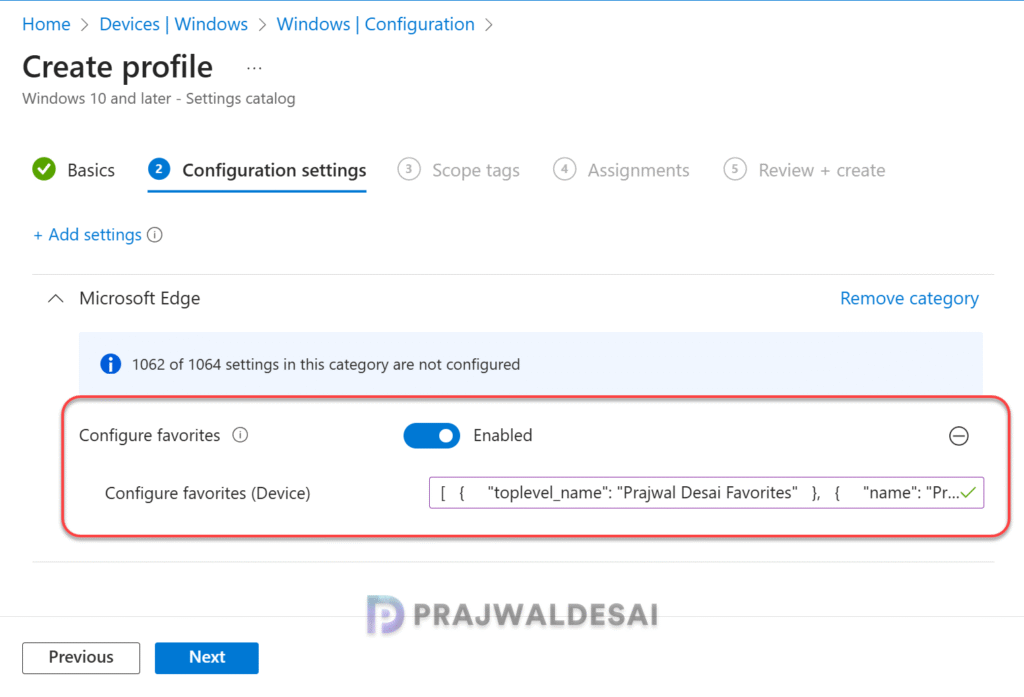
Enable the Configure Favorites setting and paste the data from the favorites file that we created in the above step into the corresponding text box. Refer to the screenshot below for details. Click Next.
In the scope tags section, you specify scope tags. Specifying scope tags is optional, and you may skip this step. Click Next.
In the Assignments tab, select the Entra ID security user groups to which you want to assign the policy. If you are deploying this policy for the first time, I recommend deploying it to a few test groups first and then expanding it to more users or devices if the testing is successful. Select Next.

On the Review + Create page, review all the policy settings that you have configured so far and select Create. A newly created policy must appear in the Configuration Profiles list.

Synchronize policies with Microsoft Intune
To speed up the policy assignments, you can manually sync Intune policies using various methods on windows computers. The sync action prompts devices to instantly connect with Intune and apply the most up-to-date policies. This is typically performed to test an app or policy deployment and verify its functionality.
Monitor Deploy Edge Favorites Intune Policy
To monitor the deploy edge favorites policy assignments in Intune, go to Devices > Windows > Configuration. Select the ‘Deploy Edge Favorites‘ profile. On the Policy overview page, check the device and user check-in status. You can see the number of devices or users on which the policy has been applied successfully.

End User Experience
Let’s check if the favorites have been deployed to the Edge browser. Sign in to the Windows device where the policy is applied. Open the Edge browser, and you’ll see that the favorites have been organized according to the file structure specified in our template.

Open the Edge browser, type “edge://policy” in the address bar, and press Enter to view the list of configured policies. We see the policy named “Managed Favorites” has been applied via Intune and the policy value contains the data from the Edge favorites file structure.
The favorites created via Intune policy are placed in a folder called “Managed favorites” that can’t be modified by the user. The users cannot delete these entries, but they choose to hide them from the favorites bar, which is a personal preference. Also, note that managed favorites are not synced to the user account and can’t be modified by extensions.

Troubleshooting
- In some cases, the deploy edge favorites Intune policy settings may fail to apply to users/devices. To troubleshoot these issues, review the essential Intune IME logs. In addition, review Event ID 814 in Event Viewer. Use the following path: Applications and Services Logs > Microsoft > Windows > Devicemanagement-Enterprise-Diagnostics-Provider > Admin.
- If you encounter policy assignment failure on a remote device, generate an MDM diagnostic report for IT support. This can be done from Settings > Accounts > Access work or School > Info. Click on the Create Report button.
Further Reading
Take a look at some useful configuration guides for the Edge browser
