


In this very basic post, I will share an easy trick to change highlight color of log entries in CMTrace. The highlight feature uses the default yellow color that is specified in Preferences, but you can set it to your favorite custom color.
I believe most of the configuration manager administrators still use CMTrace to analyze and view logs. Although the support center tool provides advanced log viewing features, CMTrace is still the favorite of many, including me.
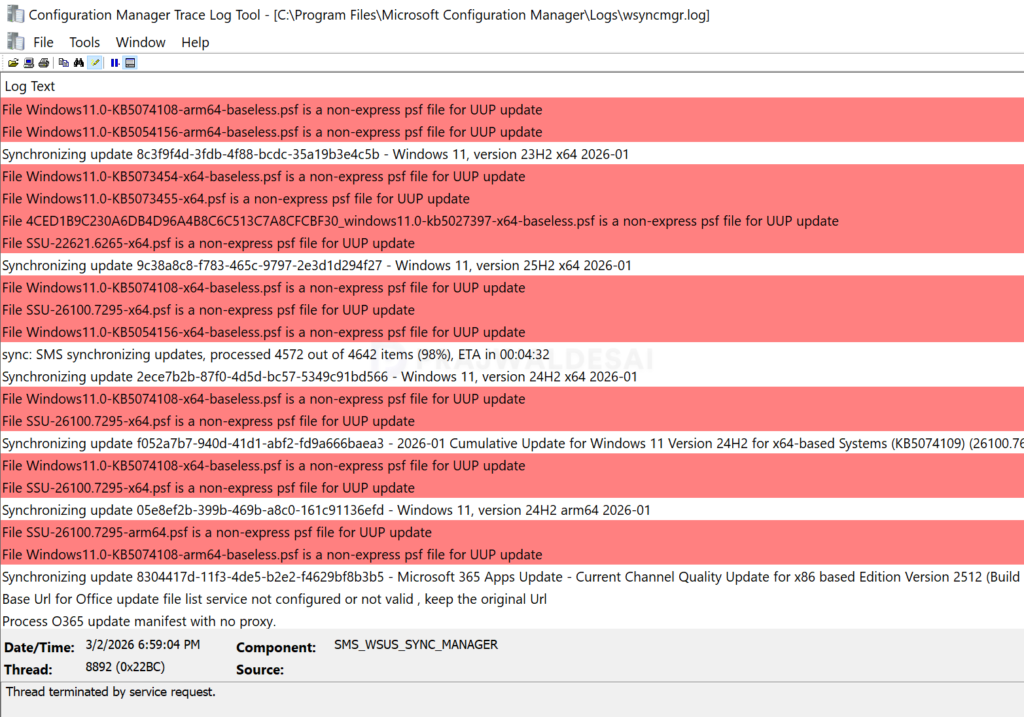
When you open a log file and select text to highlight, the default highlight color for searched keywords is yellow (#FFFF00). Errors are automatically highlighted with a red background, while warnings are displayed in yellow text.

Change Highlight Color of Log Entries in CMTrace
To customize the keyword highlight color, open the CMTrace and navigate to File > Preferences. In the General tab, change the color in the “Highlight” setting and choose a custom color to improve log readability. After making the selection, click OK to apply the changes.
Note: The color palette in CMTrace offers a selection of basic colors to select from. If you wish to use your own colors, enter the hex code, and this color will be used to highlight the text in log files.

In the log file, we see the highlighted text color is changed from yellow to the custom color that we selected.
To revert the changes, open CMTrace and head to preferences and select the yellow color, which is the default for text highlighting.
