


In this guide, I’ll show you how to allow or block cellular data using Intune. By creating a settings catalog profile, you can choose to allow or restrict the cellular data access for your managed Windows devices with Microsoft Intune.
Managing mobile connectivity is an important part of endpoint administration, especially for organizations that want tighter control over corporate devices, roaming usage, and data costs. With Microsoft Intune, administrators can configure policies that help allow or block cellular data on supported devices, depending on the platform, enrollment type, and management mode.
In some cases, organizations want to allow cellular data for field workers and remote employees. In other cases, they need to block cellular data entirely, so devices only function over Wi-Fi or approved network paths. Intune also offers a dedicated setting to manage mobile data roaming.
Reasons to control cellular data with Intune?
There are several reasons an organization may want to manage cellular access on enrolled devices:
- Reduce mobile carrier charges.
- Prevent unnecessary data usage when users are outside the organization.
- Force devices to use trusted Wi-Fi networks.
- Limit roaming expenses for traveling users.
- Secure kiosks or dedicated devices that should not use mobile networks.
- Control how corporate-owned devices connect outside the office.
Ways to configure cellular data settings in Intune
In most cases, you can allow or block cellular data settings by creating a configuration profile in the Microsoft Intune admin center. Depending on the platform, you typically use one of the following:
- Device restrictions
- Settings catalog
- Administrative Templates
- OEMConfig for Android manufacturer-specific controls
Mobile Data: Allow vs. Block
Here are some common factors to consider when deciding whether your organization should allow or block mobile data for devices managed in Intune.
You may want to allow cellular data when:
- A specific group of employees operates in the field.
- Devices are frequently used away from office Wi-Fi.
- Business-critical apps require continuous internet connectivity.
- Users travel and need flexible network access.
You may want to block cellular data when:
- Devices should operate only on Wi-Fi as per the organization’s rules.
- Data charges must be controlled.
- Shared or kiosk devices should not use a mobile network.
- Security policy requires limiting unmanaged network connectivity.
Allow or Block Cellular Data using Intune
- Open the browser and sign in to the Microsoft Intune admin center.
- Navigate to Devices > Windows > Configuration > Create > New Policy.
- Choose Windows 10 and later as Platform and Settings Catalog as Profile Type.
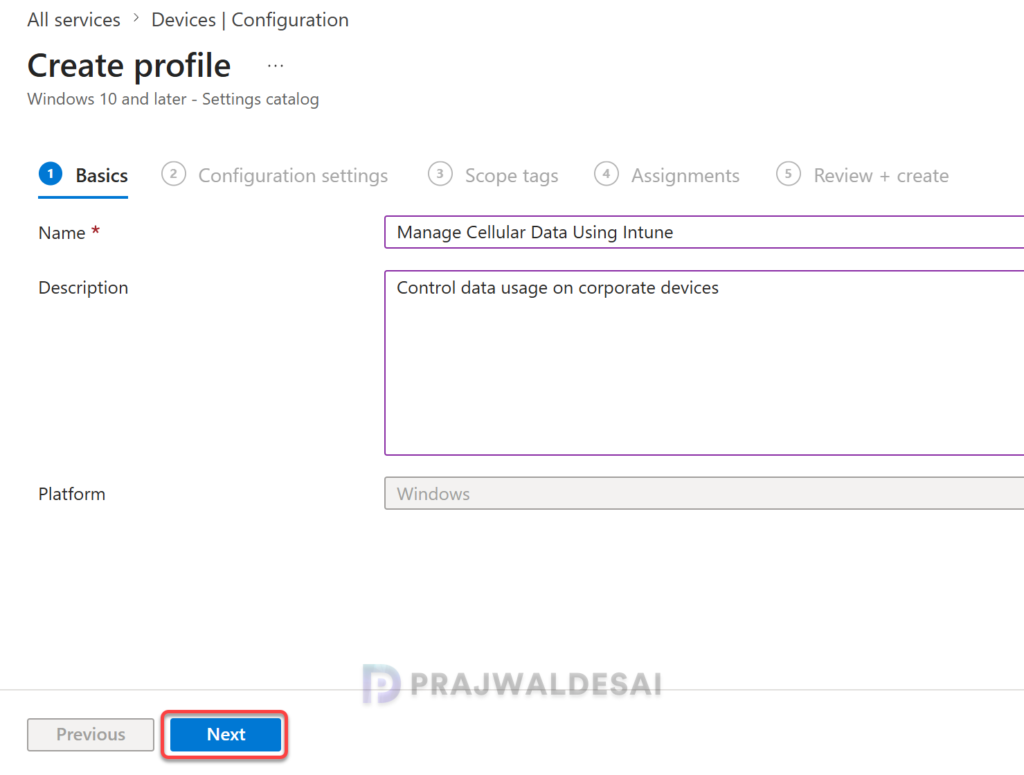
- On the Basics tab, specify the name of the profile as “Allow Cellular Data“or “Block Cellular Data” depending on what exactly you want to achieve.
- You may add a brief description about the profile. Click Next to continue.
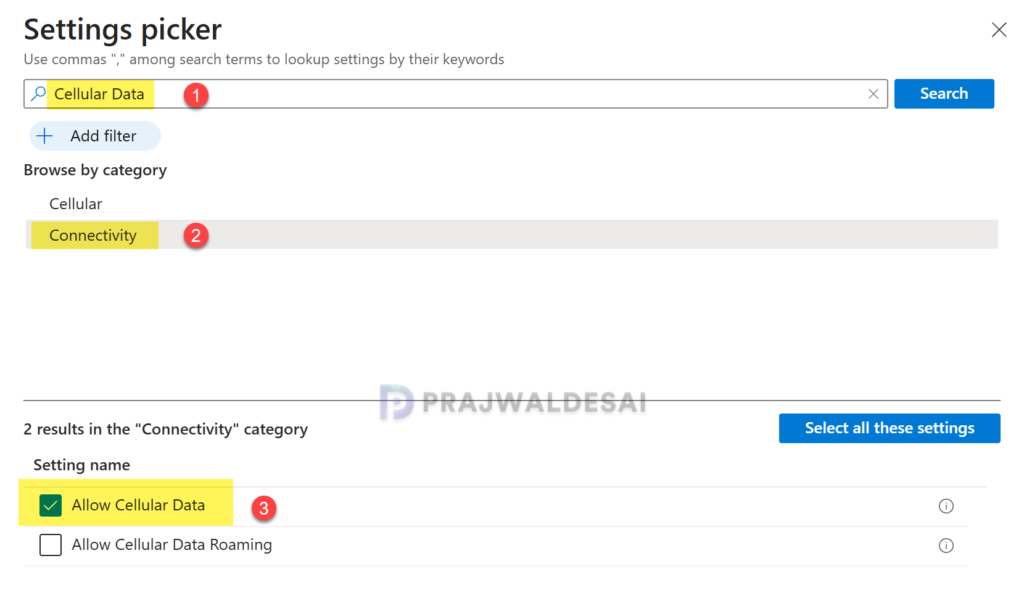
In the Settings Picker, search for the term “Cellular Data“. From the results, select the category named Connectivity. Now select the setting “Allow Cellular Data” and close the settings picker.
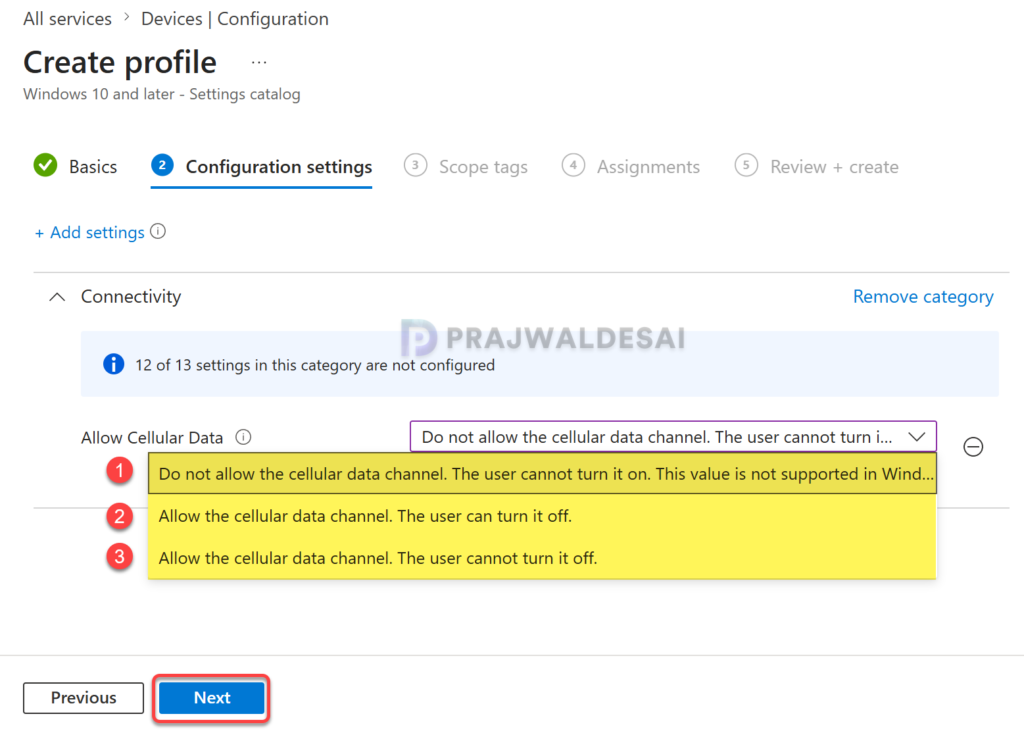
The Allow Cellular Data setting offers three options to configure:
- Do not allow the cellular data channel. The user cannot turn it on: Select this option to disable cellular data and prevent users from re-enabling it.
- Allow the cellular data channel. The user can turn it off: Select this option to allow cellular data and allow users to turn it off when not needed.
- Allow the cellular data channel. The user cannot turn it off: Select this option to allow cellular data but restrict users from turning it off.
The above options are just about self-explanatory. Choose the option based on your organization’s requirements. Once you’re done, click Next.
In the scope tags section, you specify scope tags. Specifying scope tags is optional, and you may skip this step. See how to configure scope tags for Intune. Click Next.
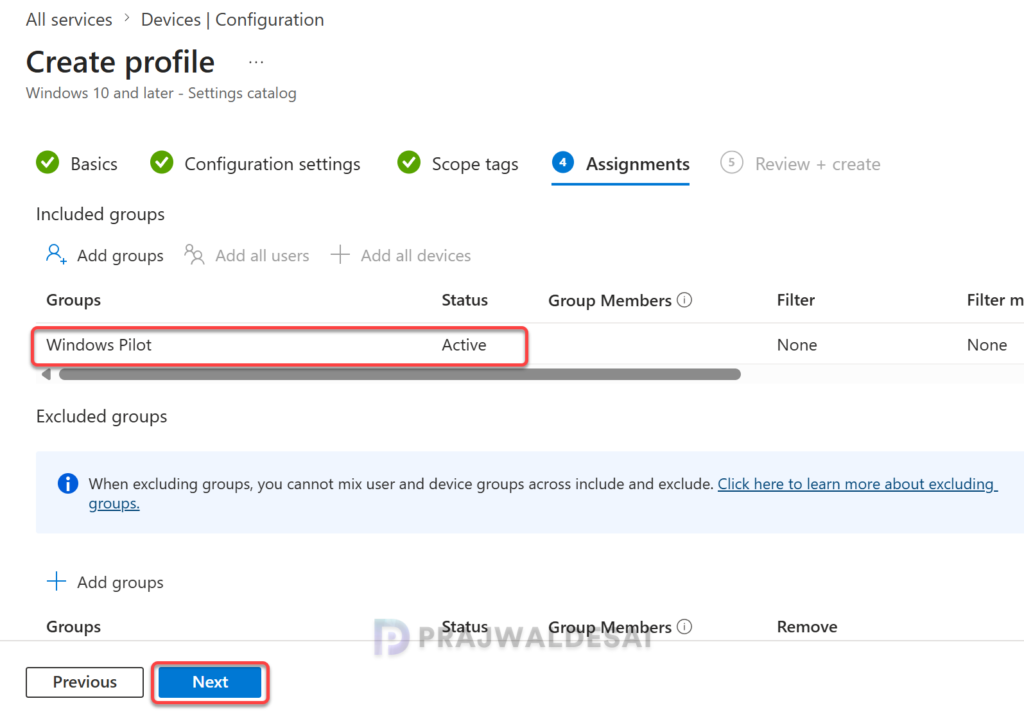
In the Assignments tab, select the Entra ID security user groups to which you want to assign the policy. When deploying this policy for the first time, start by applying it to a few test groups. If the testing proves successful, gradually extend the policy to additional users or devices. Select Next.
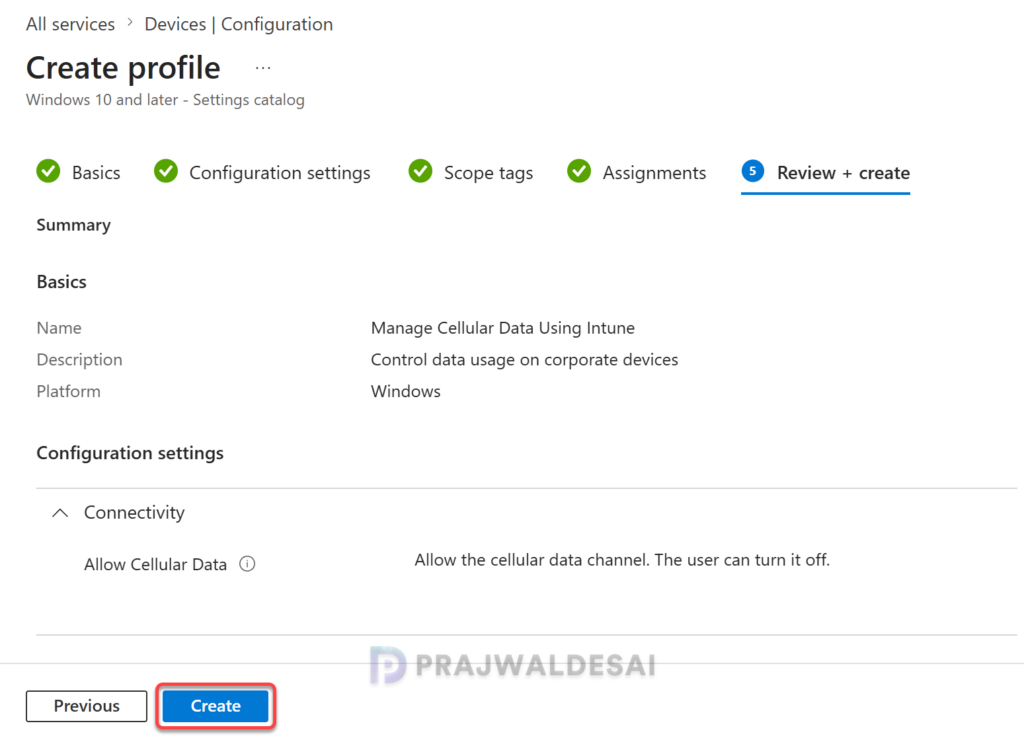
Review the policy settings and click the Create button. A new policy is created, and you can find it under the list of Configuration Profiles.
Syncing Intune policies on devices
After applying the policy, Windows devices must check in with Intune to receive the updated policies. To expedite this process, you can manually initiate a sync for the Intune policies. The sync action will force devices to immediately check in with Intune and retrieve the latest policies.
Monitor the policy assignments
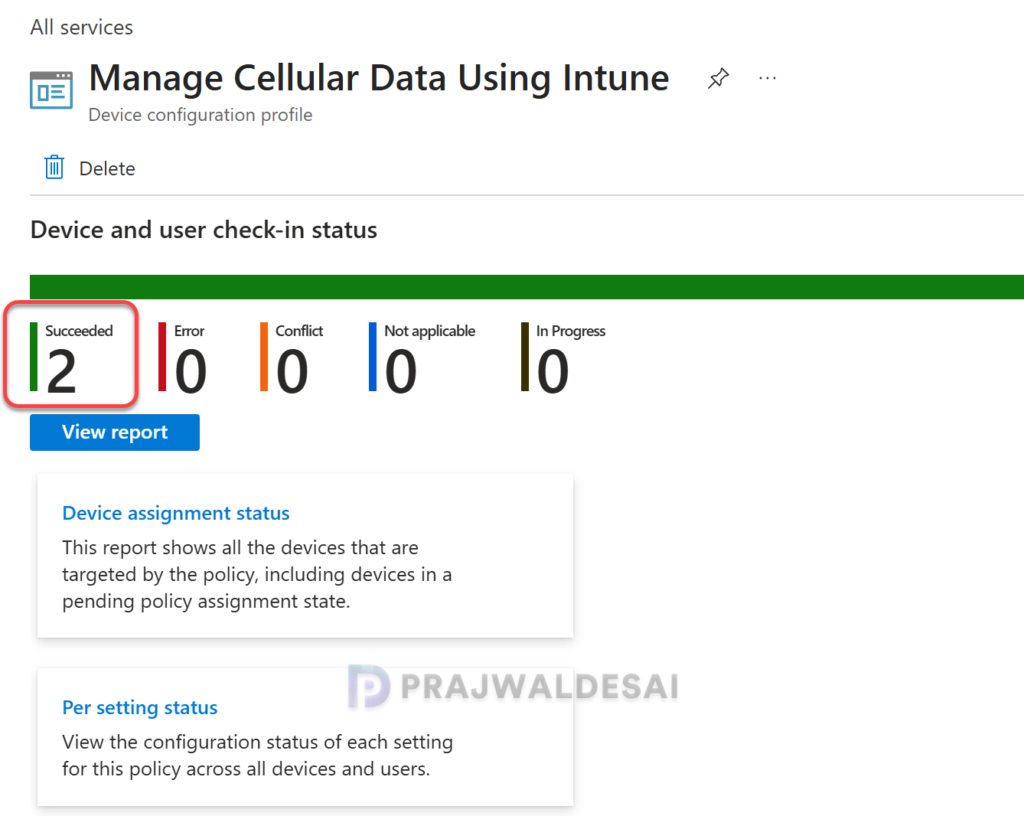
To monitor the cellular data profile assignments in Intune, go to Devices > Windows > Configuration and select the configuration profile. On the policy overview page, check the device and user check-in status.
You can see the number of devices or users on which the policy has been applied successfully. The view report button lets you see the names of devices or users for which the policy deployments have been successful.
Troubleshooting
- In some cases, the cellular data policy may fail to apply to certain devices. To troubleshoot these issues, review the essential Intune IME logs. In addition, review Event ID 814 in Event Viewer. Use the following path: Applications and Services Logs > Microsoft > Windows > Devicemanagement-Enterprise-Diagnostics-Provider > Admin.
- If you encounter profile assignment failure on a remote device, generate an MDM diagnostic report for IT support. This can be done from Settings > Accounts > Access work or School > Info. Click on the Create Report button.
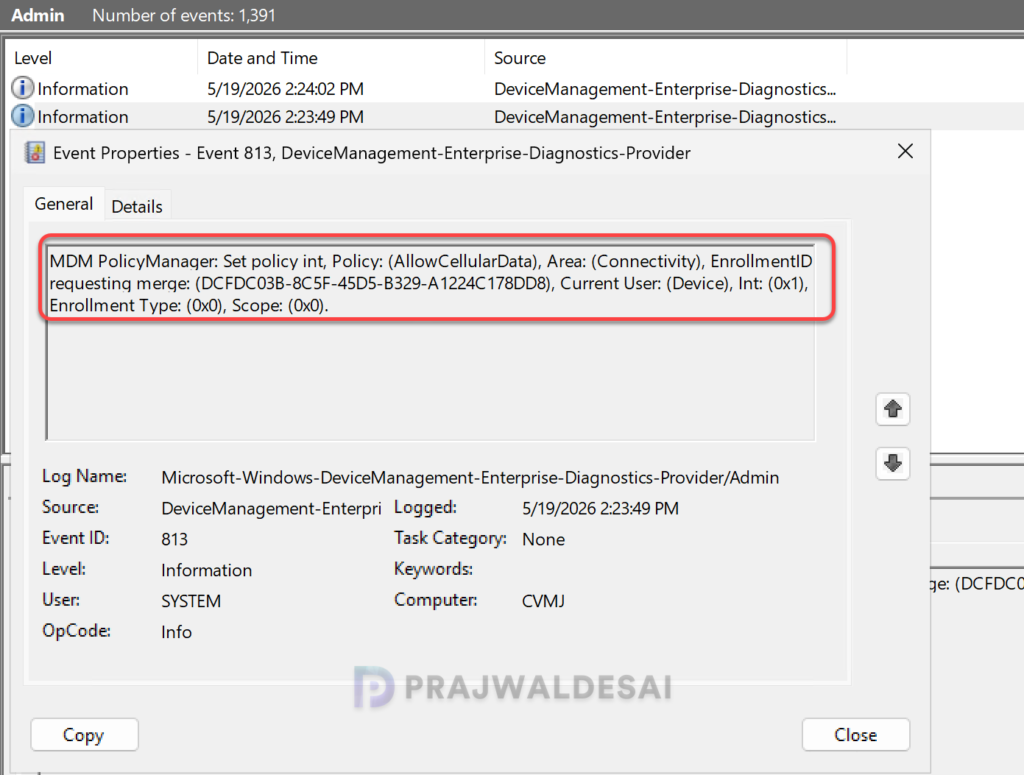
Log Name: Microsoft-Windows-DeviceManagement-Enterprise-Diagnostics-Provider/Admin
Source: Microsoft-Windows-DeviceManagement-Enterprise-Diagnostics-Provider
Event ID: 813
Description: MDM PolicyManager: Set policy int, Policy: (AllowCellularData), Area: (Connectivity), EnrollmentID requesting merge: (DCFDC03B-8C5F-45D5-B329-A1224C178DD8), Current User: (Device), Int: (0x1), Enrollment Type: (0x0), Scope: (0x0).Conclusion
Microsoft Intune provides a practical way to allow or block cellular data, but the implementation depends heavily on the platform and device management model. The policy effectively lets you allow or prevent users from using mobile data, reduce roaming charges, and control data usage on corporate devices. The best approach is to identify your device platform, confirm support for the needed restriction, test on a pilot group, and then deploy more broadly once behavior is validated. If you have any further questions, please let me know in the comments section below.
