In this guide, I will show you how to generate and export Windows feature update reports from Intune. These reports are very useful for Intune administrators for analyzing the readiness state, update status, and app driver compatibility risks of Windows feature updates deployed in an organization.
Managing Windows updates across an organization is one of the most important responsibilities for IT admins. When devices are enrolled in Microsoft Intune, reporting becomes essential for monitoring feature update deployments, identifying failed devices, and maintaining compliance. Similarly, Intune also offers reports to monitor the firewall status and device compliance of your managed devices.
Windows feature update reports in Intune provide visibility into how feature updates are being deployed across managed Windows devices. While viewing update information in the Intune admin center is helpful, exporting reports gives admins more flexibility. For larger environments, exporting reports is often the easiest way to build a complete picture of update compliance.
Prerequisites
Before you generate and export feature update reports in Intune, make sure you have the following:
- Access to the Microsoft Intune admin center.
- Appropriate RBAC permission to view reports.
- Configured Windows feature update policies.
- You must have enrolled the devices in Intune, and they should be reporting back the data to Intune. For more information, see the Windows enrollment guide.
- Devices licensed and managed under supported Microsoft plans.
- Ensure your organization allows Intune to access Windows diagnostic data collected from enrolled devices. For more details, see Enable Windows diagnostic data using Intune.
List of Windows Feature Update Reports in Intune
Intune offers a list of several integrated reports to view detailed Windows update deployment status for devices using feature update policies. These reports are accessible at Intune admin center > Reports > Windows updates.
Notice that only three reports are related to the ‘feature updates‘, while the other two are related to Windows Updates in general.
| Report Name | Description |
|---|---|
| Windows Feature Update Report | This report shows the status of the feature update deployment status on all devices targeted by a policy. |
| Windows Expedited Update Report | This report shows the status of all devices targeted by an expedite policy and provides an overview of how many devices are installing the update, have completed installation, or have encountered an error. |
| Windows Feature Update Compatibility Risks Report | This report provides a summary view of the top compatibility risks across your organization for a chosen version of Windows. You can use this report to understand which compatibility risks affect the highest number of devices in your organization. |
| Windows Update Distribution Report | The Windows update distribution report in Intune provides a summarized report to show the number of devices that are on each quality update level and the percentage coverage for each update across devices managed by Intune (including co-managed devices). |
| Windows Feature Update Device Readiness Report | This report provides per-device information about compatibility risks that are associated with an upgrade or update to a chosen version of Windows. |
| Windows Driver Update Report | The Windows Driver updates summary report provides an overview of the status of driver updates across all your Windows Driver update policies. |
The below image shows the list of reports in the Intune admin center that I’ve described above. Microsoft might add more reports to this workspace, and I’ll update them when they do.
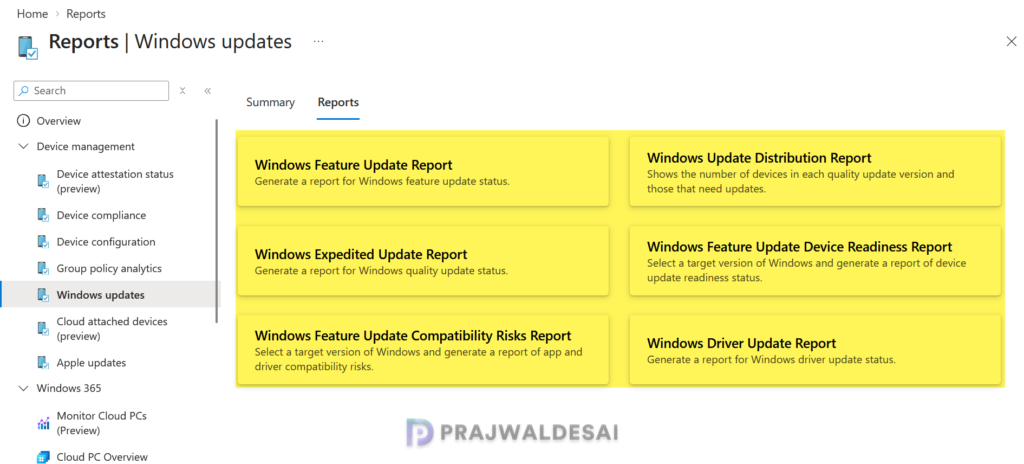
Before exporting reports, it’s important to note that every feature update report must be generated first. You need to generate it at least once to view the data, and the same data can be exported to a CSV file.
Export Windows Feature Update Reports from Intune
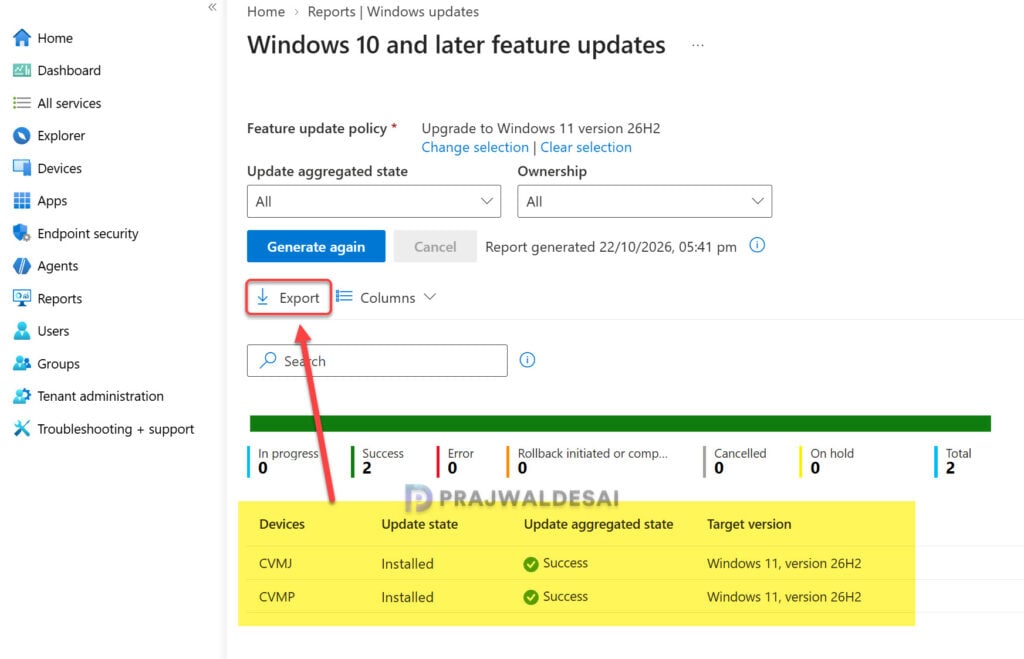
The Windows Feature Update Report provides you an update on the feature update installation status on the devices. To export this report, sign in to the Intune admin center. Select Reports > Windows Updates > Windows Feature Update Report. Now select a feature update policy and click Generate report.
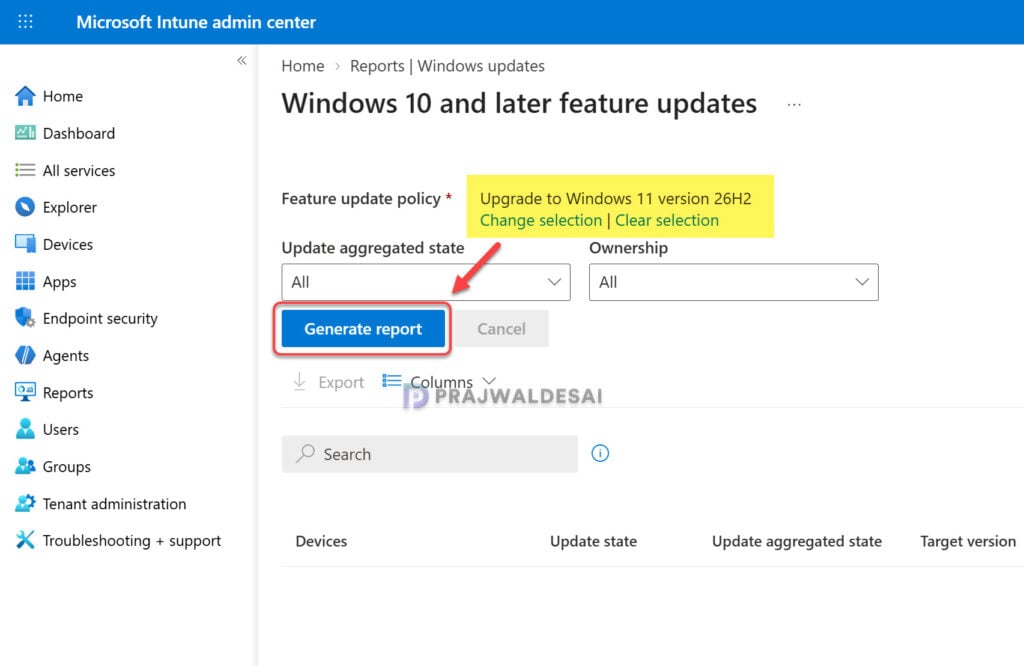
The report takes a few minutes to generate, and once that is done, you can see the update deployment status for your devices. To export the report, click on the Export option, and the browser downloads the WindowsUpdatePerPolicyPerDeviceStatus.zip file. Extract the zip file and open the Windows update report CSV file to know the feature update deployment status for each of your devices.
The exported CSV report includes the following information.
- DeviceName
- CurrentDeviceUpdateStatus
- CurrentDeviceUpdateStatus_loc
- AggregateState
- AggregateState_loc
- WindowsUpdateVersion
Export Windows Feature Update Device Readiness Report
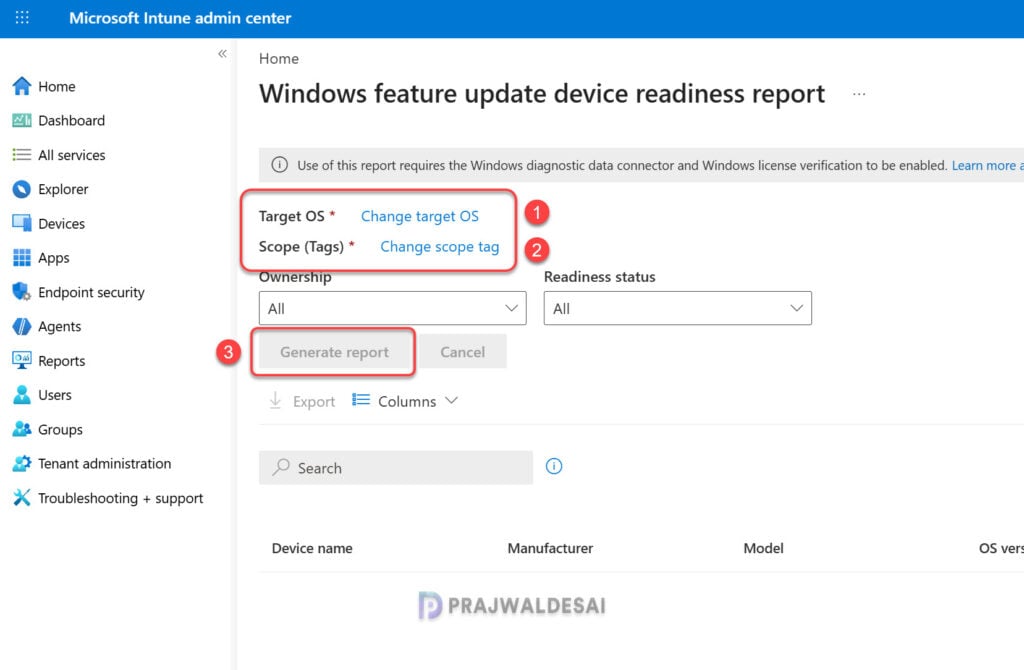
To export the device readiness report for feature updates in the Intune admin center, head to Reports > Windows Updates and select Windows feature update device readiness report. Select the Target OS and Scope tags and click Generate Report. The generated report contains per-device information about compatibility risks that are associated with an upgrade or update to a chosen version of Windows.
To export this report to a .CSV file, click on the Export option.
Export Windows Feature Update Compatibility Risk Report
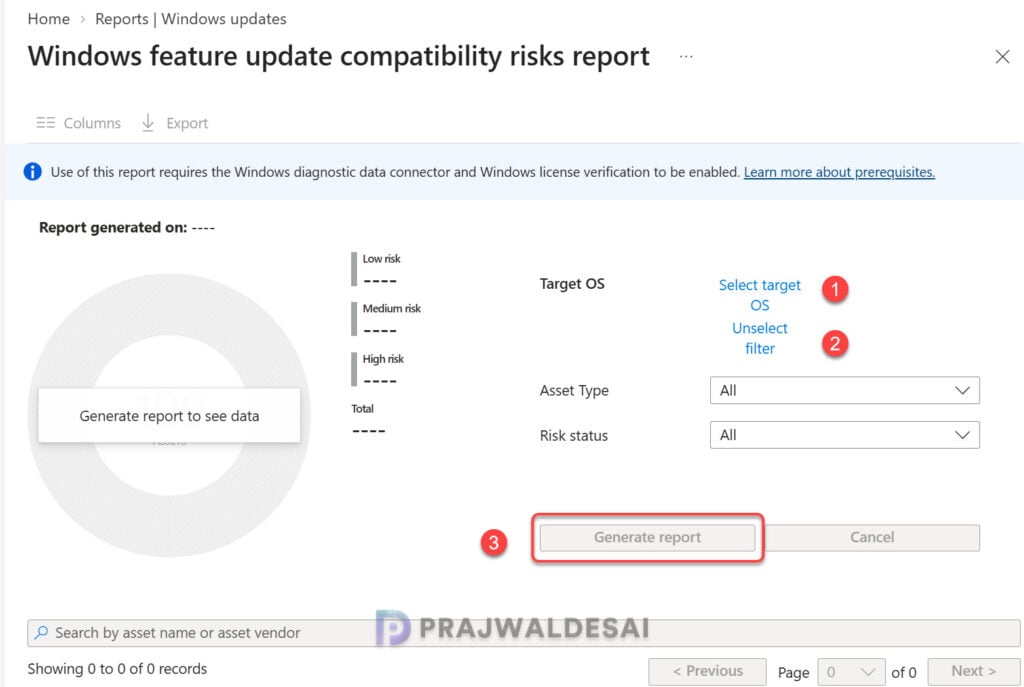
The compatibility risk report identifies app, driver, or hardware compatibility issues and risk levels before deploying a feature update. In the Intune admin center, go to Reports > Windows Updates and select Windows feature update compatibility risks report. Select the Target OS and click Generate Report. The generated report contains top compatibility risks across your organization for a chosen version of Windows.
The asset type drop-down options include applications, drivers, and other components. Whereas the risk status drop-down options include high risk, medium risk, and low risk. To export this report to a .CSV file, click on the Export option at the top.