

Microsoft has begun rolling out Windows 11 KB5095093, a preview update for versions 25H2 and 24H2. This update adds a new point-in-time restore feature, the ability to pause Windows updates up to 35 days, and improvements across File Explorer, Bluetooth, audio, networking, widgets, accessibility, and overall system reliability.
The June 2026 cumulative update bumps systems to build 26200.8737 (25H2) and 26100.8737 (24H2) and is available as an optional install ahead of the July Patch Tuesday rollout. For most users, this update will make Windows feel smoother, more predictable, and more reliable.
Before you read further, here’s a comprehensive guide detailing the updates released for each version of Windows 11, including their respective KB numbers and build numbers.
What’s New in the KB5095093 Update
- Point-in-time Restore for Windows: The new restore feature enables quick PC rollback (apps, settings, files) to recent points, reducing downtime and simplifying troubleshooting.
- Windows Update: The new calendar in Settings > Windows Update allows pausing updates up to 35 days with customizable end dates.
- Widgets: Improved experience with no hover interruptions, default dashboard view, customizable settings, reduced distractions, and enhanced performance.
- Accessibility: Screen tint for eye strain, enhanced Magnifier with zoom precision and setting changes directly from the magnifier bar.
- File Explorer: Quick actions (Open file location, Ask Copilot) on hover; speed and performance improvements; fixes for OneDrive, path compatibility, rename issues, and address bar reliability.
- Bluetooth: Improved connection reliability, faster AirPods pairing, voice call stability, enhanced LE Audio performance, synced mute state, and error resolution.
- Bluetooth and Phone Link: Improved audio routing for calls and integration with Do Not Disturb mode.
- Voice Access: Voice access and typing supported in French, German, Spanish with real-time corrections for smoother dictation.
- Audio: Improved HD Audio driver reliability.
- Taskbar: Enhanced Start menu opening reliability for left-aligned taskbar icons.
- Networking: SR-IOV default for CVMs, improved Wi-Fi, cellular connectivity, and VPN compatibility; settings preserved during OS upgrades.
- Printing: Default to IPP for new printer installs; modernized printer driver selection; toggle in Settings added.
- WSL: Enhanced WSL usage with mirrored networking for VPNs.
- Display/Graphics: Improved rendering across multiple monitors and persistent color profile application.
- Location Services: Greyed-out location settings when services are off for clarity.
- Search: Improved Search group policy reliability.
- Input: New customizable right-click zones in touchpad settings; improved English character recognition in Japanese handwriting.
- Performance: Faster shutdown of Background Intelligent Transfer Service (BITS) during PC shutdown.
- Reliability: Explorer.exe reliability and navigation improved; fixes for taskbar icons, OneDrive sync, app launches, desktop switching, and visuals.
- Windows Apps: Fix for unexpected elevation (UAC) prompts after installing KB5089549.
- Remote Desktop: Refreshed dialog design in Settings > System > Remote Desktop.
- Graphics Kernel: Better memory management for large local AI models on high-memory PCs.
How to Install KB5095093 Update for Windows 11
Since KB5095093 is a preview update, you’ll need to follow the below steps to install this update.
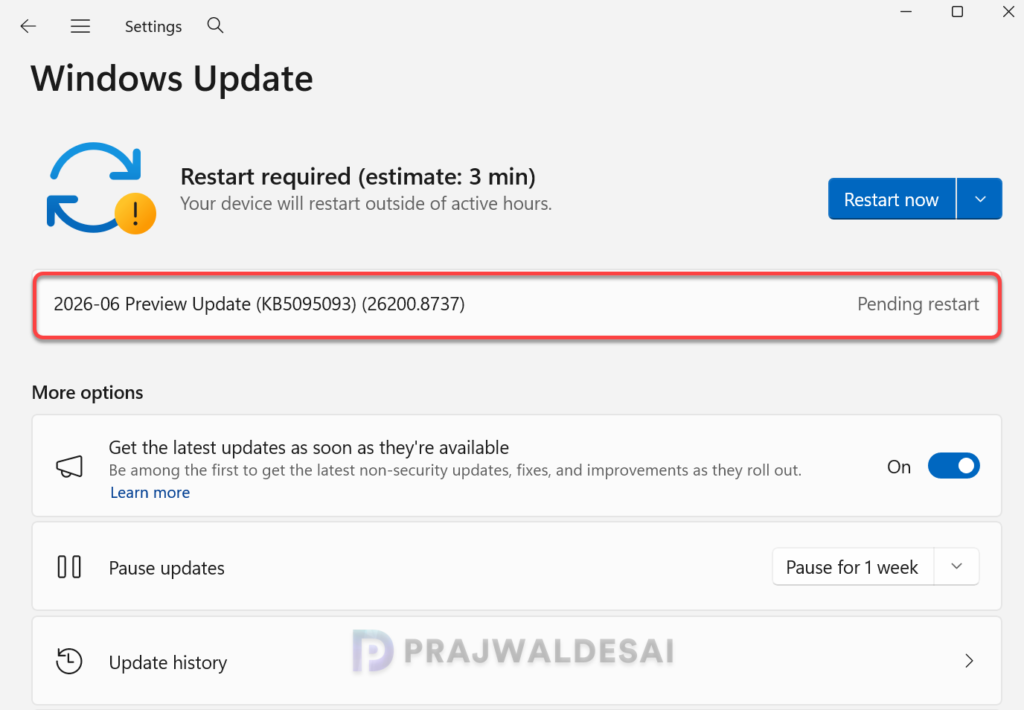
- Open Settings > Windows Update.
- Enable Get the latest updates as soon as they’re available.
- Check for updates.
- Install the 2026-06 Preview Update (KB5095093) (26200.8737) when it appears.
The update requires a system reboot to complete the installation. Simply click the “Restart Now” button to restart your computer. Once your system restarts, your Windows 11 25H2 build will be updated to version 26200.8737, and the Windows 11 24H2 build will be updated to version 26100.8737.
Get KB5095093 Installer from Microsoft Update Catalog
The KB5095093 update should be downloaded and installed automatically from Windows Update. However, if you have problems getting this update via Windows Update or wish to get the standalone package(s) for this update, go to the Microsoft Update Catalog website and download it.
Known Issues
A known issue after installing KB5095093 is certain third-party applications might be unable to launch Microsoft Office applications or open documents after installing the Windows updates released on or after June 9, 2026. This issue affects certain third-party applications that use OLE automation to interact with Microsoft Office applications. In some cases, the Office application or document might fail to open without displaying an error message.
To work around this issue, open the application or document directly instead of launching it from the affected third-party application.
Uninstalling the Update
If you haven’t patched your devices with the 2026-06 Preview Update (KB5095093) yet, you may pause updates in Settings. If you’ve already installed the update, and you are encountering some known issues, go to Settings > Windows Update > Update history > Uninstall updates. Alternatively, you may also use PowerShell to list the updates and uninstall them.
