In this guide, I will demonstrate how to deactivate an application in Entra ID. When you deactivate an app registration, it immediately stops receiving new access tokens. When users attempt to sign in to a deactivated application, they receive an error message indicating the application has been disabled by its owner.
Application deactivation is now the preferred way to place an application into an inactive state without immediately removing it from the directory. In practical terms, it gives administrators a cleaner and more deliberate way to manage apps that are no longer in active use, are under review, or are being prepared for retirement.
This method is valuable for organizations managing multiple app registrations, aiding in security investigations, temporarily suspending suspicious applications, or preserving application configuration data. I will explain how to disable applications, confirm their disabled state, and illustrate how to enable them again using both the Entra admin center and Microsoft Graph API methods.
Why Deactivating Applications Is Important in Entra ID
Most tenants accumulate a large number of applications over time, including:
- Test apps for internal purposes
- Proof-of-concept projects
- Legacy line-of-business applications
- Third-party integrations that are no longer in use.
- Duplicate app registrations created by different teams
Many of these apps remain in the tenant with permissions, secrets, certificates, or service principals still active. In some cases, no one is quite sure who owns the app anymore or whether it is still required.
That is where application deactivation in Entra ID becomes useful. For larger tenants with hundreds or thousands of enterprise app registrations, this kind of control is especially valuable. The application remains visible in your tenant’s enterprise applications list, but users can’t sign in, and no new tokens are issued. After a proper security audit, you can decide whether the app should be reactivated with rightful owners.
What happens when you deactivate an Entra application?
When you deactivate an Entra application, Microsoft puts the app into an inactive state without deleting the app object. In addition to that, Microsoft in their documentation, clearly states that new access token requests are denied while the users can’t sign in to the application, and the application can’t access protected resources with new tokens. With that said, the enterprise application remains in the tenant, and admins can still review the app if they require it. Along with that, its configuration and metadata are also preserved.
App Registration: Deactivate vs. Delete vs. Disable Sign-in
The table below outlines the available app registration actions in Microsoft Entra, detailing the purpose of each action along with additional information such as scope, token issuance, and whether app configuration is retained.
| App Action | Description | Token issuance | Configuration preserved | Reversible | Scope |
|---|---|---|---|---|---|
| Deactivate | Puts the application into an inactive state without deleting it. | Blocked | Yes | Yes | Global (all tenants) |
| Disabled by Microsoft | Apps that have been disabled globally by Microsoft. | Blocked | Yes | Yes | Global (all tenants) |
| Disable sign-in | Block sign-in for the service principal / enterprise application, while keeping the app registration. | Blocked in tenant | Yes | Yes | Single tenant only |
| Delete | Remove the application object from Entra ID. | Blocked | No (30-day recycle bin) | Yes (30 days) | Global |
Prerequisites
Ensure the following prerequisites are met before deactivating an app registration in Entra ID.
- Microsoft Entra Roles: Cloud Application Administrator or Application Administrator.
- Custom Role: microsoft.directory/applications/disablement/update
- Microsoft Graph API Permissions:
- Application.ReadWrite.All (delegated or application)
- Application.ReadWrite.OwnedBy (application, for owned apps only)
Deactivate an Application using Entra Admin Center
From the Entra Admin Center, here is how you can deactivate an app registration:
- Sign in to the Microsoft Entra admin center.
- Navigate to Entra ID > App registrations.
- From the list of registered apps, select the app that you want to deactivate and then click the Deactivate button on its app registration page.
- Review the information provided in the Deactivate app registration pane and select Deactivate. .
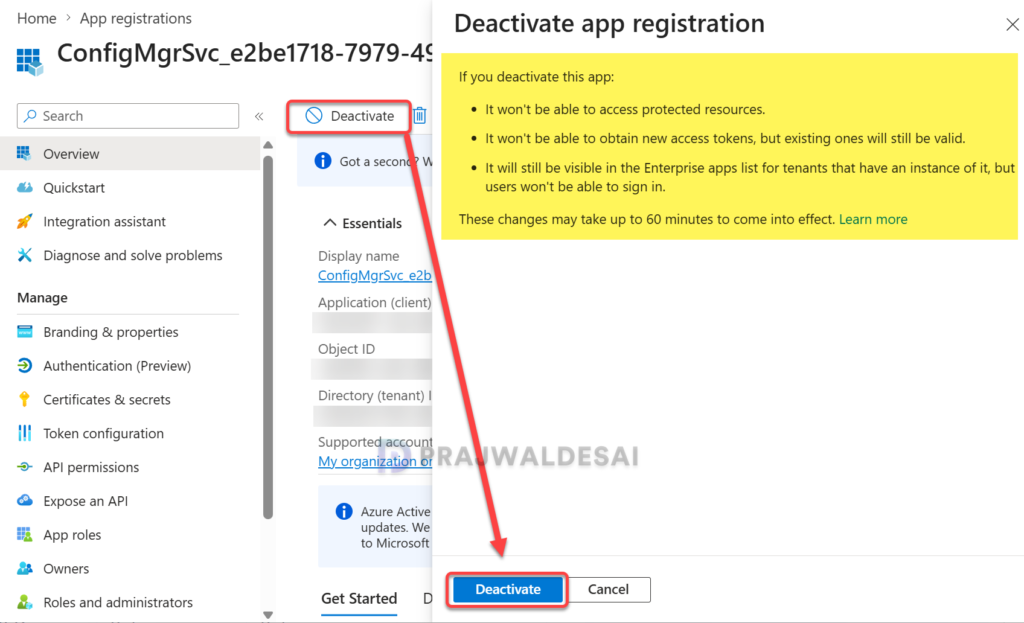
Once you have performed the above steps, the deactivation takes place immediately, and the isDisabled property for this application is set to true. To prevent others from reactivating the app, you should remove all other owners.
Deactivate an Entra application using Microsoft Graph
In this method, I will show you how to deactivate an Entra application using the Microsoft Graph API. When you have more than one app registration that you want to deactivate, this method is preferred.
As a prerequisite, you need to have the MS Graph PowerShell module installed on your computer. You’ll also require the correct app ID to deactivate a specific app.
To install the Microsoft Graph PowerShell Module, run the below command in your PowerShell terminal.
Install-Module Microsoft.Graph -Scope AllUsers -Repository PSGallery -ForceNext, run the below command to connect to Microsoft Graph with scopes ‘Application.ReadWrite.All‘. Before you can deactivate the app, you must authenticate using your login information. After successful authentication, Microsoft Graph Command Line Tools will prompt you to grant consent on behalf of your organization. Review the required app permissions carefully and click “Accept.”
Connect-MgGraph -Scopes "Application.ReadWrite.All"To deactivate the Entra app registration, input the application object ID (AppID) and run the below command.
PATCH https://graph.microsoft.com/beta/applications(appId='{appId}')
Content-Type: application/json

{
    "isDisabled": true
}View and Verify Deactivated Applications
There are multiple ways to view if the app registration is deactivated (both via Entra Admin Center and MS Graph), and I will show you all of them here.
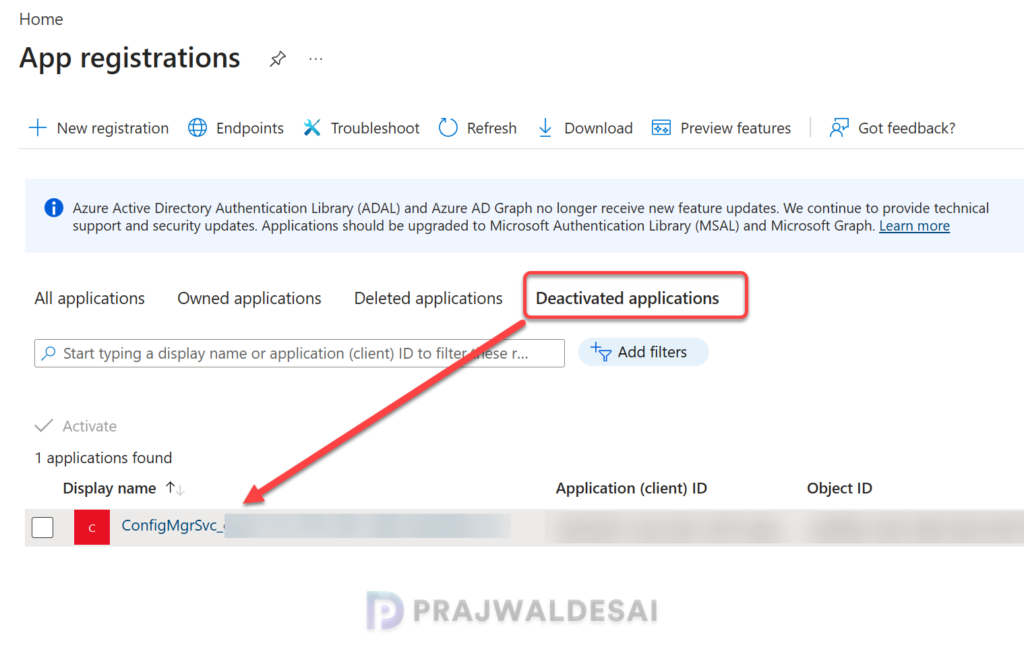
Sign in to the Microsoft Entra admin center. On the App Registrations page, switch to the Deactivated Applications tab, and here you should see all your deactivated app registrations.
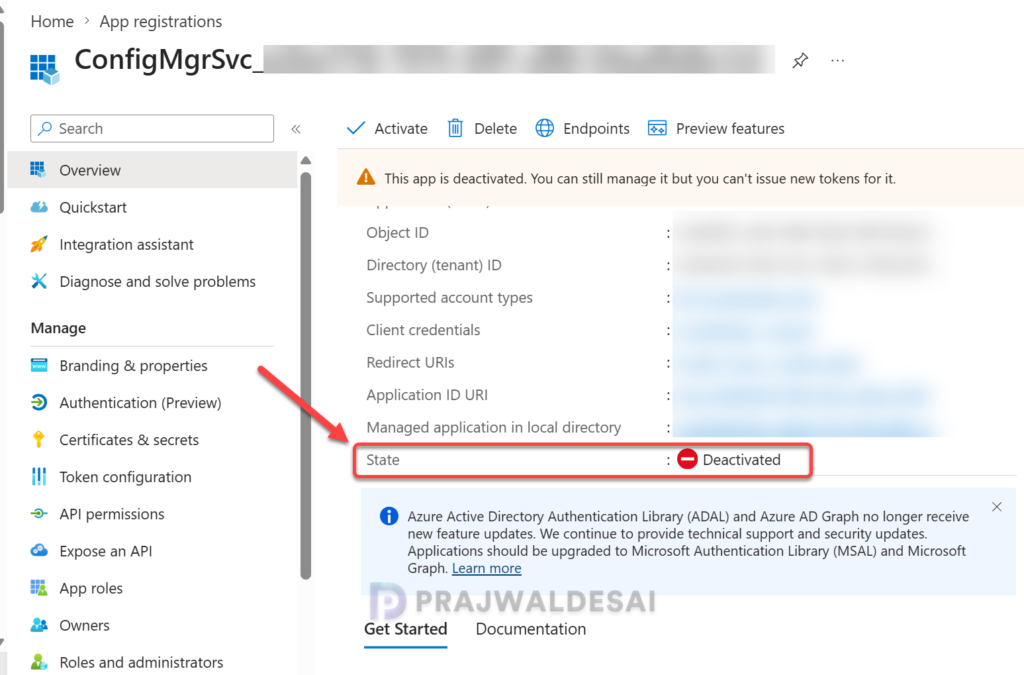
To verify if the enterprise app registration is successfully deactivated, on the app registration page of the deactivated application, look for the State column, which shows the application is in a “Deactivated” state. This confirms that you’ve successfully deactivated the app registration.
If you have used Microsoft Graph API to deactivate the app registration, use the below command to list all deactivated applications.
GET https://graph.microsoft.com/beta/applications?$filter=isDisabled eq trueTo verify the deactivation state of an app registration, use the below PowerShell command.
GET https://graph.microsoft.com/beta/applications(appId='{appId}')Reactivate an Application
After auditing all the deactivated applications and having removed unnecessary permissions, you can reactivate the application via the Microsoft Entra admin center or Microsoft Graph API. Let me show you both the methods.
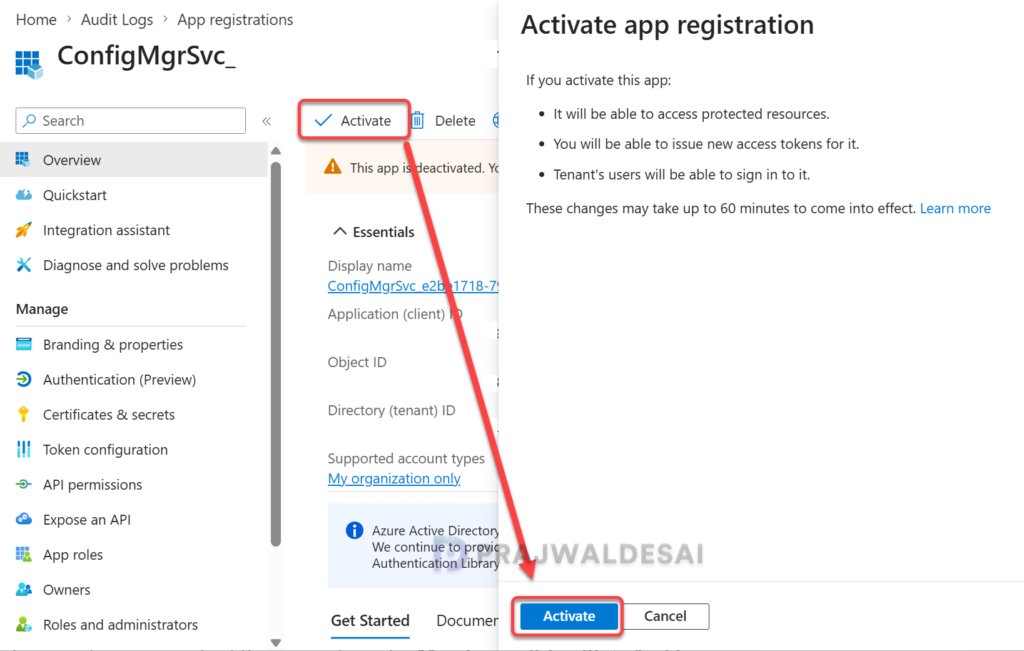
Sign in to the Microsoft Entra admin center. Browse to App registrations and select the Deactivated Applications tab. Select the deactivated application from the list. On the app registration page, select the Activate button. It takes 60 minutes for the changes to come into effect.
Audit Application Deactivation and Reactivation Events
Whenever an application is deactivated or reactivated, there will be a Microsoft Entra audit log event with:
- Service: Core Directory
- Category: ApplicationManagement
- Activity (activityDisplayName): “Update application“
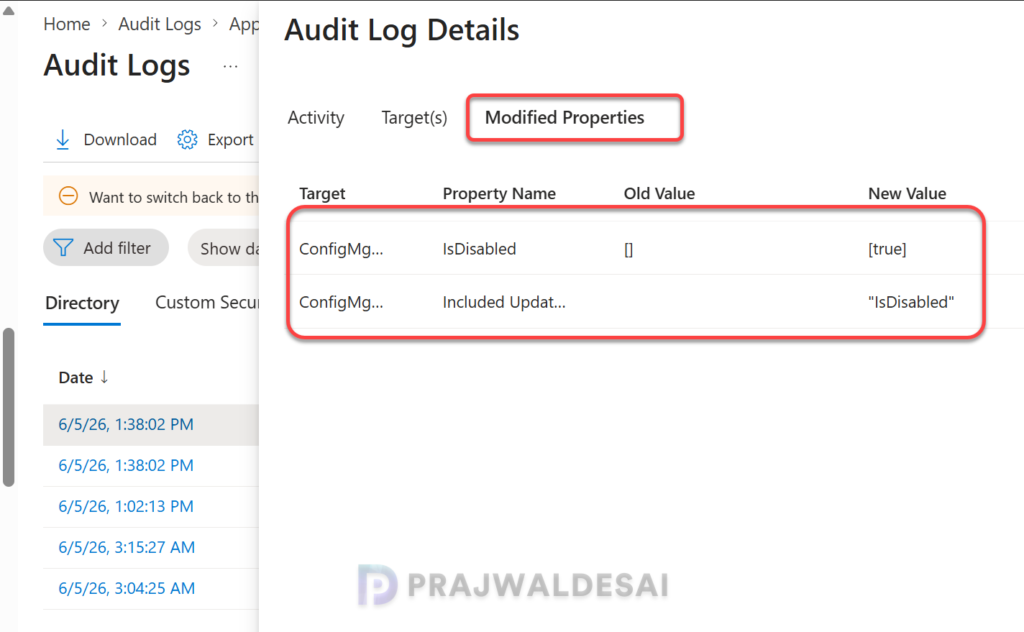
To audit the app registration events for deactivation and reactivation, sign in to the Microsoft Entra admin center. Go to Monitoring & Health > Audit logs.
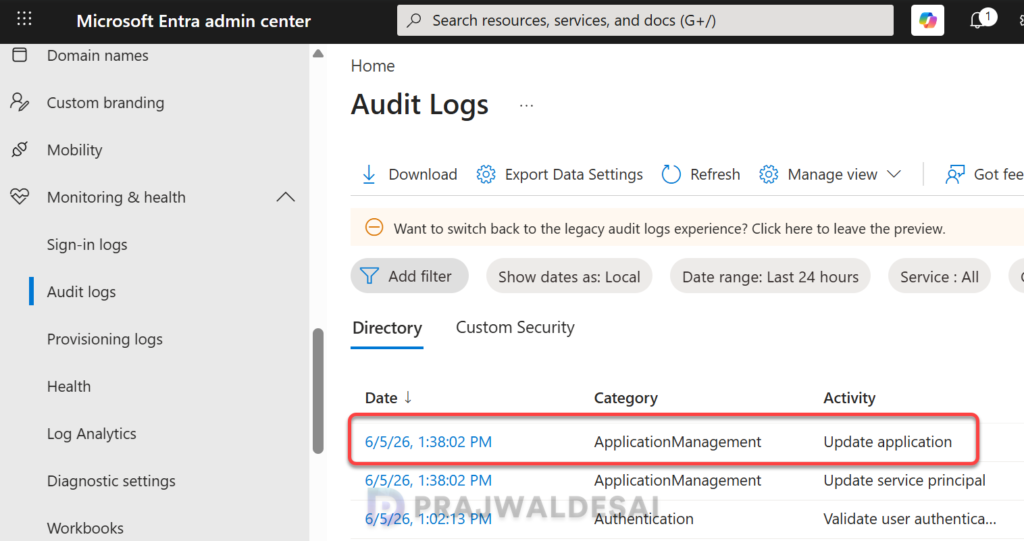
Select an Update application event and navigate to the Modified Properties tab in the Audit Log Details pane. Here you can see the app registration property name, its old value, and the modified value. Notice that the deactivated application has the isDisabled property set to true. If you see the state as “false” or “null” it means the application is activated or reactivated.