In this guide, I’ll demonstrate different ways to find the Application User Model ID of an installed app in Windows 11. An Application User Model ID (also known as AUMID, AppID, or AppUserModelId) is used by Windows for things like toast notifications, telemetry, Start menu shortcuts, taskbar pinning, and launching UWP/MSIX apps.
Understanding the AUMID of an app is essential for Windows app developers, whether you’re pinning or launching Store/UWP apps, sending toast notifications, or working with packaged desktop applications. For example, to configure Assigned Access, which is the Configuration Service Provider (CSP) used to create a kiosk or dedicated device, you must use the AUMID of the apps installed on a device.
On Windows 10 and 11, the AUMID is a unique identifier assigned to each installed application, regardless of its installation path or display name. For Intune and ConfigMgr administrators managing deployments of UWP, MSIX, or other packaged apps, understanding the AppID is essential.
This guide has been created to simplify that process. There are several methods to determine the AUMID of installed applications, so choose the one that works best for you.
Method 1: Find Application User Model IDs of Installed Apps in File Explorer
You can find the AUMID of installed apps using File Explorer through a hidden method. On your Windows PC, press Win + R and run the command: shell:AppsFolder. This opens the virtual Apps folder, where you’ll find all the installed UWP/Store apps and desktop applications. On the Menu bar, select Sort > Group by > AppUserModelID.
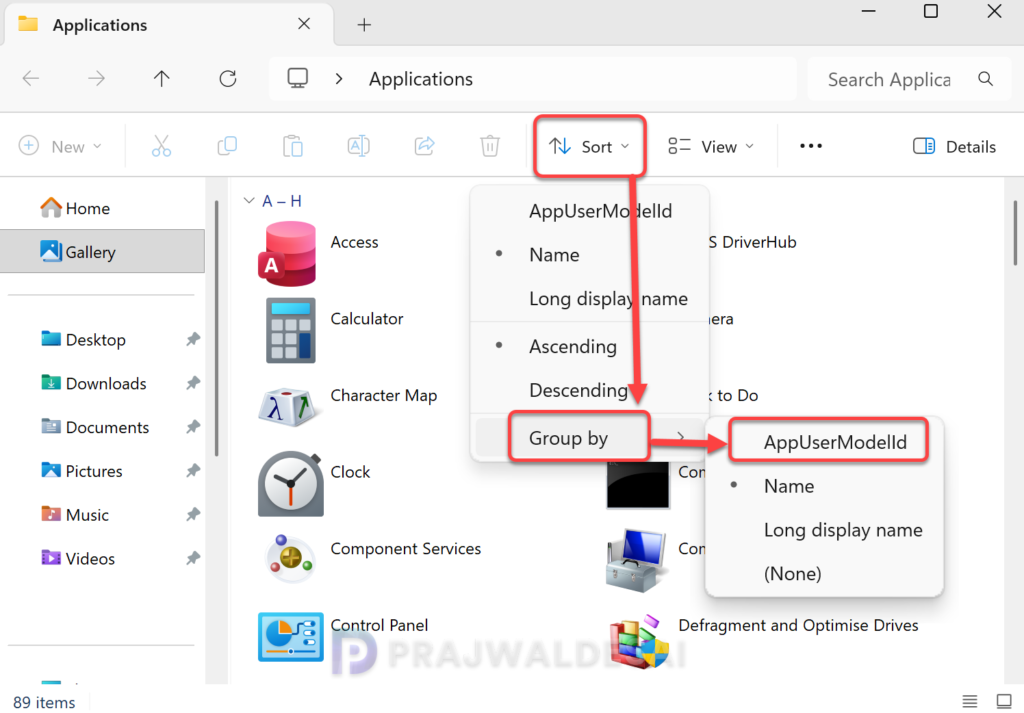
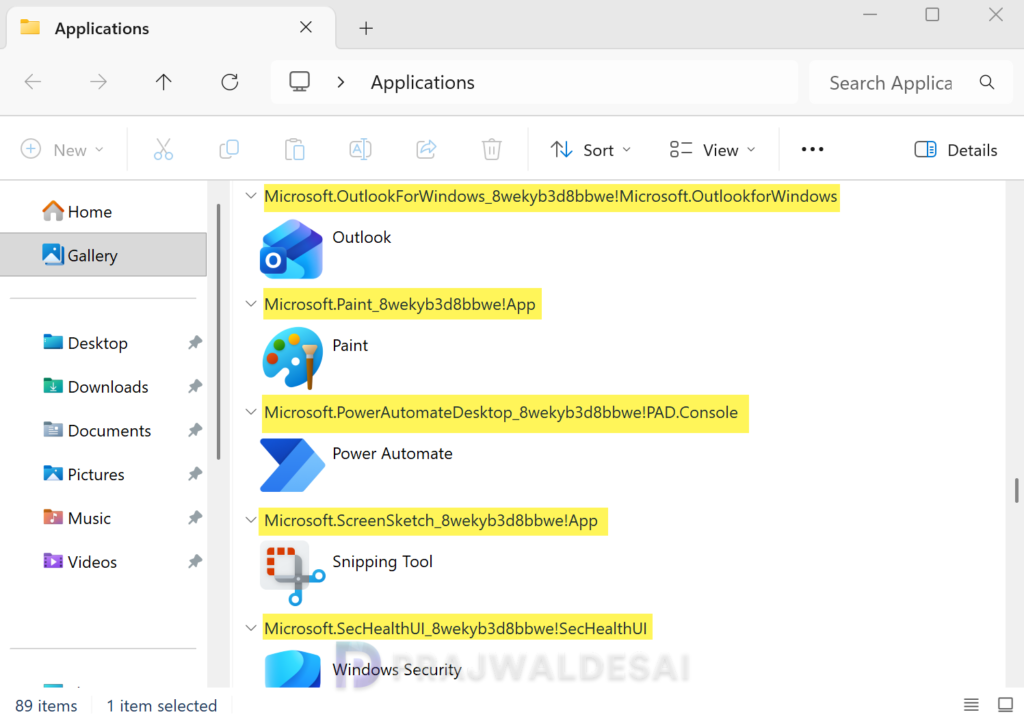
All the apps now display their AppUserModelId (AUMID) as shown in the below image. Please note that while this approach displays the AppIDs, it does not allow you to copy them, as the operation is not supported.
Method 2: Find AUMID of Installed Apps using CMD Prompt
You can use the command prompt to quickly retrieve the list of apps along with their AUMIDs. On your Windows computer, open the command prompt and run the following command.
powershell -command "Get-StartApps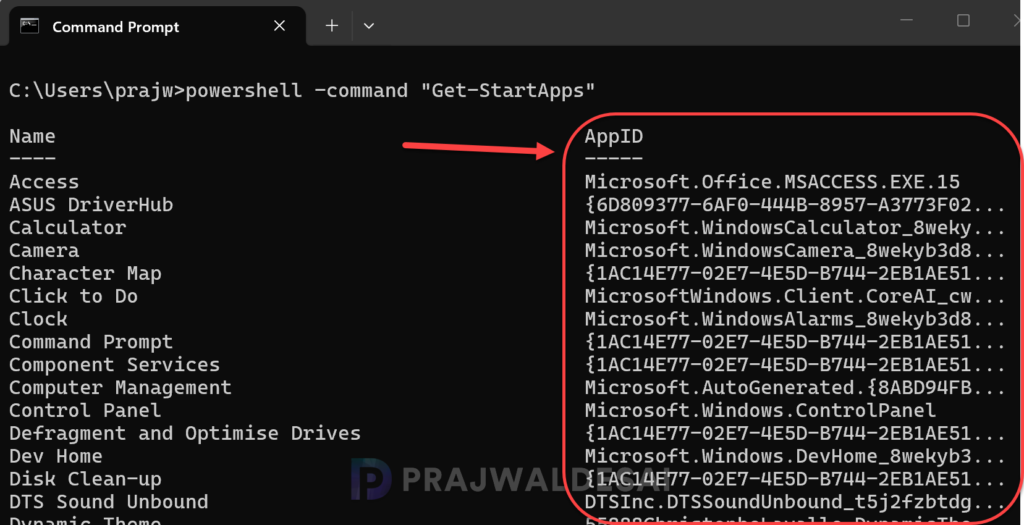
To find AUMID of a specific app installed on your Windows PC, use the below command.
powershell -command "Get-StartApps | findstr /i Notepad"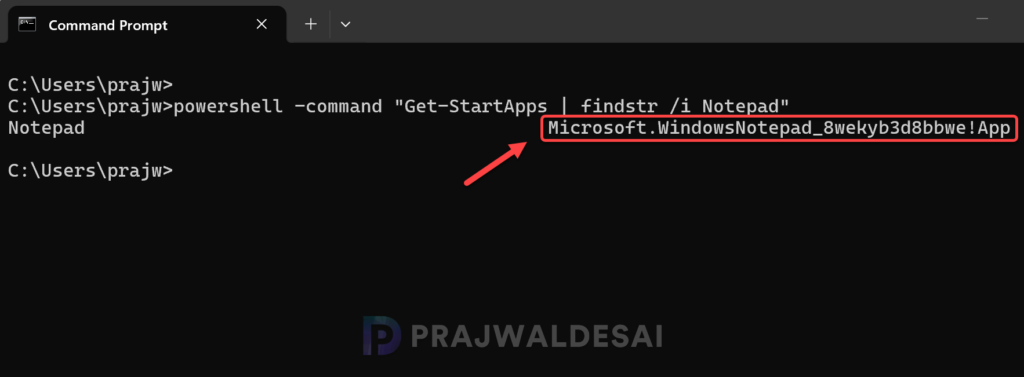
Method 3: Find Application User Model ID using PowerShell
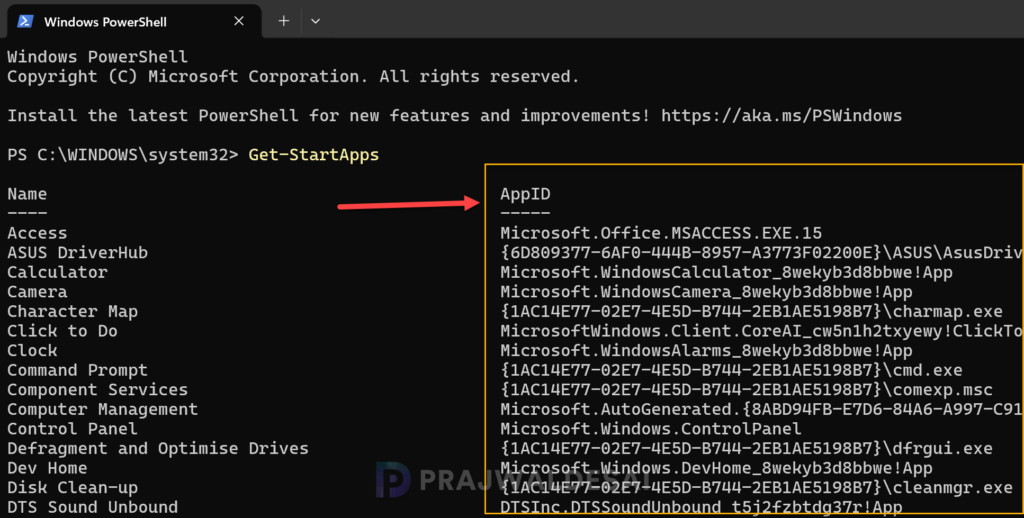
Among all the other methods, Get-StartApps is the fastest to find the AppIDs of all apps because it directly returns the AUMID. Open PowerShell command prompt and enter the following command:
Get-StartAppsIn the below image, the AppID column shows the AUMID of each app. Note that the above command returns AUMID of all the apps and if you have a long list of installed apps, you might have to scroll down to find the exact AppID.
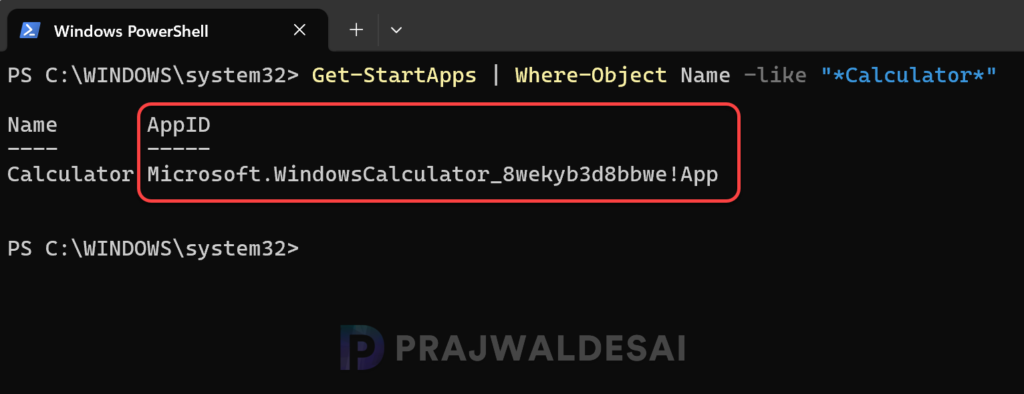
To find the AUMID of a specific app package, run the below PowerShell command.
Get-StartApps | Where-Object Name -like "*Calculator*"For instance, in the below image, the AUMID of the Calculator app is Microsoft.WindowsCalculator_8wekyb3d8bbwe!App.
Method 4: Get Application User Model ID in the Start menu
Certain installed apps reveal their AUMID through their Start menu entries. Microsoft provides a handy PowerShell script to get the AUMID of any application listed in the start menu. Copy the code to a text file and save it as GetAppAUMID.ps1.
#PowerShell Script to get AUMID of any application listed in the Start Menu

function Get-AppAUMID {
param (
[string]$AppName
)
$Apps = (New-Object -ComObject Shell.Application).NameSpace('shell:::{4234d49b-0245-4df3-b780-3893943456e1}').Items()
if ($AppName){
    $Result = $Apps | Where-Object { $_.name -like "*$AppName*" } | Select-Object name,@{n="AUMID";e={$_.path}}
        if ($Result){
            Return $Result
        }
    else {"Unable to locate {0}" -f $AppName}
}
else {
    $Result = $Apps | Select-Object name,@{n="AUMID";e={$_.path}}
    Return $Result
}
}
Next, launch the PowerShell as administrator and use the below commands to retrieve the Application User Model ID of individual apps.
# Get the AUMID for Notepad
Get-AppAUMID -AppName Notepad

# Get the AUMID for Microsoft Word
Get-AppAUMID -AppName Word

# List all apps and their AUMID in the Start menu
Get-AppAUMIDMethod 5: Determine AUMID using AppsFolder COM Object
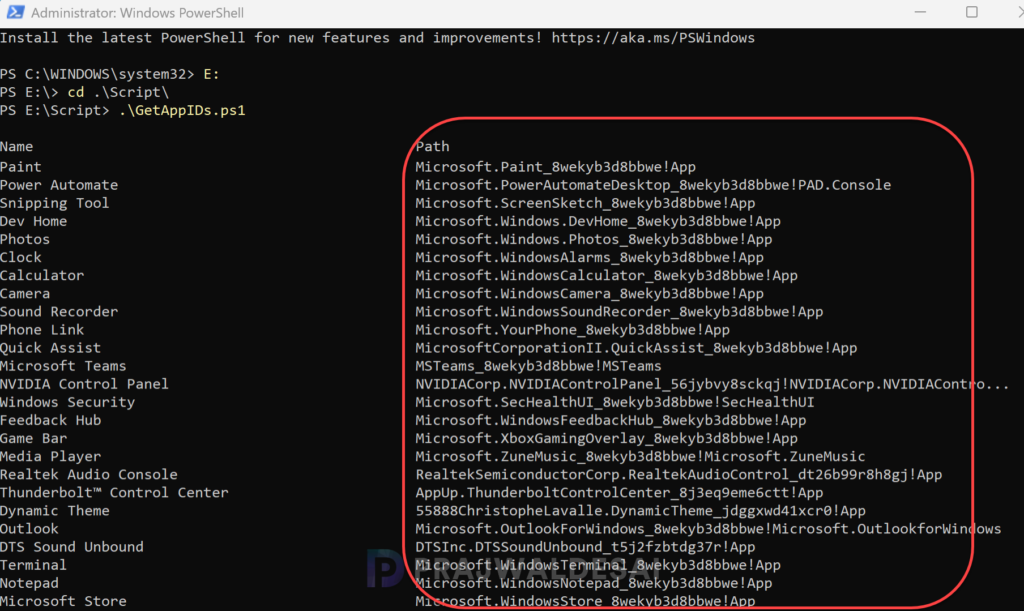
Here is another method to enumerate apps and IDs more explicitly via the AppsFolder COM object. I have written a handy script that retrieves the name of the installed app along with the app user model id. Copy the below code to a text file and save it as GetAppIDs.ps1.
#script to check the AppIDs of installed apps using AppsFolder COM Object
$shell = New-Object -ComObject Shell.Application
$folder = $shell.Namespace("shell:AppsFolder")
$folder.Items() | Select-Object Name, PathOpen the Powershell as administrator and execute the above script. The script output shows the name of the installed app, and the path column shows the AUMID. For many modern apps, the Path or related metadata can help identify the app registration.
Method 6: Querying Registry for Application User Model IDs
Querying the registry can only return information about Microsoft Store apps that are installed for the current user, while the Windows PowerShell query can find information for any account on the device.
If you wish to query the Windows registry to find the AUMID of individual apps, you can use the below command.
reg query HKEY_CURRENT_USER\Software\Classes\ActivatableClasses\Package /s /f AppUserModelID | find "REG_SZ"If the command mentioned above fails, you can try using an alternative one.
reg query HKEY_CURRENT_USER\Software\Classes\ /s /f AppUserModelID | find "REG_SZ"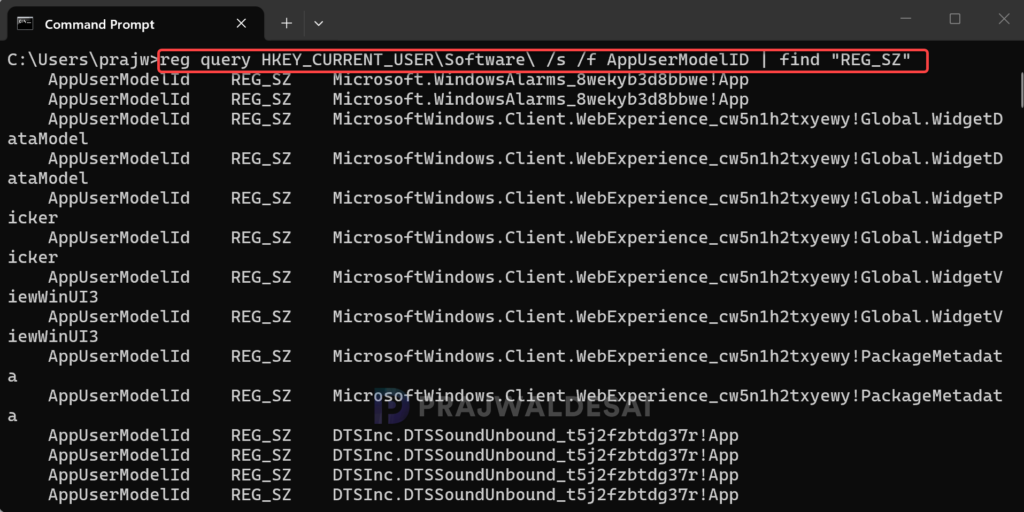
Exporting the Application User Model IDs of all installed apps
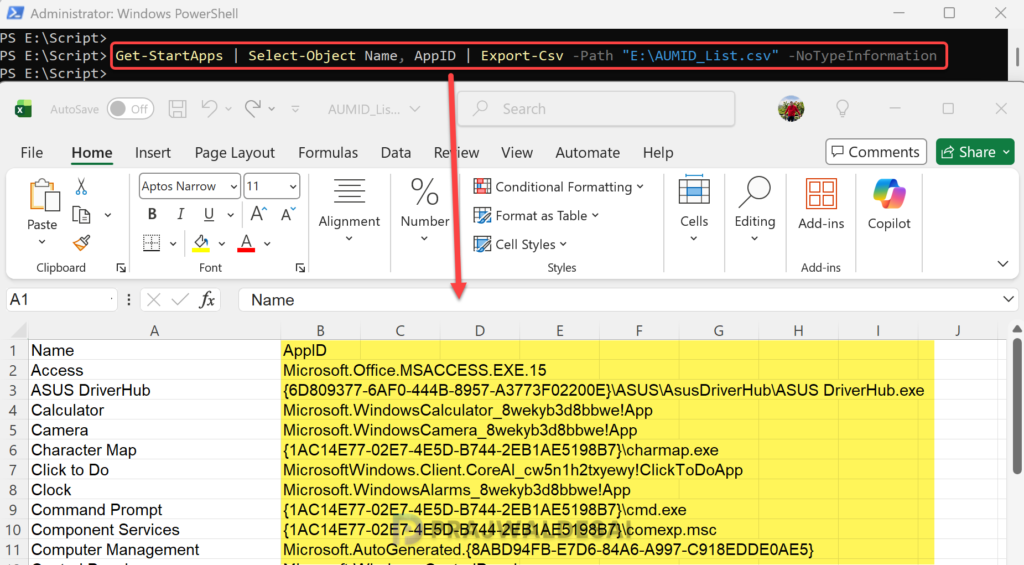
Lastly, you can export the AUMID of installed apps to a CSV file or an Excel sheet so that you can quickly reference it when required. In the below command, specify the Export-CSV path to a folder where you want to export the data.
Launch the PowerShell and execute the below command.
Get-StartApps | Select-Object Name, AppID | Export-Csv -Path "<Drive:\AUMID_List.csv" -NoTypeInformationOpen the exported AUMID_List.csv file using the Excel application. It will display a list of all installed apps along with their corresponding AppIDs.