

Microsoft has released hotfix KB33247081 for Configuration Manager versions 2409, 2503, and 2509 to resolve issues related to Microsoft Connected Cache (MCC) installations, HTTPS content delivery, and CDN endpoint support.
It is important to know that KB33247081 is not an in-console update, meaning it won’t appear in the updates and servicing node of the console like a normal hotfix. You’ll have to download the hotfix and follow certain steps to successfully install it on your servers.
As per the Microsoft documentation, you don’t have to restart the server after you apply this hotfix. There has been no mention of site reset in the hotfix documentation, and I would assume it’s not required post the update installation. For detailed information about updates for all current branch versions, refer to the Configuration Manager Hotfixes and Rollups.
Issues resolved in KB33247081
The following issues are addressed in the hotfix KB33247081 for Configuration Manager.
- KB33247081 resolves installation challenges for MCC when operating behind proxy servers that require absolute URLs.
- Enables HTTPS delivery for Configuration Manager distribution point cache nodes, supporting secure delivery of Intune-managed applications and Microsoft Teams content. To establish a secure HTTPS connection, Connected Cache distribution point cache nodes must present a valid TLS certificate to client devices.
- Office content delivery (including updates and installations) OCDI compliant CDN endpoints have been added to the supported hostnames, including but not limited to:
- *static.microsoft
- *fg.tscdn.m365.static.microsoft
- *sb.teams.static.microsoft
Download Hotfix KB33247081
You can download the hotfix from the Microsoft Download Center. The link downloads the updated version of DoincInstall.exe (version 1.5.6.44280). This file needs to be copied to all site servers, which I have covered in the KB33247081 installation procedure.
Prerequisites
- To apply KB33247081 hotfix, you must be using Configuration Manager, versions 2409, 2503, and 2509.
- You must configure the Configuration Manager distribution point’s IIS with your TLS certificate. Microsoft advises that customers must use their PKI to generate the necessary certificates to be used for content delivery. Have a look at the PKI setup guides for SCCM.
Steps to Install KB33247081 Connected Cache Update for SCCM
The installation procedure for KB33247081 hotfix is different from the way you install the hotfixes for Configuration Manager. After you download this hotfix and confirmed the prerequisites, refer to the following installation instructions.
1. Verify MCC Component Installation is not active
Ensure that the MCC component installation is not in progress, as KB33247081 cannot be installed during an active MCC component installation. This is done by checking for status message 9522, generated by the SMS_DISTRIBUTION_MANAGER component. The 9522 message indicates that the installation is no longer being retried.
2. Copy DoincInstall.exe onto site servers
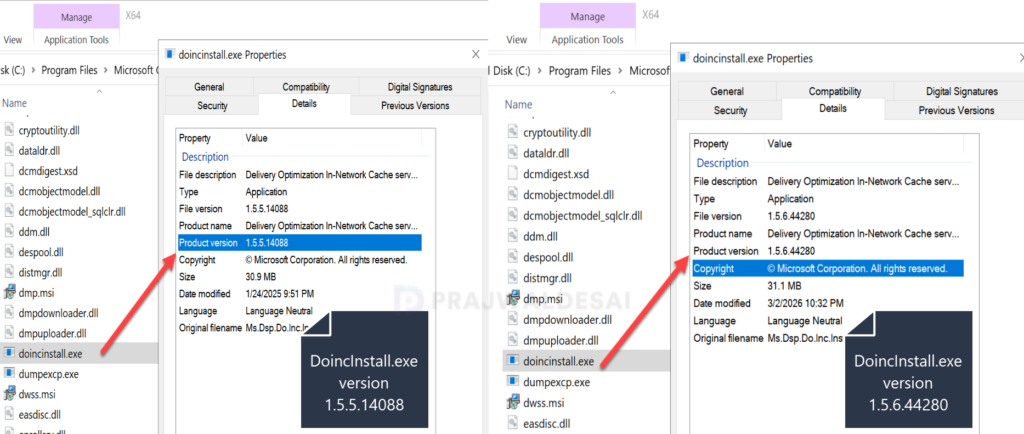
Copy the new version of DoincInstall.exe, version 1.5.6.44280, to the {SMSInstallDir}\bin\x64 folder on all site servers, including the Central Administration Site (CAS) if present, and any passive sites.
In the below image, the DoincInstall.exe version 1.5.5.14088 is replaced with the new version 1.5.6.44280.
File \\corpcm.prajwal.local\SMS_DP$\DoincInstall.exe version is 1.5.5.14088.	SMS_DISTRIBUTION_MANAGER
File C:\Program Files\Microsoft Configuration Manager\bin\X64\DoincInstall.exe version is 1.5.6.44280.	SMS_DISTRIBUTION_MANAGER
Finished updating DP setting from SCF to DP machine, configured BranchCache, LEDBAT, MCC - CORPCM.PRAJWAL.LOCAL	SMS_DISTRIBUTION_MANAGER
DP configuration thread done for distribution point CORPCM.PRAJWAL.LOCAL3. Disable Microsoft Connected Cache
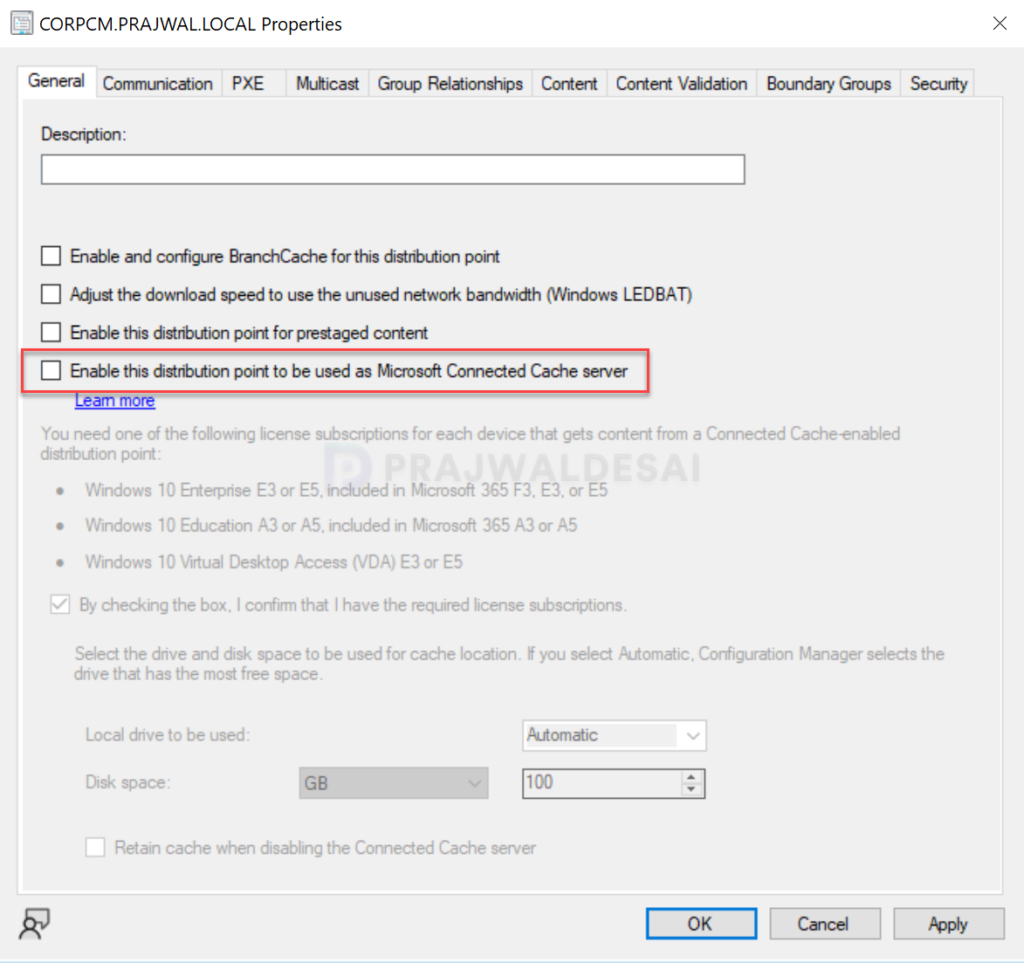
In the Configuration Manager console, go to Administration\Overview\Distribution Points. Right-click the distribution point server and uncheck the Enable this distribution point to be used as Microsoft Connected Cache server option. Click Apply and OK.
Note: This step should be performed on all the affected distribution point’s properties manually.
4. Verify MCC Uninstallation on Distribution Point
Wait for the uninstallation of MCC to complete on the distribution point. This can be confirmed by looking for a 9152 success status message, combined with the below entry in the distmgr.log.
Finished waiting for DoincInstall. InvocationState: UninstallCompleted. InvocationExitCode: 0. InvocationMessage: .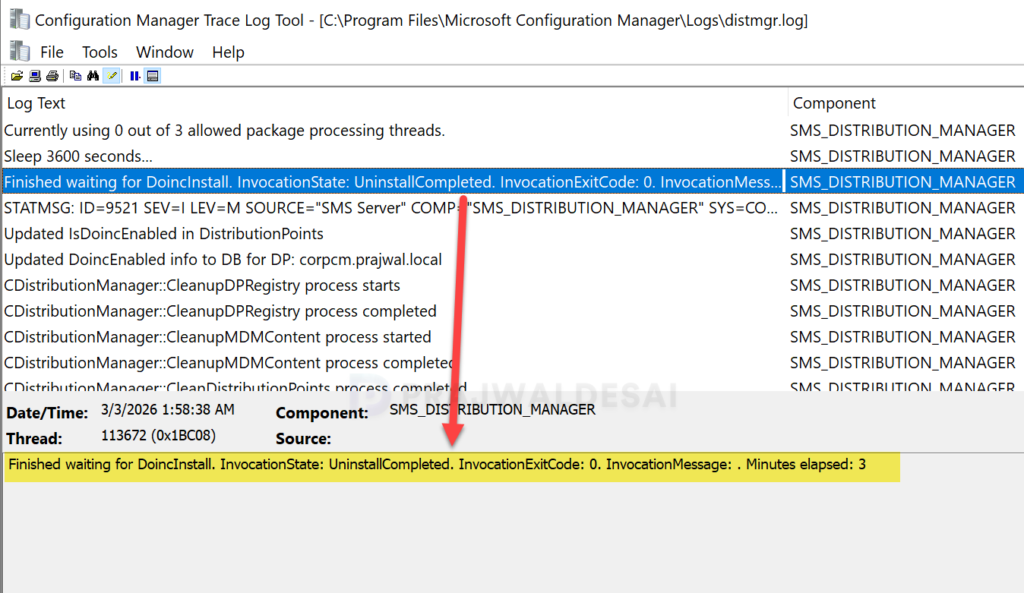
4. Re-Enable Microsoft Connected Cache
In the Configuration Manager console, go to Administration\Overview\Distribution Points. Right-click the distribution point server and check the Enable this distribution point to be used as Microsoft Connected Cache server option. Click Apply and OK.
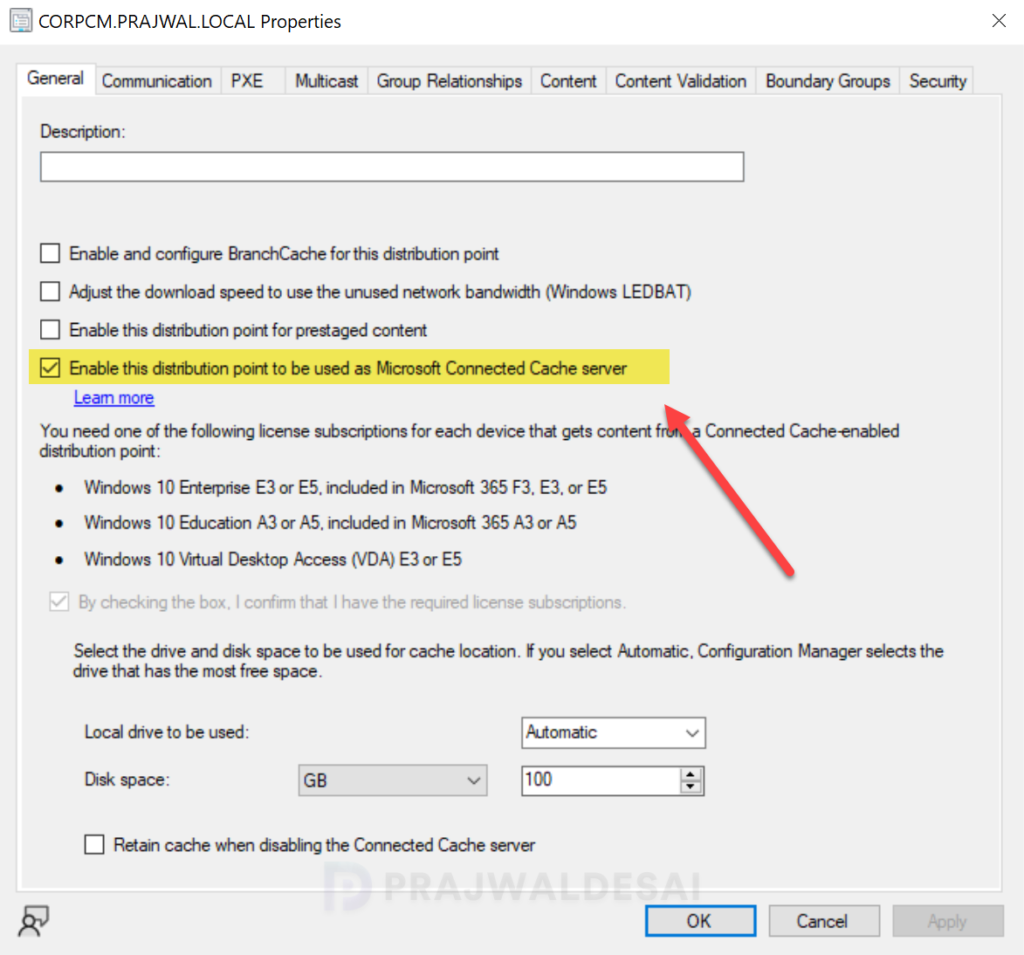
Wait for the re-installation of MCC to complete on the distribution point. This can be confirmed by looking for a 9152 success status message, combined with the below entry in the distmgr.log.
Finished waiting for DoincInstall. InvocationState: InstallCompleted. InvocationExitCode: 0. InvocationMessage: .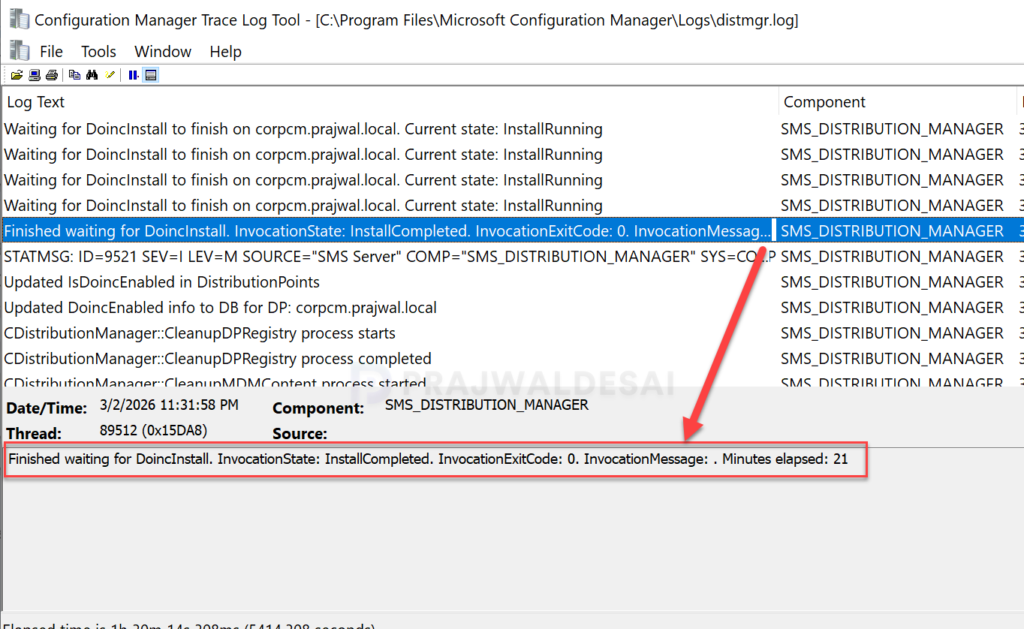
Verification
According to Microsoft, after installing KB33247081 hotfix, there are three possible results to determine whether HTTPS downloads from Microsoft Connected Cache are functioning properly:
- “CDN” and “DOINC” bytes are of equal value. This means 100% of the bytes came from the cache.
- “DOINC” bytes are zero. This means that 100% of the bytes came from CDN.
- “CDN” greater than “DOINC” bytes. This means partial bytes came from the cache server.
Prerequisite: Ensure that the host machine is targeted via policy. If the policy is not set on the device by ConfigMgr or Intune, then update the “DOCacheHost” policy to the IP address or FQDN of the Distribution Point where the Connected Cache has been deployed.
$parentKeyPath = "HKLM:\SOFTWARE\Policies\Microsoft\Windows\DeliveryOptimization"
  if (!(Test-Path $parentKeyPath))
     {
        New-Item -Path $parentKeyPath -ItemType RegistryKey -Force -ErrorAction Stop | Out-Null
     }
Set-ItemProperty -Path $parentKeyPath -Name "DOCacheHost" -Value "[DP IP Adddress or FQDN]" -ErrorAction StopVerify that content is actually being cached (not just falling back to CDN) by running the below command. The expected result is BytesFromCacheServer should be greater than 0, indicating successful caching.
Get-DeliveryOptimizationStatus | Select-Object DownloadMode, TotalBytesDownloaded, BytesFromCacheServerIf no content is served, you see the message “No active Delivery Optimization download or upload jobs.”
