

The Update Rollup 3 for SCOM 2022 has been released by Microsoft. All the fixes addressed in SCOM 2022 UR2 and previous hotfixes for SCOM 2022 are incorporated into SCOM 2022 UR3 hotfix (KB5055455).
If you’re still running SCOM 2022, let me tell you that Operations Manager 2025 is the latest release by Microsoft. The new version adds support for Windows Server 2025, the latest Edge and Chrome browser versions, and OpenSSL 3.1 to 3.3.
You can also directly upgrade from SCOM 2022 to 2025 to get the latest features and updates. If your organization is running version 2022, UR3 is for you.
Issues that are fixed in SCOM 2022 UR3
Operations Manager 2022 Update Rollup 3 includes fixes for the following issues:
- SCOM 2022 UR3 resolves the failure of Favourite reports in SCOM 2022 Web console with HttpParseException.
- Fixed Teams notifications issues in SCOM 2022 UR2 where the Event ID 4509 was seen in OperationsManager.log.
- Resolved random crashes of SCOM console in global search with NullReferenceException.
- You can now add a Dashboard to Workspace, which was not possible previously with 2022 UR1.
- The Dashboard Performance widget, which was previously non-functional with 2022 UR1, is now fully operational.
- Resolved the failure of workflows using WMIProbe.
- Unix/Linux computers can now be accessed properly through the SCOM 2022 Web Console.
Important
- You must run this update rollup as an administrator.
- If you would rather not restart the computer after you apply the console update, close the console before you apply the update for the console role.
- If this is a fresh installation of System Center Operations Manager 2022, after installation, wait for a few hours (generally 6–8 hours) before you apply this update rollup.
- If User Account Control is enabled, run the .msp update files at an elevated command prompt.
Download UR3 Update for SCOM 2022
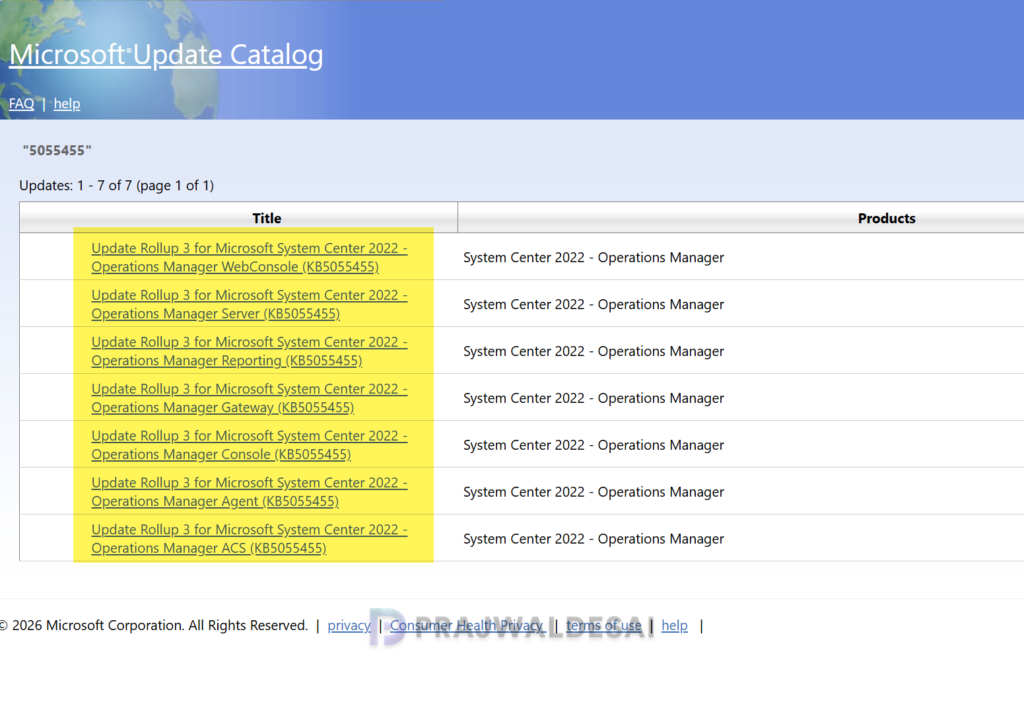
SCOM 2022 UR3 update packages are available from Microsoft Update or by manual download. If you wish to download the update manually, visit Microsoft Update Catalog.
The Microsoft Update Catalog contains the downloads for individual SCOM roles. Next to each role, click on the Download button to get the update files.
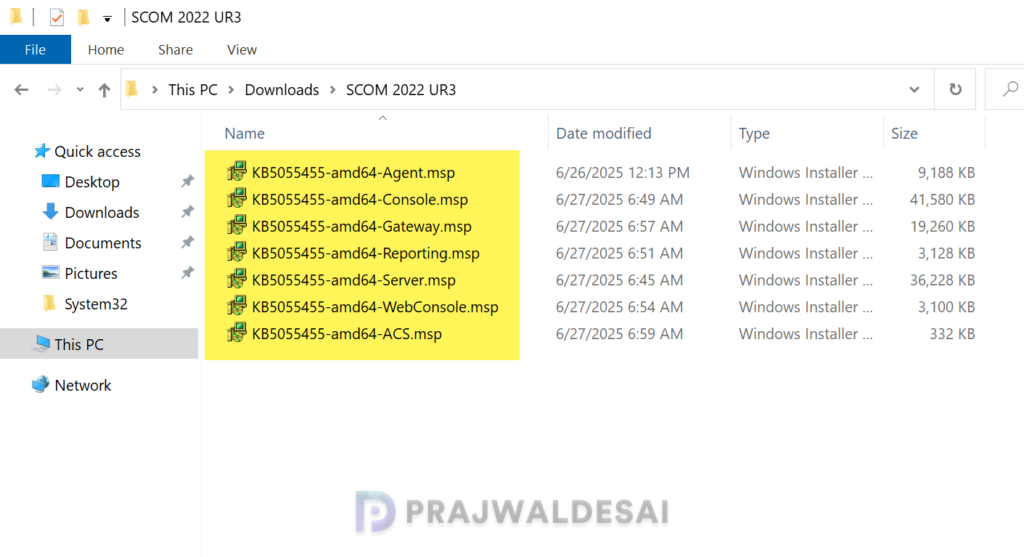
The browser downloads a cab file that needs to be extracted to a folder using a utility such as 7zip or WinRAR to get the actual .msp update file. I have downloaded the updates for individual roles and placed them in a folder.
- KB5055455-amd64-ACS.msp
- KB5055455-amd64-Agent.msp
- KB5055455-amd64-Console.msp
- KB5055455-amd64-Gateway.msp
- KB5055455-amd64-Reporting.msp
- KB5055455-amd64-Server.msp
- KB5055455-amd64-WebConsole.msp
Install Update Rollup 3 for SCOM 2022
For SCOM administrators who prefer a one-click Update Rollup installer, an .exe file for Simplified SCOM Management Server Patching is available at Microsoft Download Center.
This streamlined update will exclusively target the management server, databases, and management packs. All other components must still be patched using the current process.
Right-click KB5055455-amd64-Server.exe and select Run as administrator. Accept the license terms and click Install. Once the installation is complete, click Close to finish.
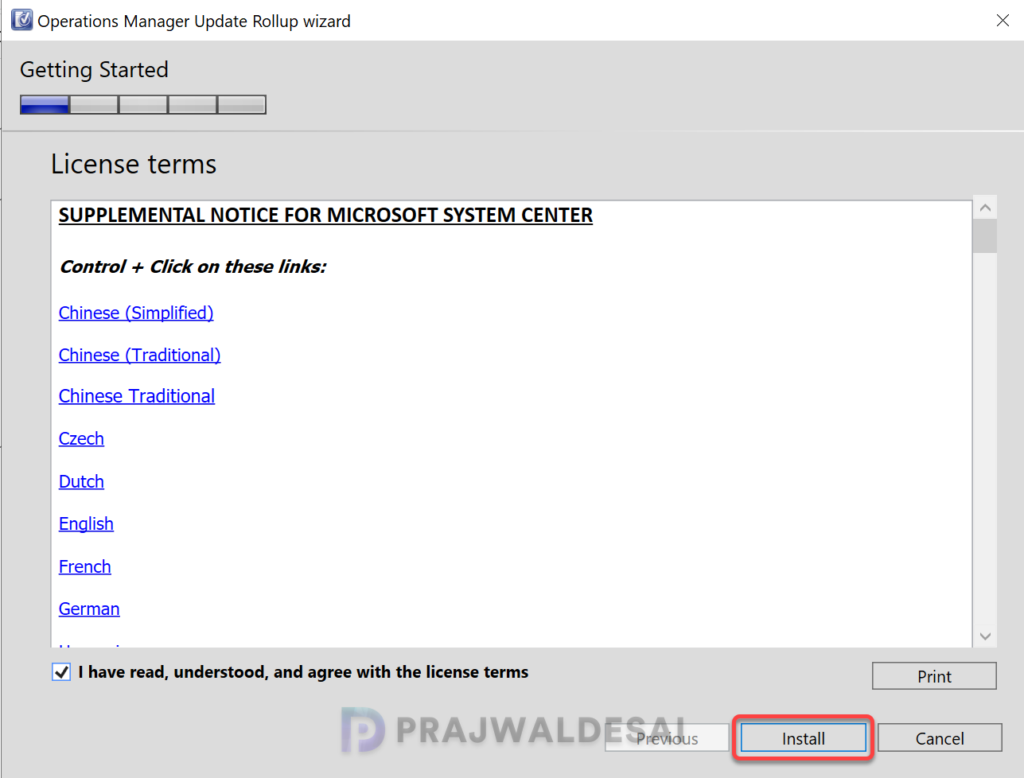
Note: You may also use the .msp file, KB5055455-amd64-Server.msp included in the update catalog for interface-less patching mechanism such as patching via SCCM, etc.
For the supported installation sequence of SCOM 2022 UR3 role updates, apply the update rollup package to the following server infrastructure.
- Management Server
- Audit Collection Services
- Web console server role computers
- Gateway
- Operations console role computers
- Reporting
Apply agent updates
This is an important step after installing the update rollup. After installing the UR3 for SCOM 2022, all agents that need an upgrade will be placed in pending management. Approve them to upgrade to the latest version.
