


As we watch another year of craziness in the IT world pass us by, let’s take a look at some of the positives, specifically the latest additions to the free Community Edition of Recast’s Right Click Tools. Who doesn’t love new tools, especially when they’re free?
Right Click Tools for Intune
Recast kicked 2025 off with some pretty big news that many had been asking for: Right Click Tools for Intune. If you haven’t already, you really should give this a try, as it’s available for users of the free Community Edition as well.
The Right Click Tools Browser Extension brings the familiar toolset directly into the browser, allowing you to run Right Click Tools actions from within the Intune Admin Center. No context switching, no extra consoles, just faster action where you’re already working.
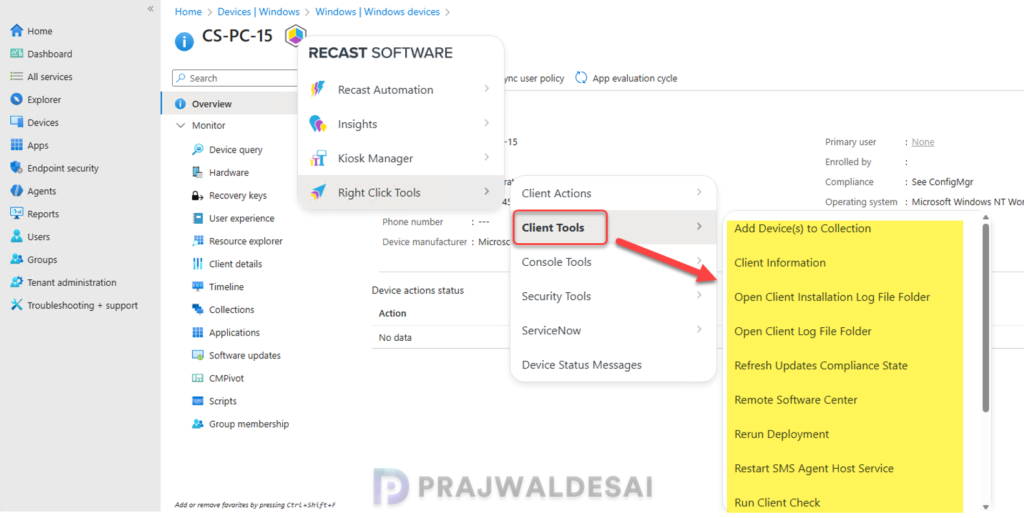
Bonus Tip: Anywhere device names show up in the browser, you can highlight and right-click to access the browser extension menu. That means you can take Right Click Tools actions directly from your ticketing platform, documentation tools, or anywhere device names appear.
System Information – Disks Tab & User Profiles
The System Information tool is undoubtedly one of the most powerful tools in the Right Click Tools arsenal. In 2025, users of the free Community Edition received additional functionality that makes this tool even more valuable.
Within the Disks tab, new visibility into disk details helps you quickly identify storage-related issues without needing to remote into a device. Combine that with expanded User Profiles information, and you can troubleshoot profile-related issues, identify stale profiles, and understand how disk space is being consumed more easily, all from one place.
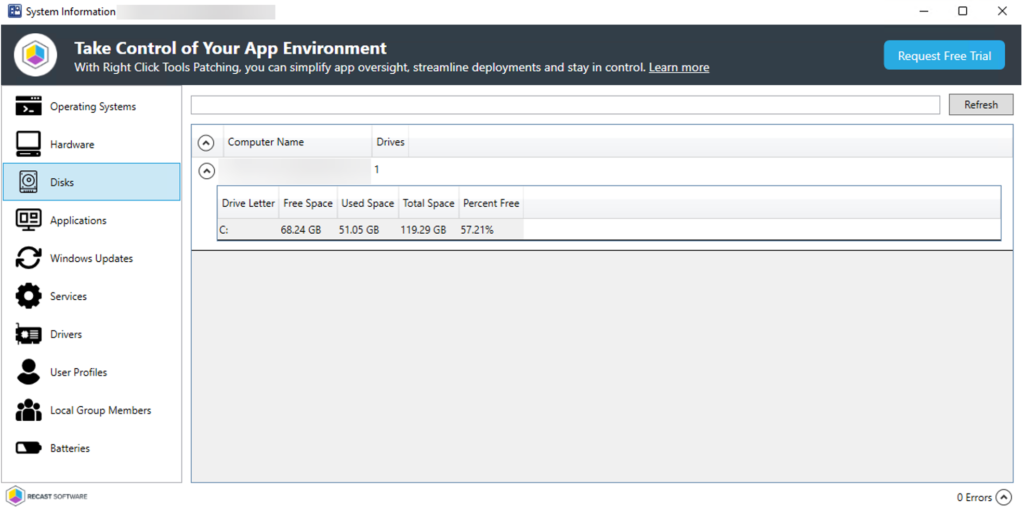
For admins who live in incident response mode, these additions save real time and eliminate unnecessary user interruptions.
Disable and Enable Devices in Active Directory
While deleting devices in Active Directory has been available in Right Click Tools for ConfigMgr for quite some time, Recast added the ability to enable and disable devices directly in AD.
This is a great alternative for scenarios where you don’t want to permanently remove a device but need to revoke access temporarily. This is ideal for managing lost hardware, employee leaves of absence, or security investigations. It’s quick, reversible, and avoids the cleanup headaches that come with full deletions.
Open Event Viewer
Open Event Viewer does exactly what you’d expect from the name: It allows you to open Event Viewer remotely on a device.
This enables you to pull up system events without interrupting the end user or starting a remote session. For troubleshooting crashes, application errors, or system issues, this is a huge quality-of-life improvement and a natural extension of Right Click Tools’ signature remote troubleshooting capabilities.
Honorable Mention – App Rationalization Tool (Preview)
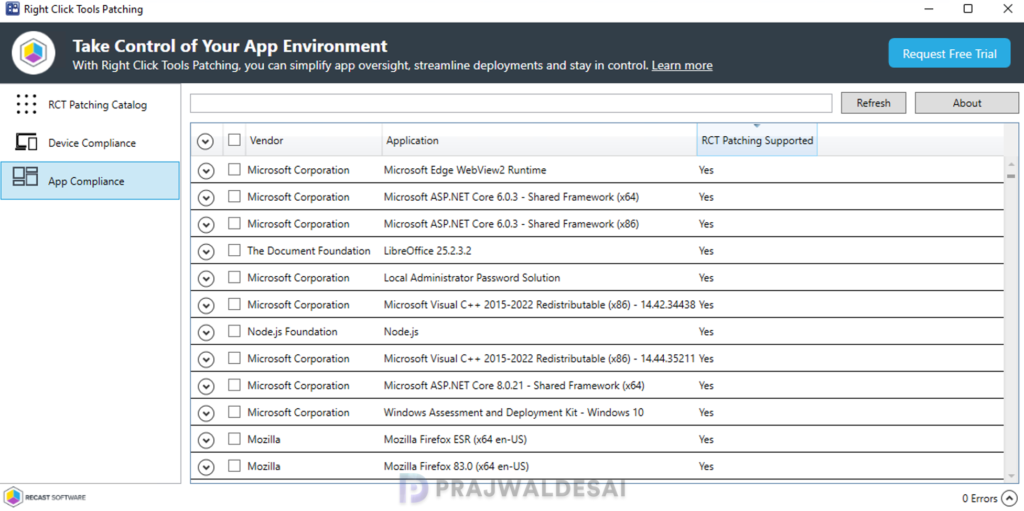
While not exactly a traditional component of Right Click Tools, it’s worth mentioning the App Rationalization Tool.
Currently in preview and available to Community and Enterprise users, this tool compares your ConfigMgr Add/Remove Programs inventory against the Right Click Tools Patching catalog to show how many of your applications are already covered. It’s a fast way to understand patching coverage, identify gaps, and build a business case for third-party patching without a lot of manual effort.
Wrapping It Up
2025 brought some genuinely meaningful additions to the free Community Edition of Right Click Tools, continuing Recast’s dedication to delivering real value without forcing upgrades. From Intune integration and expanded system information to smarter AD controls and better remote troubleshooting, these tools are designed to save admins time and reduce friction in everyday tasks.
If you’re already using Right Click Tools Community Edition, now’s a great time to revisit what’s available. And if you’re not using it yet, there’s no better time to give it a try.
