


In this tutorial, I’ll show you how to setup conditional access for remote help in Microsoft Intune and Microsoft Entra. I will also explain how to create a service principal for the Remote Assistance Service, enabling its use as a cloud application in assigning a Conditional Access policy.
Conditional Access for Remote Help refers to the implementation of policies and controls to ensure secure access to remote assistance tools and sessions. In my experience, I have seen this approach commonly implemented in enterprise environments to prevent unauthorized users using Remote Help to gain access to a device.
In one of my earlier guides, I demonstrated how organizations can enable and configure Remote Help in Intune. Ensure the Remote Help feature is enabled for your tenant before provisioning it with conditional access policies.
Steps for Setting up Conditional Access for Remote Help
Let me now demonstrate the steps for provisioning the Remote Help service on the tenant for Conditional Access.
Step 1: Create a Service Principal for Remote Assistance Service
To set up Conditional Access for Remote Help, you must first install the Microsoft Graph PowerShell module. Launch the PowerShell as administrator and run the below command.
Install-Module Microsoft.Graph -Scope CurrentUser
Use the Connect-MgGraph command to sign in with the required scopes. You need to sign in with an admin account to consent to the required scopes.
Connect-MgGraph -Scopes "Application.ReadWrite.All"
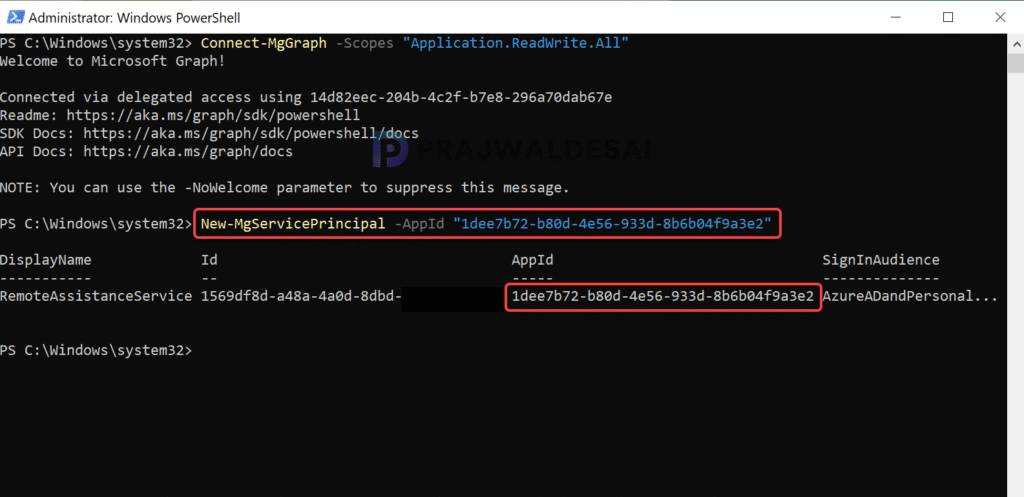
Run the below command to create a Service Principal for the Remote Assistance Service using the AppId 1dee7b72-b80d-4e56-933d-8b6b04f9a3e2.
New-MgServicePrincipal -AppId "1dee7b72-b80d-4e56-933d-8b6b04f9a3e2"In the command output, the display name is Remote Assistance Service, which is the backend service for Remote Help. The ID corresponds to the app ID for the Remote Assistance Service.
Lastly, use the Disconnect-MgGraph command to sign out.
Disconnect-MgGraphStep 2: Verify Remote Assistance Service App Registration
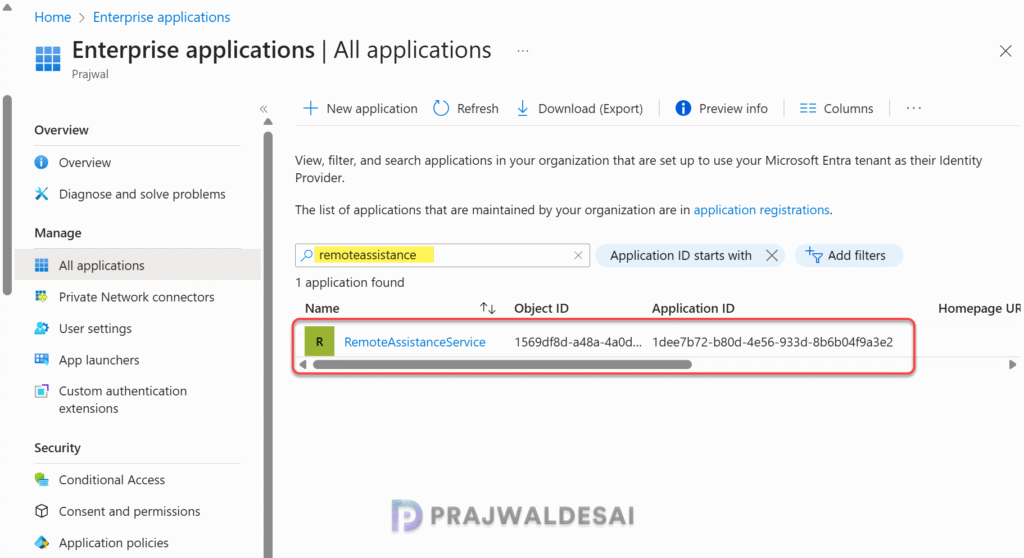
Once you create a Service Principal for the Remote Assistance Service, you can confirm its app registration on Microsoft Entra. Sign in to the Microsoft Entra admin center and navigate to Enterprise Applications. Use the search bar to find the Remote Assistance Service. Ensure that the Object ID and Application ID align with New-MgServicePrincipal command output demonstrated in the above step.
Step 3: Create a Conditional Access Policy for Remote Help
In this step, I’ll show you how to create a conditional access policy for Remote Help in Intune. To get started, sign in to the Intune admin center. Select Devices > Conditional Access and click Create new policy.
On the Conditional Access policy page, specify the following:
- Policy name: Specify a policy name such as Conditional Access for Remote Help.
- Users: Select the Entra users/groups to target this policy. This assignment can include all users, specific groups of users, directory roles, or external guest users.
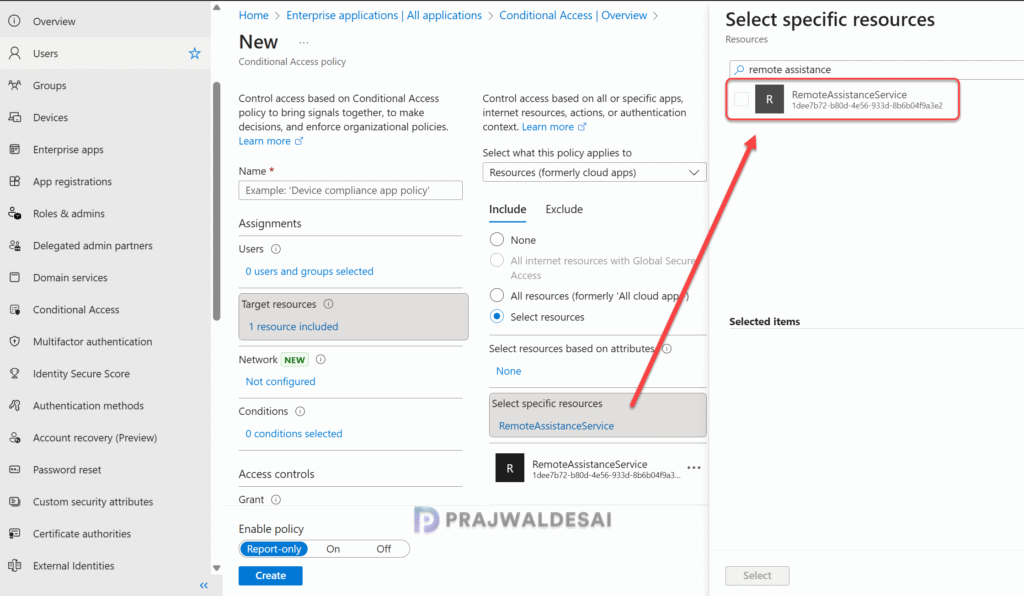
- Target Resources: Click on Target Resources and select Resources (formerly cloud apps) to specify what this policy applies to. Under Select Resources, search for the RemoteAssistanceService with the app ID of 1dee7b72-b80d-4e56-933d-8b6b04f9a3e2 and include it.
- Network: Specify IP addresses, geographies, and Global Secure Access compliant network for Conditional Access policy decisions.
- Conditions: This is optional, you can use one or more signals to improve policy decisions.
- Enable policy: If you are testing this policy on a small set of users, choose Report-only. If the policy is already successfully tested, choose On to activate the policy.
Additional configurations are optional and can be set up based on your organization’s needs. Otherwise, simply click the Create button to create the conditional policy.

The conditional access for Remote Help can also be configured using Microsoft Entra. Let me show you how. First, sign in to Microsoft Entra admin center. Select Entra ID > Conditional Access and then select Create a new policy.
The options displayed here are similar to those in Intune. Enter the policy name, click on “Target Resources,” and select the “RemoteAssistanceService” resource. Choose the users or groups you want to apply this policy to, and then click “Create.”
Conclusion
By applying Conditional Access (CA) policies for Remote Help, organizations can enforce specific security requirements to ensure that only authorized users can use the Remote Help service. Ensure the policy is configured according to your organization’s requirements. Apply it initially to a pilot group of users, and once testing proves successful, gradually roll it out to a larger user base.
That’s all for this guide, if you have any questions, please let me know in the comments section.
