Did you know you can favorite reports in SCOM web console? I recently explored this useful feature, which allows you to easily access your most important reports in the web console whenever you need them.
When you open the SCOM console and navigate to the Reporting workspace, you’ll discover various preinstalled reports. Among these, there might be specific reports you use frequently. For quicker access, you can mark these reports as favorites, allowing you to quickly access them the next time you require them.
I remember Configuration Manager too has a similar feature where you can add your reports as favorites that saves a lot of your time.
Permissions
The following permissions are required for creating and viewing favorite reports in SCOM:
- Administrator
- Author
- Advance Operator
- Operator
- Read-only Operator
To view the reports in the web console, you will need the following permissions:
- Administrator
- Report Operator
- Report Security Administrator
Favorite Reports in SCOM Web Console
To mark a report as favorite from the Operations console, follow these steps:
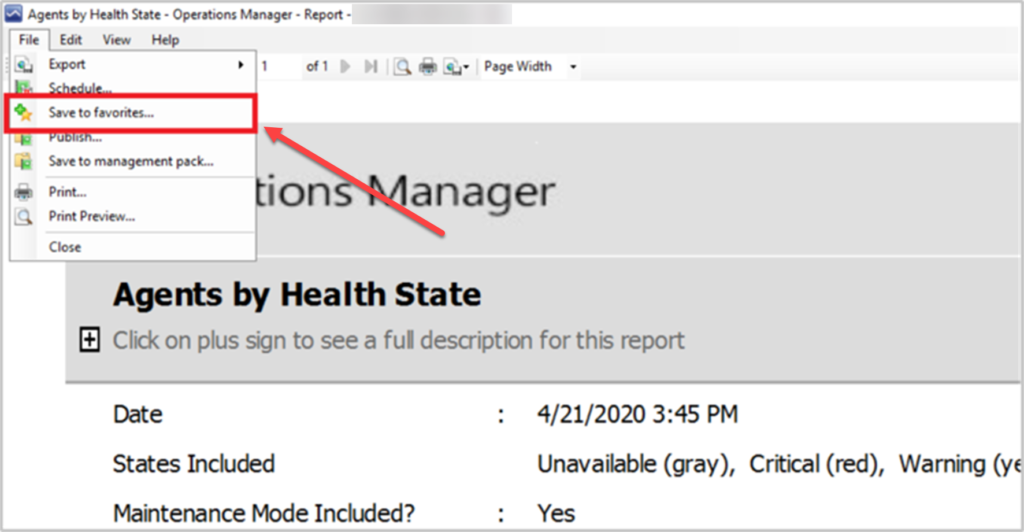
- Go to the operations console and run any report.
- After the report is generated, go to File and select Save to favorites.
Run favorite reports in the web console
To run favorite reports in the web console, follow these steps:
- Open the browser on your computer and enter http://web host/Operations Manager in the address bar, where ‘web host‘ is the name of the computer hosting web console.
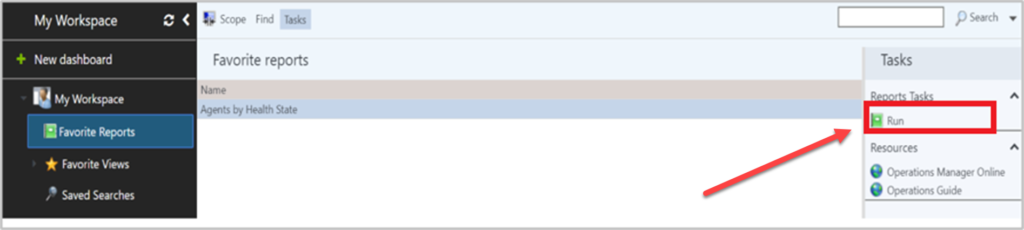
- Navigate to My Workspace and select Favorite reports in the left pane.
- Select the report and click Run in the right panel. Favorite reports will be opened in a new tab.