

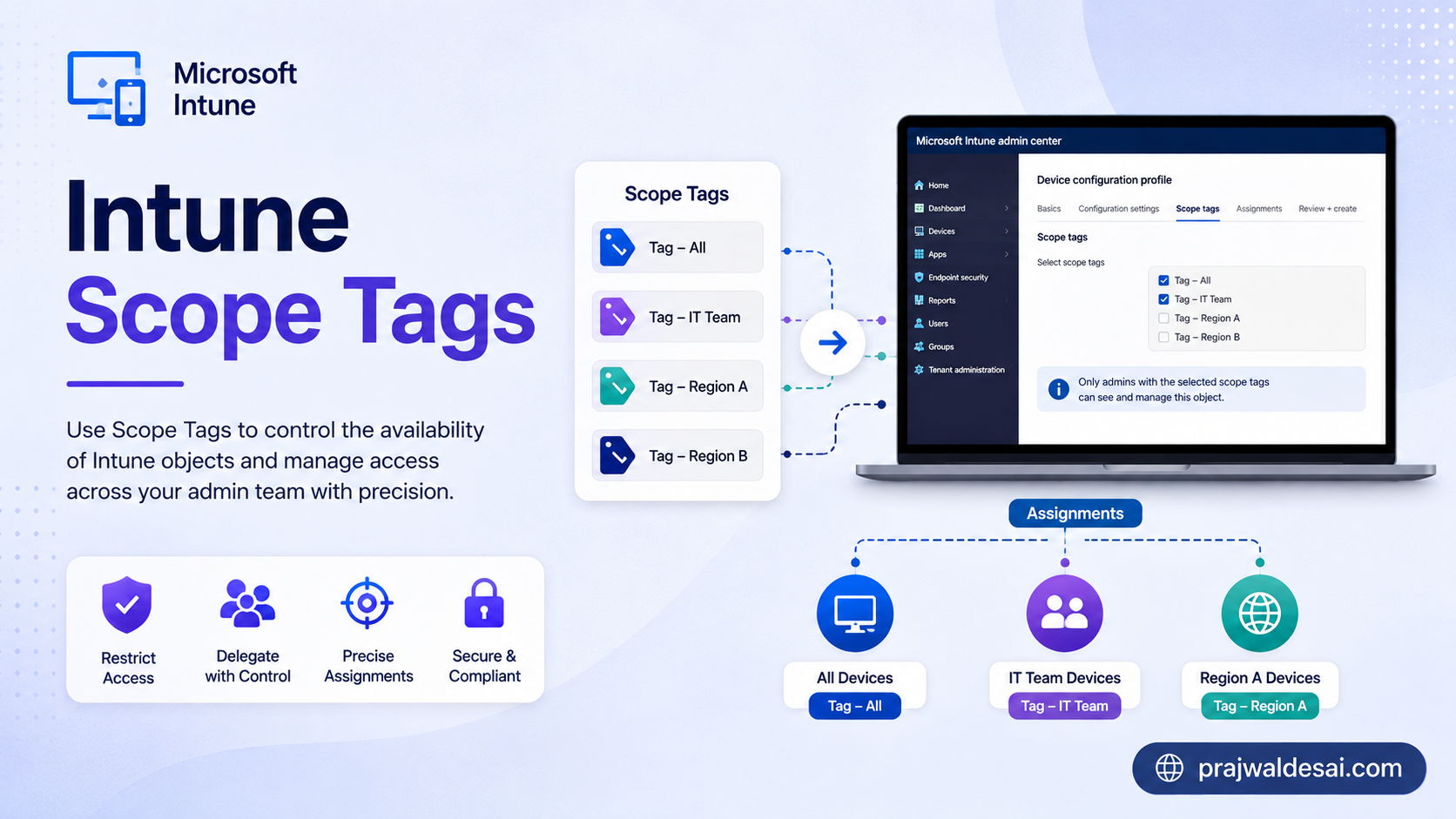
In this post, I will show you how to create scope tags in Microsoft Intune. Scope Tags define what resources (e.g., devices, apps, policies) admins can see or manage in Intune admin center. Administrators can assign the tags to resources and make sure that admins with matching roles and tags can manage those resources.
Scope tags have been a part of Microsoft Intune for quite some time now. In most cases, we use the default scope and assign the policy to device or user groups. But very few are aware that Scope Tags and RBAC can actually help control resource visibility and segregation.
Last week, I successfully implemented Intune scope tags for an organization. It was a large organization consisting of multiple departments, locations, or business units. By the end of the project, we had neatly segregated the resources with the help of Scope tags.
This guide is designed for those seeking to understand the fundamentals of scope tags and their implementation within an organization. The number of tags you create will depend on your specific requirements, but careful planning is essential before initiating the creation of scope tags.
What are Scope Tags in Intune
Scope Tags in Microsoft Intune allow you to organize resources (e.g., devices, apps, policies) into logical groups based on departments, regions, or other criteria.
For example, you can create tags like “HR,” “Finance,” “Region-A,” etc., to segregate resources. A global company can assign Scope Tags like “Europe,” “Asia,” “North America” to segregate resources by region.
What is a default scope tag?
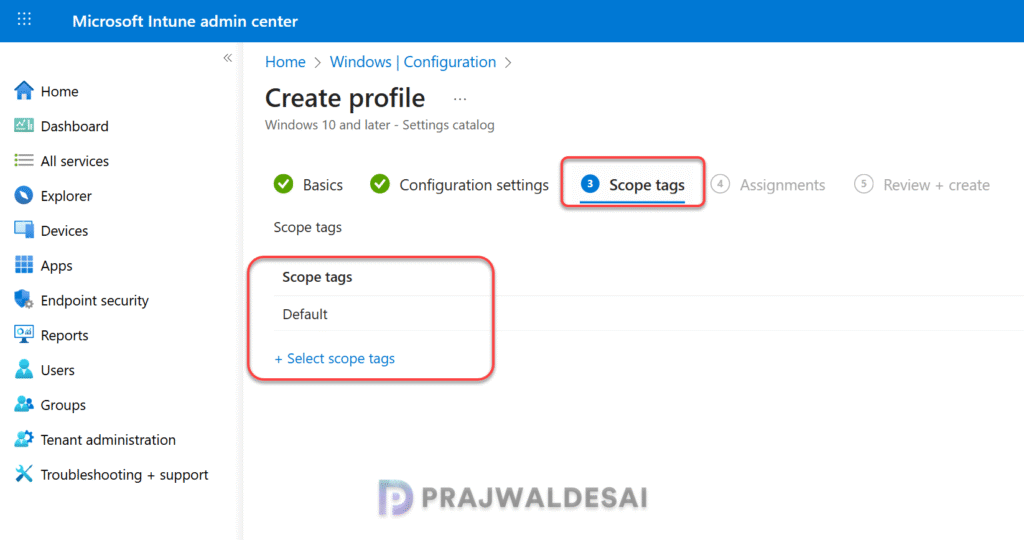
The default scope tag is automatically applied to all untagged objects that support scope tags. For example, when you are creating a new policy in Intune, you see a Scope tags tab where you can either select a default scope tab or a custom one. If you don’t select any tags, you get the error “At least one scope tag must be selected”. You cannot delete a default scope tag and that’s by design.
Intune Roles vs. Scope Tags
Both scope tags and roles are two essential components in Intune that help define administrative permissions and control access to resources. However, both differ when it comes to their usage. Roles in Intune determine who has access and what actions they can perform within the Intune environment. Roles are basically tied to permissions. Scope Tags in Intune define what resources admins can see or manage. Scope Tags are tied to resource visibility.
Benefits of using Scope Tags
Scope tags offer several benefits that enhance administrative efficiency and security. Here’s a breakdown of the key advantages:
- Resource Segmentation: With Intune Scope Tags, you can organize resources (e.g., devices, apps, policies) into logical groups based on departments, regions, or other criteria.
- Enhanced Security: By limiting visibility and access to resources, Scope Tags help reduce the risk of unauthorized changes or accidental mismanagement. Admins can only work on the resources assigned to their Scope Tags.
- Works with RBAC: Scope Tags work seamlessly with Intune Roles to provide fine-grained control. You can combine Scope Tags with roles to ensure admins have the right level of access to the right resources.
- Dynamic Resource Assignment: Scope Tags can be dynamically applied to resources, making it easy to scale and adapt as your organization grows or changes. You can also update the tags as needed without disrupting operations.
Scope Tags Details and Permissions
To create, update, or delete the Intune scope tags, you will require an administrator assigned with the Microsoft Entra Intune Administrator role. Most importantly, the administrators with a scope tag in their role assignment can’t update or delete the scope tag from the master list of scope tags.
Create scope tags in Microsoft Intune
Here’s the how you create a scope tag in Intune. In the Microsoft Intune admin center, go to Tenant administration > Roles > Scope Tags and click on + Create.

On the Basics page, provide a name and an optional description. Choose Next.

On the Assignments page, choose the groups containing the devices that you want to assign this scope tag. Choose Next.

On the Review + create page, choose Create. That’s how easy it is to create a scope tag in Intune.

You can view a list of all the Scope tags in your tenant by going to Tenant Administration > Roles > Scope Tags. In the below screenshot, we see that along with the default scope tag, I have created two new scope tags, Bengaluru and Mumbai. You can create additional ones based on your company’s requirements.

Assign a scope tag to an Intune role
After you create a scope tag, you can assign it to an Intune role. It can be a custom RBAC role or a built-in role. In this example, I will use a built-in Helpdesk Operator role and assign the scope tags accordingly.
Sign in to the Microsoft Intune admin center. Go to Tenant administration > Roles > All roles. From the list of roles, choose a role and select Assignments and click on +Assign.
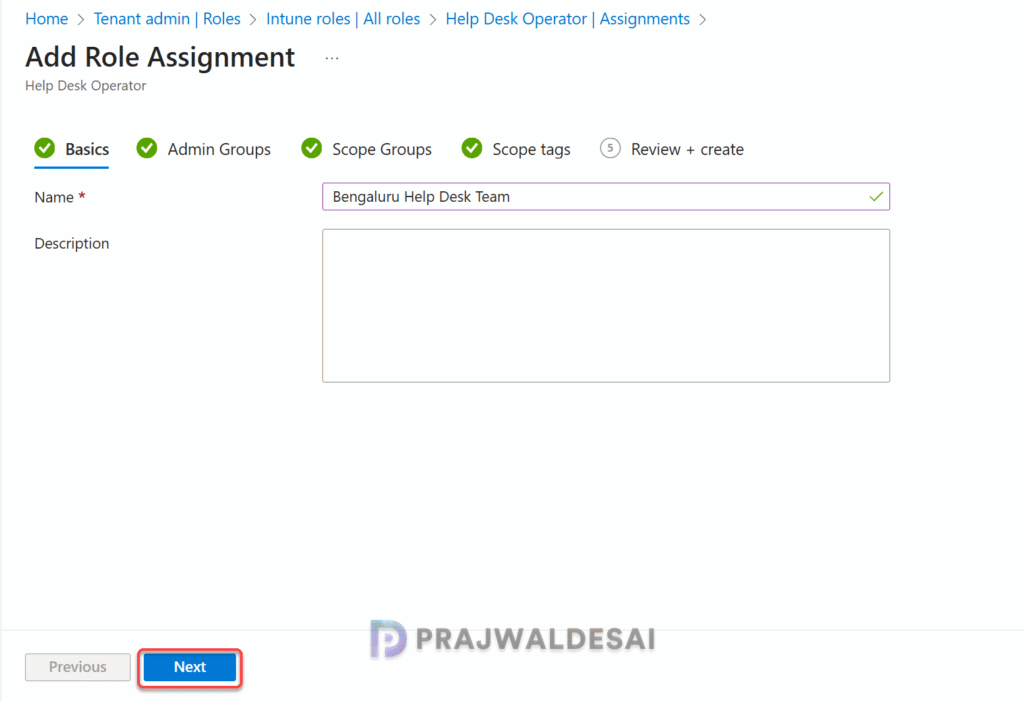
On the Basics page, provide an Assignment name and Description. Choose Next.
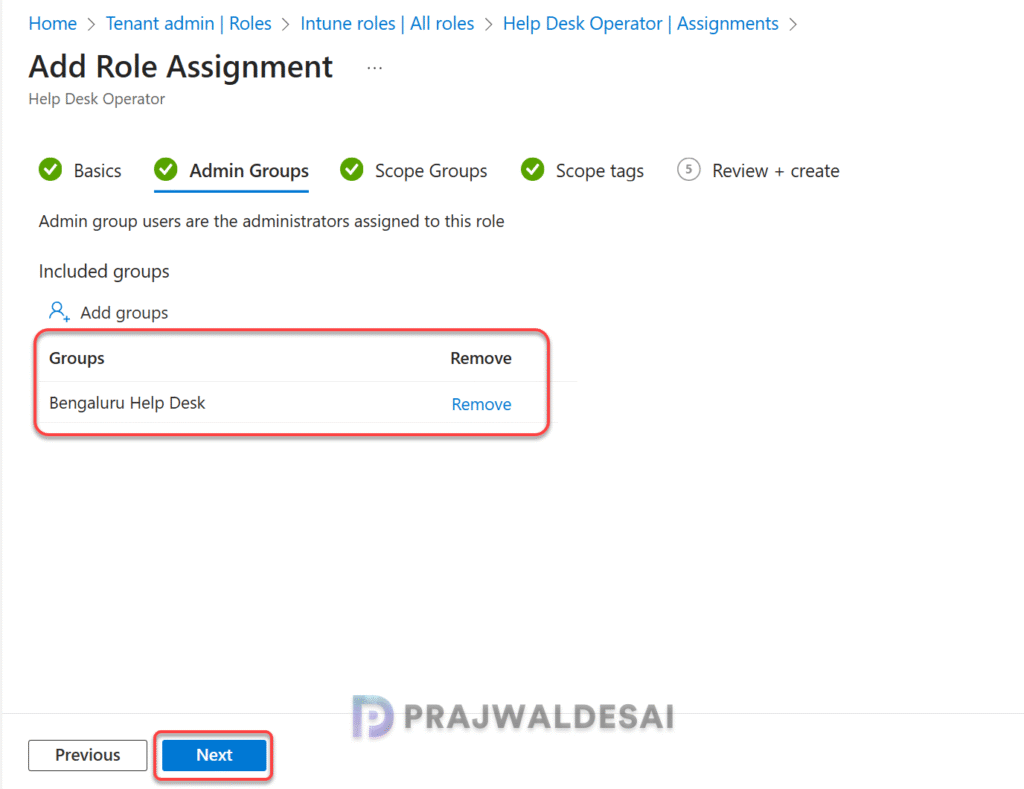
On the Admin Groups page, click on Add groups, and select the groups that you want as part of this assignment. Users in these groups have permissions to manage users/devices in the Scope (Groups). Choose Next.
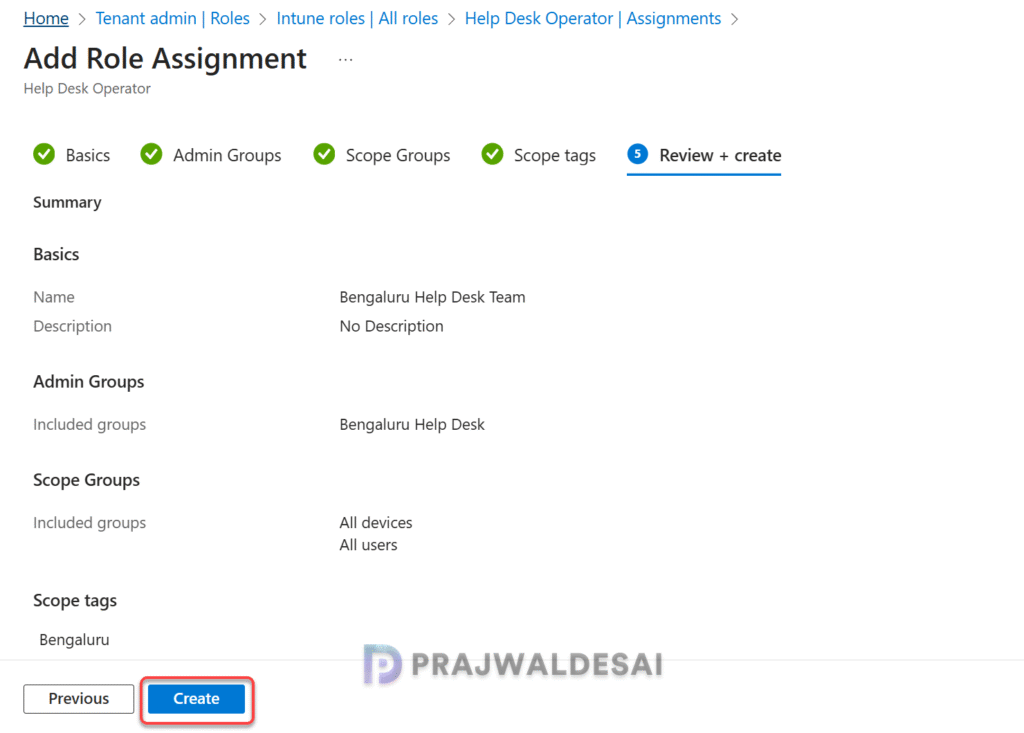
“The Help Desk group comprises users based in Bengaluru and is responsible for managing devices located in the Bengaluru region.“
On the Scope Groups page, select one of the following options for Included groups:
- Add All devices: Users in the Admin Groups can manage all devices.
- Add All users: Users in the Admin Groups can manage all users.
- Add groups: Select the groups containing the users/devices that you want to manage.
I have selected All devices and All users groups in the below example. Click Next.

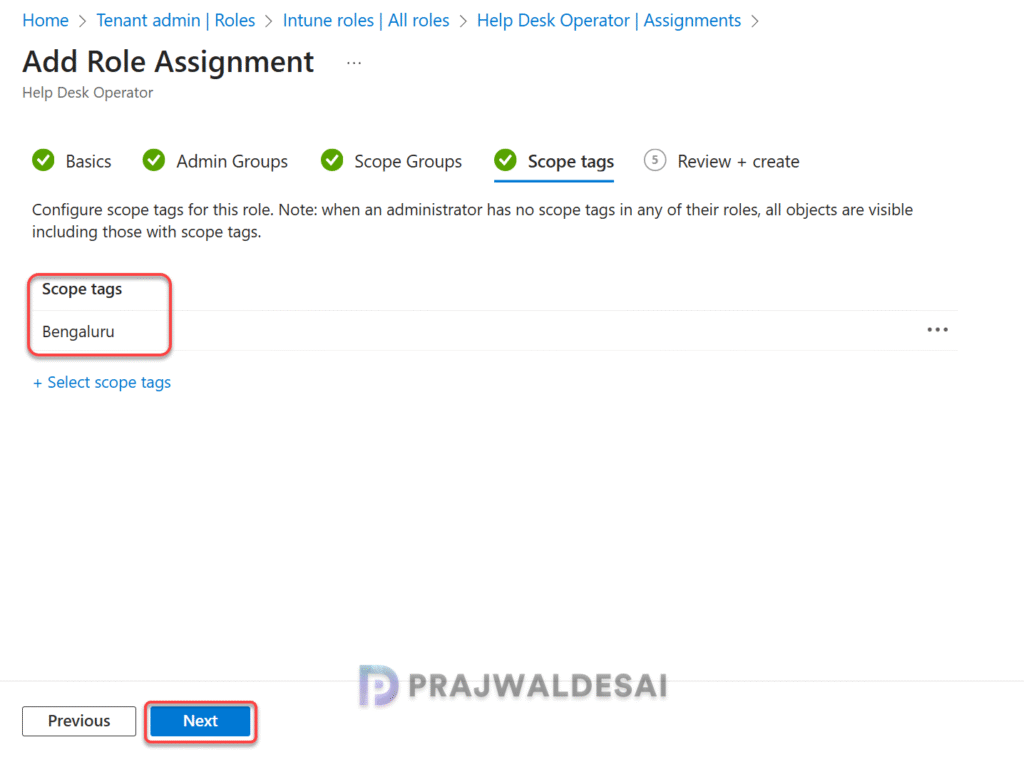
On the Scope tags page, select the tags that you want to add to this role. You can assign up to 100 scope tags to an Intune role. Click Next.
Review the Scope tag assignment selections and click Create.
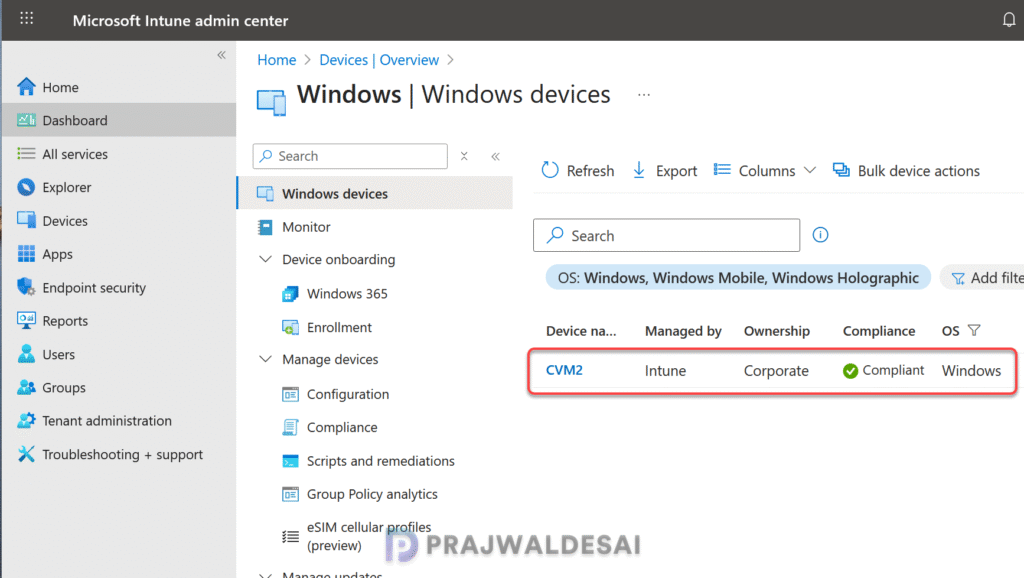
Testing the Scope Tags
When a help desk user in Bengaluru accesses the Devices node in the Intune admin center, the user only sees the devices assigned with the Bengaluru scope tag. The same user doesn’t have the permissions to manage devices in Mumbai or devices scoped with a Mumbai tag.
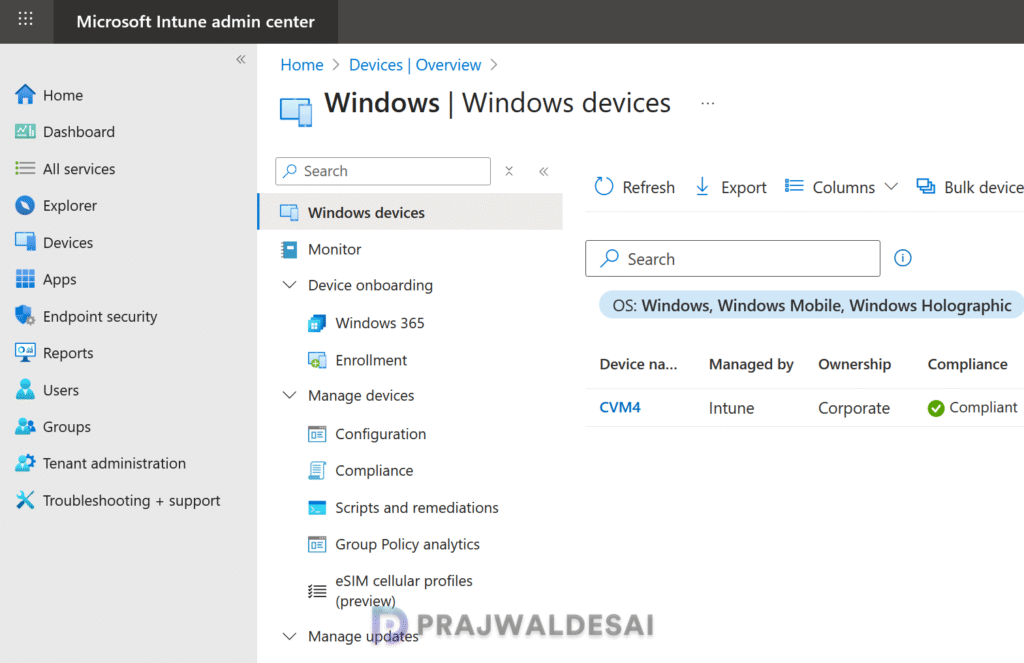
Similarly, a help desk user in the Mumbai office will see only the devices that are scoped with a Mumbai tag. This is how you can use scope tags to organize resources into logical groups based on departments, regions, or other criteria.
View the Scope Tag of a Device
Intune Administrators can see the scope tag that is assigned to a specific device. To do that, go to Devices and select a device. Select Properties and next to Scope tags, click the Open button. The Select Tags page shows the scope tag assigned to the device.

How to Add or Remove Scope Tags for Devices
To add or remove the scope tag for any device in Intune, go to Devices and select the device. Under Manage, select Properties. On the device properties page, click the Open button next to Scope tags. On the Select tags pane, you can add or remove the scope tags for the device. Click Save all making the changes.

Troubleshooting Scope Tags Issues
- Admins may be unable to view resources tagged with specific Scope Tags if the Scope Tag is not assigned to their role or if their role lacks the necessary permission to manage resources linked to that Scope Tag.
- If the resources disappear or are not visible after assigning Scope Tags, ensure they are applied correctly in the first place. Or check if there is a mismatch between the assigned Scope Tags and admin permissions.
- If the Scope Tags are not correctly applying to resources, make sure the dynamic assignment rules for Scope Tags are correctly configured.
Best Practices for Implementing Scope Tags
- Plan Scope Tags: Define a clear tagging strategy before implementation. The larger the organization, the more effective planning is required.
- Create Test Tags: Test Scope Tags on a small set of resources before applying them broadly. Pick a few pilot users and devices and see how well the scope tags works.
- Naming the Tags: When you create a tag, name it well, and it should be easily identifiable to other Admins. For example, name the tags based on the office or department.
- Audit Regularly: Regularly review Scope Tag assignments and admin roles.
- Train Other Admins: Ensure admins understand how Scope Tags work and their impact on resource visibility.
Conclusion
I hope this guide helps you to implement scope tags in your organization. Scope Tags combined with Intune RBAC provides granular control over resource visibility and management, enhancing security, efficiency, and scalability. This is particularly beneficial for large organizations, multi-tenant environments, and scenarios requiring strict compliance and governance. By using Scope Tags effectively, you can simplify administration while ensuring secure and organized resource management.
