In this post, I will explain why you encounter the error ADMX file referenced not found NamespaceMissing:Microsoft.Policies.Windows in Intune and the steps to resolve it. This error often arises when importing third-party ADMX files into Intune. To resolve it, ensure you import the required prerequisite files first, such as Windows.admx.
In Microsoft Intune, you can import custom ADMX and ADML administrative templates. Once imported, you can create a device configuration policy using these settings and then assign the policy to your managed devices. I have published a step-by-step guide on importing administrative templates into Intune.
ADMX File Import Error in Intune
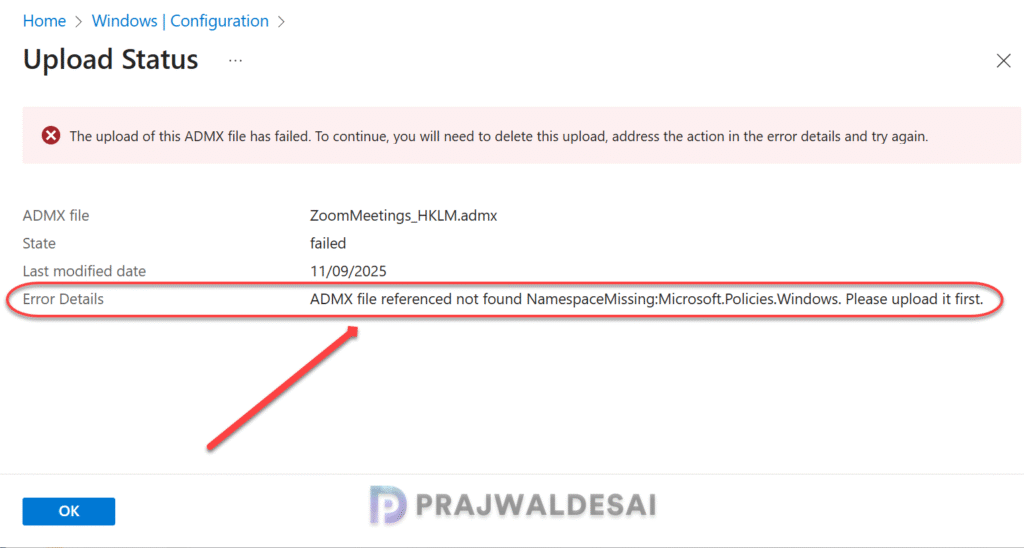
Recently, while importing ZoomMeetings_HKLM.admx and ZoomMeetings_HKLM.adml files into Intune, I encountered the following error: ADMX file referenced not found NamespaceMissing:Microsoft.Policies.Windows. Please upload it first.
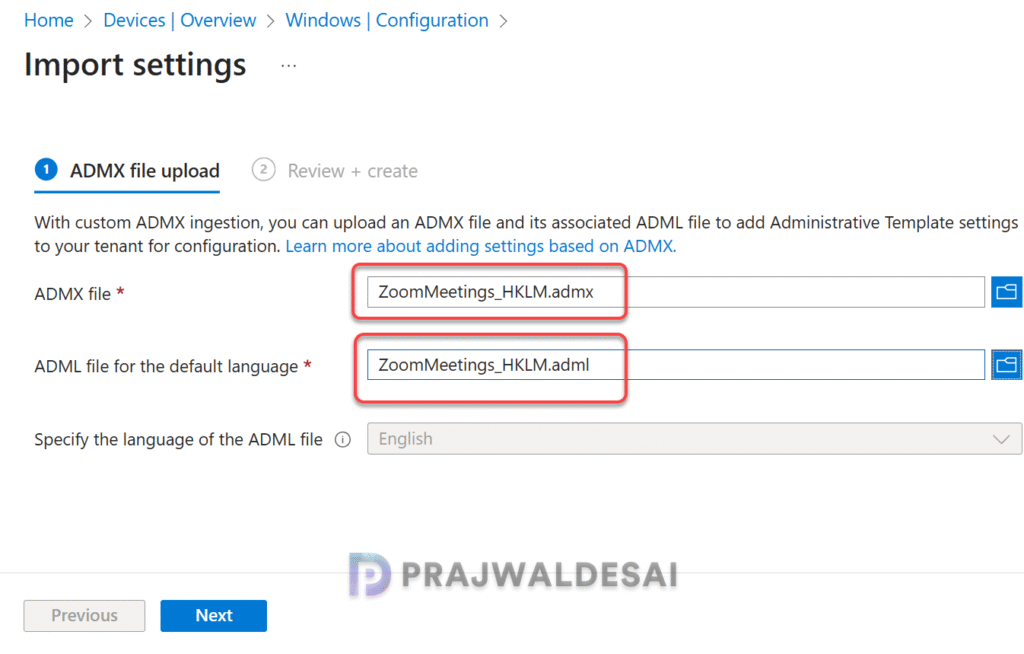
In the below screenshot you can see that I am uploading the ADMX and ADML templates files for Zoom Meetings.
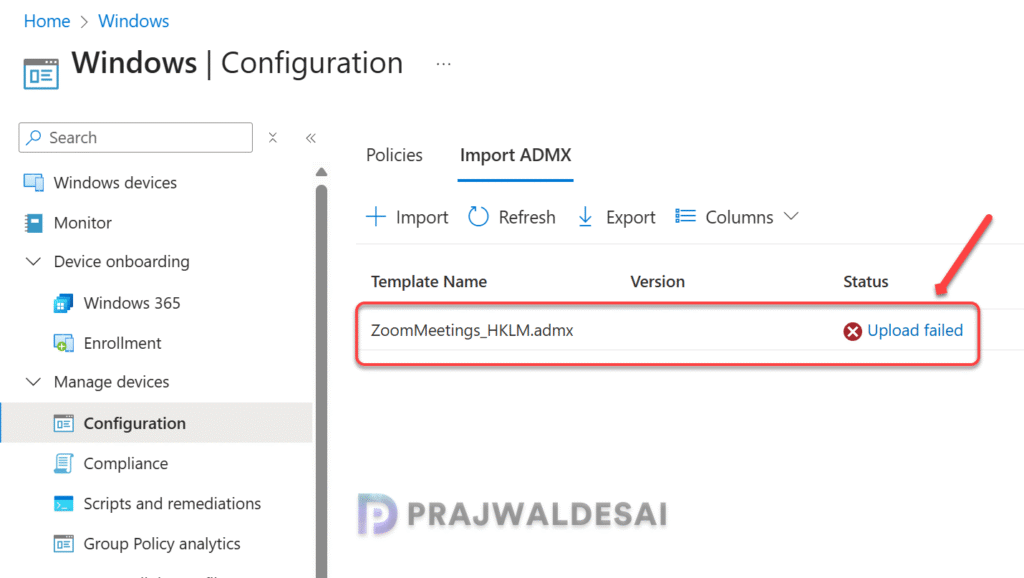
After a few seconds, refreshing the data showed Upload Failed. To see the error, click on Upload failed.
Here the error stated: The upload of this ADMX file has failed. To continue, you will need to delete this upload, address the action in the error details and try again. Error Details: ADMX file referenced not found NamespaceMissing:Microsoft.Policies.Windows.
I initially suspected the problem stemmed from the Zoom template files, so I first deleted the files, and I tried re-uploading them to Intune but encountered the same error. After conducting some research, I discovered the solution within Microsoft’s documentation.
Fix NamespaceMissing Microsoft Policies Windows in Intune
The reason why you encounter the error NamespaceMissing Microsoft Policies Windows in Intune is because the ADMX files that you’re uploading have “Windows ADMX” as dependency prerequisite. To resolve this issue, you must import the latest Windows.admx first into Intune and then import the custom ADMX files.
Importing the Zoom Meetings ADMX file failed in my situation because it required Windows.admx as a prerequisite. When the Windows.admx file was missing, an error occurred stating that the ADMX file referenced was not found, specifically mentioning NamespaceMissing Microsoft.Policies.Windows.
Let’s explore the steps to resolve the error mentioned earlier. These guidelines are helpful whenever you face similar issues while uploading a custom ADMX file to Intune.
Step 1: Check if ADMX has a dependency prerequisite
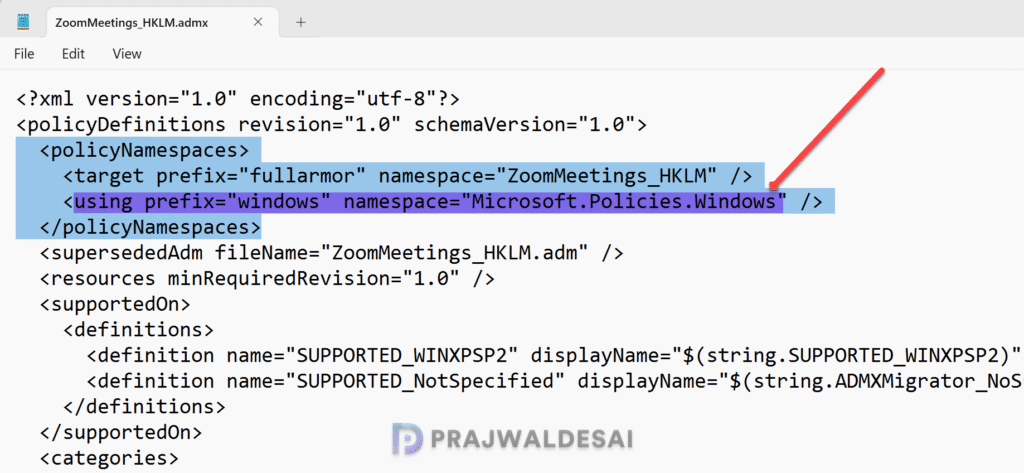
To check if your ADMX has a dependency, open the ADMX file in a text editor (Notepad), go to the policyNamespaces node, and look for using prefix. All the dependencies are listed in this node.
  <policyNamespaces>
    <target prefix="fullarmor" namespace="ZoomMeetings_HKLM" />
    <using prefix="windows" namespace="Microsoft.Policies.Windows" />
</policyNamespaces>In the below image displaying the ZoomMeetings_HKLM.admx file data, we see the Microsoft.Policies.Windows is listed as a prerequisite. Microsoft says that this namespace will be automatically included and eventually not be required. But until then, you will have to import the Windows ADMX template files manually to get rid of this issue.
Step 2: Download the ADMX and ADML template files for Windows 11
To import Windows.admx file into Intune, you must first download the latest version of administrative templates for Windows 11.
For example, to download the ADMX and ADML template files for Windows 11, version 24H2:
- Launch the browser and visit the Microsoft Download Center to download Administrative Templates for Windows 11, 24H2.
- Click on the Download button. In the File Download dialog box, click Save.
- In the Save As dialog box, browse to the directory on your computer and save the templates msi file.
Step 3: Extract the Policy Definition Files
Run this Windows 11 administrative template MSI installer. Follow the Install Wizard and extract the policy definition files to a known folder. Upon the successful installation, click the Finish button to exit the setup wizard.
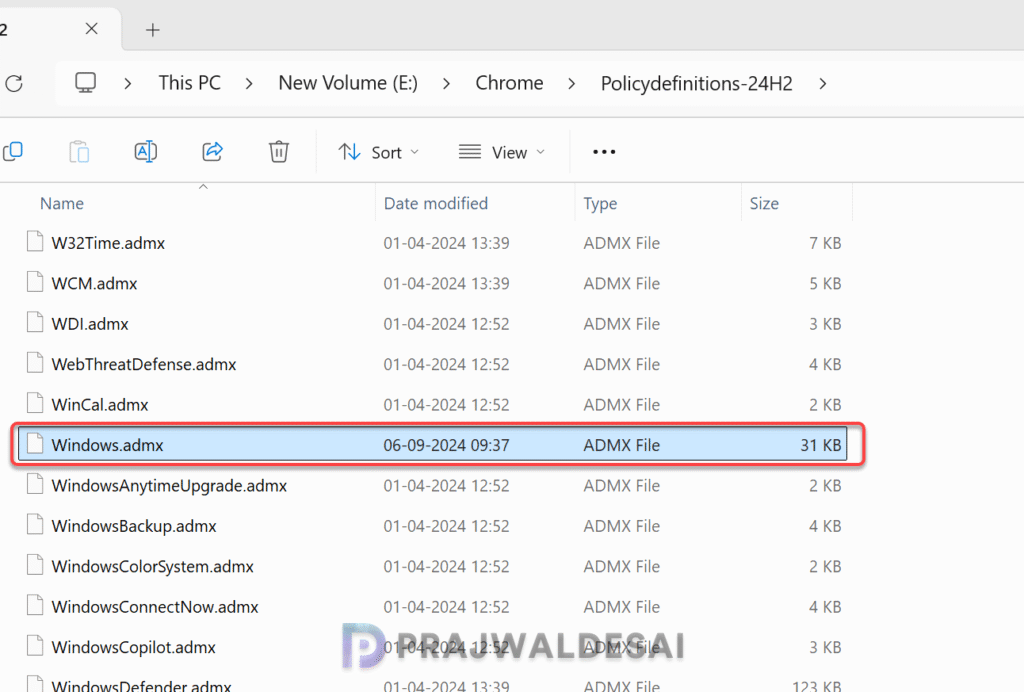
Go to the folder where you extracted the Windows 11 24H2 policy definitions and look for Windows.admx. Within each language folder, you will find the Windows.adml file as well.
Step 4: Import Windows.admx into Intune
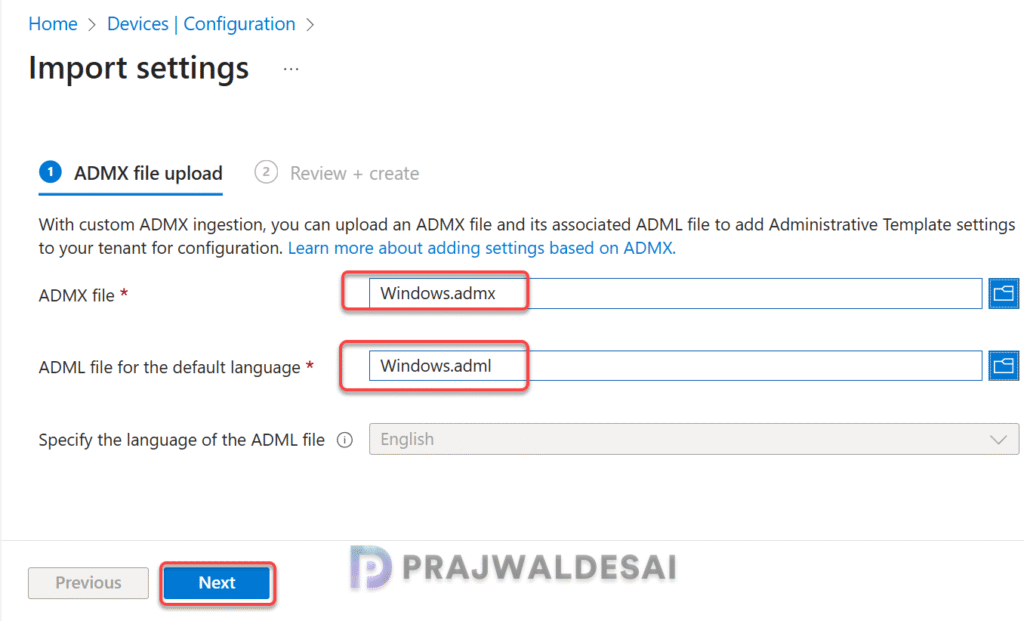
To import windows.admx into Intune, sign in to the Microsoft Intune admin center. Select Devices > Manage devices > Configuration > Import ADMX tab > Import. Select the Windows.admx file to upload. Next, select the Windows.adml file you want to upload. Click Next.
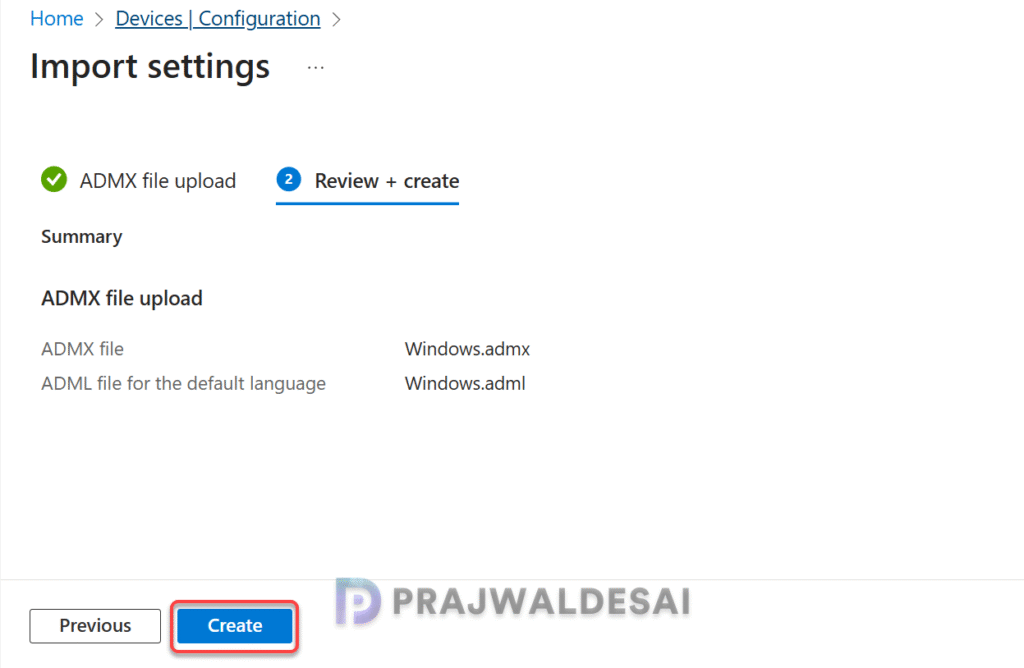
In Review + Create, review your changes. Select Create to import the files.
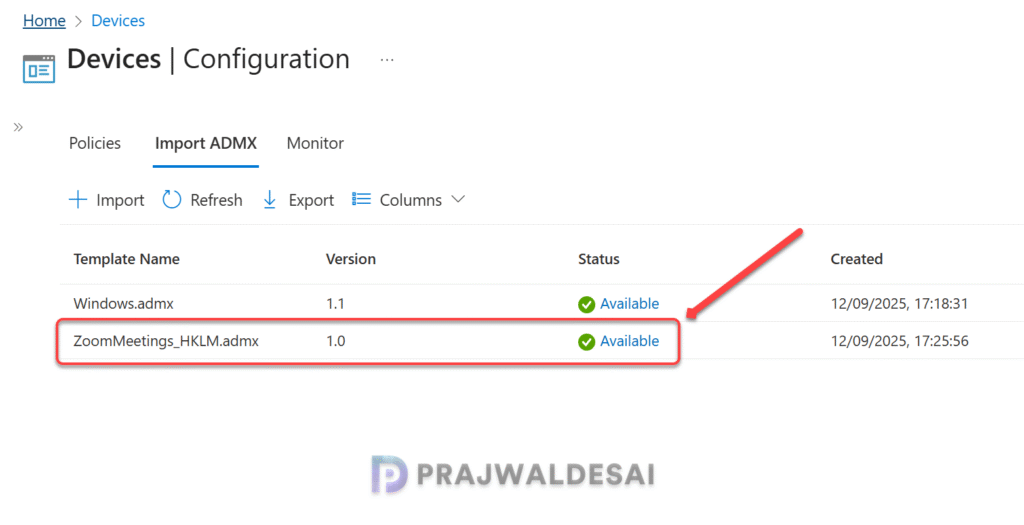
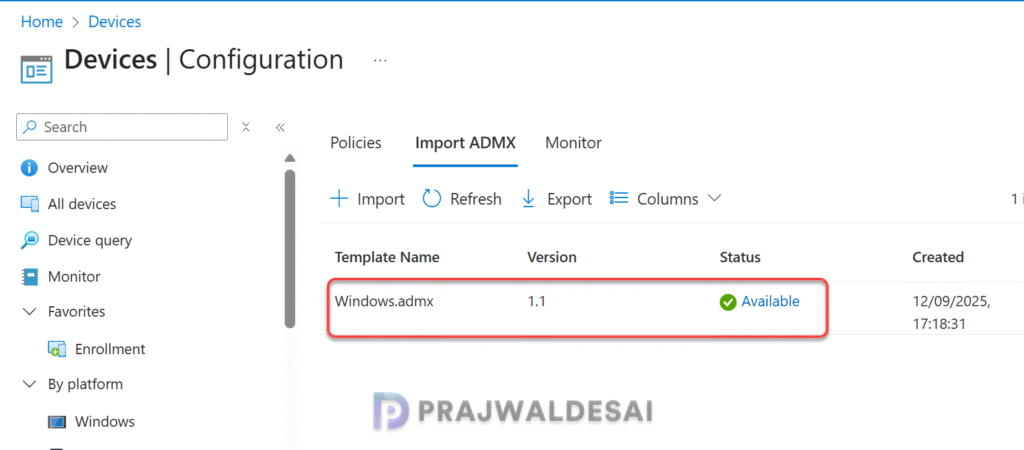
Once the import is complete, we see Windows ADMX templates are uploaded to Intune. You can also Select Refresh to see the updated state.
Step 5: Import Zoom ADMX Template Files into Intune
In this final step, let’s import the Zoom admx template files into Microsoft Intune. In the Intune admin center, select Devices > By platform > Windows > Manage devices > Configuration > Import ADMX tab. Upload the ZoomMeetings_HKLM.admx and ZoomMeetings_HKLM.adml files and click Create. After a few seconds, the templates are imported into Intune without any errors.
Congratulations, we have successfully resolved the NamespaceMissing:Microsoft.Policies.Windows error.