


In this post, I will show you how to correctly deploy Santa app for macOS using Intune. Santa macOS app can be installed as a PKG app or as a managed app with the Line-of-business (LOB) app deployment method in Intune.
Santa is the open-source macOS security agent pioneered by Google and is now maintained by North Pole Security. It basically is a high-performance, open-source security agent for macOS and offers several features such as Binary Authorization, File access authorization, Telemetry, USB/SD blocking and many more.
If your organization uses Intune MDM to manage Mac devices, installing Santa package is very easy. According to the app documentation, Santa should be configured as an “Installer Package (.pkg)“. The distributed packages are signed, notarized, and automatically formatted for seamless MDM deployment.
Steps to Deploy Santa App for macOS using Intune
I will now outline the steps for installing the Santa app on macOS devices using Intune. Ensure your Mac devices are enrolled in Intune and connected to the internet to successfully receive app deployments.
Step 1: Download the Santa App for macOS
To download the latest version of Santa, go to Santa GitHub release page. This page highlights the newest app release features. To download the DMG or PKG installers, simply scroll to the bottom of each release and expand the Assets section.
You can either download the Santa app as .DMG or .PKG file. For this deployment guide, I’ll use the Santa PKG file for installation as it offers built-in detection methods, pre and post-installation scripts, and ensures quick deployment on Mac devices. See how to deploy PKG apps for macOS with Intune.

Step 2: Add Santa macOS App to Intune
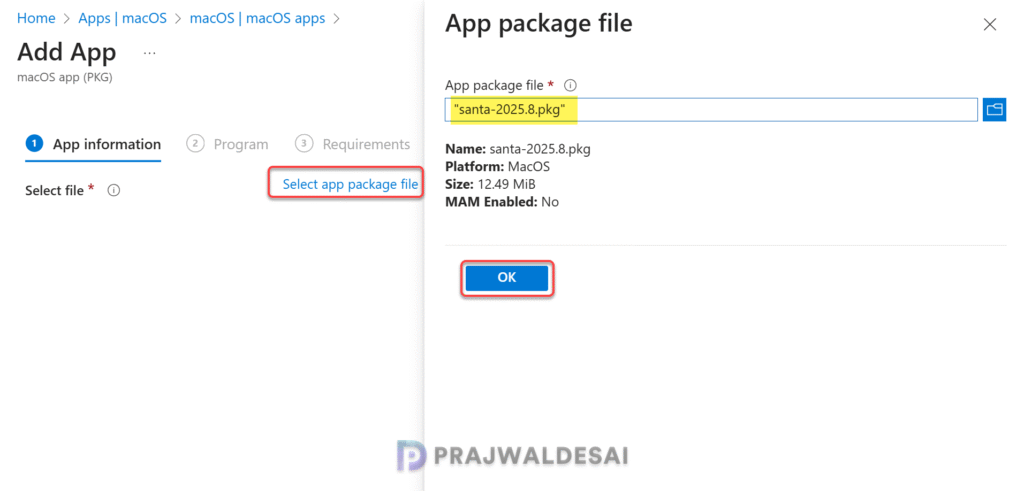
Once you have got the latest version of Santa app, the next step is to upload it to Intune. Sign in to Intune admin center. Go to Apps > macOS > macOS apps. Click on + Create and select the App type as macOS app (PKG).

In the App package file pane, click the browse button and then select Santa PKG app file. The following details are populated after uploading the Santa PKG app file to Intune:
- Name: Santa-2025.8.pkg
- Platform: MacOS
- Size: 12.49 MiB
- MAM Enabled: No
When you’re finished, select OK to add the app. Click Next.
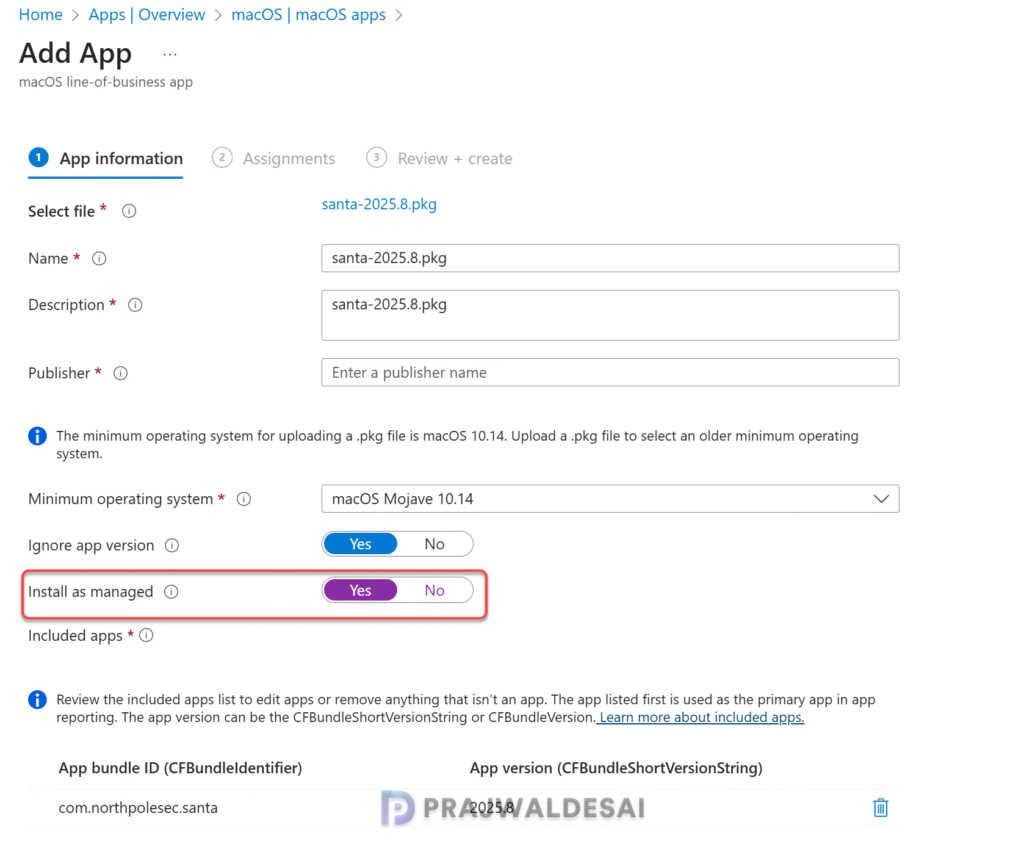
Note: In the App type pane, if you select line-of-business app and upload the Santa PKG file, you get an additional option “Install as Managed“. Enabling this option allows managed line-of-business apps to be uninstalled using the uninstall assignment type on supported devices (macOS 11 and later). Additionally, removing the MDM profile automatically removes all managed apps from the device. The decision to deploy the Santa macOS app as either a LOB or PKG app is entirely up to you.
Step 3: Configure App Information
On the App Information page, add a few details about the Santa application. You can specify information such as app name, description, publisher, category, app logo, etc. Once you have completed configuring the app information, click Next.

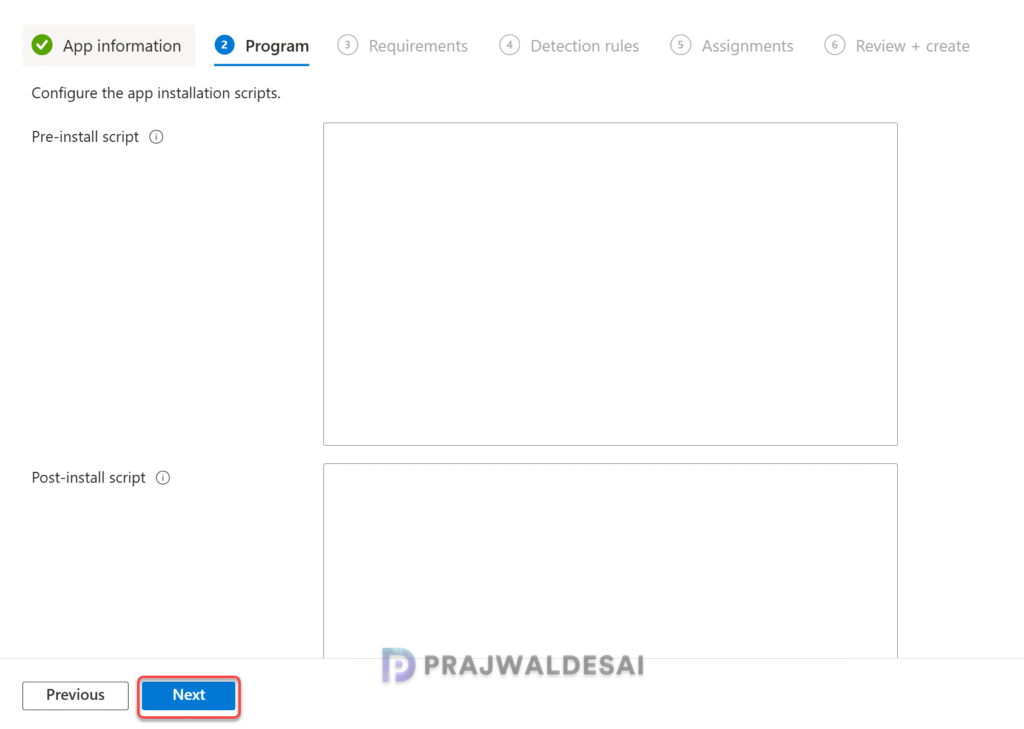
In the Program tab, Intune provides the options to configure the app installation scripts. Thanks to North Pole Security developers, the package already contains preinstall and post install scripts to ensure Santa is fully loaded once the package install is complete. Click Next.
In the Requirements tab, configure the OS requirements for installing the app. Click on the drop-down menu and select a minimum OS version to install the application. In the example below, macOS Sonoma 14.0 has been chosen as the minimum OS requirement. Click Next.

In the Detection rules tab, you can configure the detection rules for the Santa app on macOS devices. You’ll notice that App bundle ID (CFBundleIdentifier) and App Version (CFBundleShortVersionString) are pre-configured with this PKG file. That’s makes our life so easy. In case you want to add another set of detection rules for Santa app detection, you can do so. For now, click Next.

Step 4: Assign and Deploy the Santa App
On the Assignments tab, select the macOS device groups and target the application. If you are deploying the app for the first time, I recommend creating a pilot device group consisting of macOS devices and testing the installation. Once you find the deployments successful, you can then expand them to a larger group. Click Next.

On the Review + Create tab, review the values and settings you entered for the Santa macOS app. When you are done, click Create to add the app to Intune. The Overview pane displays the newly created app.
The application is uploaded to Intune for deployment. Depending on the size of the application, it may take time to complete this process. Re-uploading the application can fix a failure to upload the application in rare instances.

Sync Intune policies
After deploying the Santa macOS app using Intune, it’s time to wait for the devices to check in with Intune for the latest updates. You can either wait for the Intune policy refresh cycle to occur on macOS devices or manually trigger the sync. Refer to the following guide on how to sync Intune policies on MacOS devices.
Monitor Santa App Deployment
Intune administrators can monitor the Santa macOS app deployment using the following steps:
- Sign in to the Intune admin center.
- Navigate to Apps > macOS > macOS Apps.
- From the list of apps, select the Santa app to monitor.
From the below screenshot, you can see the Santa has been successfully installed on the Mac devices. To find the devices or users that have successfully received the application, review Device Install Status or User Install Status, respectively.

End-User Experience
In this final step, I will show you how to check and confirm if the Santa app is installed on the managed macOS device. Log in to the Mac that is targeted with the Santa app, and you should see a notification stating, “Santa would like to use a new endpoint security extension“. Click OK to allow.

To confirm the Santa system extension is properly loaded, check the output of the following command:
/usr/bin/systemextensionsctl list com.apple.system_extension.endpoint_securityAlternately, you can open Finder on your Mac, navigate to the Applications, and use the search feature to locate the Santa app, ensuring the deployment is successful.

Troubleshooting
If the Santa app did not install on some of your Mac devices, there could be multiple reasons why the deployment was unsuccessful. If you encounter issues with deployment, refer to the IntuneMDMDaemon.log and IntuneMDMAgent.log files. Take a look at this excellent guide for gathering Intune logs on macOS devices and resolving error 0x87D13BA2 for LOB apps.
