


This guide shows how to resolve Running scripts is disabled on this system error, which is one of the most common issues encountered while running a PowerShell script. This error occurs because Windows PowerShell has a security feature called an Execution Policy that is set to “Restricted” by default to prevent unauthorized scripts from running.
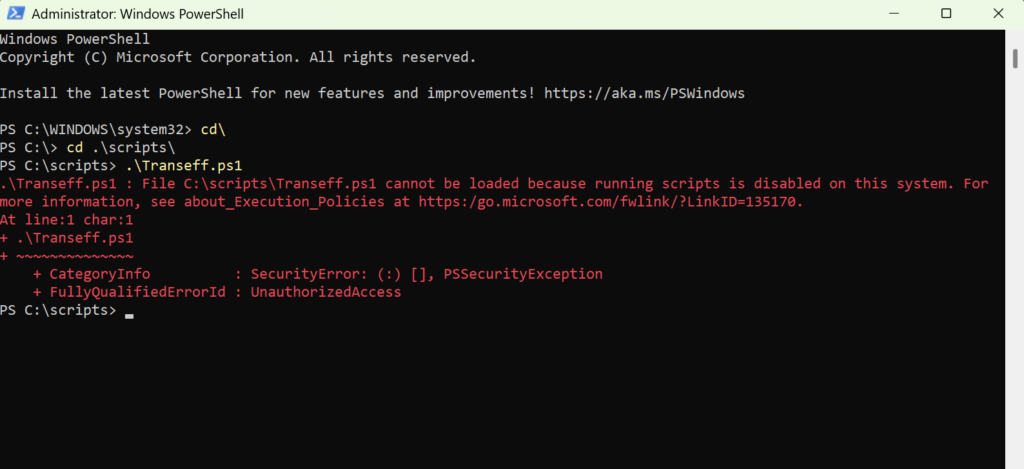
Recently, I attempted to run a PowerShell script on my Windows 11 PC, and I encountered the error: PowerShell Script cannot be loaded because running scripts is disabled on this system. For more information, see about_Execution_Policies at https:/go.microsoft.com/fwlink/?LinkID=135170.
The error “Running scripts is disabled on this system” can be resolved by configuring the PowerShell execution policy from Restricted to RemoteSigned or Bypass lets you run the script successfully. You can do this manually or use Intune or Group policy to configure PS execution policy on managed Windows devices.
Why does PowerShell block Scripts on Windows?
PowerShell is a powerful automation and scripting tool built into Windows. PowerShell includes a security feature called Execution Policy which basically controls whether scripts can run on your computer.
Here are some valid reasons why PowerShell scripts are blocked from running by default, especially on managed or locked-down Windows systems.
- Automate system changes such as modifying settings, values etc.
- Install software or applications.
- Modify files and registry settings.
- Interact with networks and services.
Security Tips Before Running PowerShell Scripts
The execution policy isn’t a security system that restricts user actions. It helps reduce accidental risk, and Microsoft itself treats it more as a safety feature than a hard security control. Having said that, before you run a PowerShell script, please consider these points.
- Don’t run scripts from unknown sources.
- Review scripts before executing them. Open it in a Notepad or PS ISE and test it thoroughly.
- Prefer RemoteSigned over Unrestricted when possible.
- Use the bypass execution policy only when necessary.
Fix Running Scripts is Disabled on this system
To fix the “Running scripts is disabled on this system” error on your Windows computer, follow these steps.
Step 1: Check the Current PowerShell Execution Policy
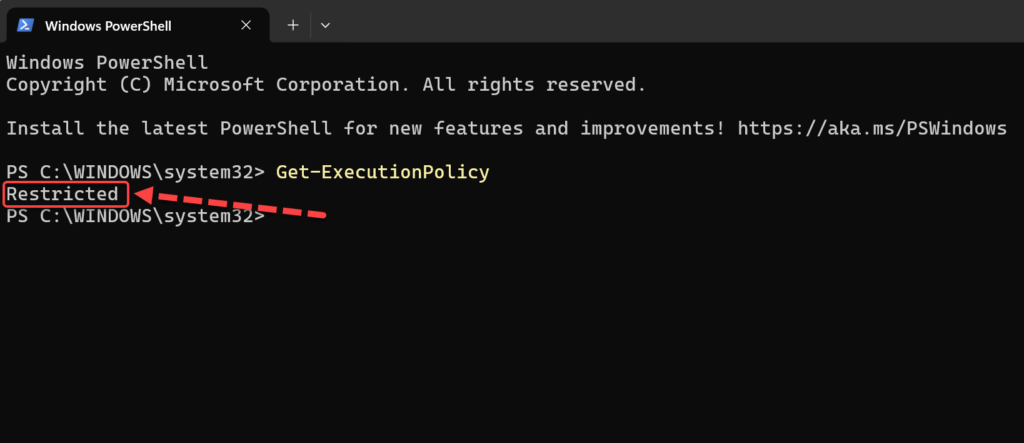
To begin with, check the execution policy for the current PowerShell session using the Get-ExecutionPolicy cmdlet. Run the following command in PowerShell to get the script execution policy:
Get-ExecutionPolicyTo get the execution policy set for the current user, run the below command that uses the Scope parameter of Get-ExecutionPolicy.
Get-ExecutionPolicy -Scope CurrentUserAfter running the above command, we see the current execution policy is set to restricted. Head to the next step for modifying the execution policy.
Step 2: Set PowerShell execution policy
To change the PowerShell execution policy on your Windows computer, you can use the Set-ExecutionPolicy cmdlet. Each execution policy is designed for a specific purpose, so ensure you fully understand its intent before making any modifications.
RemoteSigned
This is the most widely recommended execution policy for developers, requiring all downloaded scripts to be signed by a trusted publisher. This allows you enough flexibility to run your scripts while still protecting against some unsafe downloaded files.
Run the below command to set the execution policy to RemoteSigned.
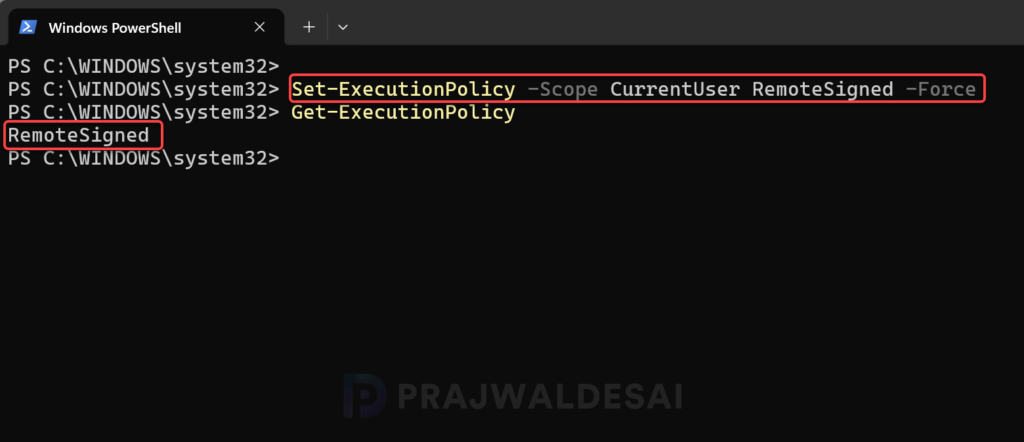
Set-ExecutionPolicy -ExecutionPolicy RemoteSigned -ForceFor users who aren’t the local administrator on the Windows device, you can change the execution policy for the current user using the below command.
Set-ExecutionPolicy -ExecutionPolicy -Scope CurrentUser RemoteSigned -ForceIn the below image, we see the execution policy is set to RemoteSigned. This should now allow the user to execute the scripts and permanently resolve the error “Running scripts is disabled on this system”.
Bypass
The Bypass execution policy is commonly used for temporary automation tasks and running one-time installation scripts. It allows you to run a single script without changing any system-wide settings or requiring administrator rights. Running your script with the Bypass execution policy can safely resolve the “Running scripts is disabled on this system” error.
Launch the PowerShell and run the below command to execute the script with Bypass execution policy. Ensure you input the correct path of the script file before running the command.
powershell.exe -ExecutionPolicy Bypass -File "C:\Script_Path\yourscript.ps1"You can also set bypass mode for the current PowerShell session only using the below command. This change disappears when you close the PowerShell window.
Set-ExecutionPolicy Bypass -Scope Process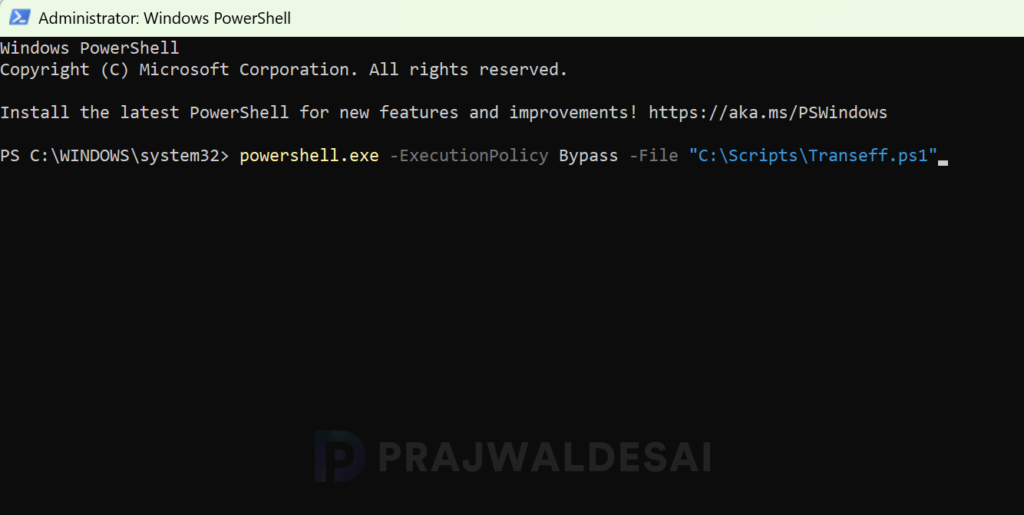
Unrestricted
This is the default execution policy for non-Windows computers and cannot be changed. It is less commonly used because it is unsecure, permits any unsigned script to execute, increasing the risk of running malicious scripts.
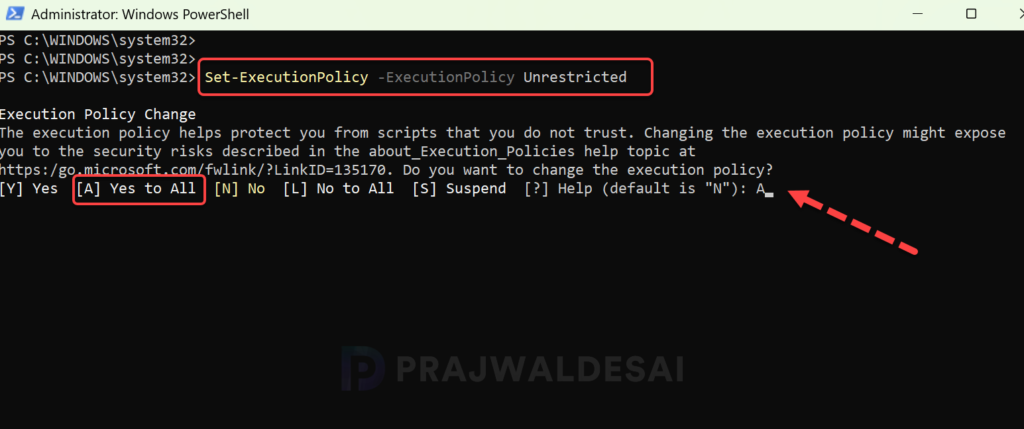
Run the below command to set the execution policy to Unrestricted. When asked “Do you want to change the execution policy?, type A (Yes to All) and press the enter key to successfully modify the execution policy.
Set-ExecutionPolicy -ExecutionPolicy UnrestrictedIn the below image, we see the execution policy is set to Unrestricted. This should now allow the user to execute the scripts and resolve the error “Running scripts is disabled on this system“.
Check PowerShell Execution Policy in Registry
You can check the PowerShell execution policy configuration via Windows Registry using the following steps:
- On your Windows PC, right-click Start, select Run. Type regedit and press the enter key to launch the registry editor.
- Navigate to the below registry path and look for ExecutionPolicy key value to determine the current execution policy.
Computer\HKEY_LOCAL_MACHINE\SOFTWARE\Microsoft\PowerShell\1\ShellIds\Microsoft.PowerShell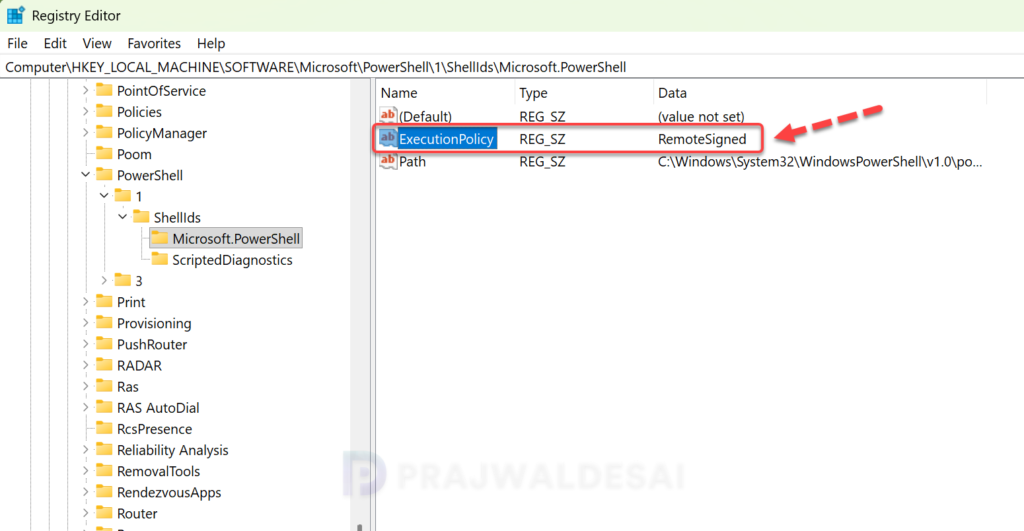
Final Thoughts
The error Running scripts is disabled on this system message can look intimidating, but in most cases it’s simply PowerShell doing its job as a precaution. The fix is usually straightforward: Check your execution policy first and set it to preferably RemoteSigned for day-to-day use. Use bypass only when appropriate. Once you understand how execution policies work, this error becomes much easier to handle.
That’s all for this guide, feel free to share any questions or suggestions in the comments below!
