


In this guide, I will show you multiple ways to export software inventory report from Intune. I will also discuss the Intune discovered apps and the steps to run the discovered apps report in Intune to get an inventory of all installed software on the device.
A lot of customers want to export the list of applications that are installed on their devices in Intune, and we get a lot of emails about it. Intune now allows you to export software inventory data from the client using the discovered apps report.
When you export software inventory data from Intune, you get a list of applications that are installed and the application version information from all of your clients. You can count the total number of applications installed on your device that Intune manages using the discovered apps report.
Useful Guide: List of Windows 365Cloud PC Reports in Intune
What are Intune Discovered Apps?
According to Microsoft, Discovered Apps are a list of detected apps on the Intune-enrolled devices in your tenant. It’s like a software inventory of all your managed devices for your Intune tenant. You can locate the discovered apps in the Intune admin center by going to Apps > Monitor > Discovered Apps.
Just like you have Software Inventory in SCCM, Intune lets you find the apps that it has discovered on its managed devices in the form of discovered apps. This data is easily exportable to a .csv file, which is useful for internal auditing.
For personal devices, Intune never collects information on applications that are unmanaged. On corporate devices, any app, whether managed or not, is collected for this report. For this reason, the majority of businesses make sure that Windows device ownership is set to corporate in the Intune admin center.
This is important! Intune provides an aggregated list of detected apps on the Intune-enrolled devices in your tenant. In addition, Intune also provides a list of discovered apps for each individual device in your tenant. In this article, we will go over each report in more detail.
Also Read: Configure Device Cleanup Rules in Intune
Intune App Discovery Refresh Interval
The app discovery refresh interval in Intune specifies how frequently software inventory data is collected from devices and synchronized with discovered apps in the Intune admin center. Listed below are some critical points related to the Intune app discovery refresh frequency.
- The Intune app discovery refreshes every seven days from the time of enrollment (not a weekly refresh for the entire tenant).
- The Discovered Apps report is application information collected through the Intune Management Extension for Win32 Apps, which is collected every 24 hours.
The below screenshot is taken from the Microsoft article that provides the app platform type, the apps that are monitored for personal devices, the apps that are monitored for company-owned devices, and the refresh cycle. Notice that for most of the device platforms, the discovered apps are synchronized with Intune every seven days after device enrollment. For Win32 apps, the discovered app reports in Intune are updated every 24 hours.

Method 1: Export Software Inventory Report from Intune
You can export software inventory report from Intune by running the discovered apps report using the following steps:
- Sign in to the Microsoft Intune admin center.
- Navigate to Apps > Monitor > Discovered Apps.
- To export the software inventory report, click on Export.

When you export discovered apps in Intune, you get two options.
- Export the discovered apps aggregate data set
- Export the discovered apps raw data set
Both of the above Intune discovered apps reports show the applications installed on Intune-managed devices. However, the difference between the two reports is the amount of information exported about installed applications. Well, each of these report options needs an explanation, and we will illustrate with examples.

Export the discovered apps aggregate data set report
If you want to export the software inventory of Intune managed devices with brief information about the apps and their related details, you must use the report “Export the discovered apps aggregate data set.” You should not use this report if you want to get in-depth information about the software inventory.
To export this report, on the export discovered apps window, select the option “export the discovered apps aggregate data set” and click Yes.
When you export discovered apps and select the option “Export the discovered apps aggregate data set“, the browser downloads a .zip file with the name AppInvAggregate_YYYY-MM-DD.zip.

Extract the .zip file to a folder, and within that folder you will find the discovered apps aggregate data report. You can open this .csv report with the Microsoft Excel application. The discovered apps aggregate data set report shows the following information about installed applications in the screenshot below:
- ApplicationKey
- ApplicationName
- ApplicationPublisher
- ApplicationShortVersion
- ApplicationVersion
- DeviceCount
- Platform

Export the discovered apps raw data set Report
If you want to export the software inventory of Intune managed devices with detailed information about the apps and their related details, you must run the report “Export the discovered apps raw data set.”
To export this report, on the export discovered apps window, select the option “export the discovered apps raw data set” and click Yes.

The browser downloads a .zip file with the name AppInvAggregate_YYYY-MM-DD.zip. Extract the .zip file to a folder, and within that folder you will find the discovered apps raw data report. You can open this .csv report with the Microsoft Excel application. The discovered apps raw data set report shows the following details about installed applications in the screenshot below:
- ApplicationKey
- ApplicationName
- ApplicationPublisher
- ApplicationShortVersion
- ApplicationVersion
- DeviceID
- DeviceName
- OSDescription
- OSVersion
- Platform
- UserID
- EmailAddress
- UserName
When you export the discovered apps raw data set report, you will notice that it contains more information about the installed applications than the discovered apps aggregate data set report. We hope we have clarified the difference between these two discovered apps reports in Intune.

Method 2: Export Software Inventory Report for a specific device from Intune
Intune provides a list of discovered apps for each individual device in your tenant. To export the software inventory report from Intune for a specific device, follow these steps:
- Sign in to the Microsoft Intune admin center.
- Navigate to Devices > All Devices > Select the device.
- Under Monitor, select Discovered Apps.
- To export the device software inventory report, click on Export.

The browser now downloads a file with the name Discovered app_YYYY-MM-DD.csv. This file contains the names of applications and their versions installed on the device. When we open the file in the Excel program, we can see that this report displays the “Application Name” and “Application Version” that are present on the Intune-managed device.

Method 3: Export Intune Software Inventory using MS Graph PowerShell
Using Microsoft Graph PowerShell, you can quickly export the software inventory data from Intune to a CSV file. The CSV file can be later used to analyze the app inventory data.
To begin with, you’ll need to first install the Microsoft Graph PowerShell module. If you have already installed it, proceed to the next step. For beginners, use the below command to install the Microsoft PowerShell graph module.
Install-Module Microsoft.Graph -Scope CurrentUser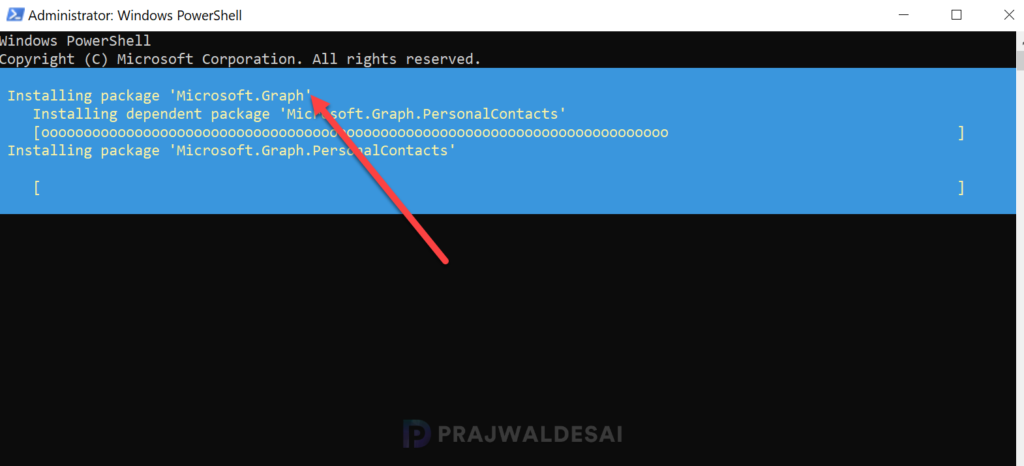
Once the module and dependent packages are installed, download the ExportIntuneSoftwareInventory.ps1 script from GitHub. The script outputs the data to a folder path defined in the $csvPath variable. So make sure you specify the location where you want to output the file and then save it.
Run the PowerShell script with the following command to export software inventory data from Intune.
.\ExportIntuneSoftwareInventory.ps1Sign in using a global administrator account, then click “Accept” to grant consent for Microsoft Graph command-line tools.
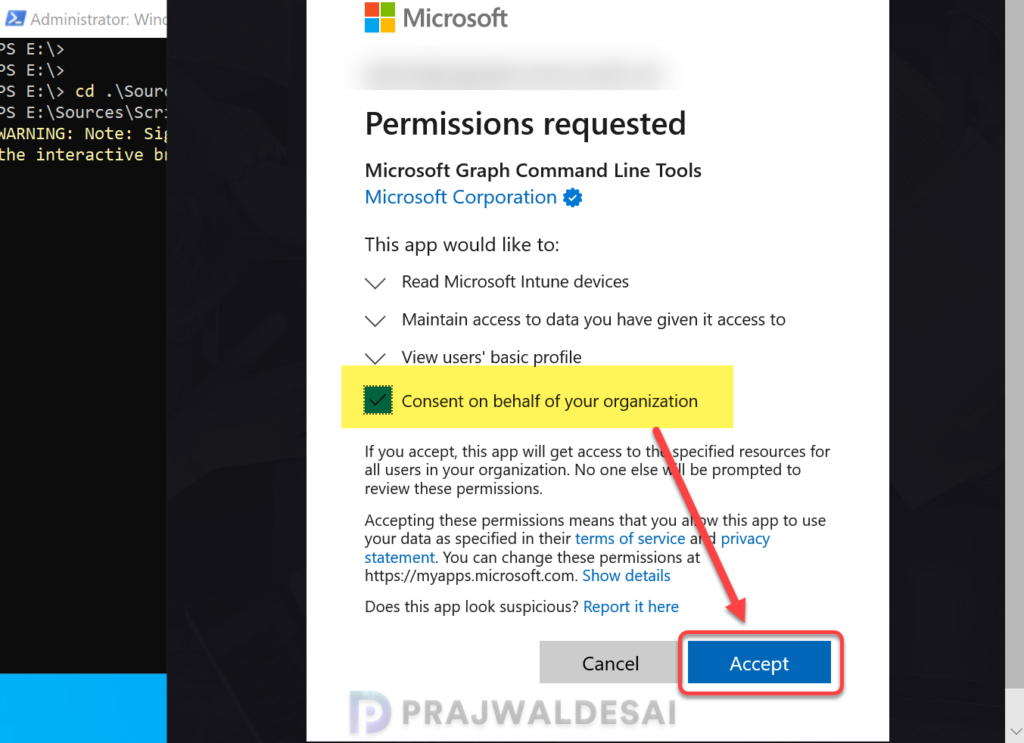
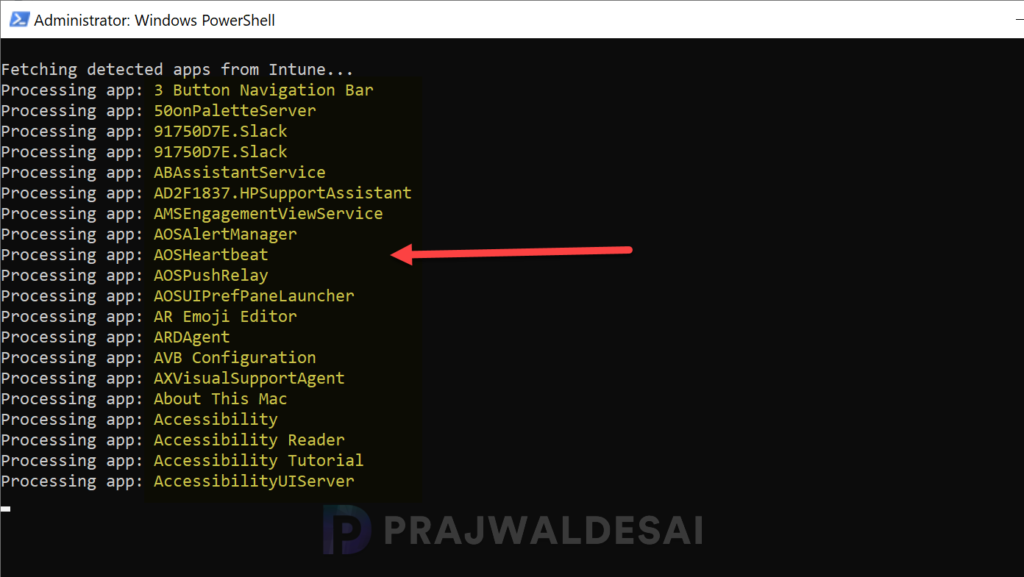
The script begins fetching detected apps from Intune. The app names that are being read can be seen in the below image. You must wait until all the apps are processed.
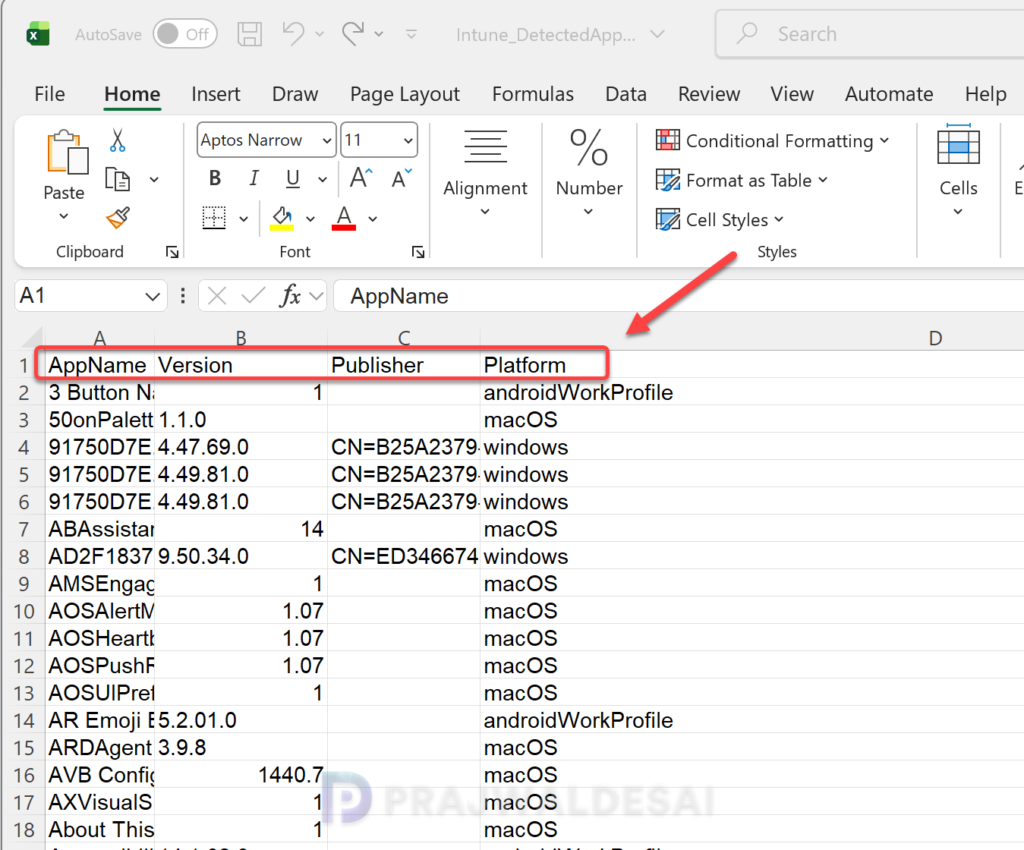
Once the script execution is completed, go to the location where you’ve exported the script. Open IntuneDetectedApps.csv file with Microsoft Excel app. The report displays app information such as AppName, Version, Publisher, Platform, etc from the Intune-managed devices.

Hello Prajwal,
What happens if an app—for example, Microsoft 365 Apps—is installed outside of Intune? Will it still receive Intune policies (e.g., update enforcement)?