

Using WQL queries, you can create Windows 11 SCCM device collection, such as collections for Windows 11 26H2, 25H2, 24H2, 23H2, 22H2, and 21H1. This guide is updated regularly to include the latest versions released for Windows 11 and their compatibility with SCCM. Let’s look at the Windows 11 SCCM device collection creation process.
In SCCM, you can create and run queries to find objects that match your query criteria. Queries can return the majority of Configuration Manager objects, such as sites, collections, applications, and inventory data. You can also find Windows 11 versions using SQL and CMPivot query.
To group all the Windows 11 computers into one device collection in SCCM, you can create a device collection for Windows 11. The query runs on a schedule and adds new Windows 11 computers to the SCCM device collection. Have a look at all the Windows 11 builds and versions that Microsoft has so far made available.
Note: Make sure Hardware Inventory is enabled and clients have recently reported inventory; otherwise devices may not appear yet.
What is a WQL query?
WMI Query Language (WQL) is a subset of SQL, meaning everything in WQL also exists in SQL. The views are also a feature of both SQL and WQL and are not unique to either. The best example is Configuration Manager collections, which are based on WQL queries.
WQL has the advantage of being able to return WMI objects as well as specific properties. WQL queries can return result sets that you can use within the ConfigMgr infrastructure because management applications such as the Configuration Manager console interact with WMI objects.
Some examples of WMI queries used for creating device collections include:
- Create Microsoft Edge Device Collection in SCCM
- Create SCCM Windows Server 2022 Device Collection
- SCCM Device Collection for DHCP Servers
- Create SCCM Device Collection for Visual Studio
Support for Windows 11 in Configuration Manager
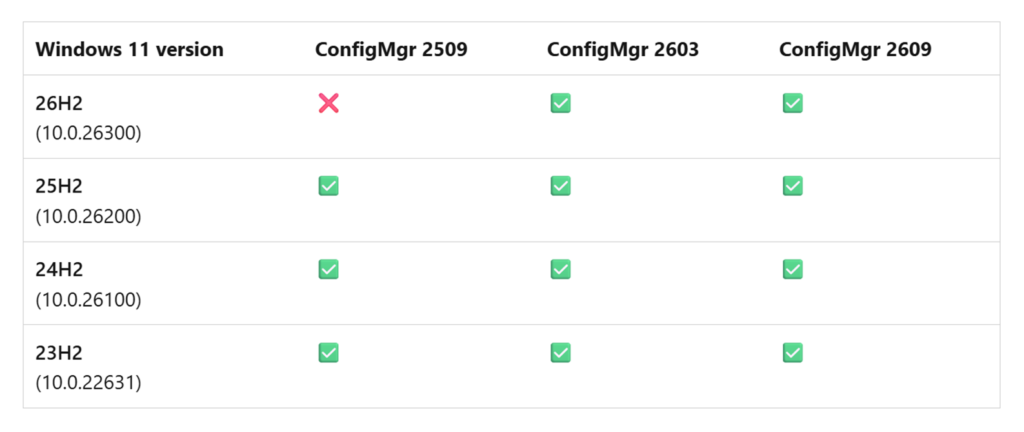
You need at least SCCM 2211 to support it as a Windows 11 client. For devices running Windows 11 26H2, you will need Configuration Manager, current branch 2603 and later, to manage it as a client. The below screenshot lists the versions of Windows 11 that you can use as a client with different versions of Configuration Manager.
Windows 11 SCCM Queries for Device Collection
I will list the WQL queries using which you can create a device collection for Windows 11 in SCCM. If you find a new query that works, please let me know in the comments section.
Windows 11 26H2 SCCM Query using Build Number
The below WQL query groups all the devices running Windows 11 version 26H2 into a device collection.
select SMS_R_SYSTEM.ResourceID,SMS_R_SYSTEM.ResourceType,SMS_R_SYSTEM.Name,SMS_R_SYSTEM.SMSUniqueIdentifier,SMS_R_SYSTEM.ResourceDomainORWorkgroup,SMS_R_SYSTEM.Client from SMS_R_System inner join SMS_G_System_OPERATING_SYSTEM on SMS_G_System_OPERATING_SYSTEM.ResourceId = SMS_R_System.ResourceId where SMS_G_System_OPERATING_SYSTEM.BuildNumber = "26300"Windows 11 25H2 SCCM Query using Build Number
The below WQL query groups all the devices running Windows 11 version 25H2 into a device collection.
select SMS_R_SYSTEM.ResourceID,SMS_R_SYSTEM.ResourceType,SMS_R_SYSTEM.Name,SMS_R_SYSTEM.SMSUniqueIdentifier,SMS_R_SYSTEM.ResourceDomainORWorkgroup,SMS_R_SYSTEM.Client from SMS_R_System inner join SMS_G_System_OPERATING_SYSTEM on SMS_G_System_OPERATING_SYSTEM.ResourceId = SMS_R_System.ResourceId where SMS_G_System_OPERATING_SYSTEM.BuildNumber = "26200"Windows 11 24H2 SCCM Query using Build Number
The below WQL query groups all the devices running Windows 11 version 24H2 into a device collection.
select SMS_R_SYSTEM.ResourceID,SMS_R_SYSTEM.ResourceType,SMS_R_SYSTEM.Name,SMS_R_SYSTEM.SMSUniqueIdentifier,SMS_R_SYSTEM.ResourceDomainORWorkgroup,SMS_R_SYSTEM.Client from SMS_R_System inner join SMS_G_System_OPERATING_SYSTEM on SMS_G_System_OPERATING_SYSTEM.ResourceId = SMS_R_System.ResourceId where SMS_G_System_OPERATING_SYSTEM.BuildNumber = "26100"Windows 11 23H2 SCCM Query using Build Number
The below WQL query groups all the devices running Windows 11 version 23H2 into a device collection.
select SMS_R_SYSTEM.ResourceID,SMS_R_SYSTEM.ResourceType,SMS_R_SYSTEM.Name,SMS_R_SYSTEM.SMSUniqueIdentifier,SMS_R_SYSTEM.ResourceDomainORWorkgroup,SMS_R_SYSTEM.Client from SMS_R_System inner join SMS_G_System_OPERATING_SYSTEM on SMS_G_System_OPERATING_SYSTEM.ResourceId = SMS_R_System.ResourceId where SMS_G_System_OPERATING_SYSTEM.BuildNumber = "22631"Windows 11 22H2 SCCM Query using Build Number
The below WQL query groups all the devices running Windows 11 version 22H2 into a device collection.
select SMS_R_SYSTEM.ResourceID,SMS_R_SYSTEM.ResourceType,SMS_R_SYSTEM.Name,SMS_R_SYSTEM.SMSUniqueIdentifier,SMS_R_SYSTEM.ResourceDomainORWorkgroup,SMS_R_SYSTEM.Client from SMS_R_System inner join SMS_G_System_OPERATING_SYSTEM on SMS_G_System_OPERATING_SYSTEM.ResourceId = SMS_R_System.ResourceId where SMS_G_System_OPERATING_SYSTEM.BuildNumber = "22621"Windows 11 SCCM Query using Build Number
Use the below WQL query to create a Windows 11 device collection using the build number. Make sure you replace the build number as new versions of Windows 11 are released.
select SMS_R_SYSTEM.ResourceID,SMS_R_SYSTEM.ResourceType,SMS_R_SYSTEM.Name,SMS_R_SYSTEM.SMSUniqueIdentifier,SMS_R_SYSTEM.ResourceDomainORWorkgroup,SMS_R_SYSTEM.Client from SMS_R_System inner join SMS_G_System_OPERATING_SYSTEM on SMS_G_System_OPERATING_SYSTEM.ResourceId = SMS_R_System.ResourceId where SMS_G_System_OPERATING_SYSTEM.BuildNumber = "22000"Windows 11 SCCM Query using Caption
Use the below WQL query to create a Windows 11 device collection using the caption “Windows 11 Pro”.
select SMS_R_SYSTEM.ResourceID,SMS_R_SYSTEM.ResourceType,SMS_R_SYSTEM.Name,SMS_R_SYSTEM.SMSUniqueIdentifier,SMS_R_SYSTEM.ResourceDomainORWorkgroup,SMS_R_SYSTEM.Client from SMS_R_System inner join SMS_G_System_OPERATING_SYSTEM on SMS_G_System_OPERATING_SYSTEM.ResourceId = SMS_R_System.ResourceId where SMS_G_System_OPERATING_SYSTEM.Caption = "Microsoft Windows 11 Pro"Use the below WQL query to create a device collection using caption “Windows 11 Enterprise”.
select SMS_R_SYSTEM.ResourceID,SMS_R_SYSTEM.ResourceType,SMS_R_SYSTEM.Name,SMS_R_SYSTEM.SMSUniqueIdentifier,SMS_R_SYSTEM.ResourceDomainORWorkgroup,SMS_R_SYSTEM.Client from SMS_R_System inner join SMS_G_System_OPERATING_SYSTEM on SMS_G_System_OPERATING_SYSTEM.ResourceId = SMS_R_System.ResourceId where SMS_G_System_OPERATING_SYSTEM.Caption = "Microsoft Windows 11 Enterprise"Windows 11 SCCM Query using OS Name
Use the below WQL query to create a Windows 11 device collection using the OS name.
select SMS_R_SYSTEM.ResourceID,SMS_R_SYSTEM.ResourceType,SMS_R_SYSTEM.Name,SMS_R_SYSTEM.SMSUniqueIdentifier,SMS_R_SYSTEM.ResourceDomainORWorkgroup,SMS_R_SYSTEM.Client from SMS_R_System inner join SMS_G_System_OPERATING_SYSTEM on SMS_G_System_OPERATING_SYSTEM.ResourceID = SMS_R_System.ResourceId where SMS_G_System_OPERATING_SYSTEM.Name like "%Microsoft Windows 11 Enterprise%"Create Windows 11 26H2 Device Collection
To create a device collection consisting of all 25H2 devices, follow these steps.
- Right-click Device Collections and select Create Device Collection.
- Specify the collection name as Windows 11 26H2 Devices and choose a Limiting Collection.
- Click Add Rule and choose Query Rule. Specify a name for this query and click Edit query statement.
- Go to the Criteria tab and click Show query language and enter below WQL query for your Windows 11 26H2 version. Click OK twice. Close the wizard and wait for the collection to update.
select SMS_R_SYSTEM.ResourceID,SMS_R_SYSTEM.ResourceType,SMS_R_SYSTEM.Name,SMS_R_SYSTEM.SMSUniqueIdentifier,SMS_R_SYSTEM.ResourceDomainORWorkgroup,SMS_R_SYSTEM.Client from SMS_R_System inner join SMS_G_System_OPERATING_SYSTEM on SMS_G_System_OPERATING_SYSTEM.ResourceId = SMS_R_System.ResourceId where SMS_G_System_OPERATING_SYSTEM.BuildNumber = "26300"Create Device Collection for Windows 11 25H2
To create a device collection consisting of all 25H2 devices, follow these steps.
- Right-click Device Collections and select Create Device Collection.
- Specify the collection name as Windows 11 25H2 Devices and choose a Limiting Collection.
- Click Add Rule and choose Query Rule. Specify a name for this query and click Edit query statement.
- Go to the Criteria tab and click Show query language and enter below WQL query for your Windows 11 25H2 version. Click OK twice. Close the wizard and wait for the collection to update.
select SMS_R_SYSTEM.ResourceID,SMS_R_SYSTEM.ResourceType,SMS_R_SYSTEM.Name,SMS_R_SYSTEM.SMSUniqueIdentifier,SMS_R_SYSTEM.ResourceDomainORWorkgroup,SMS_R_SYSTEM.Client from SMS_R_System inner join SMS_G_System_OPERATING_SYSTEM on SMS_G_System_OPERATING_SYSTEM.ResourceId = SMS_R_System.ResourceId where SMS_G_System_OPERATING_SYSTEM.BuildNumber = "26200"Create Windows 11 24H2 device collection in SCCM
Let’s create a new device collection for Windows 11 24H2 computers in SCCM. Right-click the “Device Collections” node in the SCCM console and select “Create Device Collection“.

Specify the device collection name, for example, “Windows 11 24H2“. You may add a brief description about the collection. Choose the limiting collection and click Next.

In the Membership Rules window, click Add Rule and, from the drop-down, select Query Rule. In the Query Rule Properties box, enter the query name and click Edit Query Statement.
Select the Criteria tab. Click Show query language and enter WQL query for your Windows 11 24H2 version. Click OK twice.

Click Next on the Summary window, and on the completion window, click Close. Wait for a few minutes while the collection is updated. You should find all the Windows 11 24H2 computers grouped into the device collection.

Create Windows 11 23H2 SCCM Device Collection
Let’s create a new device collection for Windows 11 23H2 computers in SCCM. To create a device collection, right-click the “Device Collections” node in the SCCM console and select “Create Device Collection“.

Specify the device collection name, which is “Windows 11 23H2” in this case. You may add a brief description about the collection. Choose the limiting collection and click Next.

On the Membership Rules window, click Add Rule and from the drop-down, select Query Rule. In the Query Rule Properties box, enter the query name and click Edit Query Statement.

Select the Criteria tab. Click Show query language and enter the below Windows 11 23H2 WQL query. Ensure the build number of Windows 11 23H2 entered is 22631. Click OK twice.
select SMS_R_SYSTEM.ResourceID,SMS_R_SYSTEM.ResourceType,SMS_R_SYSTEM.Name,SMS_R_SYSTEM.SMSUniqueIdentifier,SMS_R_SYSTEM.ResourceDomainORWorkgroup,SMS_R_SYSTEM.Client from SMS_R_System inner join SMS_G_System_OPERATING_SYSTEM on SMS_G_System_OPERATING_SYSTEM.ResourceId = SMS_R_System.ResourceId where SMS_G_System_OPERATING_SYSTEM.BuildNumber = "22631"
Click Next on the Summary window, and on the completion window, click Close. Wait for a few minutes while the collection is updated. You should find all the Windows 11 23H2 computers grouped into the device collection.

SCCM Device Collection for Windows 11 22H2
Let’s create a new device collection for Windows 11 22H2 computers in SCCM. To create a device collection, select the “Device Collections” node in the SCCM console. On the Home tab of the ribbon, select “Create Device Collection“.

On the General window of create device collection wizard, specify the name of the collection. For ex. you can specify the collection name as “Windows 11 22H2 device collection“. Click on Browse and select the limiting collection. Click Next.

Click Add Rule and from the drop-down select Query Rule.
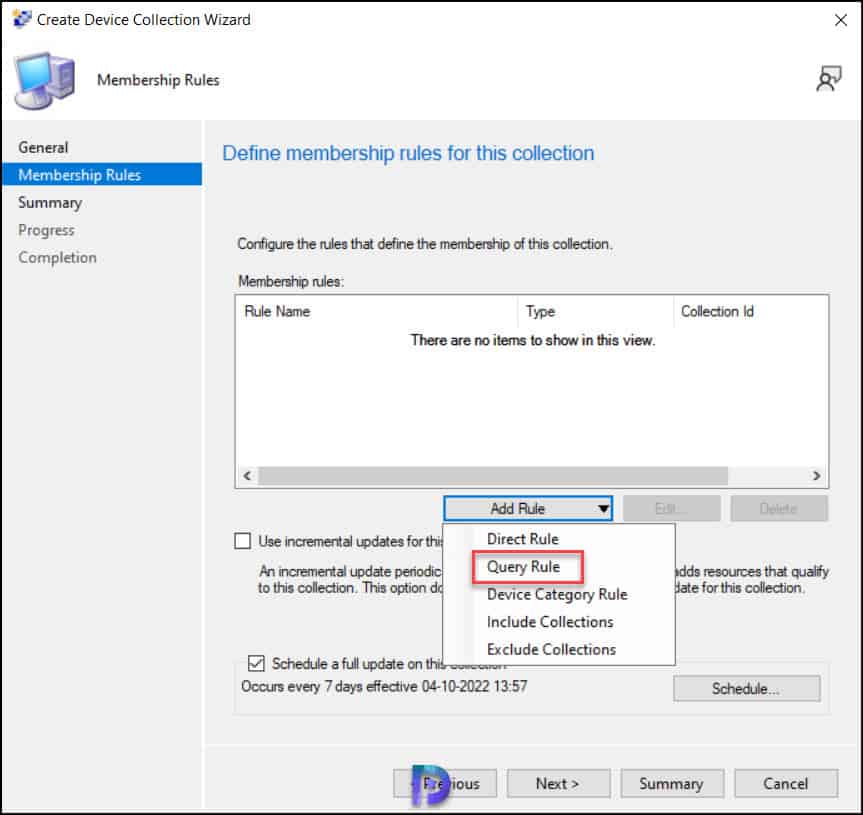
On the Query rule properties window, specify a name for the query, such as W11 22H2 and click Edit Query Statement.

Switch to the Criteria tab. Click Show query language and enter the below provided WQL query for version 22H2. Verify the build number of Windows 11 22H2 entered is 22621. Click OK twice.
select SMS_R_SYSTEM.ResourceID,SMS_R_SYSTEM.ResourceType,SMS_R_SYSTEM.Name,SMS_R_SYSTEM.SMSUniqueIdentifier,SMS_R_SYSTEM.ResourceDomainORWorkgroup,SMS_R_SYSTEM.Client from SMS_R_System inner join SMS_G_System_OPERATING_SYSTEM on SMS_G_System_OPERATING_SYSTEM.ResourceId = SMS_R_System.ResourceId where SMS_G_System_OPERATING_SYSTEM.BuildNumber = "22621"
Review the collection settings on the Summary window and click Next. On the completion window, click Close. Wait for a few minutes while the collection is updated. You should find all the Windows 11 22H2 computers grouped into the device collection.
Create Windows 11 SCCM Device Collection
Let’s create a new SCCM device collection for Windows 11 computers. To create a device collection, select the “Device Collections” node in the SCCM console. On the Home tab of the ribbon, select “Create Device Collection“.
In the General window of the Create Device Collection wizard, specify the name of the collection. Specify the collection name as “Windows 11 device collection” and select the limiting collection. Click Next.

Click Add Rule and from the drop-down, select Query Rule.

Specify the name for the query rule and click Edit Query Statement. In the Query statement properties window, select the Criteria tab. Click Show query language and enter the Windows 11 WQL query. Click OK twice.
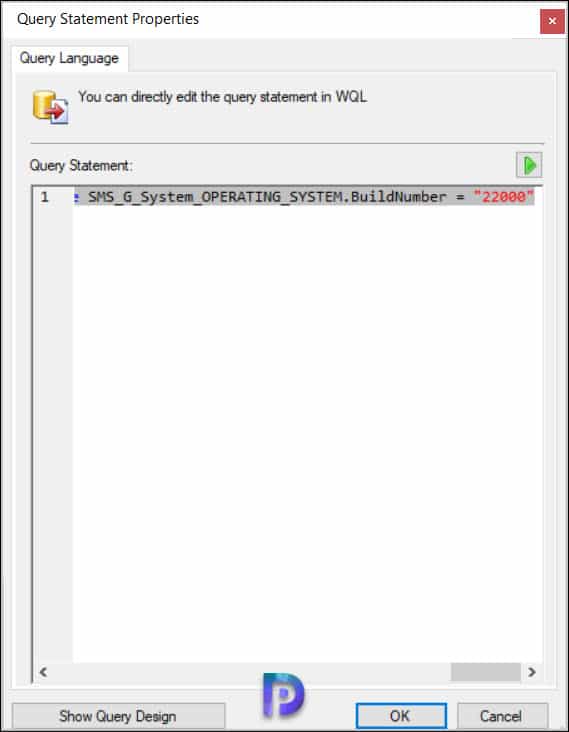
Click Next on the Summary window, and on the completion window, click Close. Wait for a few minutes while the collection is updated. You should find all the Windows 11 computers added to your device collection.


The 24H2 query returns Server 2025 also, it is build number 26100.4270 currently.
First all thanks for the great job.
In a new sccm server I am trying to run this rule for getting back all win11 machines. When I am using the 22621 number i get nothing back. If i use 19044 (win10) works fine. If i run the cmpivot and choose to show me all systems having 22621 builld number i get the proper result.\
Any idea where the problem maybe occurs?
Cheers!
Hey Praj,
Do you have solution for the upcoming build version mass ?
Win 11 21H2 = 22000
Win 11 22H2 = 22621
Win 11 22H2.FU1 = 22622 (Feature Update 1)
I think it´s not a good idea to modify every time this “All Windows 11 ” collection?
And: How did you seperate the devices that they are not ALSO schowing in the existing Window 10 Collection?
br
Harald
You can use the like “22%” for all future versions of Win11 and simply exclude this new Win11 collection from your existing Win10 one for simplicity.
select SMS_R_SYSTEM.ResourceID,SMS_R_SYSTEM.ResourceType,SMS_R_SYSTEM.Name,SMS_R_SYSTEM.SMSUniqueIdentifier,SMS_R_SYSTEM.ResourceDomainORWorkgroup,SMS_R_SYSTEM.Client from SMS_R_System inner join SMS_G_System_OPERATING_SYSTEM on SMS_G_System_OPERATING_SYSTEM.ResourceId = SMS_R_System.ResourceId where SMS_G_System_OPERATING_SYSTEM.BuildNumber like “22%”
thank you Prajwal, you give me so many time the solution for my “challenges”
Thanks Praj. Doing my job for me for as long as I can remember haha
Thank you for the distinguished query versions. This is extremely helpful for precision object version targeting and it’s something I didn’t realize I needed. I appreciate your hard work! Cheers. 🙂