


This detailed guide explores various methods to repair SCCM client agent, including using PowerShell script, command line, Right-Click Tools, and Advanced Insights.
I frequently receive emails inquiring about the proper steps to repair the SCCM client. While I usually respond with the repair instructions, I’ve decided to write a blog post on the topic. Now, I can direct users to this article for reference, and it may even become a helpful resource through search engines like Google.
Configuration Manager client is a small software agent installed on devices that communicates with SCCM to perform different actions. These include deploying software updates, enforcing security policies, and gathering inventory information from those devices.
When should you repair the client?
In an ideal scenario, client agents should function as expected. However, in certain environments, issues may arise. For example, clients might stop sending data to management points, the software center could crash upon launch, or agent upgrades might fail. In such cases, it is advisable to repair or reinstall the client on the affected computer.
Note that repairing a client is much faster than reinstalling it. Hence, the methods that I have outlined in this guide are useful.
Repair SCCM Client using Command Line
The recommended way to repair a Configuration Manager client is by using CCMRepair. Sign in to a Windows device and launch the Command Prompt as Administrator. Change the path to C:\Windows\CCM. To begin the SCCM client agent repair, run the command ccmrepair.exe.
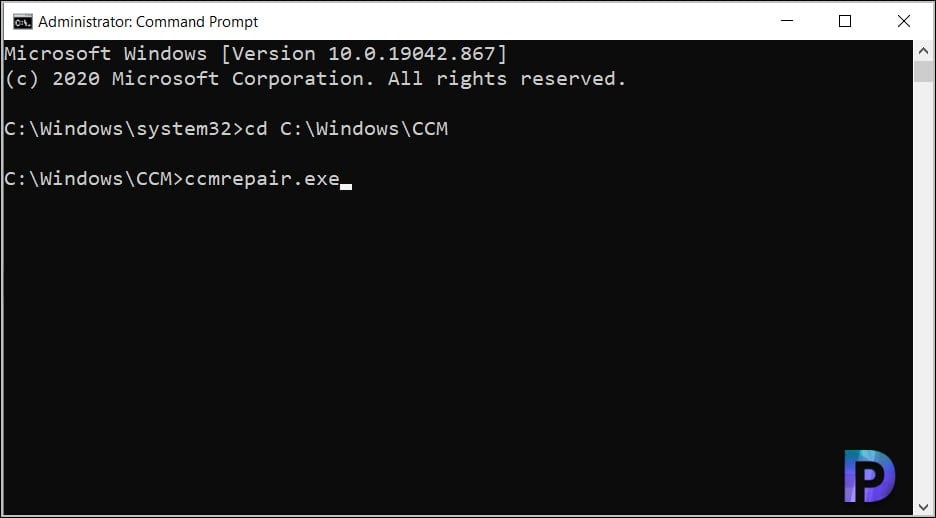
Repairing the ConfigMgr client agent typically takes only a few minutes. In this context, “repair” essentially involves reinstalling the client agent. If the status displays “Done,” it indicates that the client agent repair has been successfully completed.
C:\Windows\CCM>ccmrepair.exe
Repairing product {88B420C9-C484-4E20-8D02-C25243A36B80}…
Done.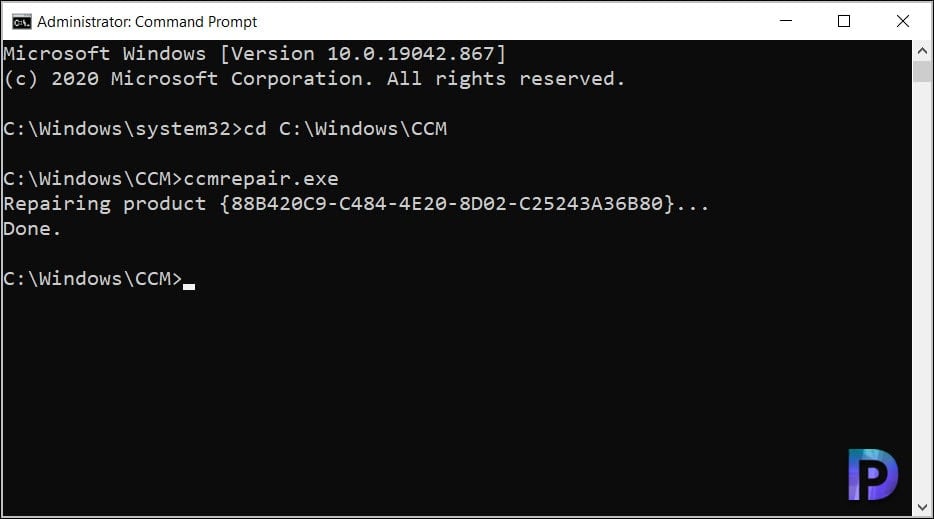
Repair ConfigMgr Client using Right Click Tools
Using the Right Click Tools, you can repair the SCCM client using the below mentioned steps.
- Launch the Configuration Manager console.
- Navigate to Assets and Compliance\Overview\Devices. Select a device for which you want to repair the SCCM agent.
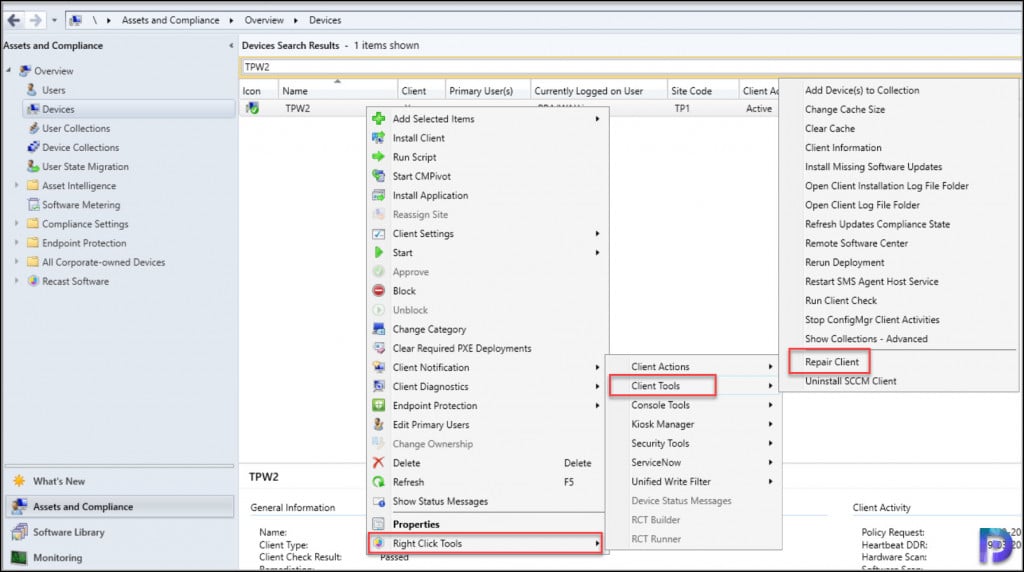
- Right-click the device and select Right Click Tools > Client Tools > Repair Client.
- You get a dialog box asking, “Are you sure you want to repair the client?“. Click Yes to proceed with repair.
Repair Configuration Manager Client via Run Script
The Run Script feature in Configuration Manager provides an efficient solution for resolving client agent issues. This method is particularly advantageous as it enables the repair of the Configuration Manager client across multiple remote computers simultaneously.
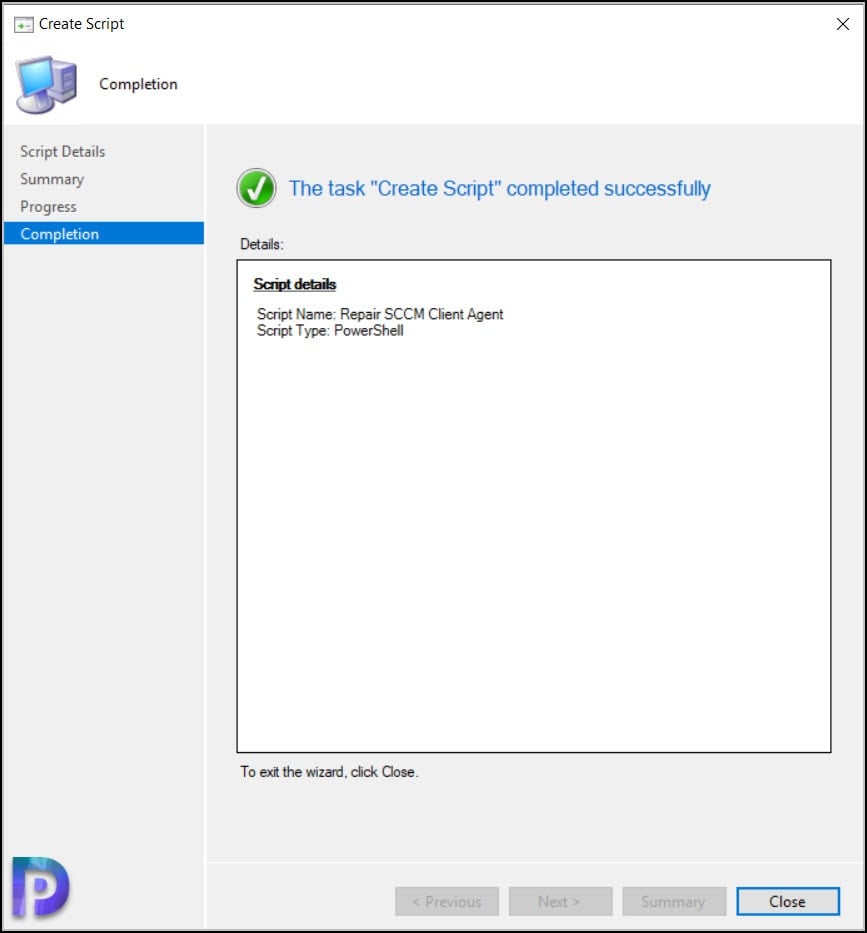
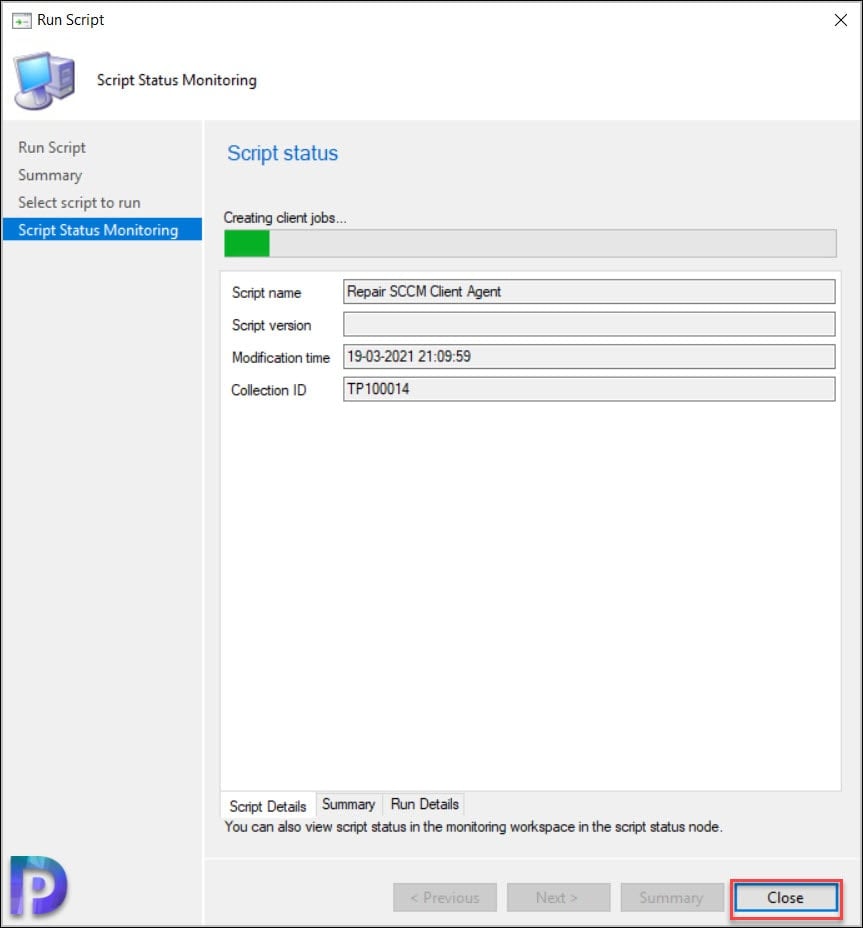
In the Configuration Manager console, go to Software Library\Overview\Scripts. Right-click Scripts and click Create Script. In the Script Details window, specify a script name such as Repair SCCM Client Agent and select the script language as PowerShell. Enter the below command in the Script Editor window and click Next.
C:\windows\ccm\ccmrepair.exe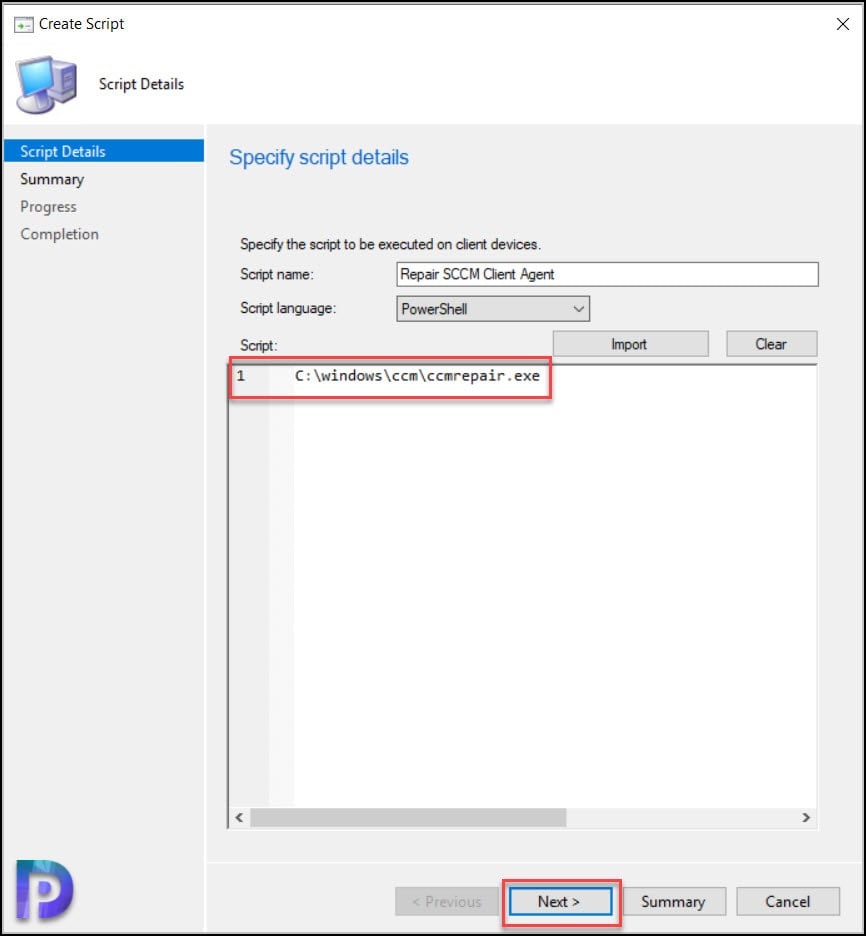
On the Completion window, click Close.
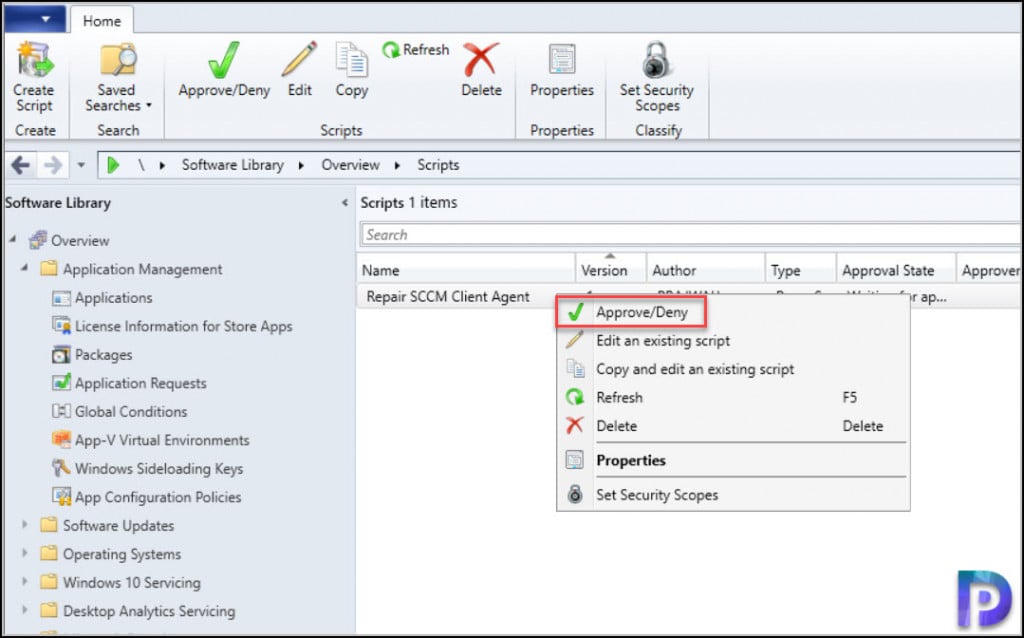
When you create a new script in Configuration Manager, you must approve the script. Occasionally the approve or deny button may be disabled. Here is a solution to fix approve deny button disabled in SCCM. Right-click the client repair script and select Approve.
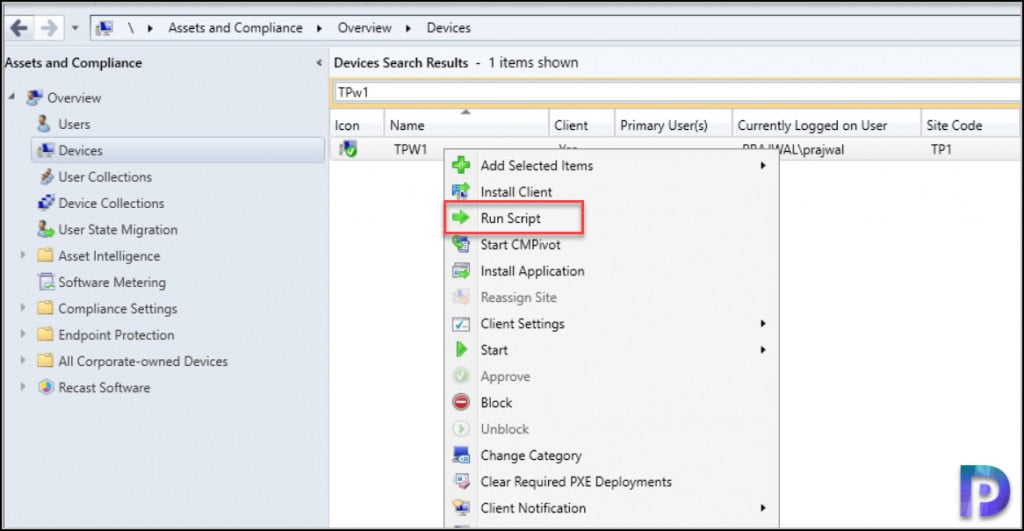
Once the client repair script is approved, go to devices. Select a device, right-click and Run Script. As I mentioned earlier, you can also run the client repair script on device collections as well.
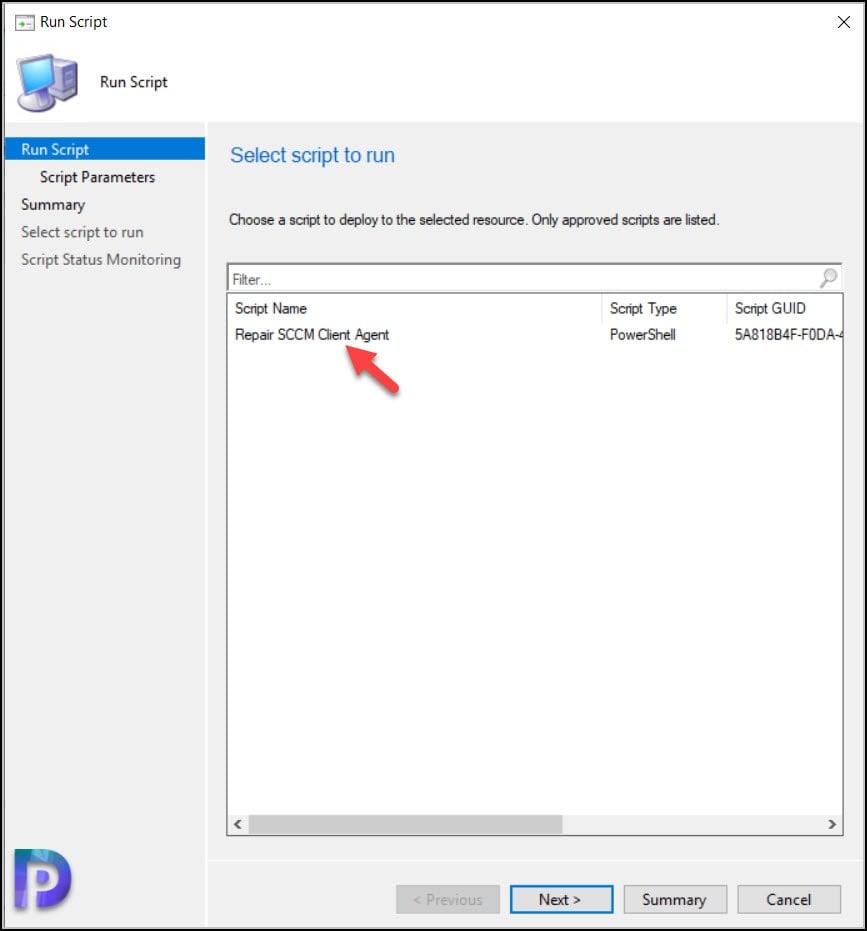
Select the repair SCCM client agent script and click Next.
Running this script will repair the Configuration Manager client agent on the device(s). On the client computer, review the ccmsetup.log to monitor the client agent repair process.
Repair SCCM Client using PowerShell Script
The following PowerShell script allows you to remotely repair the SCCM client. It is particularly helpful for repairing the agent on a computer that is situated at a remote location. To use this script, copy it to a notepad and rename it to SCCMAgentRepair.ps1. Open the PowerShell and execute this script.
# Usage: SCCM-RepairClient <TargetName>
function SCCM-RepairClient([String] $strTargetName)
{
$SCCMClient = [wmiclass] "\\$strTargetName\root\ccm:sms_client"
$SCCMClient.RepairClient()
}Repair SCCM Client using Advanced Insights
Advanced Insights by Patch My PC offers an easy way to repair client agents on remote computers. To begin, launch Advanced Insights (desktop shortcut or via the browser) and sign in with your credentials. In the dashboard, go to Devices > Managed Devices. Select the Windows device and click on Patch My PC Actions and select Repair Client.

Monitoring the Client Repair Process
You can monitor the SCCM client repair process by reviewing the ccmsetup.log on the client computer. The ccmsetup file is located in the C:\Windows\ccmsetup\Logs folder on the client computer. You can open this log file with CMTrace or other compatible log viewers. In addition, for other client logs, take a look at the SCCM log files.
The line CcmSetup is exiting with return code 0 confirms that SCCM client agent repair is completed successfully. You don’t have to restart your computer after you repair the ConfigMgr client, but I highly recommend doing that before installing a new one.

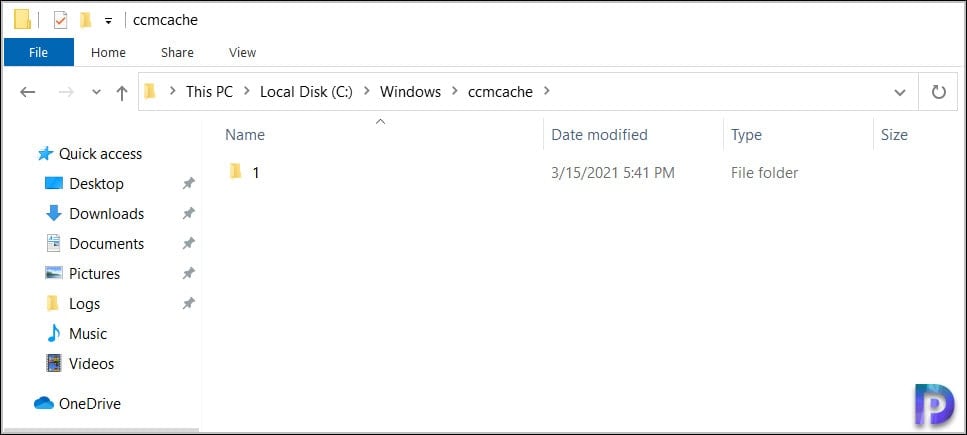
You might be concerned that repairing the SCCM client agent could delete all the folders in the CCMCache folder. However, upon verification, running the ccmrepair command via the command line retains all the folders in the CCMCache folder, which is reassuring.

If the SCCM Client is in need of repair, does the script method in the console still work? Does the script method use the CM client or some other method?
Great articile. I wasn’t aware of the ccmrepair in C:\Windows\CCM
I was able to fix a user’s issue using it! Thank you!!!
Hi Prajwal,
I am trying to run a batch script through Group Policy on systems where either SCCM client is not installed or InActive/Corrupted so in this case, first i want to check if the Client is installed & healthy. How can i check above two conditioned through windows batch file.
Hello Prajwal,
Thanks for your extremely helpful insights. I have used Right-Click-Tools to accomplish this task and that generally does the trick however I liked the idea of being able to run the script against a collection of broken client machines. I have group policy set to only allow signed scripts so I created and signed a script that only contains the line you listed above. When I run the script using SCCM it fails because I set the time to 300 seconds and it doesn’t appear to complete. I tried running the script directly via Powershell and ccmrepair.exe and ccmsetup.exe are triggered but nothing seems to happen. The ccmsetup.log doesn’t get updated and the processes just sit there in task manager. I’m not sure what is going on here so I thought I would check in with you. Since the processes are being invoked, that indicates that this isn’t a problem with the script signing policy. Why else would ccmrepair.exe and ccmsetup.exe just hang indefinitely?
What is that 300 seconds of time that you mentioned?. When you trigger a client repair from the console, it will take time to begin the repair operation. However if you are logged in to the client machine and attempting to repair, the process should begin immediately. When you begin the client repair, if the ccmsetup.log is not updated, it means the repair operation is either blocked or there could be something else. Please contact me using my contact form and I will look into this.
ccmrepair immediately fails with error code 1605, which as far as I can tell means that it think it’s already uninstalled. I suppose this particular machine is simply too far gone.
Hi, if I see in SCCM Dashboard Assets that as one host SCCM client “No”, so can I use ccmrepair.exe for fix it?
Maybe not.(
Thanks for this. I searched for this because of the clearing ccmcache issue with RCT. One thing I changed for the Run Script option in CM was Start-Process “C:\windows\ccm\ccmrepair.exe” so that it doesn’t wait for the process to finish within the PS window itself.
If the SCCM client activity is Inactive or NO still we can push the repair script?
Yes but the client may remain inactive unless you fix the root issue.
Dear Prajwal,
if I did the SCCM Client installation from a .bat file with parameters and after that I try to fix the corrupted client with CCMRepair it will keep the options?
If the high speed communication channel is still functional and sometimes it is, the run script will work just fine.
If SCCM Client is broken can we run scripts to repair it.