


Last week I received a Mac laptop and before I could install SCCM client on it, I wanted to join or bind Mac to a Windows Domain or AD Domain. To bind a Mac to active directory, you can use the steps covered in this post.
After a long time I was using Mac and honestly, I found it bit difficult to use it. Coming from Windows OS, it takes some time to understand the Mac OS but once you start exploring it, you will find it easy.
Let’s consider an example where your boss calls you into his office and says he got a new laptop. You notice that it’s a Mac and now you have to join this Mac to a Windows domain.
So what do you do now ?. Not to worry, you can join a Mac to your AD domain and I will show you how it’s done. I am currently using Mac OS 10.14 and using this article you can find out your macOS.
Before you Bind or Join a Mac to Active Directory Domain, ensure the Mac is connected to the network. You can either set a static IP address on your Mac or let DHCP assign the IP address to Mac. If your Mac is unable to communicate with domain controller, the domain join will fail.
Steps to Join or Bind a Mac to a Windows Domain
Let me now cover the steps to join or bind a Mac to a Windows or Active Directory Domain. On you Mac, click System Preferences in the Dock, and then select Users & Groups in the System section on your Mac.
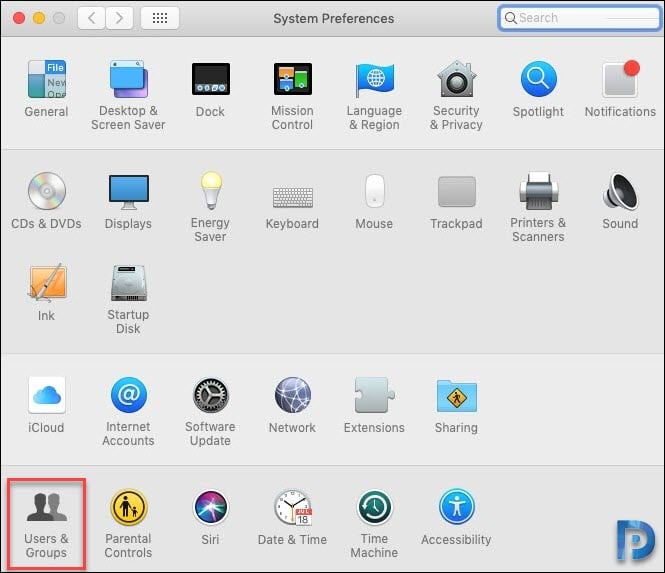
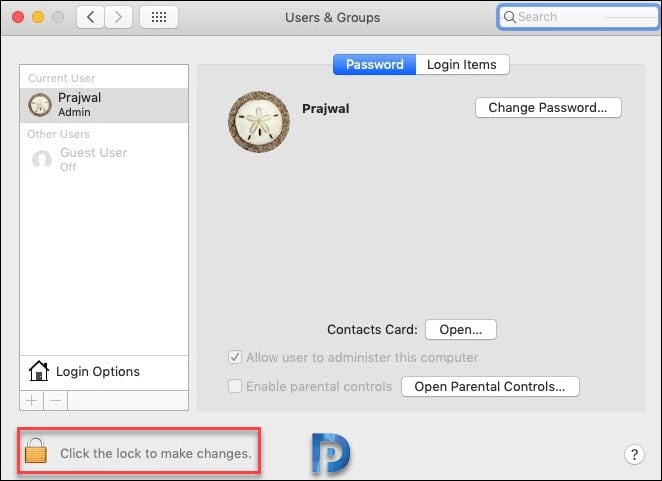
Click the Lock icon and enter an administrator username and password.
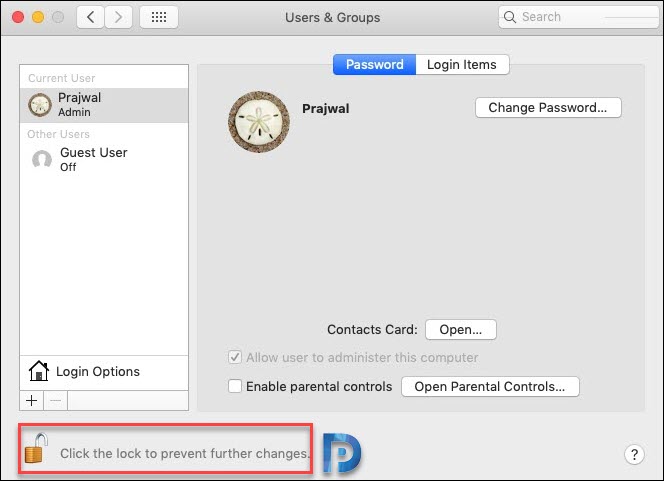
When you enter the right credentials, the lock icon now shows unlocked. You can make the changes now.
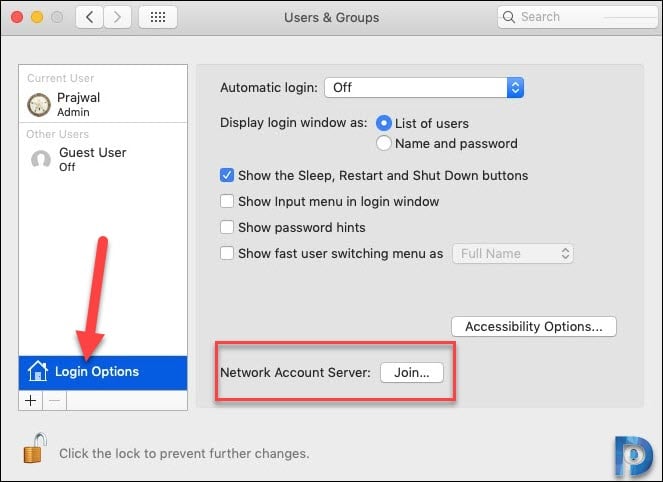
Click Login Options and then click the Join button next to Network Account Server option.
Click the Open Directory Utility… button.
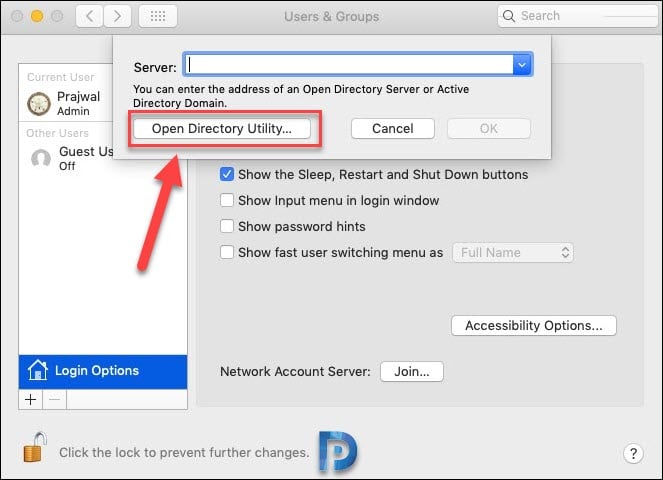
You see two options under Service – Active Directory and LDAPv3. However both of them are greyed out. Click the Lock icon and enter an administrator username and password again.
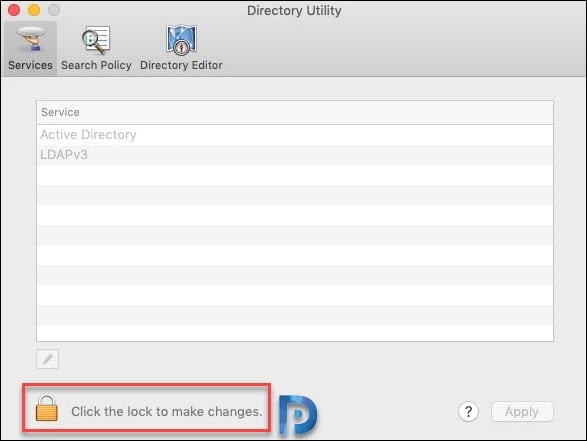
Select Active Directory, and then click the Pencil icon.
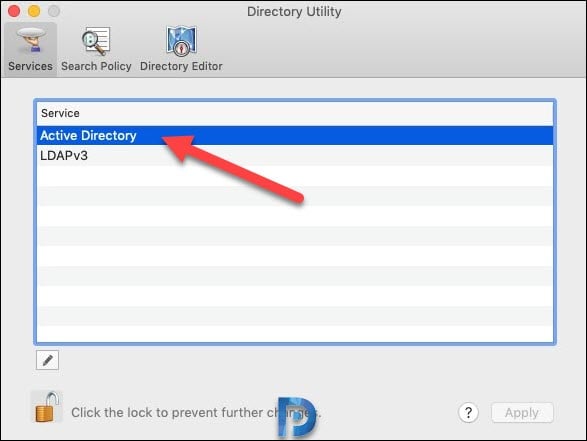
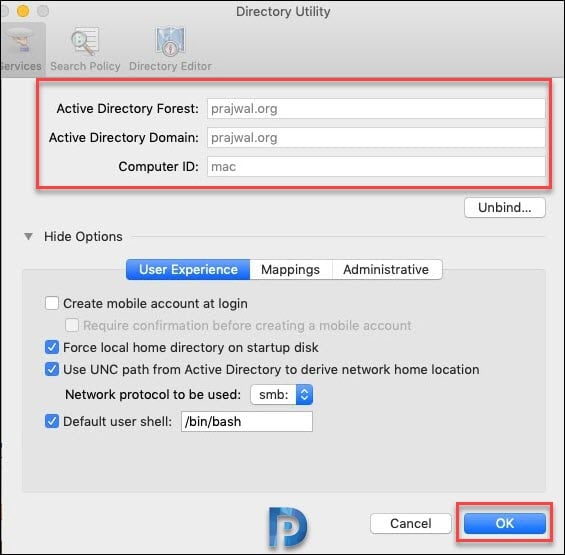
Enter the Active Directory domain name. You can specify a new computer ID if required. Click Bind.

Specify an account and password that will add this Mac to the domain. Click OK.
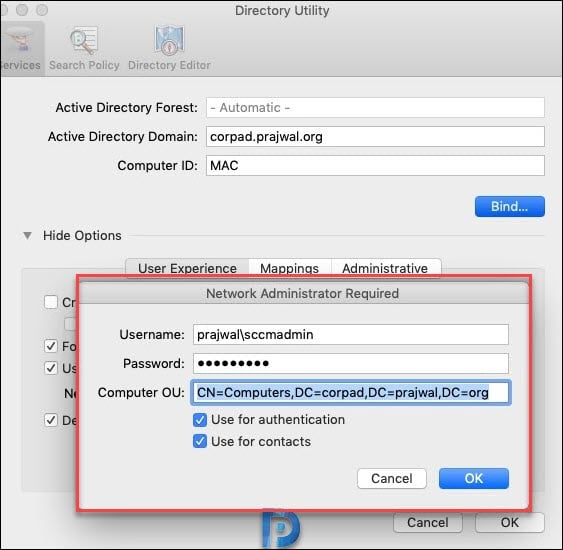
We have successfully joined the Mac to Active Directory domain. Click OK.
Finally we got the Mac added to the domain. We can now see the domain name next to Network Account Server. Reboot your system to apply the changes.


Is it safe to add a Mac computer to a windows domain? I heard that you can’t log out of teams on a Mac once it’s opened and tons of temp files get left on the server using outlook on your Mac. Are there any other challenges to adding a Mac.
There should be no issues joining Mac to AD domain. Where did you read about the teams issue?.
Hi,
how to push or deploy GPO from Windows Server to MAC book.
I’m getting error as “Authentication server could not be contacted.” while binding
I have added DNS with AD sever IP and created krb5.conf file at /etc/krb5.conf
Still getting error, what could be the issue?
Prajwal, I am setting this up remotely, I am able to bind the MAC to the domain with no issue and when I reboot I only get the local user log in. How do I get the domain account to be the login on a user that is remote?
There’s an option called ‘create a mobile account at login’. Use that. It will prompt you for AD username and password which will be cached in the device.
Will you be able to log into the account if the Mac is off premise?
hi chris, did you ever find the answer to this? going to be adding a mac today.
Thanks for sharing the valuable information.
Thanks